
What OnAirCut is
OnAirCut is two apps in one, for Mac. The Live Switcher changes your ATEM’s cameras to whoever is talking, reading each microphone on its own from a multichannel USB console. The Podcast Editor builds the multicam edit of a recording for Final Cut Pro, Premiere Pro or DaVinci Resolve, without cutting by hand.
What you need
- A Mac with Apple silicon (M1 or later) and macOS 14 Sonoma or later.
- For the Live Switcher: an ATEM — any of the family — connected by USB or Ethernet, and a USB console that sends one person per channel to the Mac (a Mixcast 4, for example). A console that only sends the stereo mix isn’t enough.
- For the Podcast Editor: one audio file per person (or a multitrack file with one person per channel) and each camera’s video. It doesn’t need the ATEM or the console.
Public beta
OnAirCut is in public beta until December 31, 2026: it’s still being developed. If something fails, every error carries a code — press Copy details and send it through the contact form.
What stays on your Mac
- The console’s audio is analysed on your Mac, as it happens, to know who is talking. It’s only written to your disk when you record — with ▶ while Always REC is on (it comes on by default), or with ● REC if you turn it off — and it never leaves the Mac, nor is it used to train anything.
- The ATEM is controlled over your local network or USB, never through the internet.
- Your sessions, recordings, videos and edits stay on your Mac. The editor reads them from your disk and writes its exports next to them.
- The app goes online only to check the licence and to look for updates (on from the factory; it can be turned off in Settings). Fault reports are sent only if you ask. The details are in the privacy notice.
Opening it
The first time, macOS asks for permissions. Allow them: the microphone, to read the console, and the local network, to find the ATEM over Ethernet. The camera is asked for only if you turn on the ATEM preview.
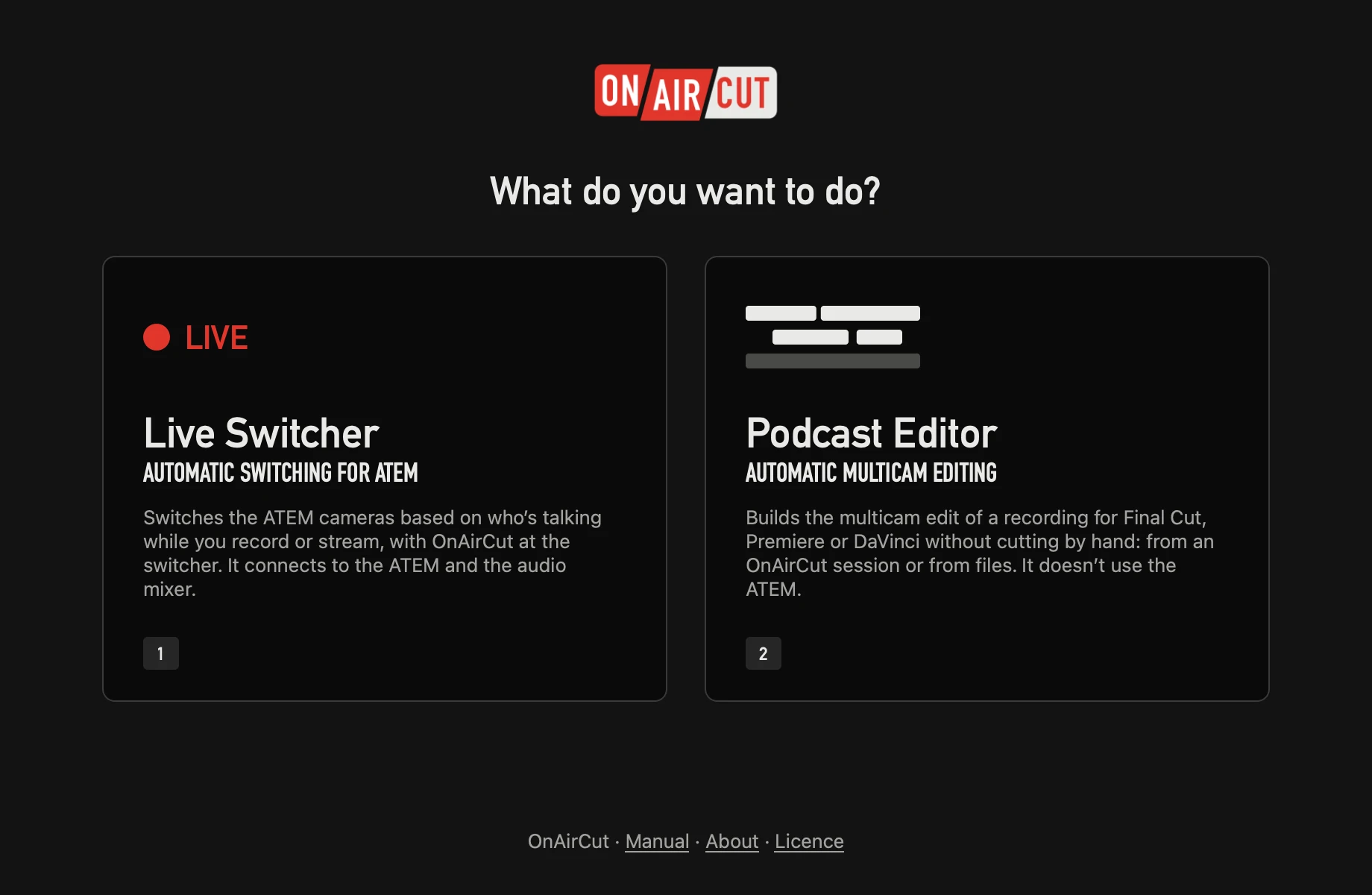
- Live Switcher (key 1) switches the ATEM’s cameras by who is talking. It connects to the ATEM and the console. Only one copy can run live: two apps sending cuts to one ATEM would fight.
- Podcast Editor (key 2) builds the multicam edit of a recording. It doesn’t use the ATEM or the console, so it opens even while another copy is on air. Closing it brings you back here.
- At the foot: Manual (this manual, in your browser), About (the trademarks and every third-party licence) and Licence.
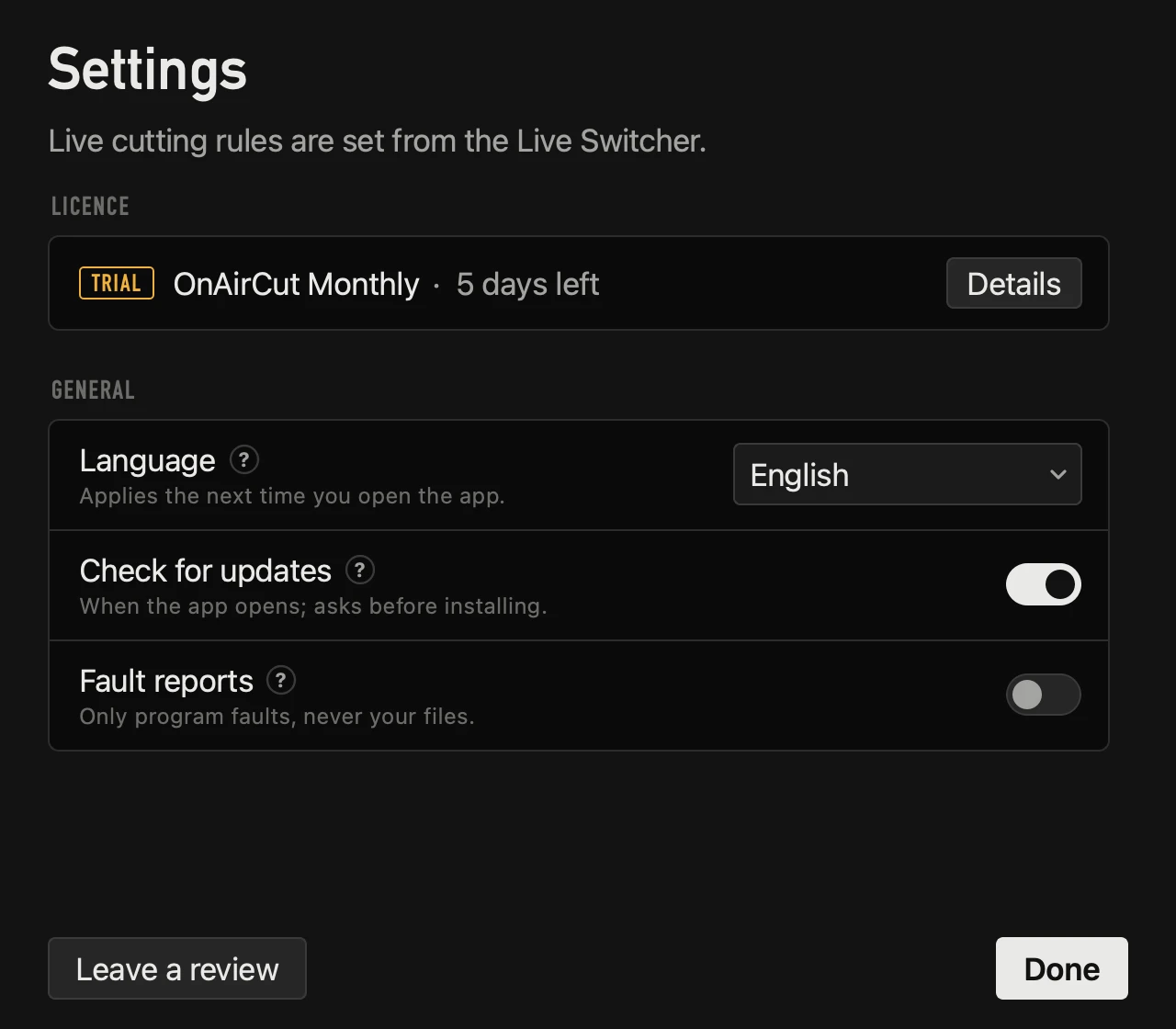
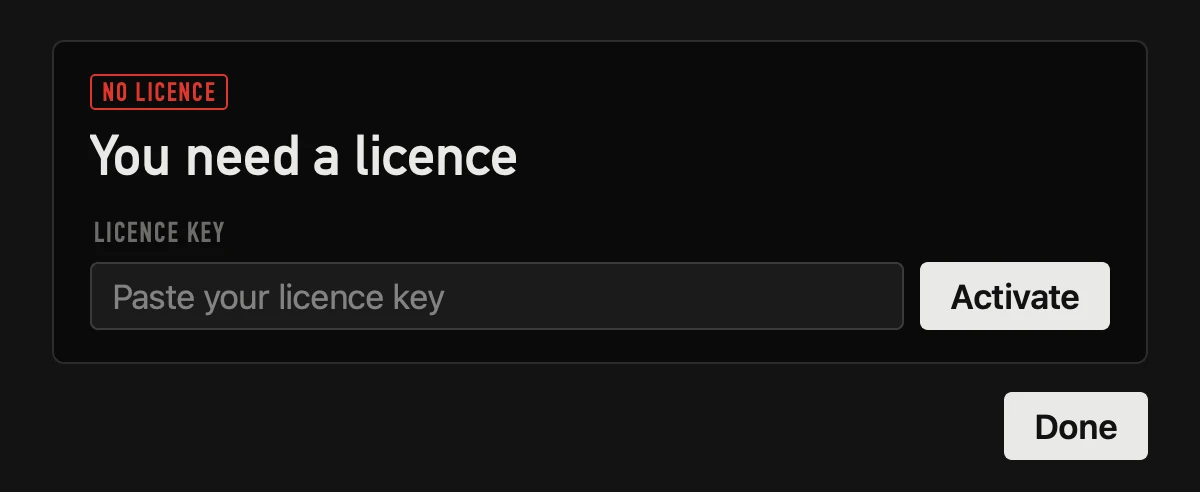
⌘, opens Settings from here too. Without the live window open, it shows only the licence and the language:
Connecting the ATEM and the console
Open the Live Switcher with the ATEM and the console plugged in. OnAirCut finds them on its own and shows them at the right of the top bar:

- The ATEM: its model and whether it’s on USB or the network. It looks on USB first and then on the network, and reconnects by itself if the cable or the network drops. If your ATEM is on another network, Devices → Use a fixed IP….
- The console: click it to choose another input. If it’s unplugged or plugged in after opening the app, OnAirCut picks it up again on its own.
- Any ATEM model works: Mini, Mini Pro, Mini Extreme, SDI, SDI Extreme ISO, Television Studio… On connecting, the app sees how many inputs it has and adds them under Cameras, unticked: tick the ones with a camera.
The connection to the ATEM is OnAirCut’s own, written from scratch: no third-party software sits between the app and your switcher. A cut reaches the ATEM in about 40 ms.
The live window
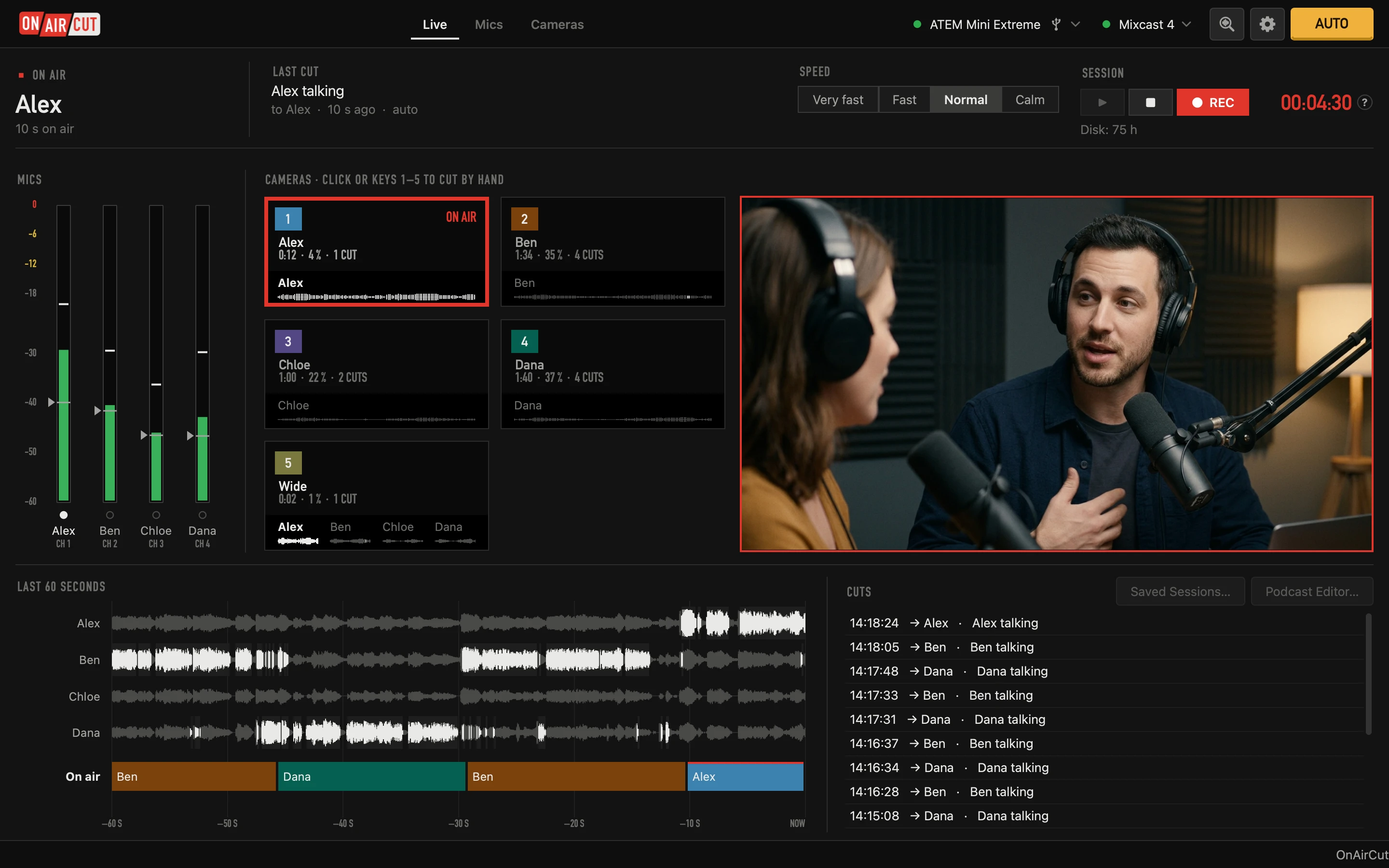
The top bar
- The pages: Live, Mics and Cameras.
- At the right: the ATEM, the console, Analyze (the magnifier over a waveform, which opens the assistant), the gear for Settings (⌘,) and AUTO, which turns the automatic switching on or off.
The strip, on every page
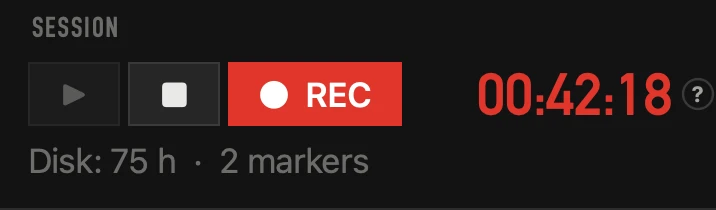
- On air and for how long.
- Last cut, with its reason and how long ago — it doesn’t change every second, so you can read it.
- Speed and the session, like a recorder: ▶ starts it, ■ stops it and ● REC records. ■ only works with the session running. With Always REC (Settings → General, on by default), every ▶ records too and the recording goes with the session: ● REC doesn’t stop it, only ■, which asks first. If you turn it off, ● REC pressed before ▶ stays armed and records as soon as the session starts; pressing it again disarms it.
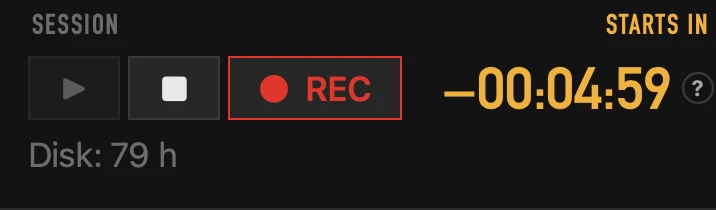
- The clock starts at zero when recording starts (the tests before don’t count) or when you decide (⌘T), right away or with a countdown first — in amber, with a “−” and “STARTS IN” above it, in step with the guests’ clock. With a countdown, recording starts at zero: meanwhile ● REC shows armed, and pressing it records at once. The clock turns red while recording and stays at the final time when it stops. Click it to open the recording clock in its own window.
- Under it, how much recording fits on the disk (“Disk: 9 h”), in amber when it’s less than an hour, and how many markers the recording has.
- Notices (the pause after a manual cut, AUTO off) appear once, discreetly, at the bottom. If something needs setting, the notice brings its Fix… button.
Live
- Mics: the meter bridge, one meter per mic, with a white light on whoever has the floor. With more than 6 mics the meters get narrower so you see them all (up to 12; with more, the bridge scrolls sideways).
- Cameras: one monitor per input, like the ATEM’s multiview. Red border = on air, green = what’s coming. Below each one, the meters of the people it shows. A click cuts to it. With more cameras the monitors get smaller and simpler; if they no longer fit, the program gives way a little, so none overlaps.
- The program: the ATEM’s output, live, when the ATEM preview is on (see Settings → General). It comes over the ATEM’s USB-C cable: over Ethernet alone there’s no picture.
- Last 60 seconds: who spoke and which camera was on air. It explains every cut. When you stop (■) it stays as it was, until the next ▶. With many people the rows get thinner so everyone fits.
- The cut log: the automatic cuts, yours and the ATEM’s. Above it, Saved sessions… and Podcast Editor… (with the session stopped).
Mics
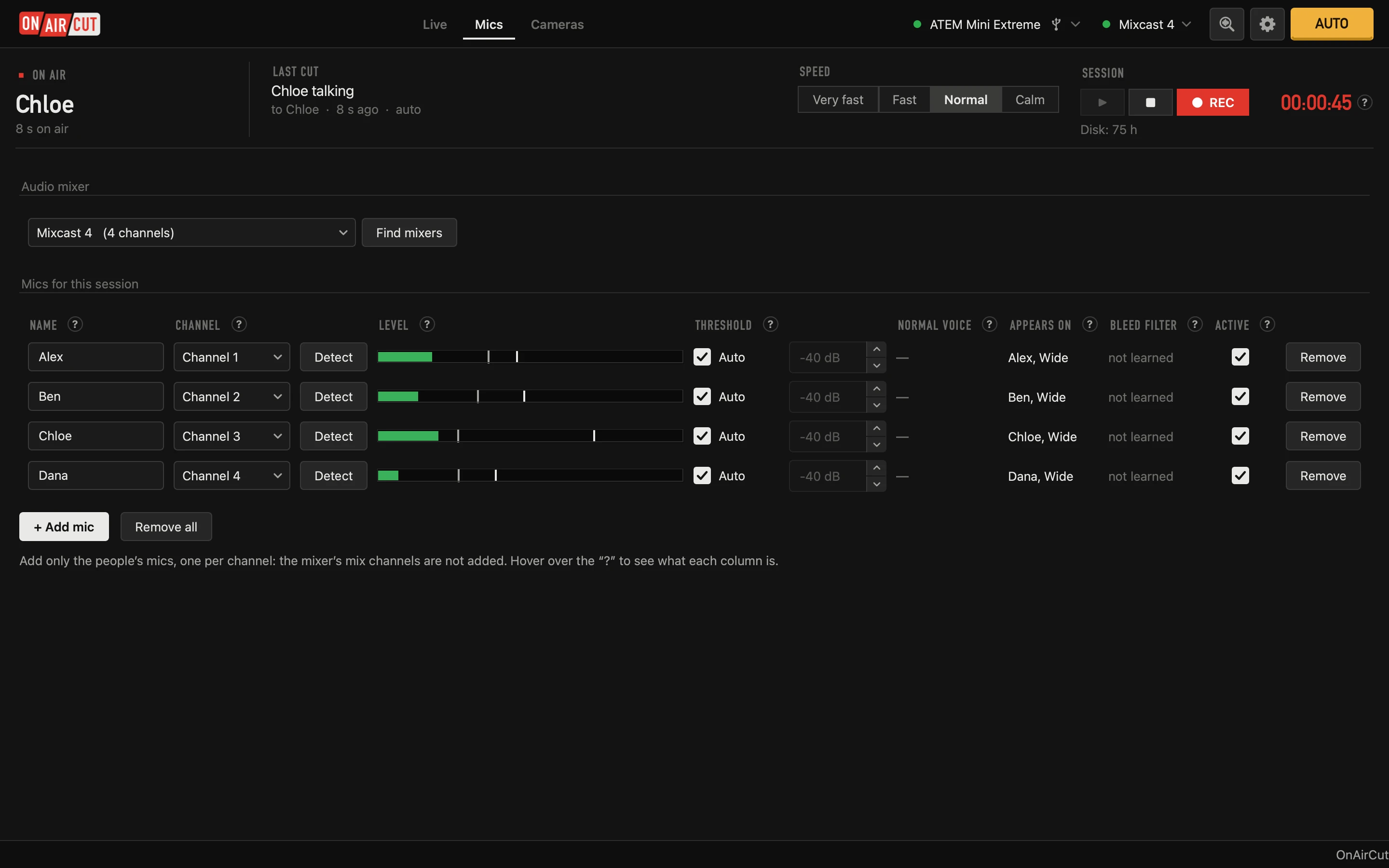
- The meter bridge, in dB. The white LED says who is talking.
- The triangle is each mic’s threshold: grey = automatic, amber = set by hand.
- A click or a drag on the meter sets it by hand; a double-click returns it to automatic. A click on the name changes nothing.
Cameras
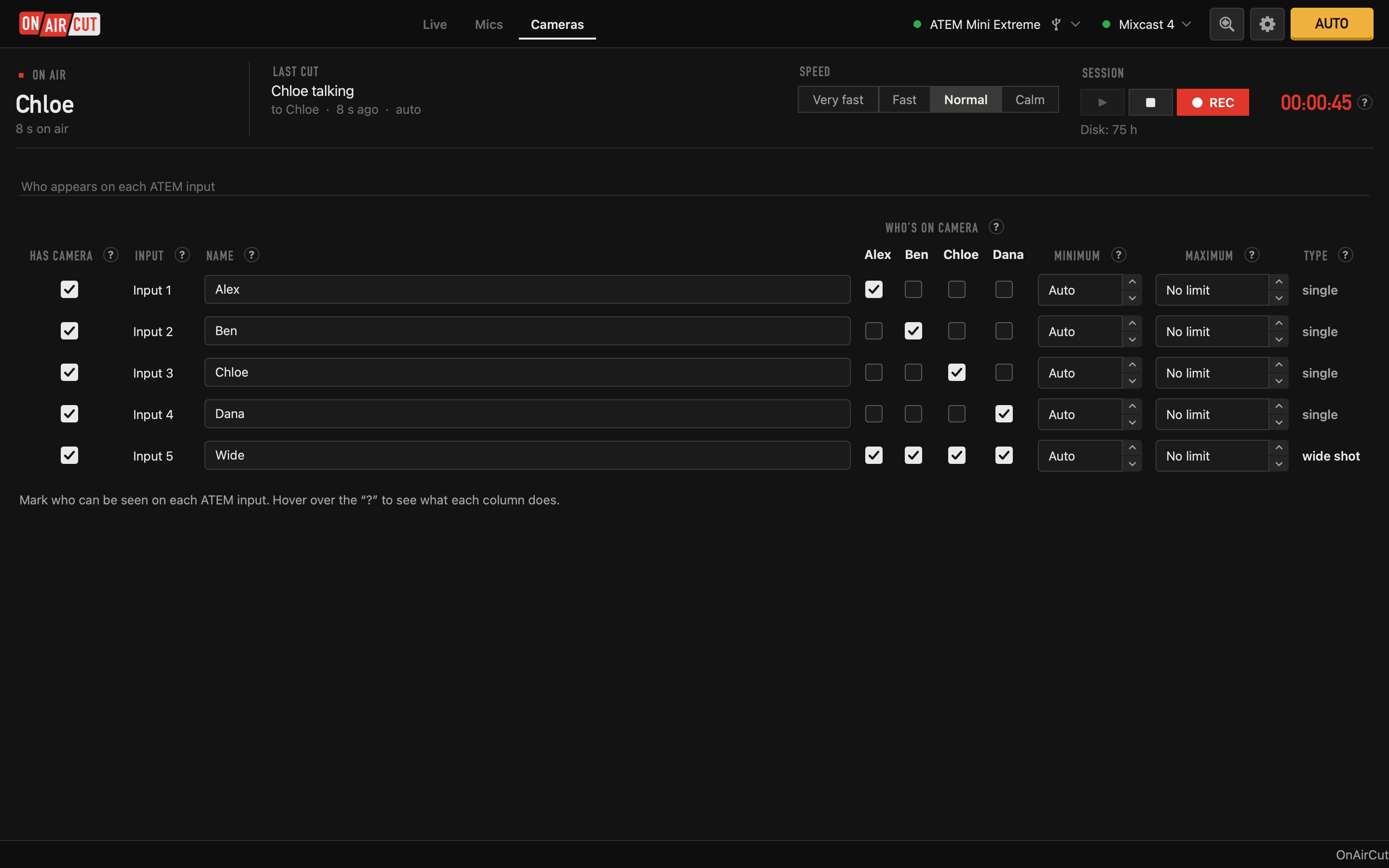
- Each input with a camera, who it shows, how long it’s been on air, what % of the time and how many cuts. The counters start from zero when you record a session, or from Session → Reset camera counters.
- Minimum: how long that shot lasts at least. Auto uses the one in Settings.
- Maximum: if someone stays on the same camera for a long time, the app puts up a variety shot for about 4 seconds and comes back. From a single shot it goes to the tightest camera with more people (a shared one or the wide); from a group shot, to whoever is talking. Recommended: 60 s on single cameras.
The ATEM preview
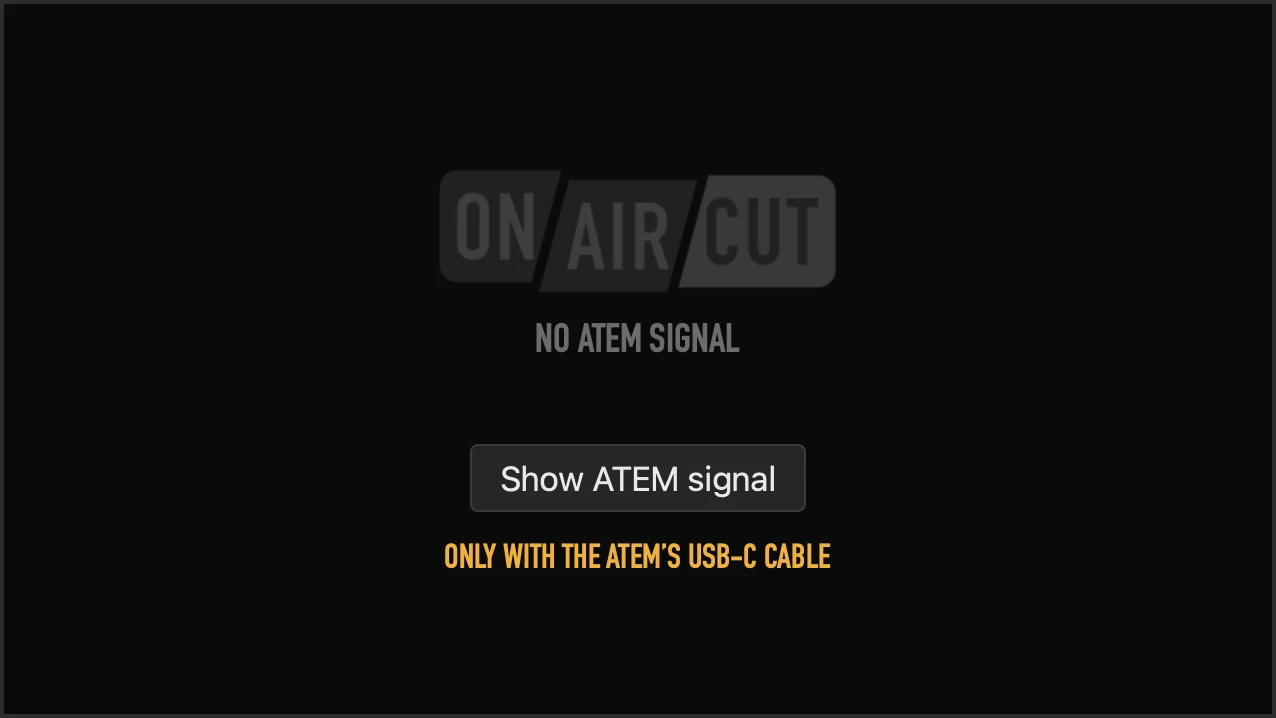
The big monitor at the right, the program, can show the output the ATEM sends over USB-C as a webcam: press Show ATEM signal (or turn it on in Settings → General, or View). It’s off by default; the first time, macOS asks for camera permission. macOS lets several apps use that camera at once, so OBS keeps working the same.
The preview needs the ATEM’s USB-C cable. Over the network (Ethernet) the ATEM sends the Mac no video, only control — the same for OBS. If you control it over Ethernet, plug its USB-C cable into the Mac too: OnAirCut can control it over the network and show its program over USB at the same time. While the Mac doesn’t see that cable, the monitor says so in amber: Only with the ATEM’s USB-C cable.
The assistant: Analyze, once per profile
Press Analyze in the top bar (or Devices → Analyze (assistant)…). In a few minutes it learns which mic belongs to whom, which camera shows whom, the room’s noise and each voice. You do it once per profile; when the studio changes, run it again. Opened from ▶, it can be skipped with Skip and start.
Step 1 · Mics
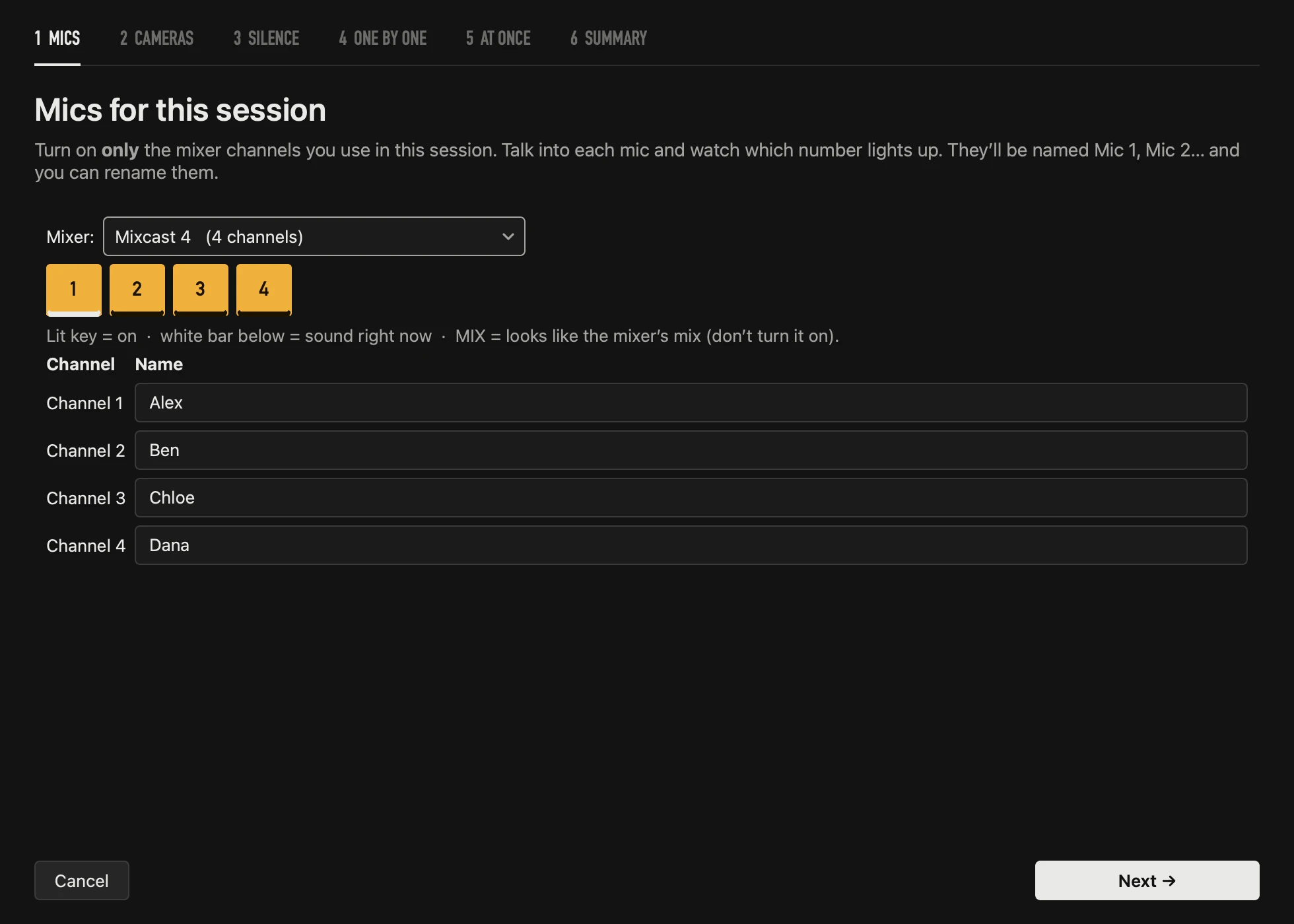
Turn on, in the row of keys, only this session’s channels. Talking into a mic lights a white bar under its number, so you can tell which is which. Two neighboring keys marked MIX always sound exactly alike: that’s the console’s stereo mix, so leave them off. OnAirCut doesn’t guess the other channels: you know which mic is whose.
Step 2 · Cameras
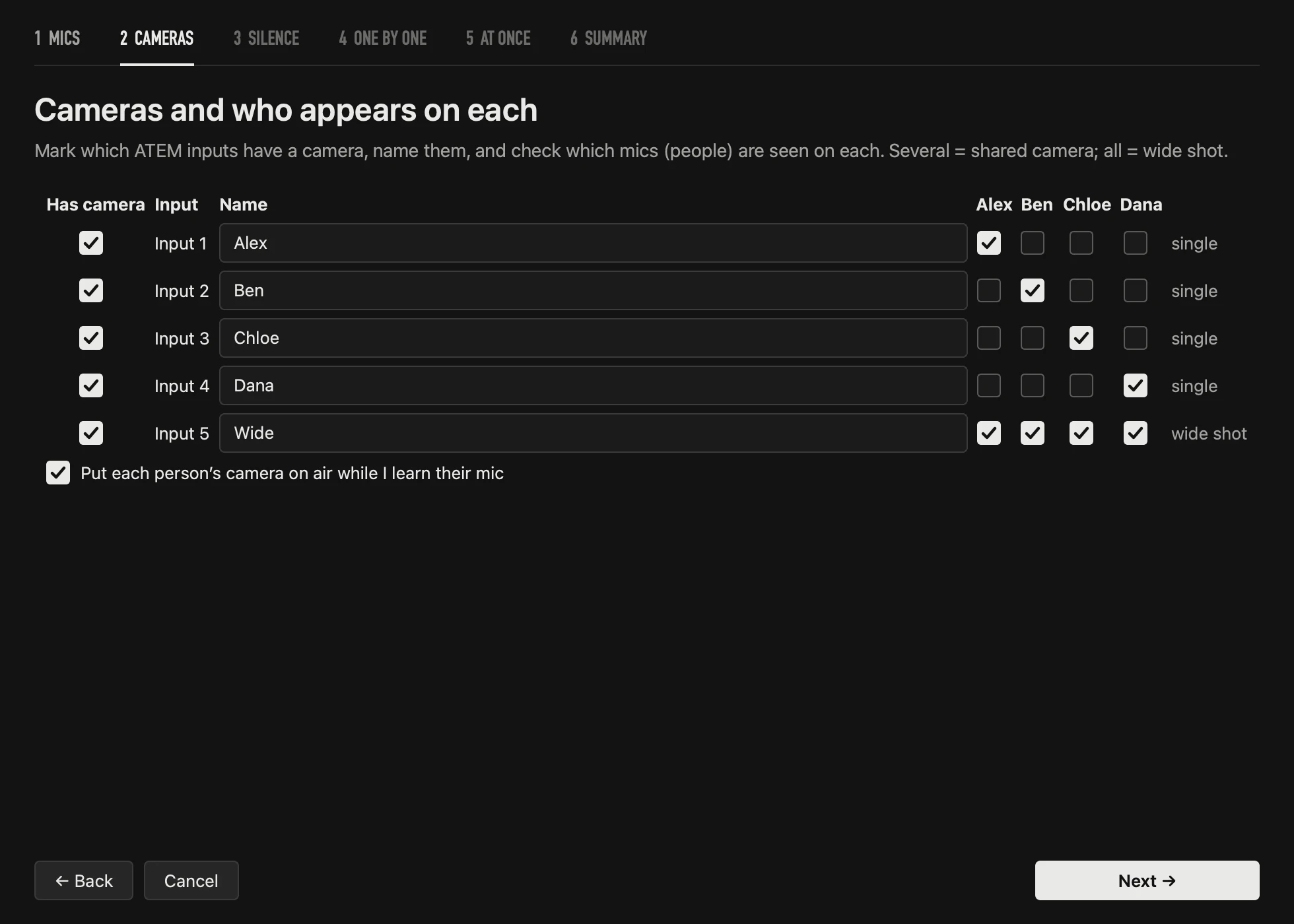
- Mark the inputs that have a camera and give them a name.
- Tick who appears on each one. One person: their single shot. Several: a shared camera (used when any of them talks). Everyone: the wide shot. Nobody: the input is used only by hand.
Step 3 · Silence
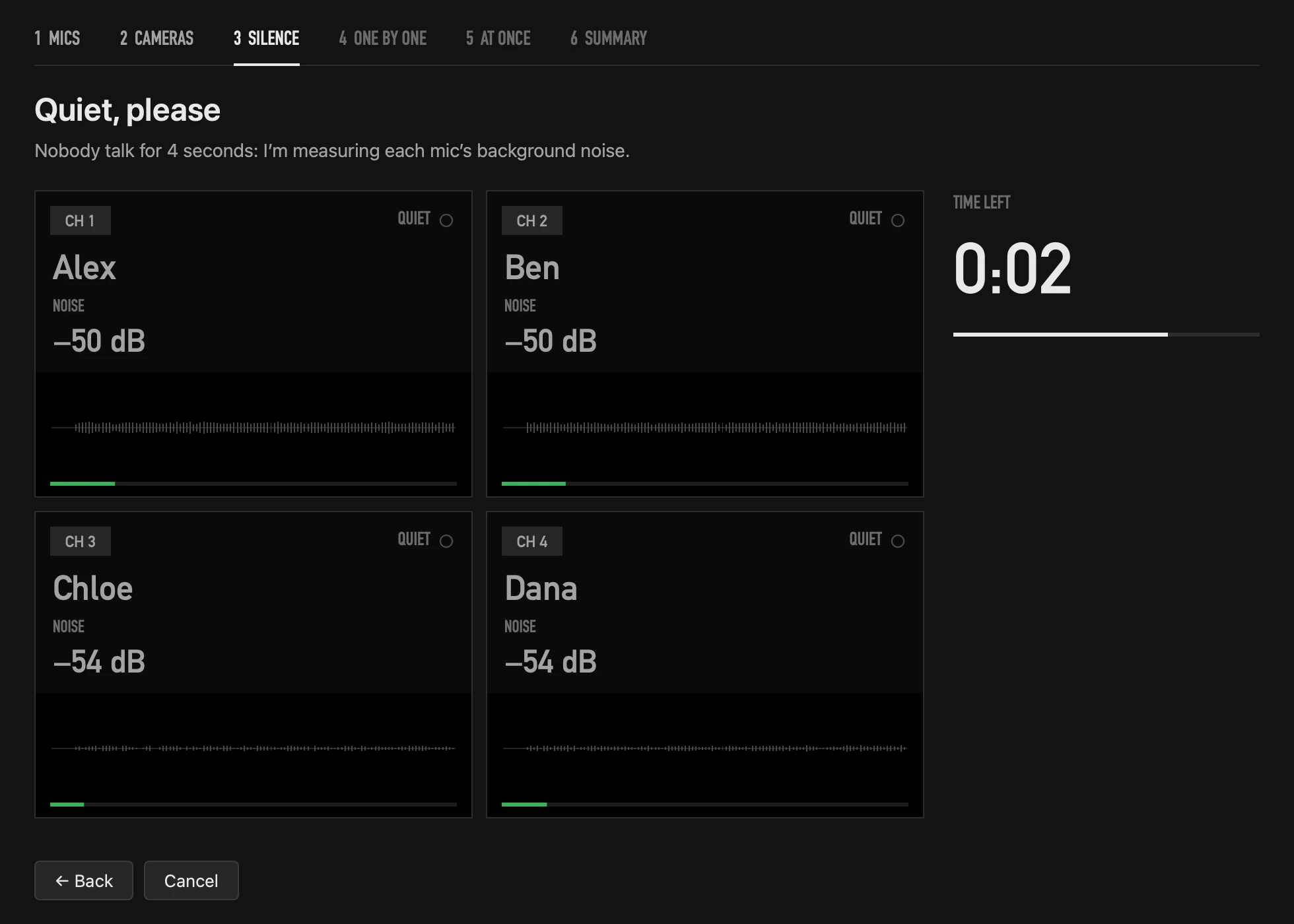
Four seconds with nobody talking: it measures each mic’s background noise (air conditioning, hum), so noise never counts as a voice.
Step 4 · One by one
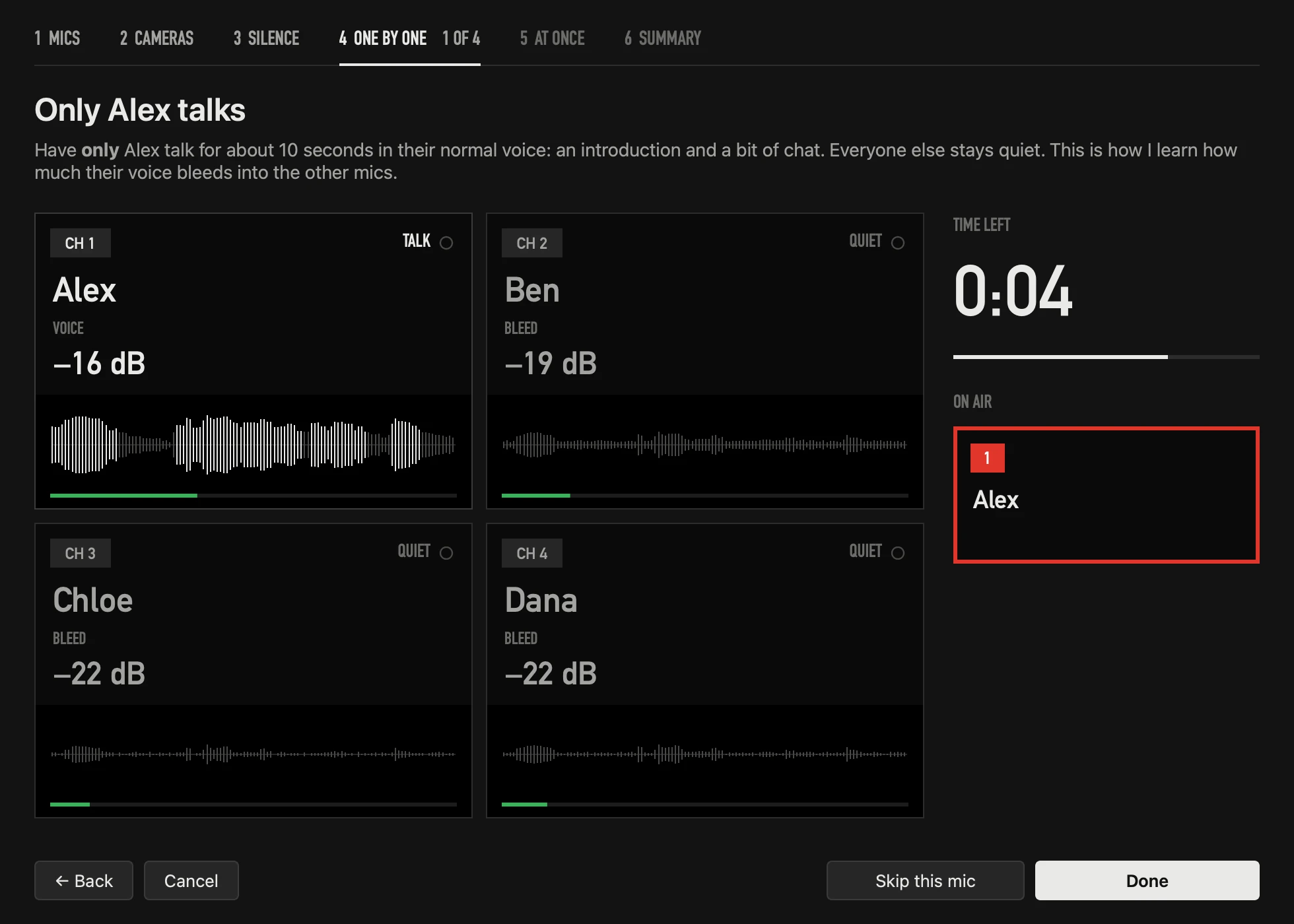
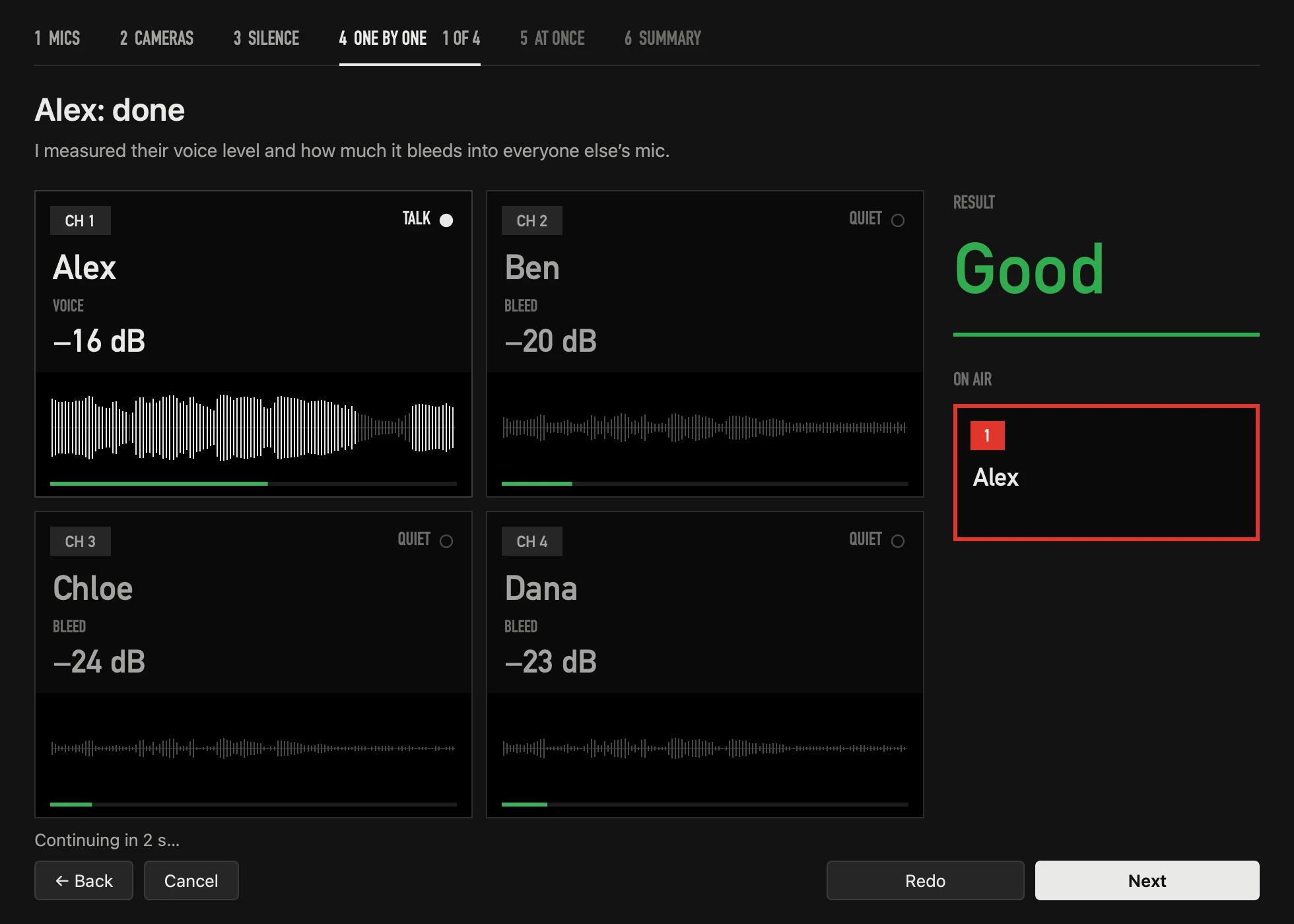
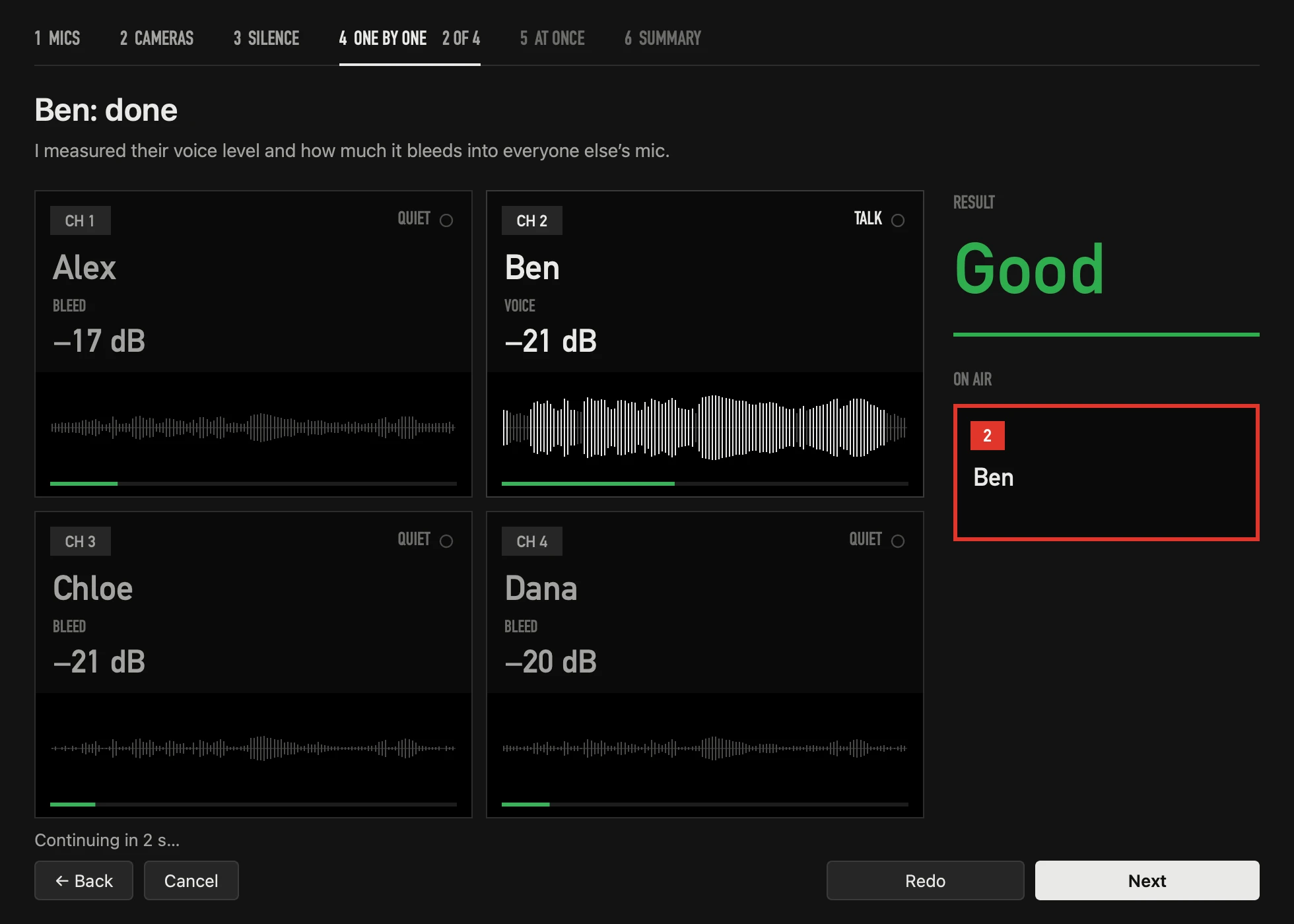
Each person talks alone for about 10 seconds (from 6 seconds you can carry on). The app confirms their channel, measures their normal level and learns how much of their voice leaks into the other mics — the bleed. Then the next person:
Step 5 · At once
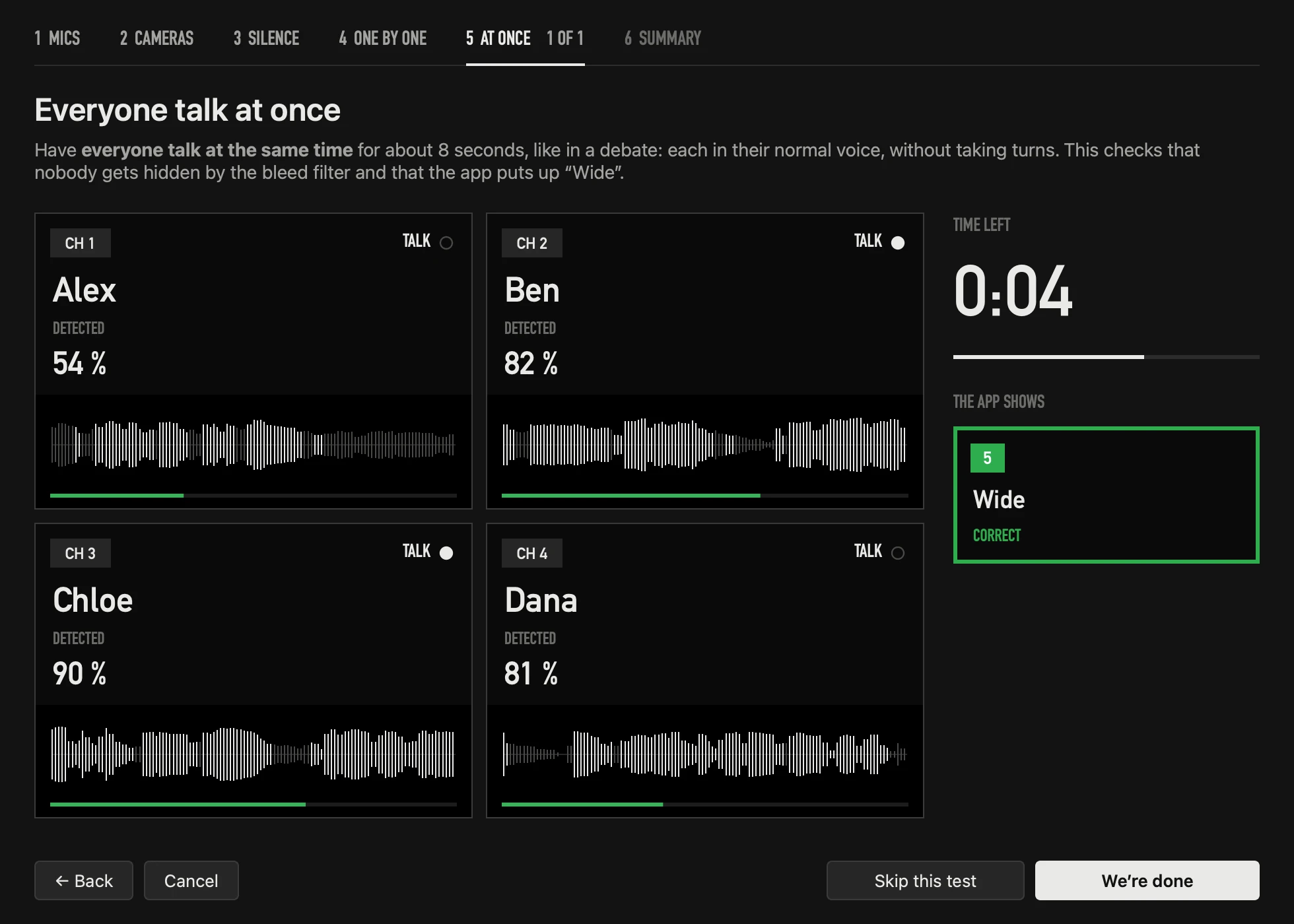
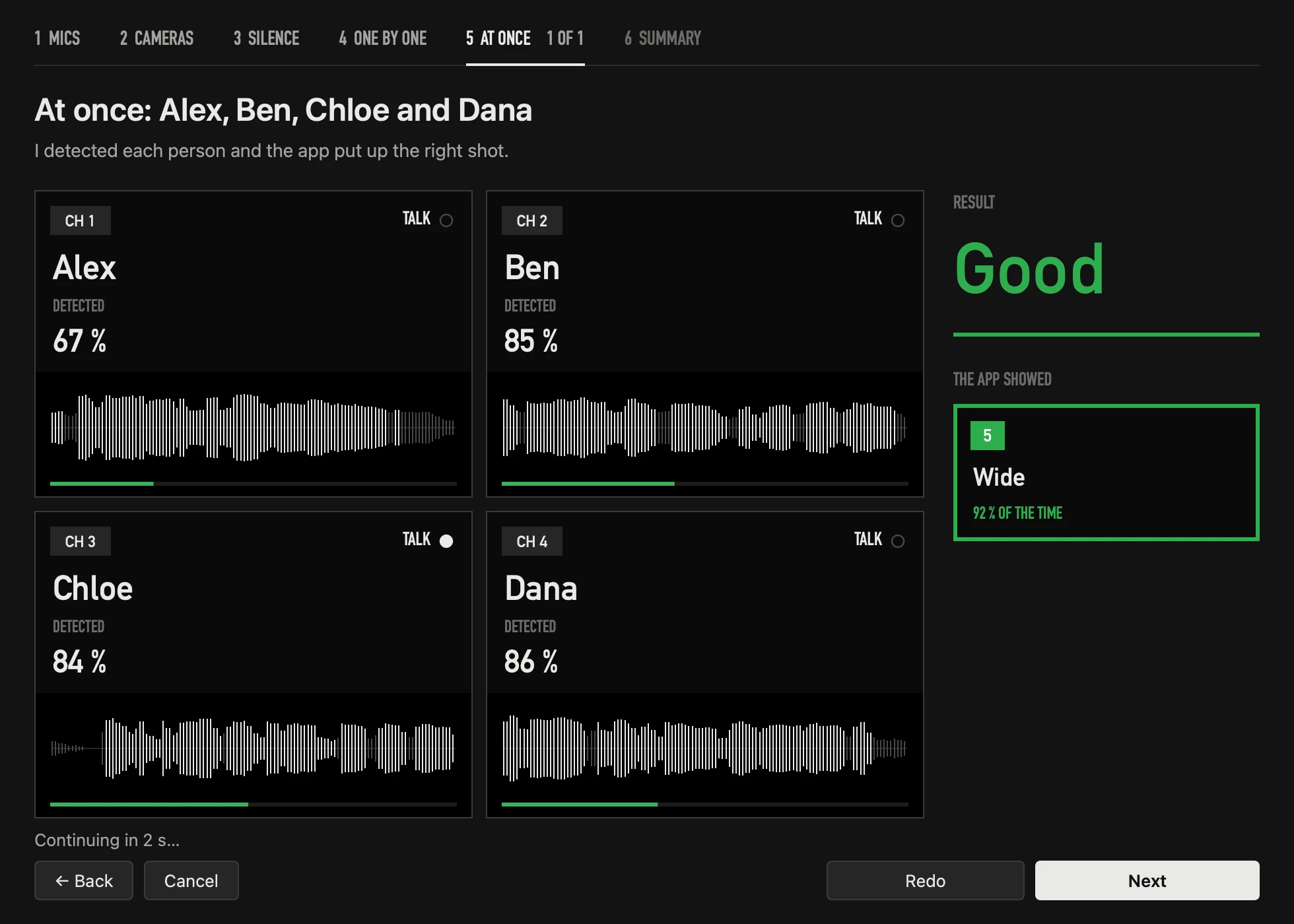
- About 8 seconds talking at once — first the people of each shared camera and, at the end, everyone, like an argument.
- In the photo, four people and only the wide shot to share: a single test (1 of 1), with a card per mic — one per person. With more mics, the cards get smaller so they all fit.
- Each person has a card with their waveform and a voice light. At the right you see live which camera the app would put up, with a green frame when it’s the right one.
- If the bleed protection hides someone who talks softly, the app loosens it just enough, without letting in the bleed it measured with each person alone. If even so someone stays hidden, it says so: move their mic closer or the mics apart.
Step 6 · Summary
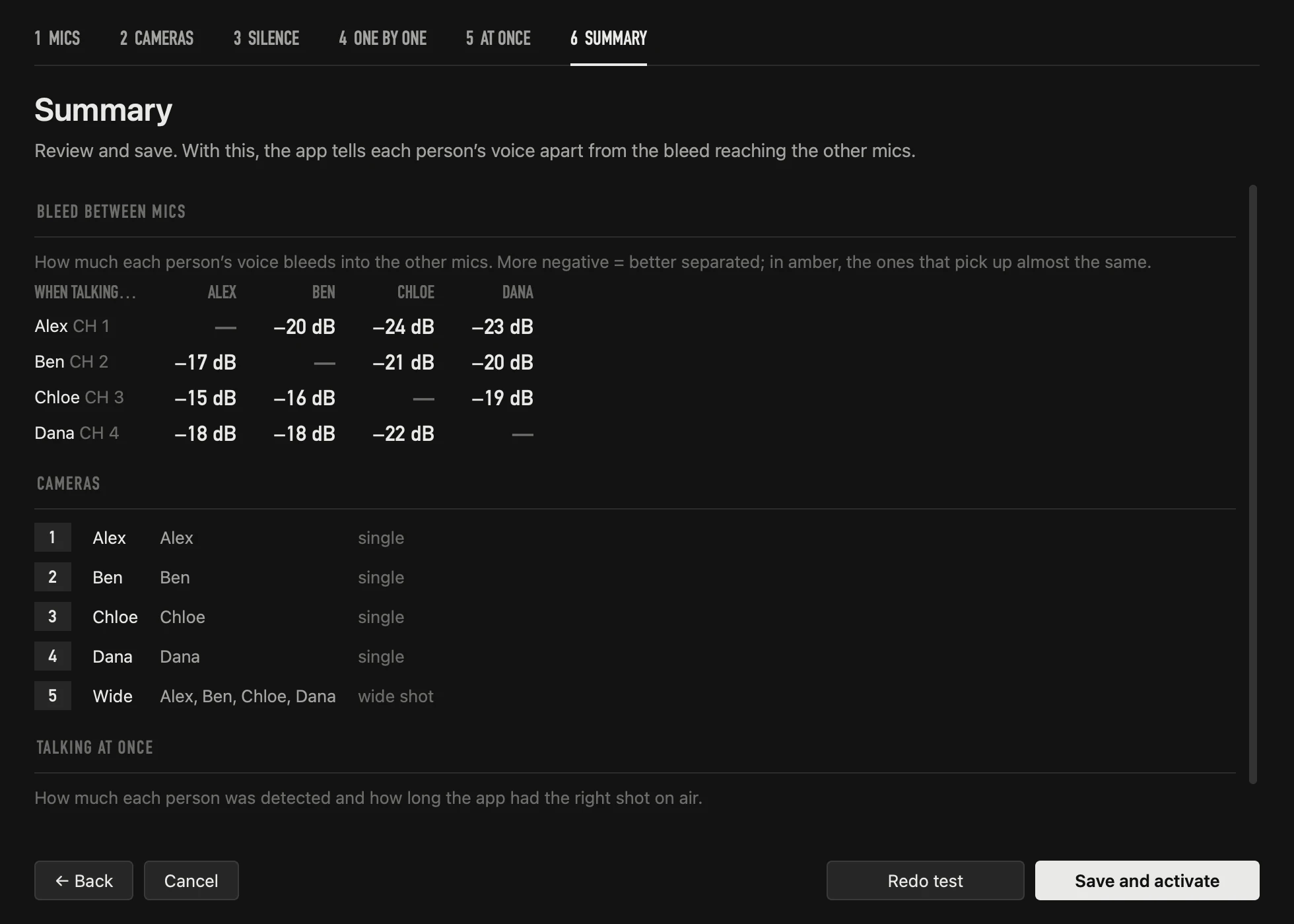
The bleed table, the result of the tests at once and any warning. Save and activate: AUTO switches on.
How it decides
- One person talks: the tightest camera they appear on.
- Several talk at once, sustained (1.5 s by default): the tightest camera that shows all of them. The wide shot when at least the number you set talk, or everyone.
- A short “uh-huh” or a brief comment doesn’t take the shot from whoever has the floor.
- If someone off camera clearly carries the conversation for a while, it goes to them.
- Silence: stay, go to the wide shot or go to a camera you choose.
- It respects the operator: after a manual cut — in the app, with the keys or on the ATEM — it waits a few seconds. It never cuts over a logo, black or the media player you put on air from the ATEM; Resume auto ends that pause.
The four speeds
Speed sets four times at once. If you change one by hand, it becomes Custom.
| Speed | Confirm the new shot | Voice start | Voice end | Minimum time per shot |
|---|---|---|---|---|
| Very fast | 150 ms | 80 ms | 400 ms | 1.0 s |
| Fast | 200 ms | 100 ms | 500 ms | 1.2 s |
| Normal (default) | 350 ms | 150 ms | 700 ms | 2.0 s |
| Calm | 600 ms | 200 ms | 900 ms | 3.0 s |
On a real 66-minute session with three people, Normal had the right camera on air 93 % of the time, with no shot under 2 seconds and fewer false cuts than Fast.
It learns during the show
- Each person’s level: if someone starts shy and then opens up, or lowers their voice on a delicate subject, the app follows their normal level. Everyone is compared with their own voice, so a loud guest doesn’t take the shot from a quiet one just by talking louder.
- Bleed: if someone moves their mic closer or further, the bleed is learned again — only when one person is clearly talking alone.
- Closer or further: if someone leans back from their mic or comes closer during the show, the app notices and keeps them on camera, instead of going to the wide shot as if everyone were talking. When two people really talk at once, it still opens the shot.
- Constant noise (air conditioning, hum) isn’t mistaken for a voice.
- What it learns is saved every 2 minutes and on closing. It can be turned off: Settings → Voice detection → Learn during the show.
Settings
⌘, or the gear opens Settings. Every setting is a row with its name, a short line and its ?, which explains it when you hover. The window doesn’t block: the live view keeps running while you adjust. On the left go the rules of the active profile, the ones that decide the cuts; on the right, what applies to every profile: General, the Recording clock and its look.
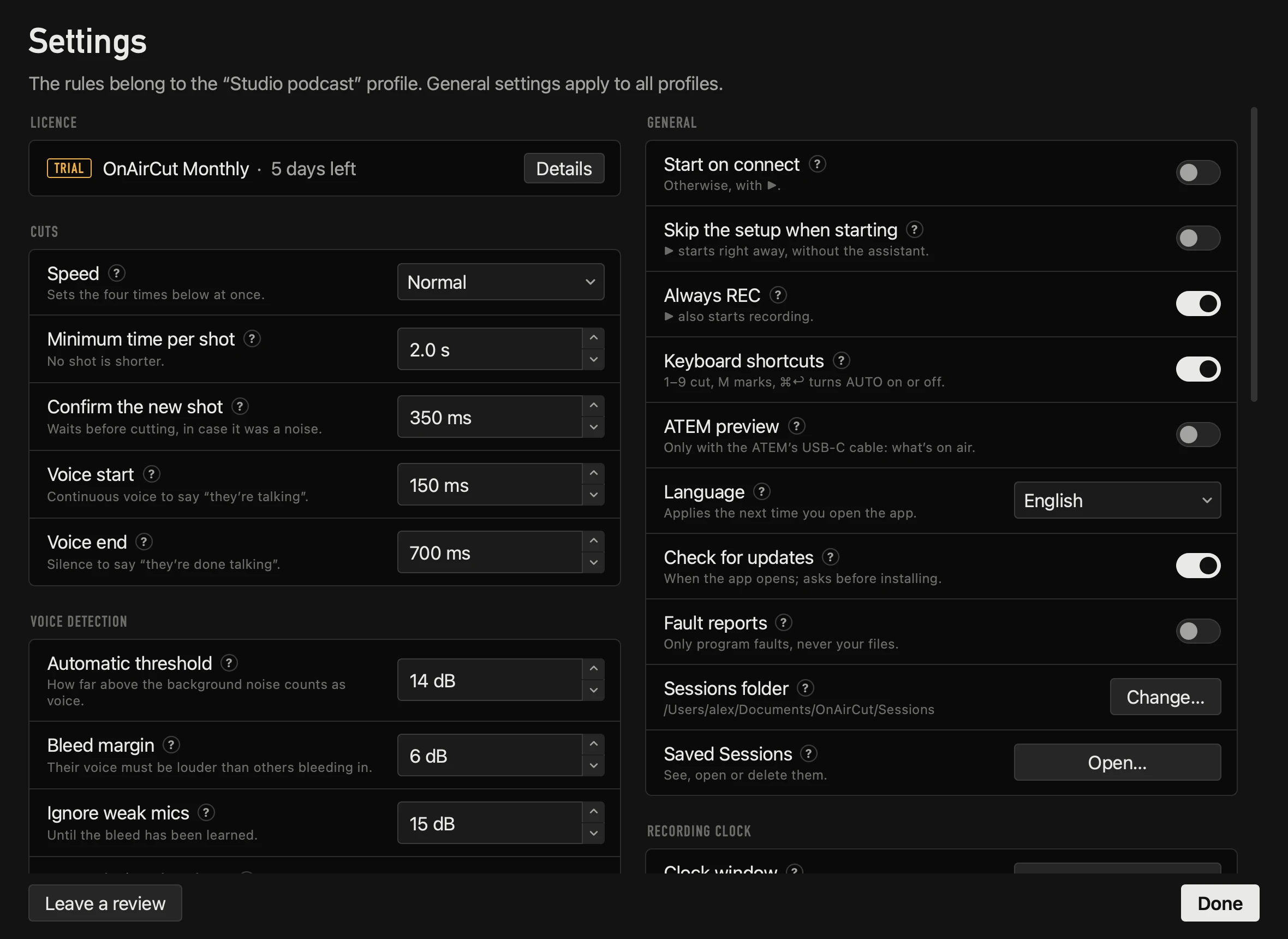
At the bottom, Leave a review takes you to the review form on this site, and Done closes the window.
Licence

While everything is in order it’s a single row: the plan, the days left in the trial or the renewal date, and Details. It opens in full only when there’s something to do. See Your licence.
Cuts
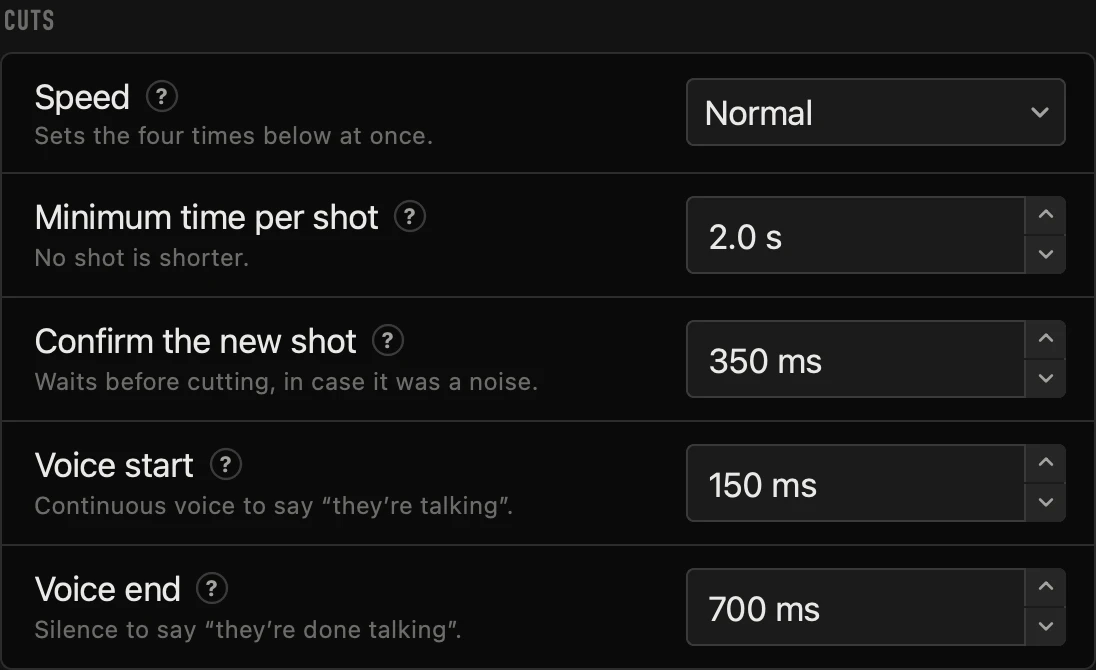
| Setting | What it does | Default |
|---|---|---|
| Speed | How fast it changes camera when the speaker changes. “Fast” cuts in about 0.4 s and gives short remarks their own shot; “Calm” waits longer and keeps long shots. Sets the four times below at once. | Normal |
| Minimum time per shot | After an automatic cut, the app doesn’t cut again until this time has passed, even if someone else talks. It avoids flickering shots. After a manual cut, the pause after a manual cut counts instead. | 2.0 s |
| Confirm the new shot | When someone starts talking, the app waits this long with their voice sustained before cutting to their camera. Higher: fewer false cuts, but it arrives later. | 350 ms |
| Voice start | How long a voice must sound continuously to count as talking and not as a knock or a breath. | 150 ms |
| Voice end | How much silence it waits for before someone’s sentence counts as finished. Too short and every breath counts as the end of a turn. | 700 ms |
Voice detection
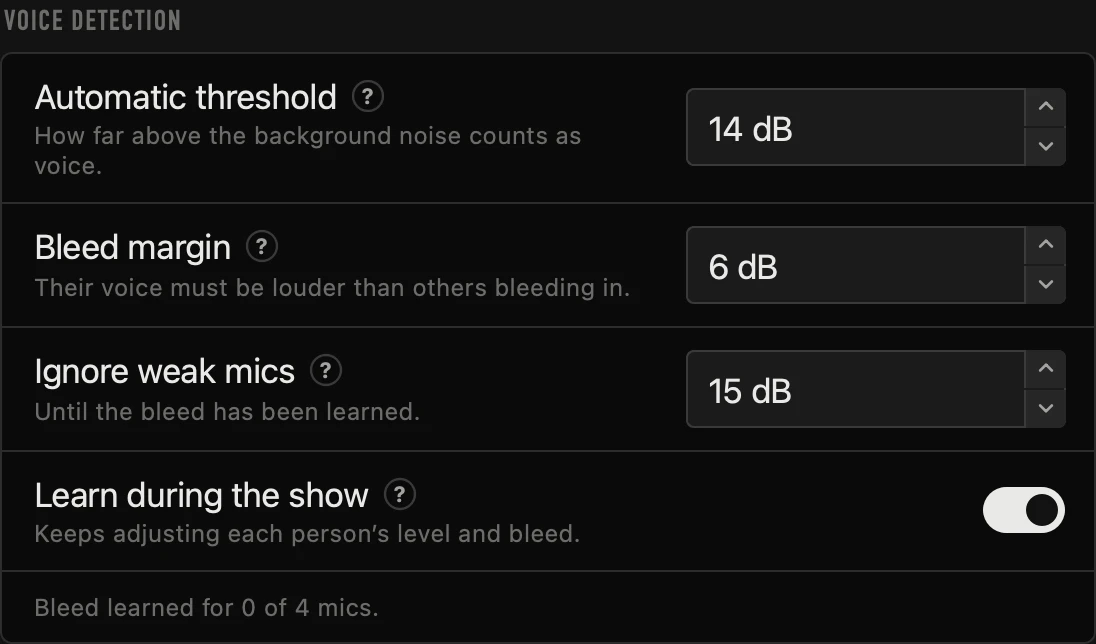
| Setting | What it does | Default |
|---|---|---|
| Automatic threshold | The app measures each mic’s background noise and counts as voice whatever exceeds it by this much. Raise it if room noise triggers cuts; lower it if it misses someone who talks softly. | 14 dB |
| Bleed margin | When a person talks, their voice also gets into the other mics, more quietly: that’s bleed. A mic only counts as its own voice if it beats the expected bleed by this margin. If it mixes up voices when people talk at once, lower it; if it cuts because of bleed, raise it. | 6 dB |
| Ignore weak mics | Before learning each mic’s bleed, the app ignores mics that are more than this below the loudest one. “Off” turns it off. | 15 dB |
| Learn during the show | If someone talks louder or softer or a mic moves, the app keeps learning, only when one person is clearly talking alone. What it learns is saved in the profile. | On |
Under them, Bleed learned for N of M mics says how many mics already have their bleed measured (the assistant measures it).
Several people at once
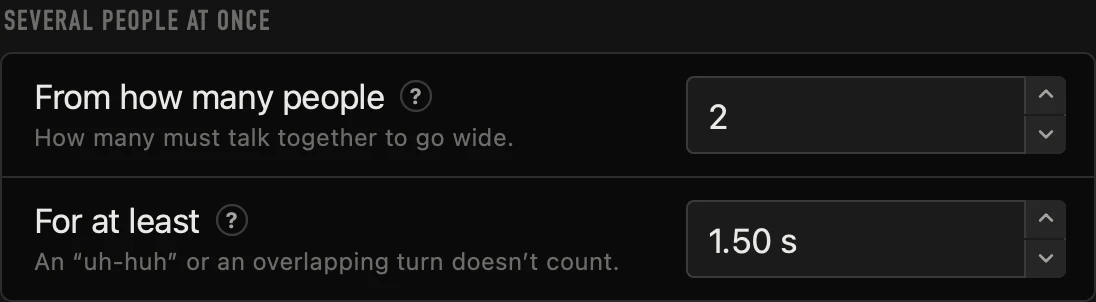
| Setting | What it does | Default |
|---|---|---|
| From how many people | When this many people talk at the same time, the app goes to the camera that shows them all: a shared camera covering exactly those people or, if there isn’t one, the wide shot. | 2 |
| For at least | How long they must talk together before going wide. Raise it if it goes to the wide shot too often; lower it if it’s slow. An “uh-huh” or an overlapping turn doesn’t count. | 1.50 s |
When nobody talks
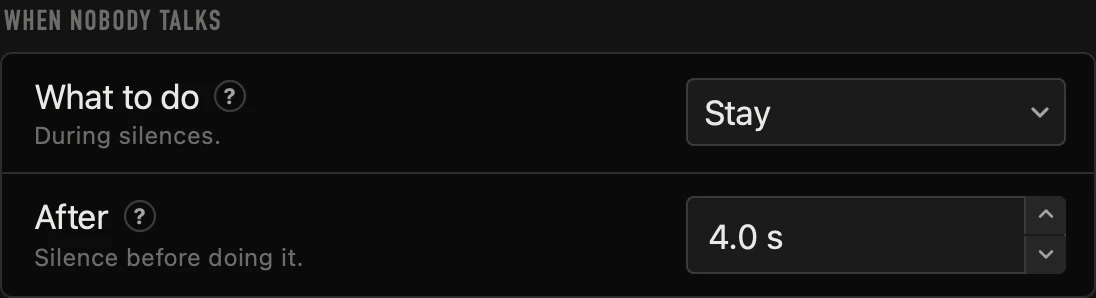
| Setting | What it does | Default |
|---|---|---|
| What to do | Stay on the current shot, Go to the wide shot (the one with the most mics) or Go to a camera you choose. | Go to the wide shot |
| After | Seconds without anyone talking before doing what’s chosen above. | 4.0 s |
Manual control
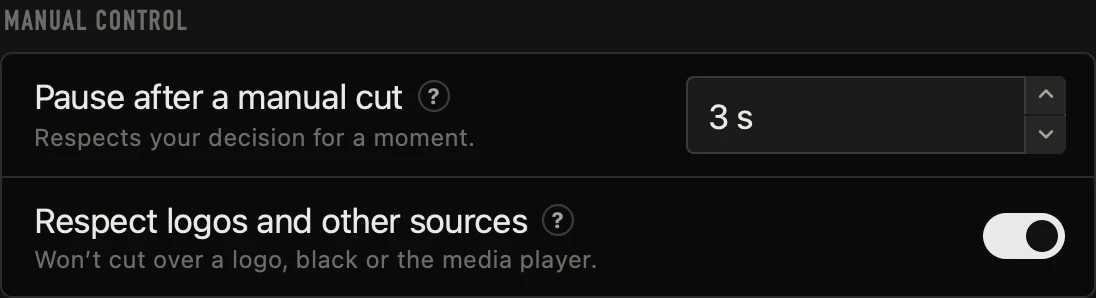
| Setting | What it does | Default |
|---|---|---|
| Pause after a manual cut | If you cut yourself (a click on a camera, keys 1 to 9 or from the ATEM itself), the automatic switching waits this long before cutting on its own again — also when the camera is manual-cut only. After a manual cut only this pause counts, not the minimum time per shot. | 3 s |
| Respect logos and other sources | If you put something on air that isn’t one of your cameras (a logo, black, the media player…), the automatic switching won’t cut over it until you go back to a camera. | On |
Transition

| Setting | What it does | Default |
|---|---|---|
| Cut type | Straight cut changes at once, like a live switcher. ATEM transition uses the one set up on your ATEM (a dissolve, for example). | Straight cut |
General, for every profile
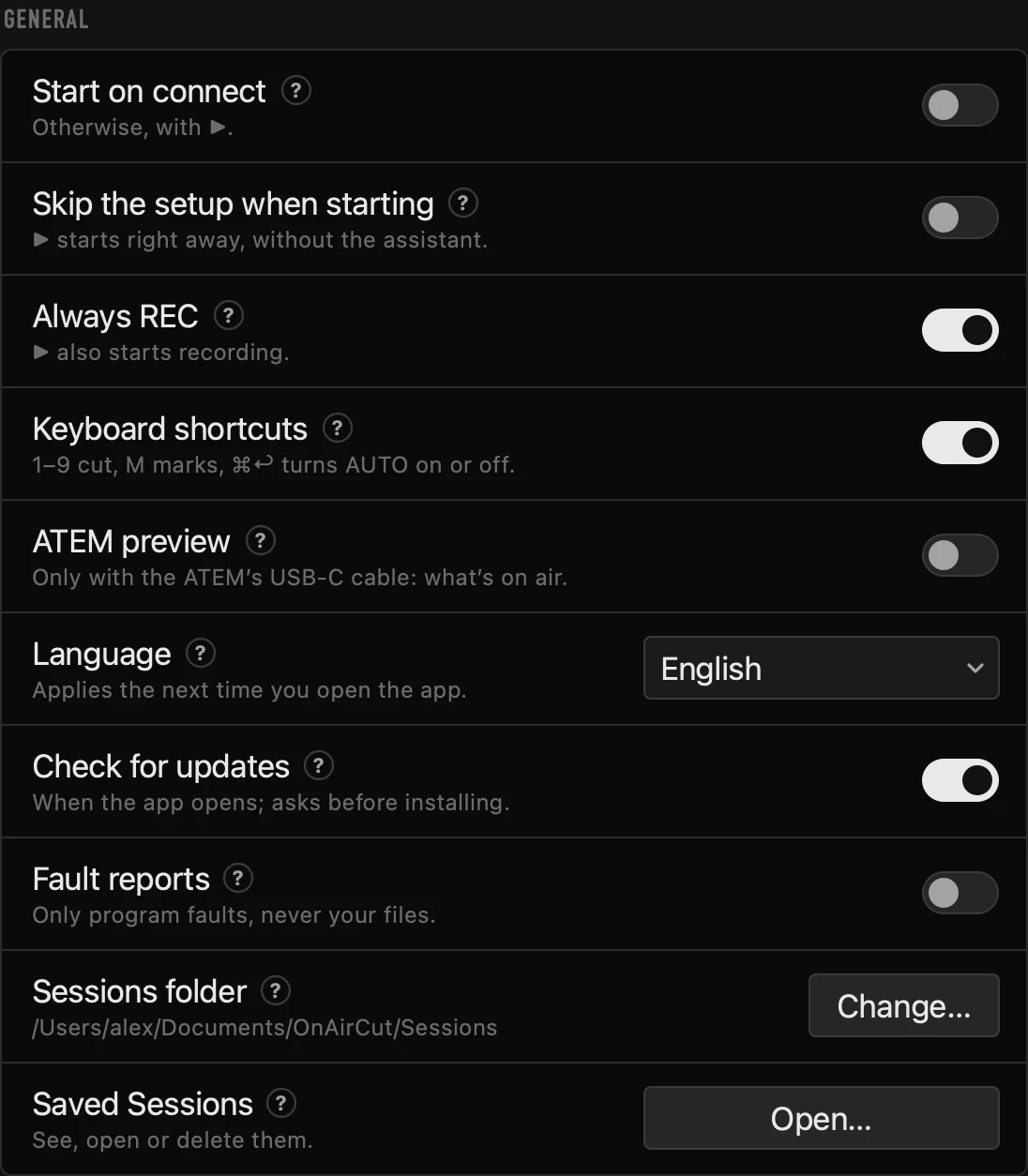
| Setting | What it does | Default |
|---|---|---|
| Start on connect | When on, the session starts by itself (without the assistant) as soon as the app connects to the ATEM. Off, it starts when you press ▶. | Off |
| Skip the setup when starting | Pressing ▶ first opens the assistant to check the mics and cameras (you can skip it right there). When on, the session starts right away. | Off |
| Always REC | When on, every time the session starts (with ▶ or with Start on connect) recording starts too (● REC; with a countdown, when it reaches zero): no need to remember it. With the session stopped, ● REC shows as armed, and pressing it doesn’t disarm it; for a session without recording, turn this off. The recording goes with the session: ● REC doesn’t stop it, only ■ (which asks first); if a full disk cuts it, ● REC starts it again. | On |
| Keyboard shortcuts | Keys 1 to 9 cut to that camera, M adds a marker while recording and ⌘↩ turns automatic switching on or off. While you type in a field, keys don’t cut or mark. | On |
| ATEM preview | Shows the ATEM’s program output in the app (its USB-C webcam; over the network the ATEM sends no video). It doesn’t take the signal away from OBS. It uses some CPU. | Off |
| Language | The app’s language: Español, English or Same as macOS. It applies the next time you open the app. | Same as macOS |
| Check for updates | When the app opens, it checks dl.onaircut.com for a new version. If there is one, it shows what’s new on the start screen (never during a show) and asks before installing it: it never installs by itself. Check for Updates…, in the app menu, checks right then. | On |
| Fault reports | When the program fails, sends a report to Sentry: the kind of fault, its code, where in the code it happened and the app and macOS versions — never audio, names or the text of the error. When it’s off, each fault notice offers Send this report. | Off |
| Sessions folder | Where recorded sessions are saved: each mic’s audio and the live cuts. Each session goes in its own folder. | Documents → OnAirCut → Sessions |
| Saved sessions | Open… shows your recorded sessions: open one in the Podcast Editor or move it to the Trash. It’s also next to Podcast Editor… in the live window and in Session → Saved Sessions…. | — |
Recording clock, for every profile
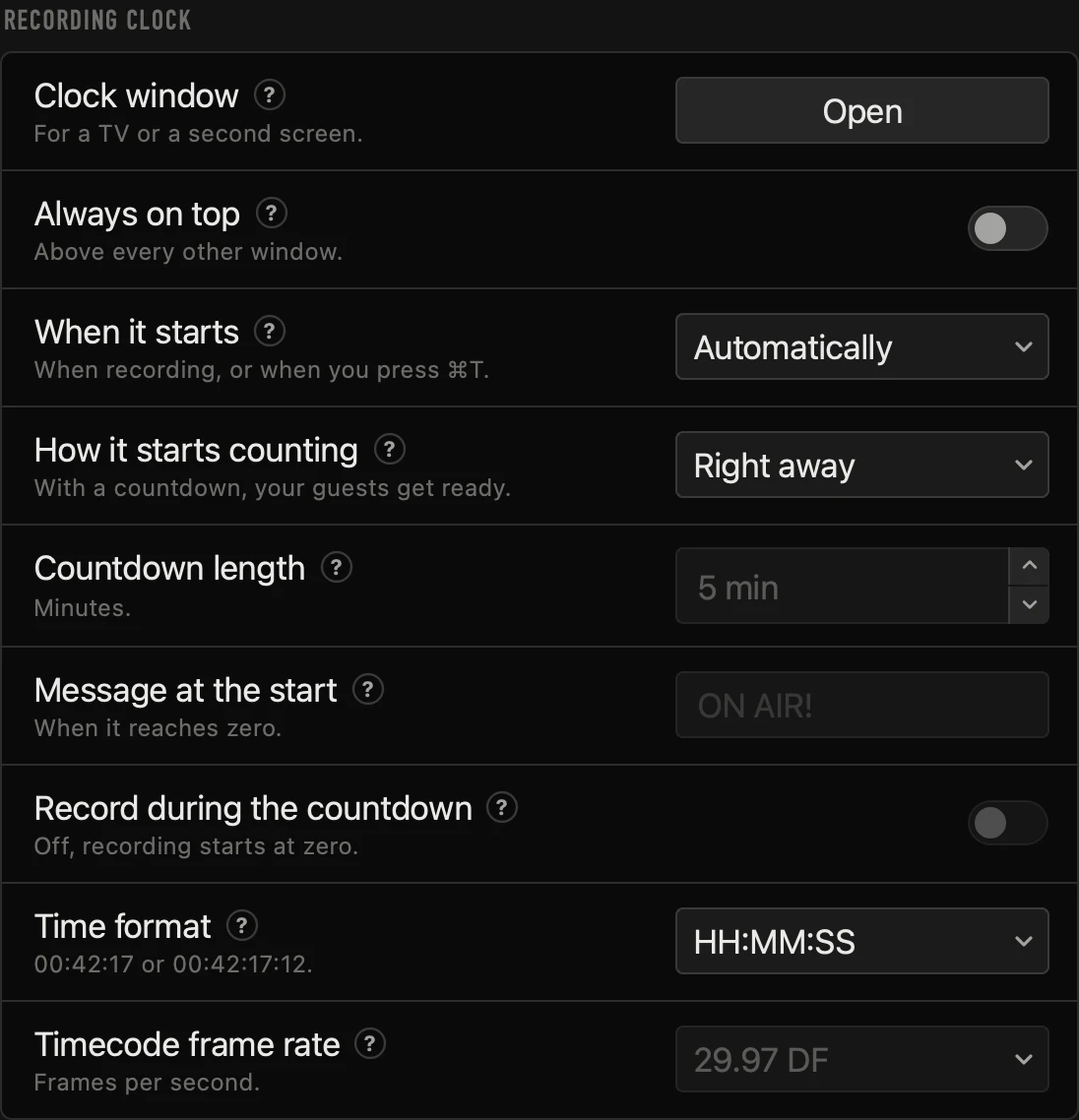
| Setting | What it does | Default |
|---|---|---|
| Clock window | Opens the recording clock in its own window. It also opens from View → Recording clock (separate window) or with a click on the live clock. | — |
| Always on top | The clock window stays above every other window, even while you use another app, so nothing covers it. It can also be changed with a right-click on the clock. | Off |
| When it starts | Automatically: with the recording — when you press ▶, since Always REC comes on, or ● REC if you turn it off — so the sound check doesn’t count; it stops when recording stops. When you decide: with Session → Start the clock (⌘T) or a right-click on the clock. Either way, ■ stops it. | Automatically |
| How it starts counting | Right away: from 00:00:00. With a countdown: first “STARTS IN” counts down the minutes you choose so your guests get ready; at zero the message shows for a few seconds and the clock counts from zero. Recording starts at zero, unless you turn on Record during the countdown. | Right away |
| Countdown length | How many minutes the countdown lasts. | 5 min |
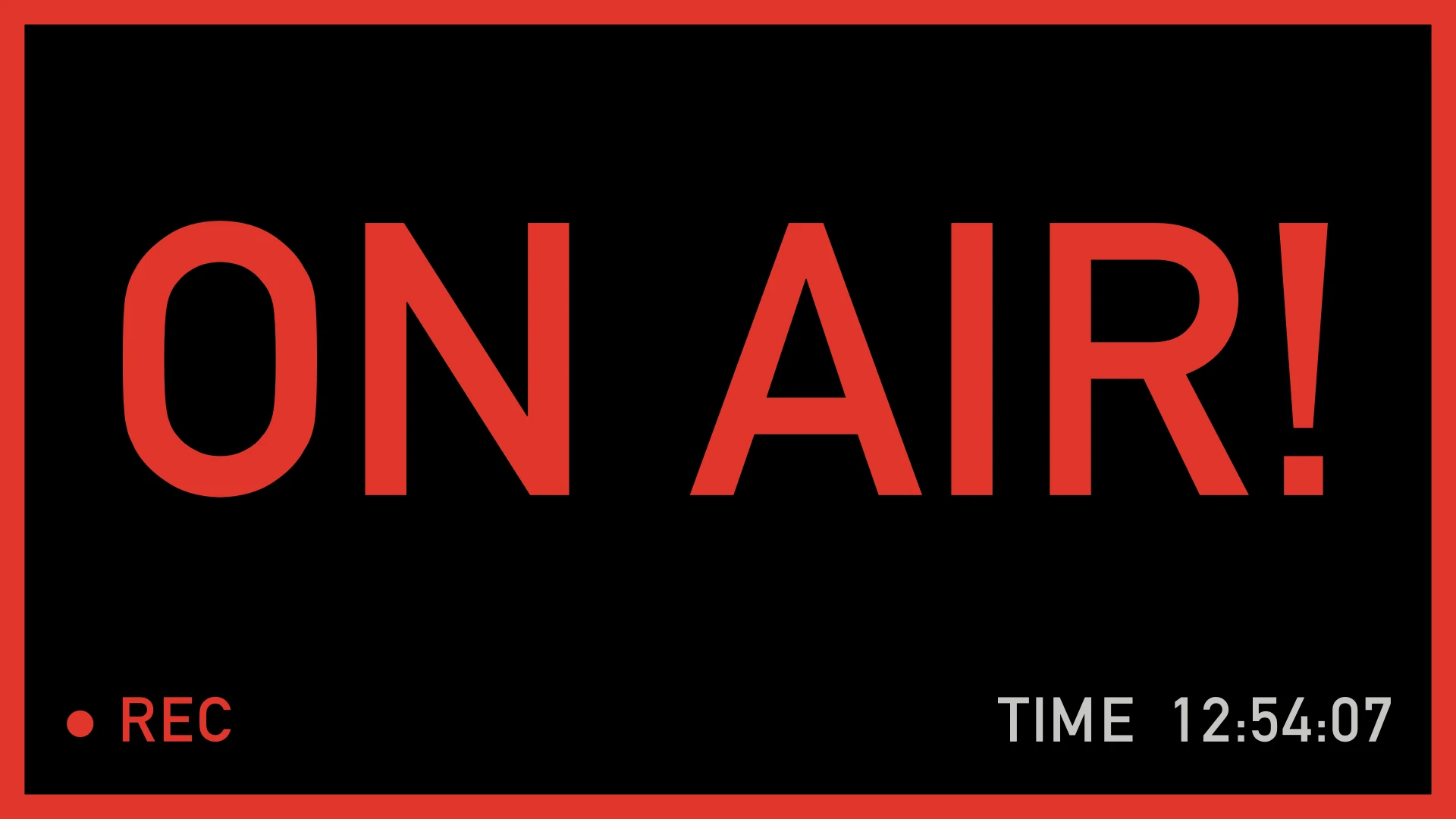
| Message at the start | What shows for a few seconds when the countdown ends. Empty, “ON AIR!”. | ON AIR! |
| Record during the countdown | Off: recording starts when the countdown reaches zero, so the wait before the show isn’t recorded; meanwhile the live show goes on as usual — the automatic switching cuts and everything goes on air. If someone starts early, ● REC records from that moment. On: the countdown is recorded too. With When you decide, recording waits for zero only if the countdown is already running (⌘T). It only applies with a countdown. | Off |
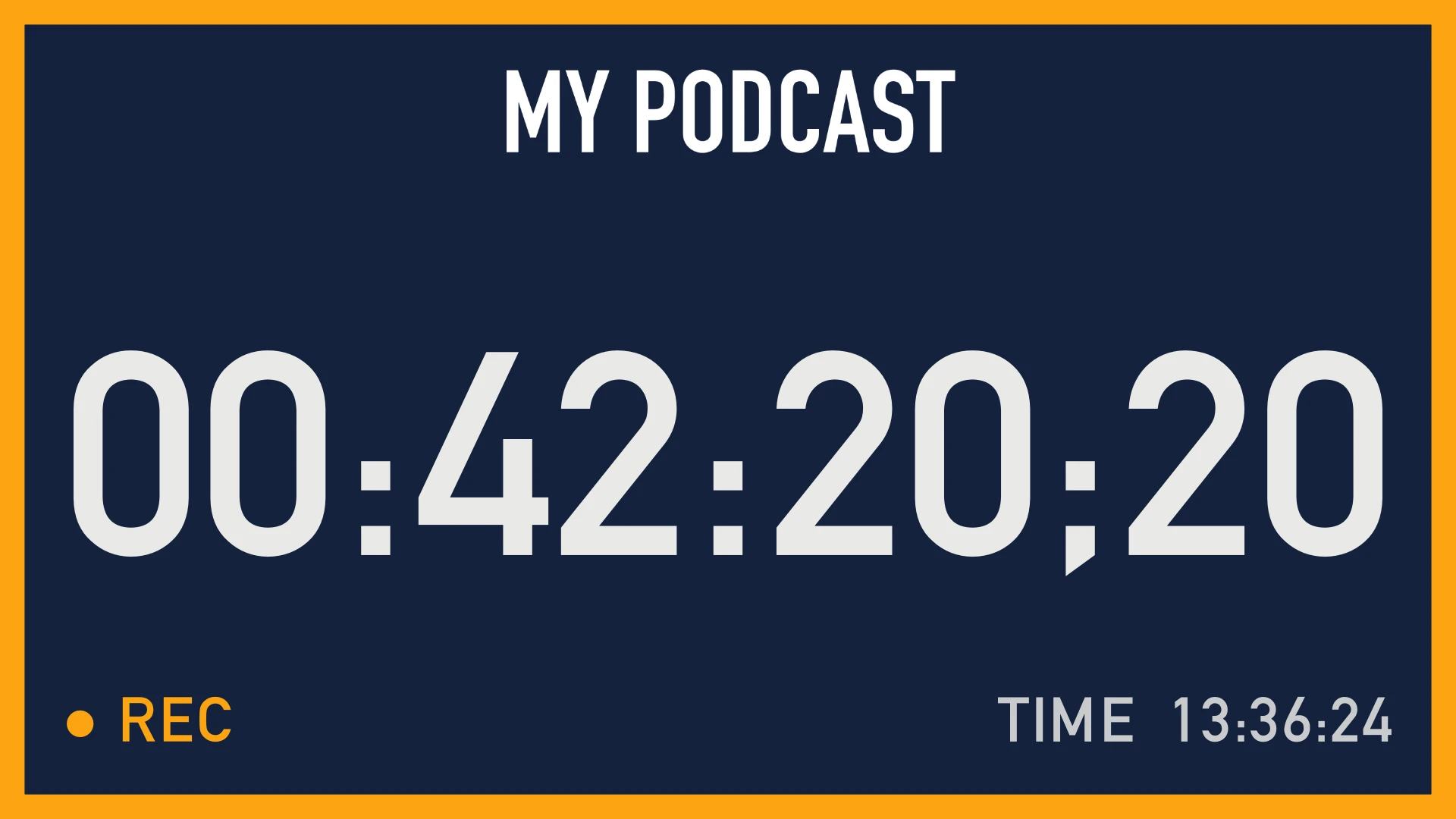
| Time format | HH:MM:SS (00:42:17) or Timecode (00:42:17:12), like on a video recorder. | HH:MM:SS |
| Timecode frame rate | How many frames per second the timecode counts. At 29.97 and 59.94 it uses drop frame (“;” before the frames), so it doesn’t fall behind the real clock. | 29.97 DF |
Clock look, for every profile
| Setting | What it does | Default |
|---|---|---|
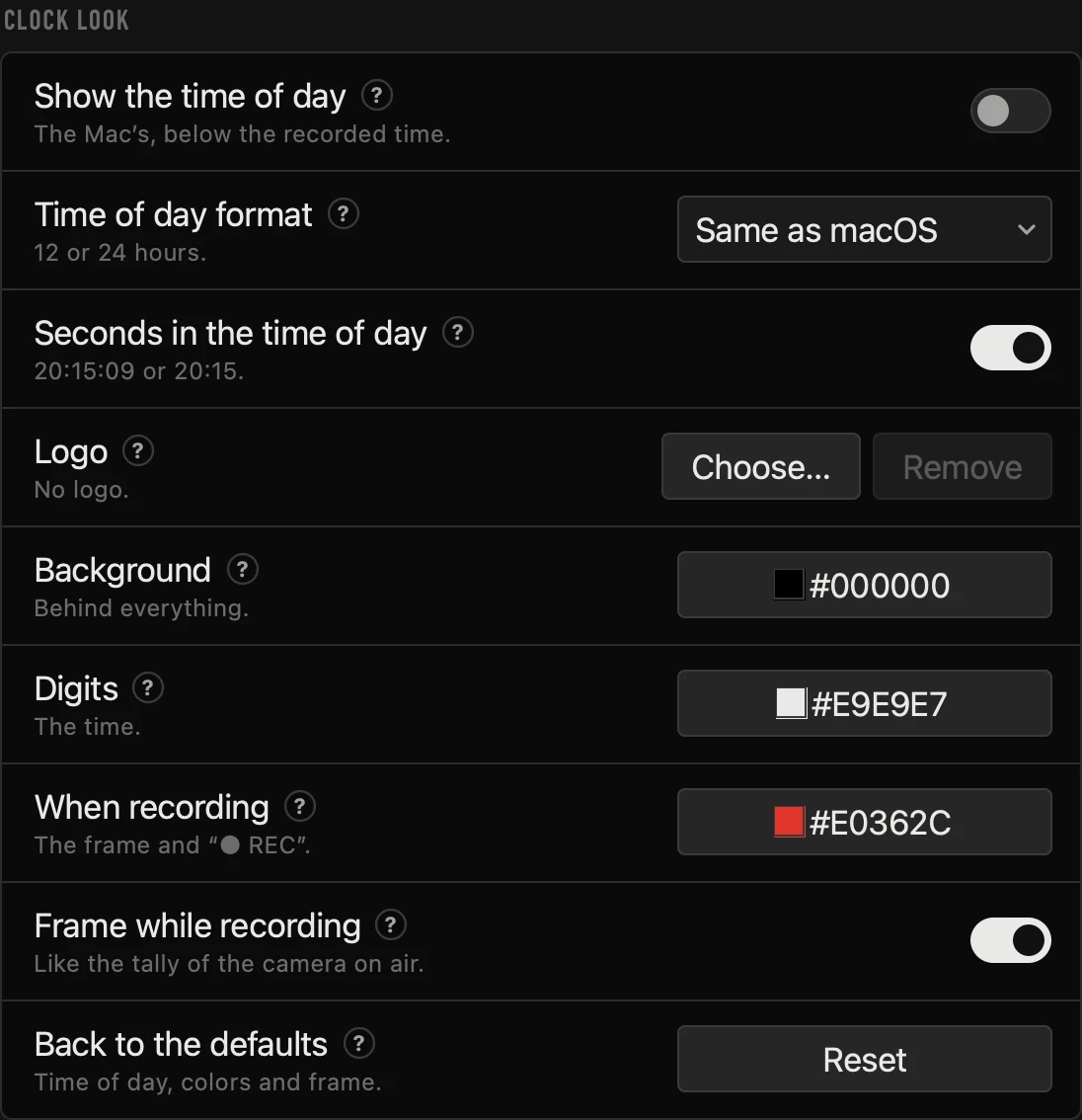
| Show the time of day | Below the recorded time, the Mac’s time of day: if the studio is rented by the hour, the client sees what time it is and how long they’ve been recording. It can also be changed with a right-click on the clock. | Off |
| Time of day format | 24 hours (20:15), 12 hours with AM / PM (8:15 PM) or Same as macOS (System Settings → General → Date & Time). | Same as macOS |
| Seconds in the time of day | The time of day with seconds (20:15:09) or without them (20:15). | On |
| Logo | A PNG or JPG image above the time: the show’s or the studio’s logo. The app keeps its own copy, so the original can be moved or deleted. Remove takes it off. | None |
| Background · Digits · When recording | The clock’s colors: behind everything, the time, and the frame and “● REC” while recording. On standby, the time looks dimmer. | Black · white · on-air red |
| Frame while recording | While recording, a frame in the recording color around the clock, like the red border of the camera on air. | On |
| Back to the defaults | Reset brings back the default time of day, colors and frame. The logo and when the clock counts stay. | — |
Profiles and menus
A profile keeps a studio’s whole setup: its mics, its cameras and who appears on each, the rules in Settings and what the app learned about each voice. Use one per set or per show — Profile menu: switch, New profile…, Duplicate profile, Rename profile… and Delete profile….
| Menu | What’s in it |
|---|---|
| Profile | Switch, create, duplicate, rename or delete profiles. |
| Control | AUTO, cutting to each camera, keyboard shortcuts and Settings (⌘,). |
| Session | Record the session, the Podcast Editor… (⌘E), the Saved Sessions…, the Sessions folder… and Reset camera counters. |
| View | The pages, the ATEM preview and the language. |
| Devices | The ATEM connection (with Use a fixed IP…), the audio console and Analyze (assistant)…. |
| Help | The licence, Third-Party Licences… and Open app log. Check for Updates… and About are in the app menu. |
Recording the session
For when each camera records its own file — on its card, an external recorder or an ATEM ISO — and you’ll build the edit afterwards. ● REC doesn’t record video: video is recorded on the cameras or on the ATEM; start them yourself at the same time.
- 1Start recording on every camera.
- 2Press ▶: with Always REC (Settings → General, on by default) it records too — with a countdown, from the moment it reaches zero. If you turned it off, press ● REC (top right, or ⌘R) — before ▶ (it records as soon as the session starts) or during the session. If the disk has room for less than an hour of recording, it asks first (Record anyway / Don’t record; with ▶, Don’t record starts the session without recording). Without the console, or with no mics in the profile, it records only the cuts and says why (OAC-E5). The app saves, in the session’s folder: every cut with its exact time (automatic, by hand or from the ATEM), a 24-bit WAV per mic in exact sync with the cuts, and who appears on each camera, so the editor has it even if you change the profile later.
- 3While recording, press M whenever something happens — a good moment for social media, something to cut. Each marker shows on the timeline of the Podcast Editor and goes into the export: markers in Final Cut and DaVinci, sequence markers in Premiere.
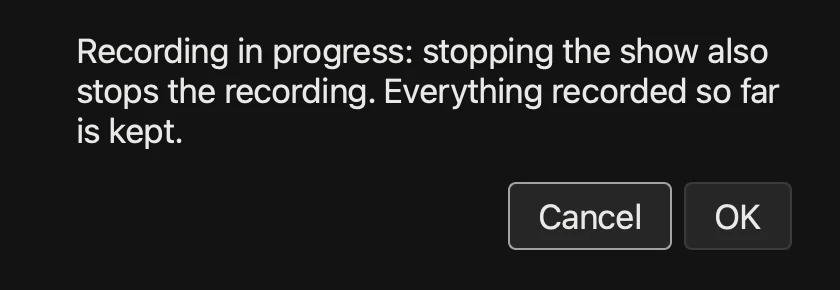
- 4At the end, press ■ or ● REC again. While recording, ■ asks first: OK stops the session and the recording; Cancel (the default, in case you pressed it by accident) keeps recording. ● REC stops recording and the session stays live. Then stop the cameras.
- Sessions go to Documents → OnAirCut → Sessions, a new folder per session (“date time profile”): never written over another. It can be changed in Session → Sessions folder….
- The small clock difference between the console and the Mac is corrected, and if the console drops for a moment the gap is left silent, so the track stays aligned.
- They save themselves every 5 seconds, with everything the editor needs: if the app closes suddenly (a power cut, a hang), the session is whole up to that moment. The editor opens it and says it wasn’t finished.
- If the disk fills up or is disconnected while recording, the app says so at once, and why. With less than 10 minutes of recording left on the disk, it warns you first, at the bottom.
- Closing the app while recording, it asks first.
The recording clock
The recorded time, big, in its own window — for your guests or the studio’s client. Drag it to another screen or a TV; double-click it to fill the screen (Esc brings it back). With Always on top (in Settings or with a right-click), no other window covers it. It opens with a click on the live clock, from View → Recording clock (separate window) or in Settings → Recording clock → Clock window: Open. If it was open when you closed the app, it opens again by itself, on the same screen.
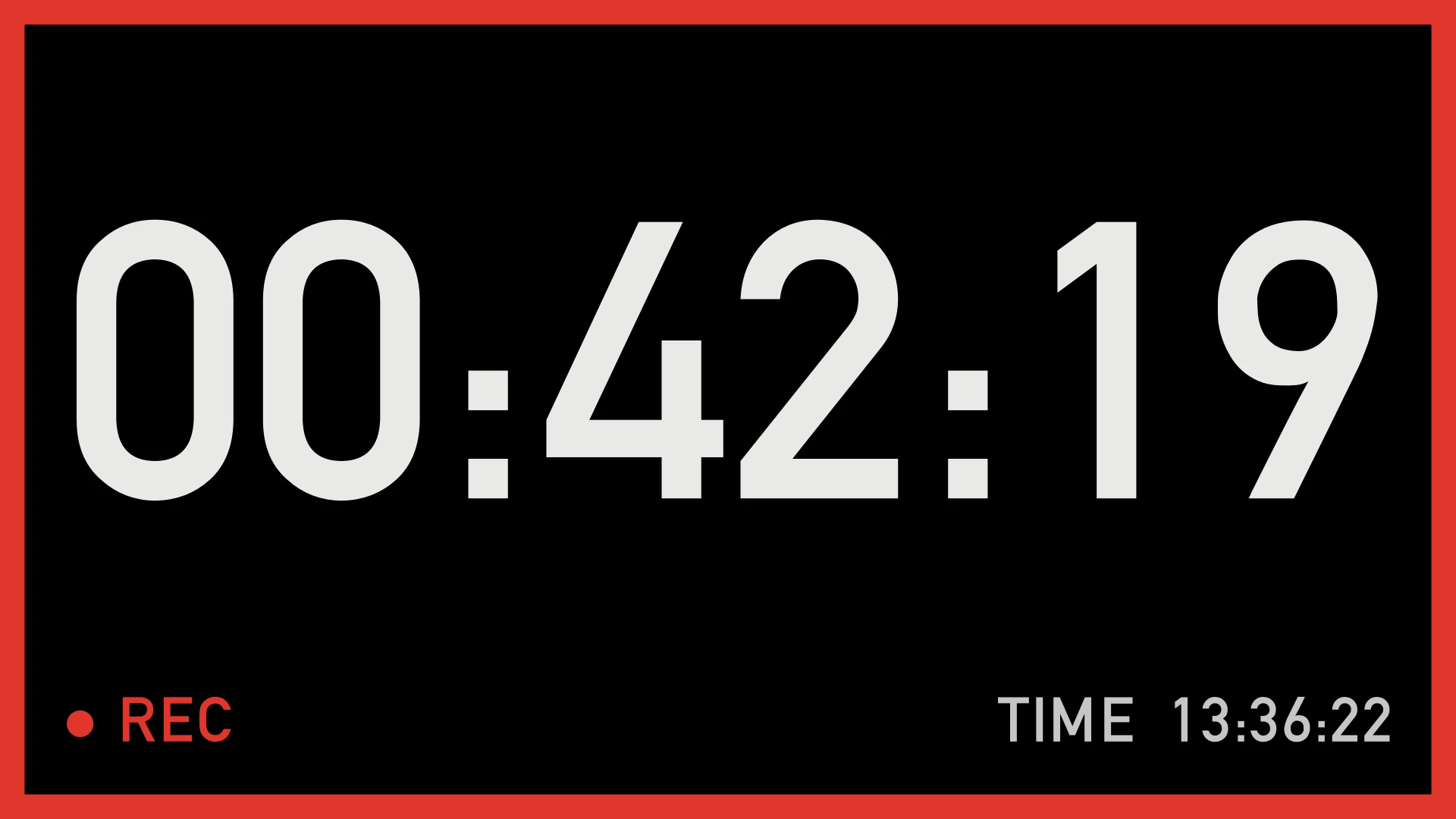
- When does it start? Automatically (the default), with the recording — when you press ▶, since Always REC comes on, or ● REC if you turn it off; the sound check before doesn’t count — and it stops when recording stops; or when you decide, with Session → Start the clock (⌘T) or a right-click on the clock — while it waits, “⌘T TO START” shows next to REC, and ⌘T also works with the clock window in front. ■ always stops it, and stopped it stays at the final time (STANDBY, dimmer).
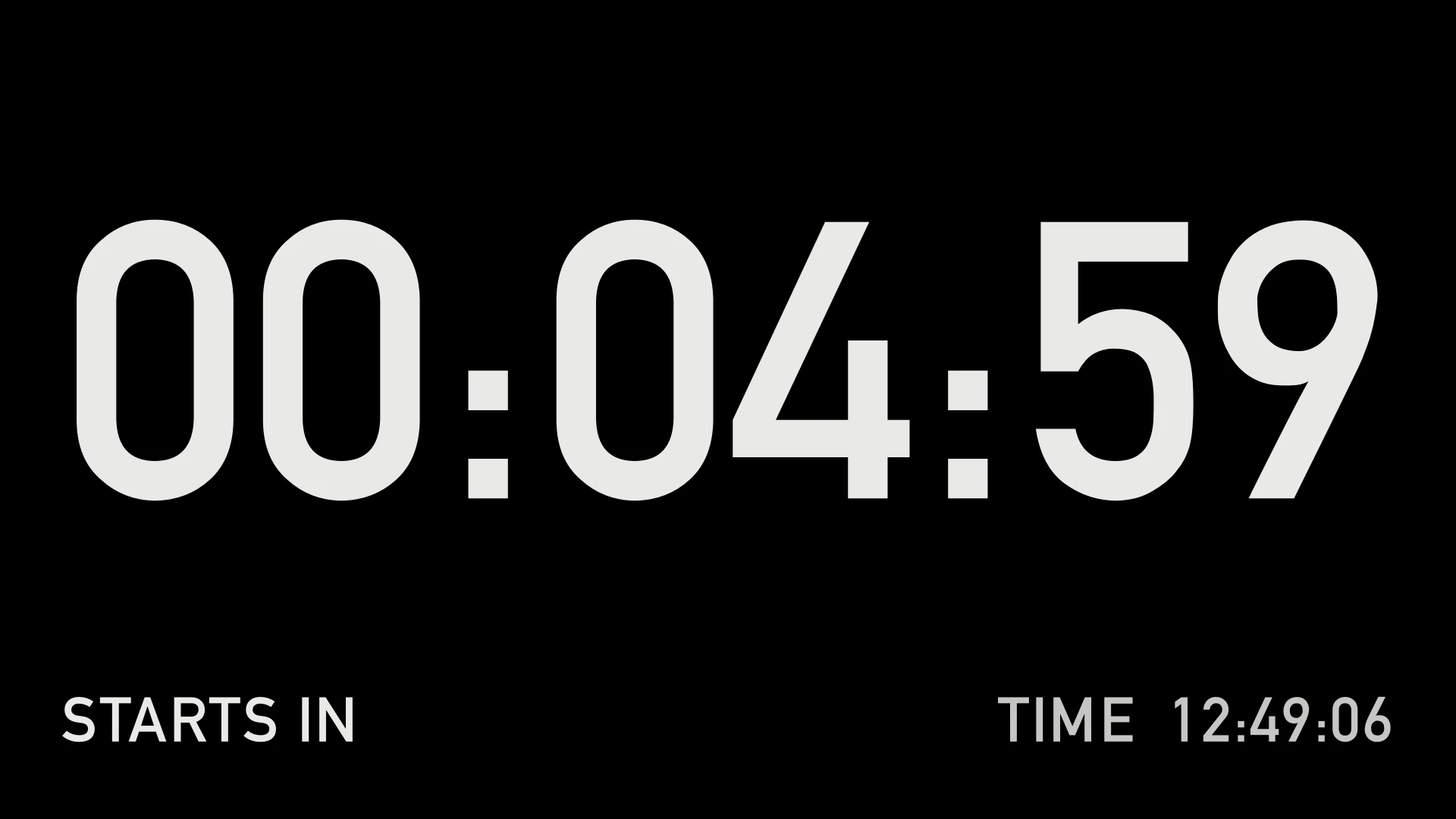
- How does it start counting? Right away (the default), from 00:00:00; or with a countdown, so your guests get ready: “STARTS IN” counts down the minutes you choose, at zero a message shows for a few seconds (“ON AIR!”, or yours) and the clock counts from zero. Recording starts at zero, so the wait before the show isn’t recorded, while the live show goes on as usual; meanwhile ● REC shows armed and, if someone starts early, pressing it records from that moment. To record the countdown too, turn on Record during the countdown in Settings → Recording clock.
- Whoever is operating sees it too, even without the TV: the app’s clock, next to ● REC, shows the same countdown in amber with a “−” and “STARTS IN” above it, and at zero “ON AIR!”, with a notice at the bottom and a line in the log. Nothing is drawn over the ATEM’s picture.
- While recording, “● REC” and a frame in the recording color light up, like the tally of the camera on air. With a countdown, they light up at zero, together with the message.
- HH:MM:SS or timecode (00:42:17:12), with its frame rate; at 29.97 and 59.94 in drop frame, so it doesn’t fall behind the real clock. The countdown and its message go in hours, minutes and seconds: the frames show once it counts.
- The time of day (off by default): the Mac’s, at the bottom right, in 12 or 24 hours, with or without seconds. Useful when the studio is rented by the hour: the client sees what time it is and how long they’ve been recording.
- Your logo and your colors, in Settings → Clock look. Reset goes back to the defaults: black, white digits and red when recording.
- Right-click: start, stop or reset the clock, full screen, timecode, the time of day, the frame, Always on top and More options… (Settings).
Saved sessions
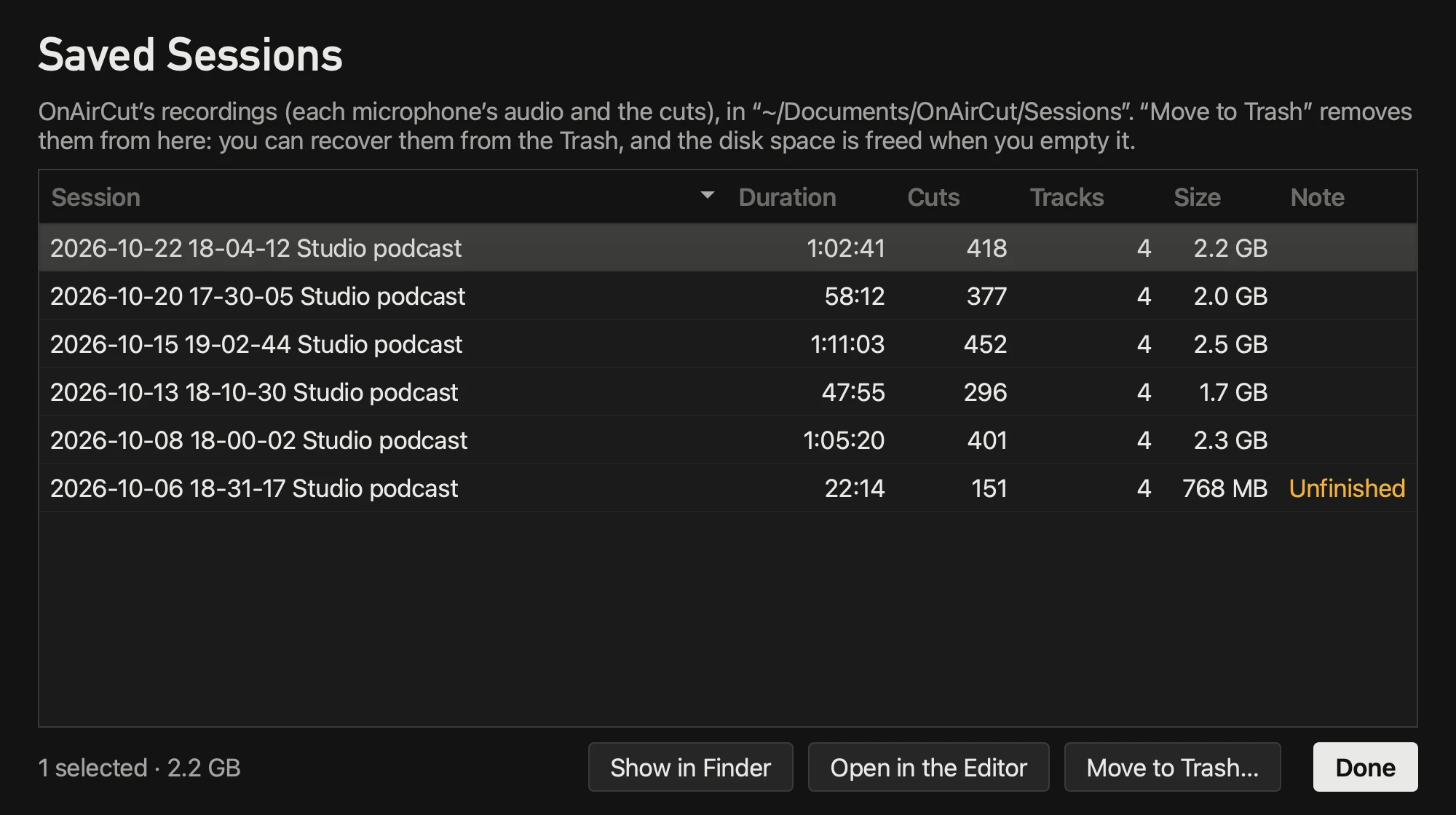
- Saved sessions… — next to Podcast Editor… in the live window, in Settings → General or in Session → Saved Sessions… — lists the recorded sessions: how long each lasts, its cuts, its tracks and how much space it takes.
- A double-click opens it in the editor; you can also show it in the Finder.
- Move to Trash… (⌘⌫) sends it to the macOS Trash after asking: you can recover it from there, and the space is freed when you empty it. Nothing is ever deleted outright.
- Only the app’s session folders are moved, never the one being recorded. A damaged session also appears, so you can delete it; one that wasn’t finished saving says Unfinished.
The Podcast Editor
It builds the edit for Final Cut, Premiere or DaVinci in four steps — Audio, Video, Cuts and Export. At the top you see which one you’re on, and you can always go back. Open it from the start screen or Session → Podcast Editor… (⌘E). It’s used with the session stopped: while the live session runs (▶ or recording) it doesn’t open.
Where the material comes from
- An OnAirCut session: its tracks are the sync reference. If you also recorded on the console (its card, a recorder, a DAW), choose each person’s audio: it lines itself up against OnAirCut’s track and is the one that stays in the edit.
- Files (without having used the app live): one audio file per person, or a multitrack file (WAV, AIFF or CAF) with one person per channel. The tracks must last the same (the app checks).
The cuts: from the live show, or from the whole recording
- From the live show: exactly the cuts OnAirCut made. The edit is the same as what went out.
- From the whole recording: calculated again, knowing the whole conversation. It separates each voice from the bleed by comparing the waveforms between mics, not just the level; it sees each turn whole (short pauses don’t split it and a quick “uh-huh” doesn’t change the shot); it picks the best sequence of shots respecting the minimum per shot, and every cut lands right where someone starts talking, without the live delay.
Measured second by second against each person’s own track with the bleed removed: 98.1 % of the time on the right shot in a 60-minute podcast (the live logic, 97.0 %), and 99.3 % with clean tracks.
Progress: while it reads, syncs, calculates or exports, the bottom shows the step (“Step 2 of 4 · …”), the percentage, the time and how much is left. Stop stops it; closing the window too.
Step 1 · Audio
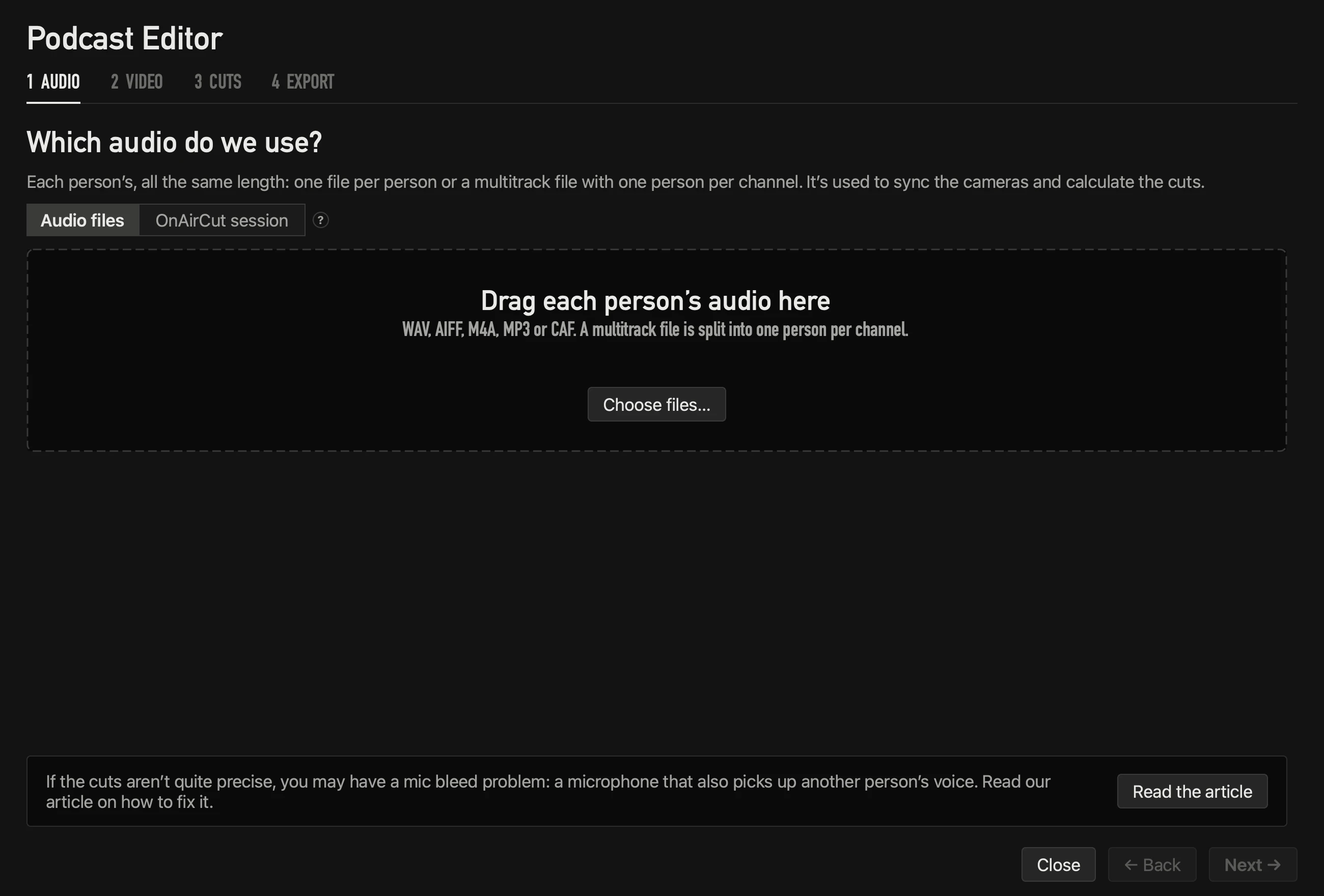
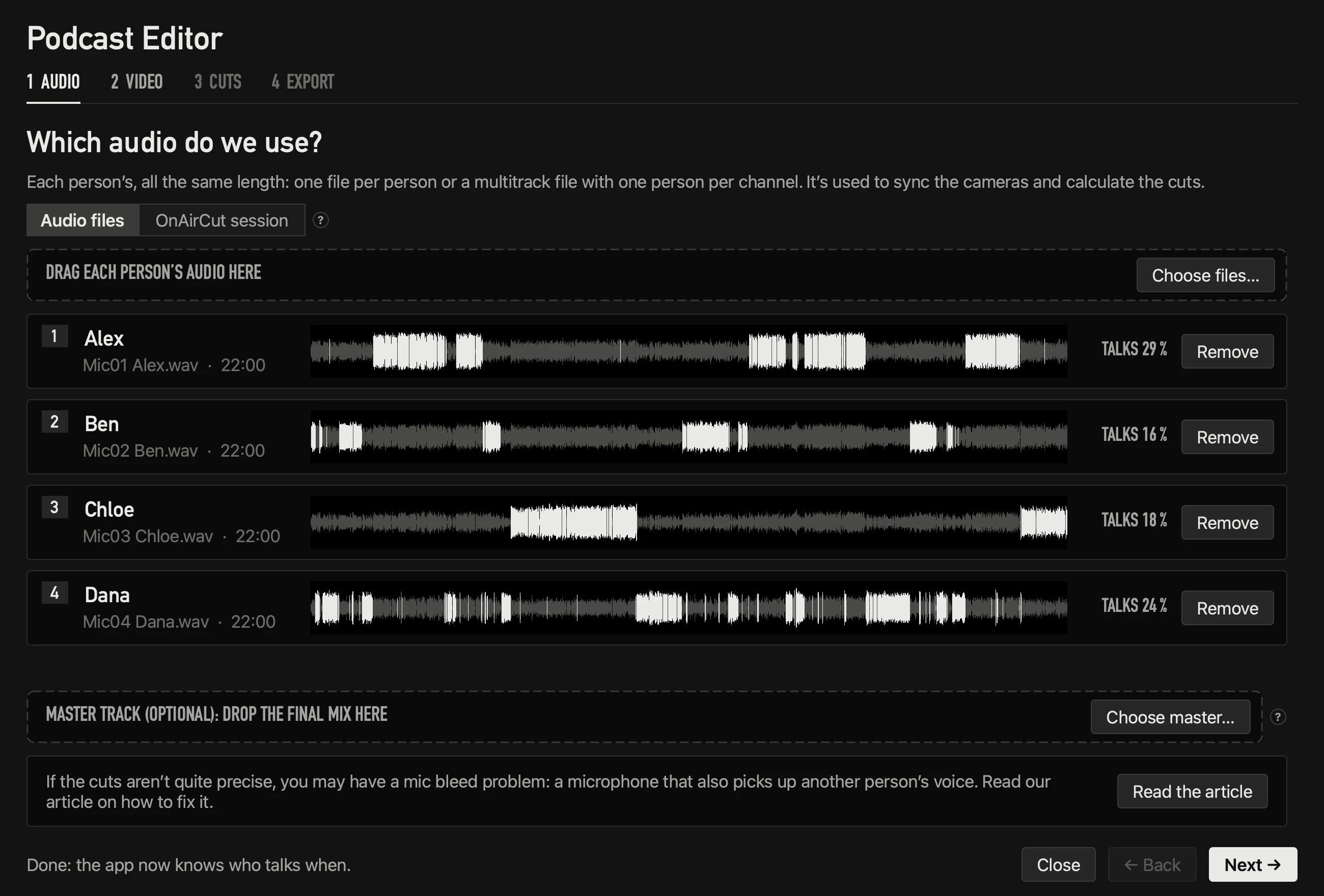
- Audio files (where it starts): drag each person’s audio, or Choose files…. A multitrack file is split into one person per channel. OnAirCut session: choose a recorded session.
- Each person gets a card with the waveform of the whole recording: white where they talk, grey where they don’t (noise, or someone else’s voice leaking in). Rename them with a click on the name.
- Master track (optional): your final mix, from Auphonic for example. If it lasts the same as the tracks, it starts with them and the sound only confirms it (and measures the milliseconds the processing adds); if not, it’s synced by sound. It goes on top in the edit, with each person’s tracks silent underneath.
- If a file can’t be read (damaged, incomplete or in a format macOS doesn’t know), the app says so and doesn’t add it (OAC-A6).
At the bottom, a note: if the cuts aren’t quite precise, it’s usually mic bleed — a mic that also picks up someone else’s voice. Read the article opens how to fix it.
Step 2 · Video
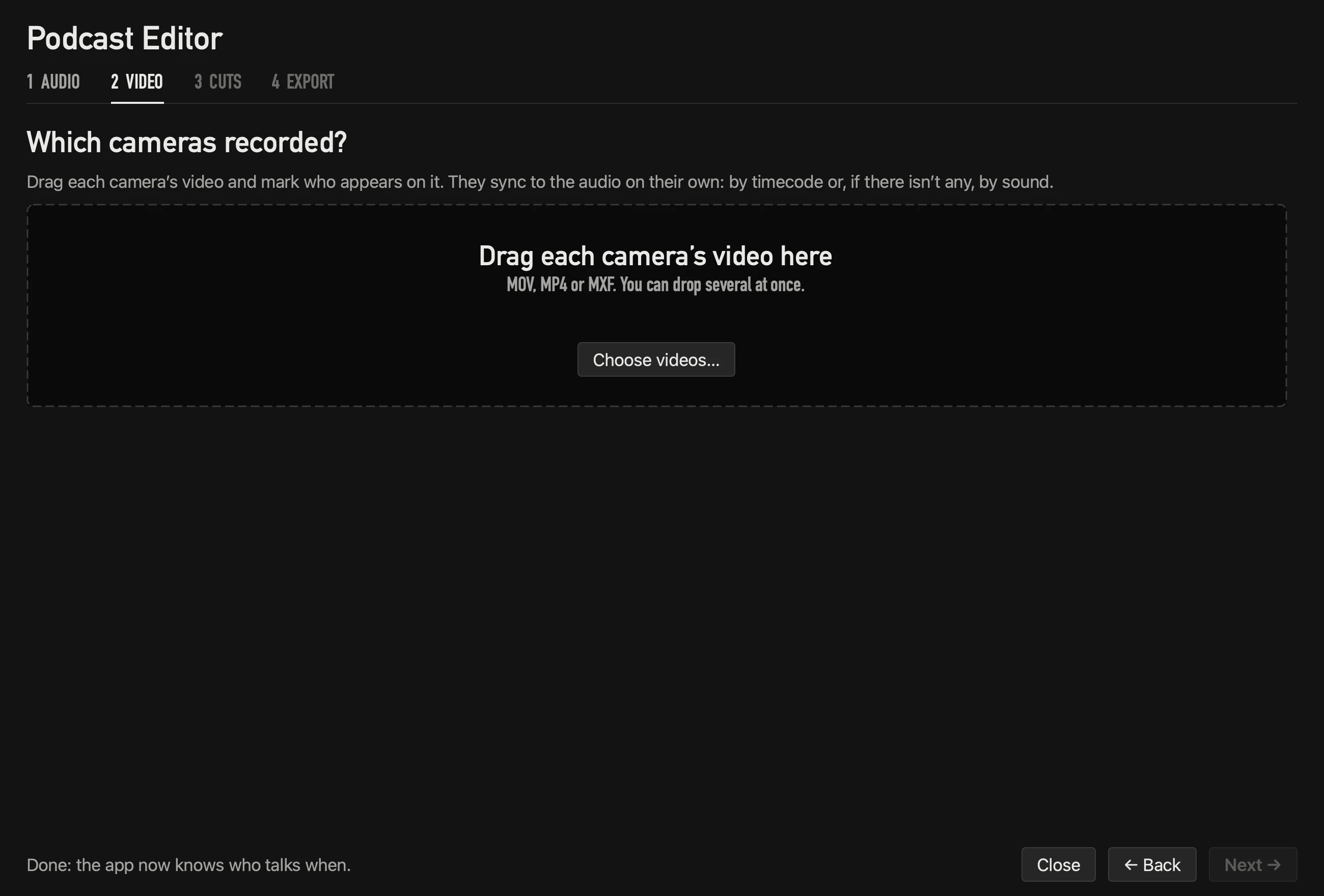
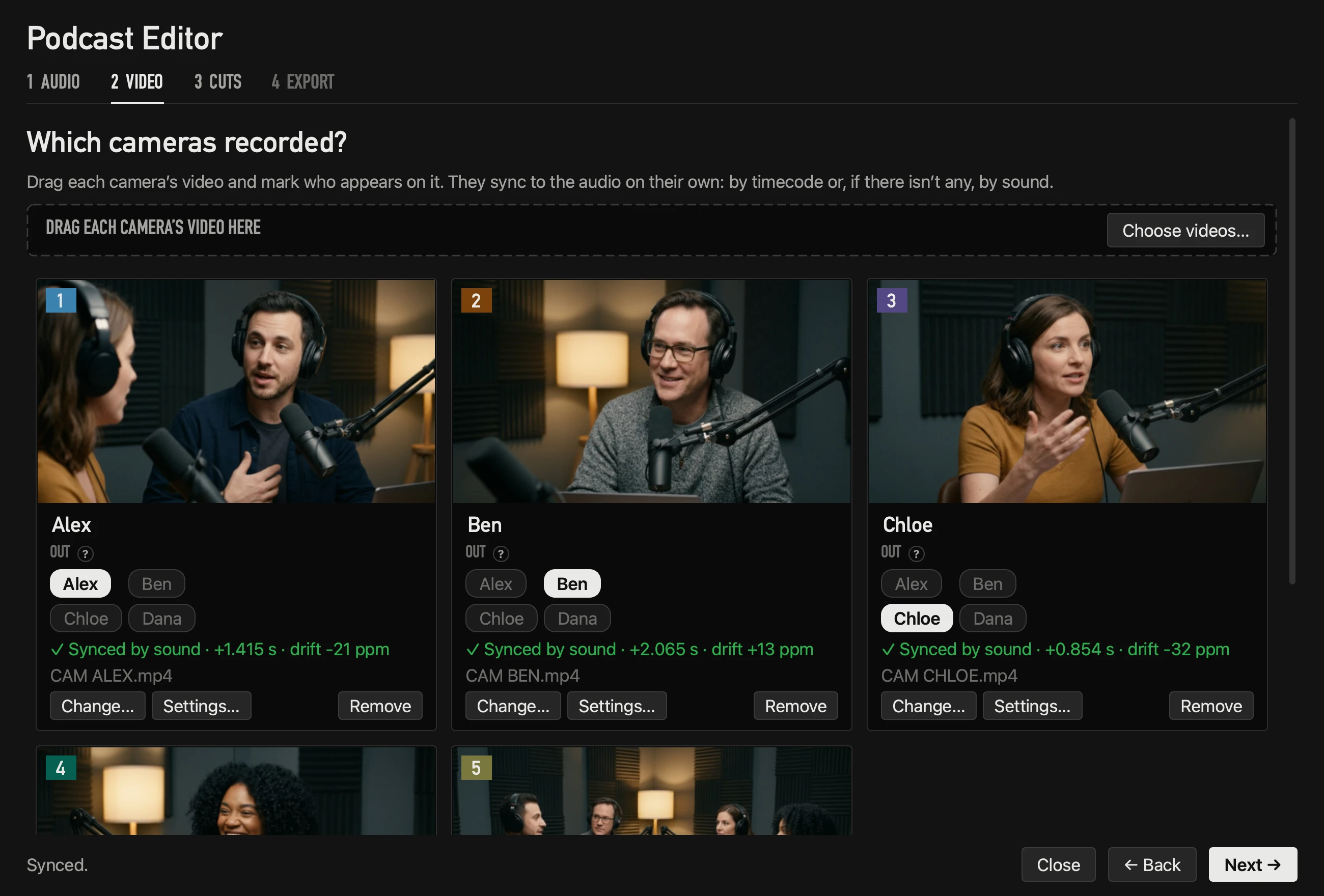
- Drag each camera’s video (you see its thumbnail), name it and tick who appears on it. They sync on their own.
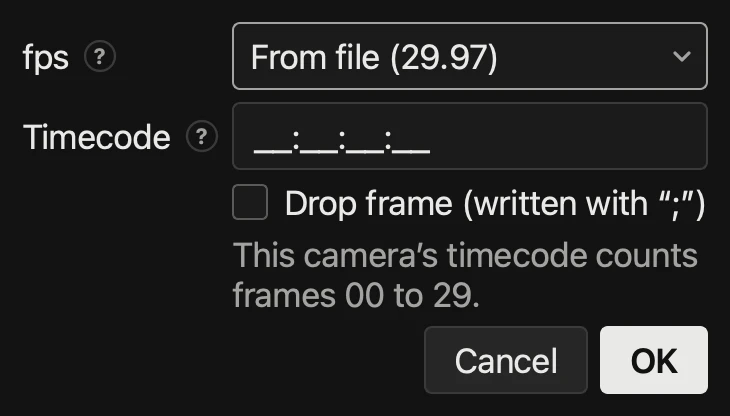
- The app reads each file’s resolution, frame rate and timecode. Settings… on each camera fixes them if the camera had them wrong:
How it syncs
- By timecode, if the file has it and it agrees with the sound. If the cameras share timecode with each other but not with the Mac’s clock, their timecode is used and the sound only places them.
- If there’s no timecode or it doesn’t agree, by sound: it compares the camera’s audio with the mics’ tracks, to a fraction of a millisecond.
- It also measures each camera’s clock drift (30 ppm, for example, is 0.1 s in an hour) and corrects it on every cut.
- It checks at many points of the recording. If they don’t agree (the video is from another day, say), the card says Unconfirmed sync and the export warns about it. If a camera can’t be heard, its card says why: no sound in the video, a damaged file or a disconnected disk.
Timecode at any frame rate
- 23.976, 24, 25, 29.97, 30, 50, 59.94 and 60. It’s read the way the camera counts it — one at 59.94p usually counts at 30 — and exported the same way.
- Drop frame (only at 29.97 and 59.94; cameras show it with “;”): the file’s is respected, and you can tick or untick it in Settings…. If you type by hand a label that drop frame skips (00:01:00;00, for example), the app tells you before accepting it.
- Between cameras, timecode is compared in real seconds: it lines up even if they started recording minutes apart.
Step 3 · Cuts
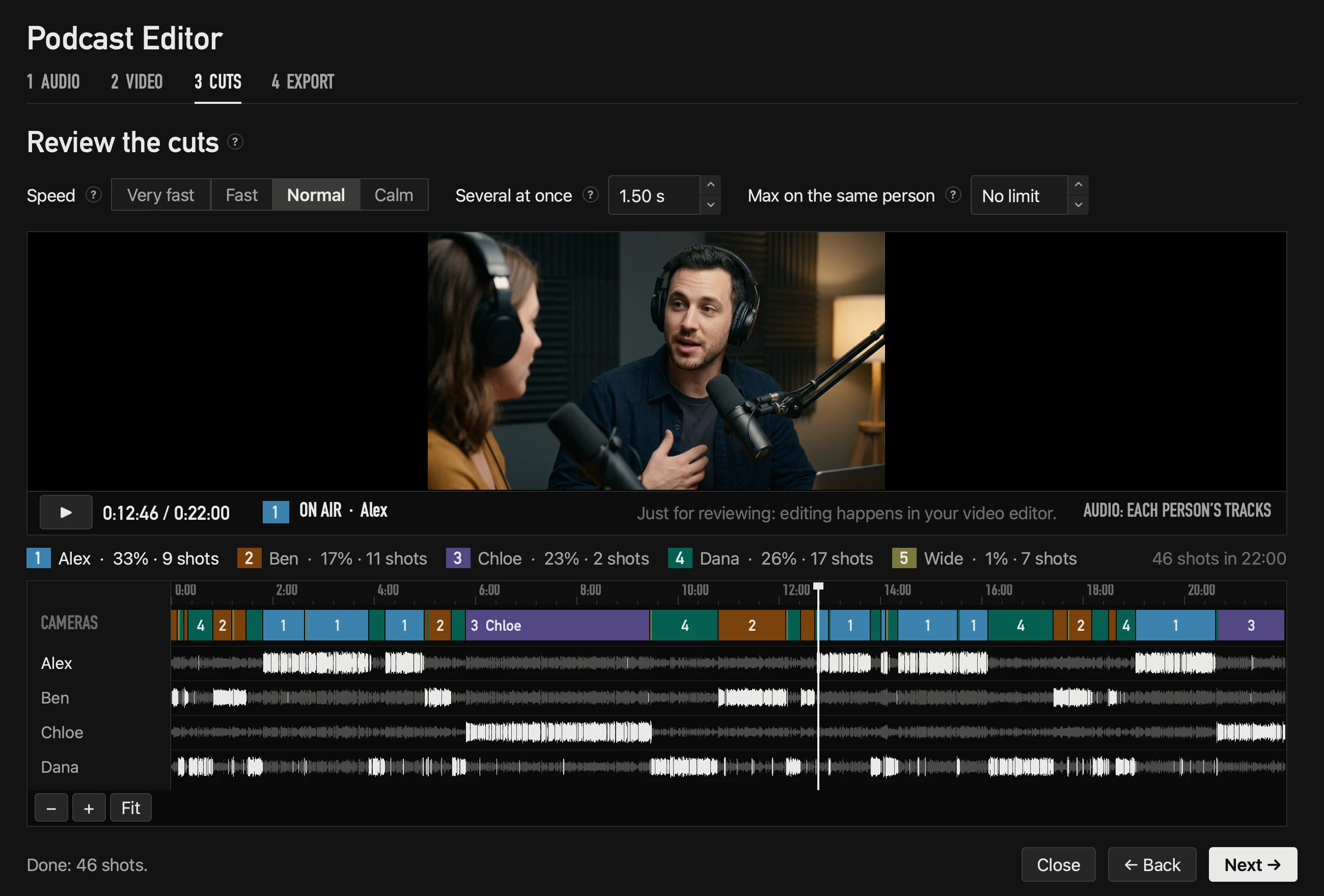
- The cuts calculate themselves. A bar shows each camera’s % and shots, so you can review them before exporting. With many people the lanes get thinner and the camera legend shorter, so everything fits.
- Speed, several at once and Max on the same person are adjusted here, and the cuts recalculate in under a second, without pressing anything. The same happens if you change who appears on a camera.
- Max on the same person places the variety shot in a natural pause.
- The markers you added with M while recording show on the ruler, numbered in amber, and go into the export.
- ▶ (or the space bar) plays the edit in the viewer, with the master track if you added it — to review only: the editing happens in your video editor. While cameras sync or cuts calculate, the viewer says so and ▶ waits.
An hour of audio is calculated about 50× faster than real time; after that, every change recalculates in under a second.
Step 4 · Export
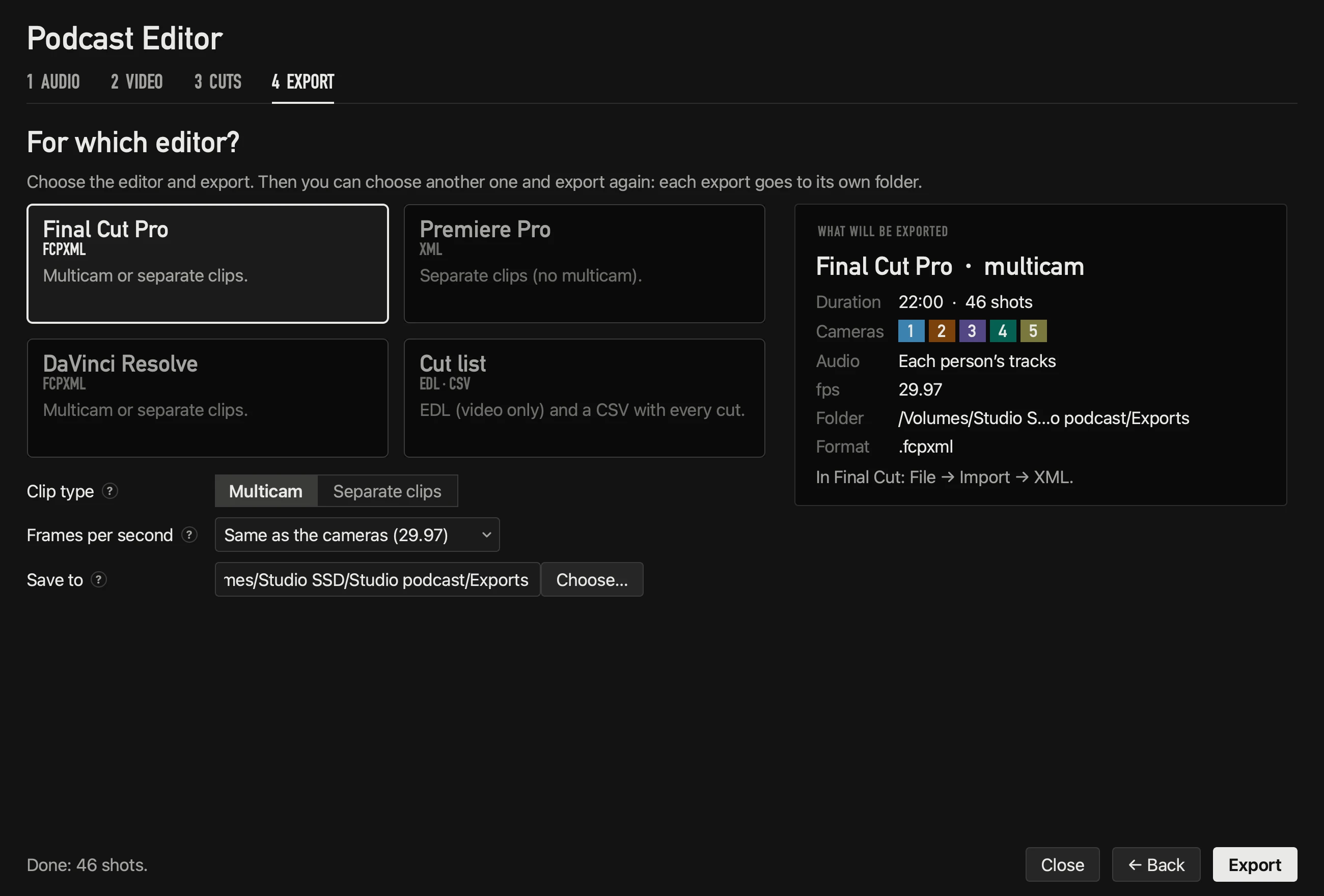
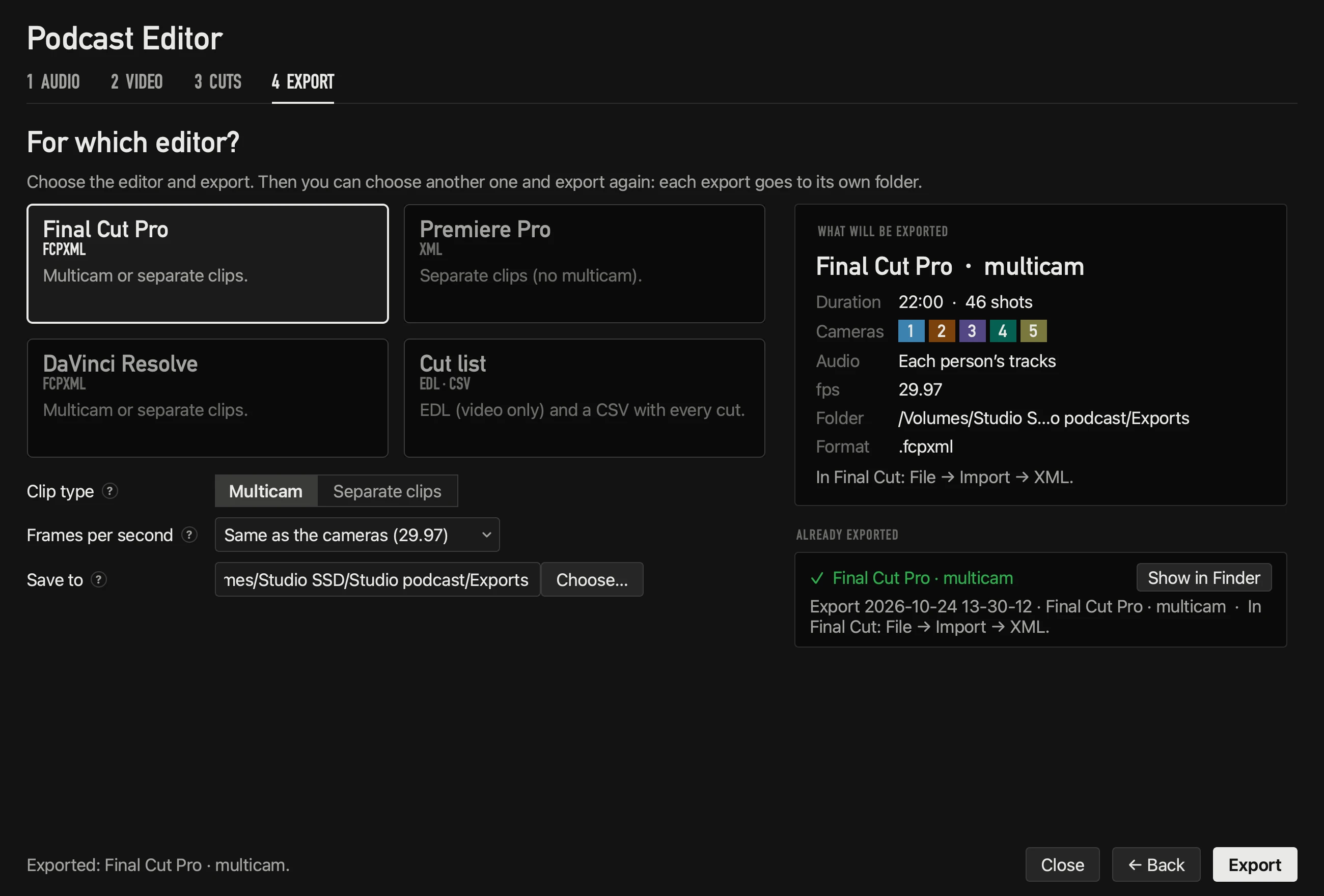
- Choose the editor — Final Cut Pro, Premiere Pro, DaVinci Resolve or Cut list — and, below, the clip type and how the cameras arrive. At the right, the summary of what will be exported.
- Clip type (Final Cut and DaVinci): Multicam (the default in Final Cut) — one angle per camera plus one of mics, so you change the angle of any cut with one click — or Separate clips. Premiere always goes as separate clips: it doesn’t import multicam by XML.
- With separate clips, Each camera on its own track (the default), with the unused footage disabled (each track has its camera’s whole recording, switched on only where it’s used) or cut out (each track has only its used parts); or Merge into one track (only the chosen shots, in order — the unused takes are lost).
- Frames per second of the timeline: the cameras’, or the one you choose. It warns if a camera doesn’t match.
- Markers (the ones added with M while recording) go in every format: inside the multicam clips or gaps of Final Cut and DaVinci, and as sequence markers in Premiere.
- The edit’s audio is each person’s tracks; the cameras’ audio stays off. With a master track, the master goes on top and each person’s tracks stay silent underneath.
- Timecode: in the EDL, the cut list and Premiere’s XML, each camera keeps its own timecode (its frame rate and its drop frame). The timeline goes in drop frame if the cameras count that way.
- Every export goes to a new folder (“Export date time”), with the instruction to open it in that editor: nothing is ever written over another. You can choose another editor and export again.
- The same material carries the same identifier in every export: importing another version into the same Final Cut library doesn’t duplicate the clips.
| File | Opens in |
|---|---|
| .fcpxml | Final Cut Pro (File → Import → XML) and DaVinci Resolve (File → Import → Timeline) |
| .xml | Premiere Pro (File → Import): a sequence with each camera on its own track |
| .edl | Any editor — video only, one track |
| .csv | A list of every cut |
Your licence
During the public beta
Until December 31, 2026 OnAirCut works without a licence. From January 1, 2027 it needs a subscription — 19 USD a month or 190 USD a year, with a 7-day free trial. See pricing.
The licence lives at the top of Settings. While it’s in order it’s one row; Details shows who it’s registered to, the Macs using it and the subscription:
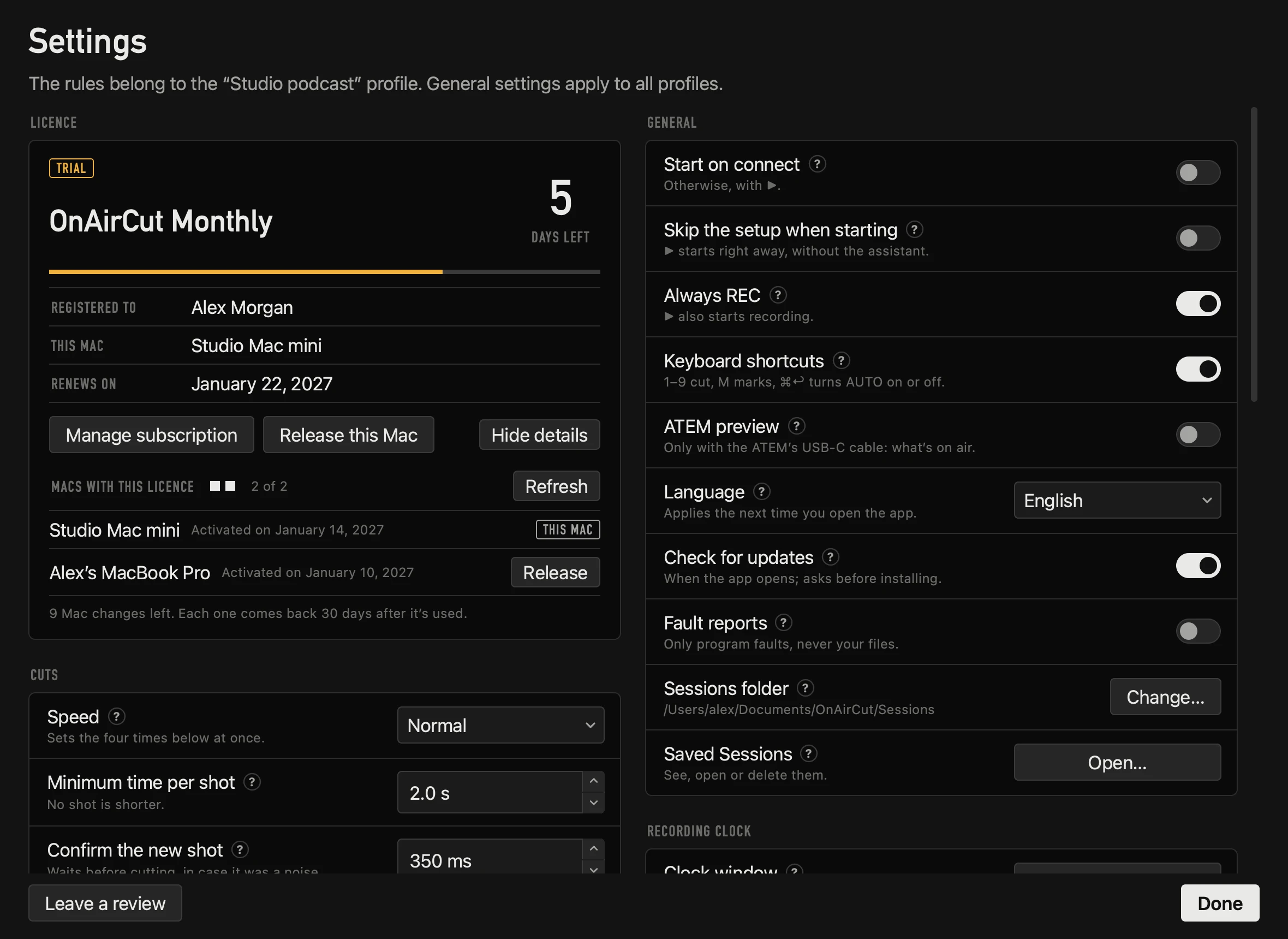
- Activate: paste the key from your purchase email and press Activate. The field cleans what sneaks in when pasting (spaces, line breaks, odd dashes, invisible characters, quotes). It works on 2 Macs at once.
- Release: frees this Mac’s seat to use the licence on another one. A licence can change Mac 10 times every 30 days; each change comes back 30 days after it was used. Reinstalling on a Mac that still has its seat isn’t a change.
- The Macs: each with its name and activation date; your own says This Mac. If the list doesn’t load, you can release a seat from the Mac that has it, or write to support@soonus.net.
- Manage subscription: a link to your account arrives by email, where you cancel, change the card or download invoices.
- Offline: it keeps working 14 days since the last time it confirmed the licence. Confirming never stops the live switching.
- Free trials: 7 days each, and each Mac can use two.
When there’s something to do
The start screen only talks about the licence when there’s something to do — it expired, it’s on hold, it’s missing — with a light in the colour of the state, the notice and the button that fixes it. Licence at the foot of the start screen (or Help → Licence…) opens its window:
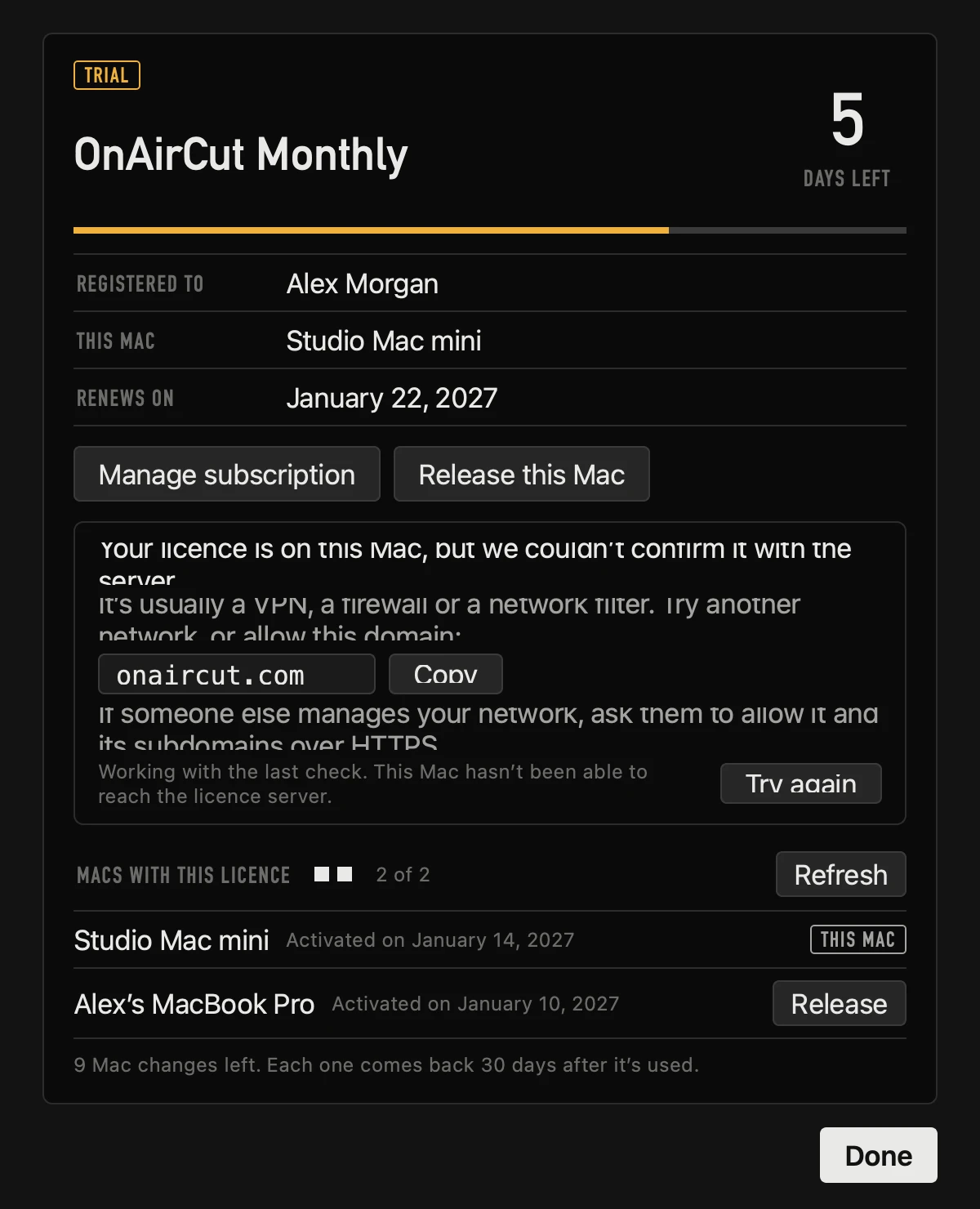
If a VPN, a firewall or a network filter blocks the check, the app keeps working with the last check and says which domain to allow — onaircut.com, with a Copy button — and Try again. If someone else runs your network, ask them to allow it with its subdomains, over HTTPS. To activate or release a Mac, the app also talks to live.dodopayments.com (Dodo Payments’ licence service): allow it too.
Licence messages
Each message says whose problem it is and carries an OAC-L code for support. Red: the problem is the licence. Grey: it isn’t a fault — there’s something to do.
| Code | Message | Colour |
|---|---|---|
| OAC-L1 | No licence with that key. Check it against your purchase email. | Red |
| OAC-L2 | That licence is no longer active: the subscription was cancelled or ended. You can renew it in “Manage subscription”. | Red |
| OAC-L3 | Your subscription is on hold because the payment didn’t go through. Update your card in “Manage subscription” and it starts working again on its own. | Grey |
| OAC-L4 | Both Macs your licence allows are already using it. Release one to use it on this Mac. | Grey |
| OAC-L5 | This licence has already changed Mac 10 times in the last 30 days, which is the most it can. It can change again on the date shown, when the first of those changes turns 30 days old. The seat this Mac took was given back. | Grey |
| OAC-L6 | This licence is registered to a different Mac. Activate it here with your key, or release the other Mac first. | Red |
| OAC-L7 | This Mac could not store the licence, so the seat was given back — nothing is stuck. Try again, and allow keychain access if macOS asks for it. | Grey |
| OAC-L8 | The licence server could not answer. Try again in a moment. | Red |
| OAC-L9 | Could not reach the licence server. Check the connection and try again. | Red |
| OAC-L10 | Your plan changed and a new key arrived by email: paste it here. | Grey |
| OAC-L11 | This Mac hasn’t confirmed your licence for more than 14 days. Connect to the internet to keep using OnAirCut. | Red |
| OAC-L12 | This version of OnAirCut no longer works. Download the new one at onaircut.com/download. | Red |
| OAC-L13 | That key belongs to another Soonus app, not OnAirCut. Check your OnAirCut purchase email. | Red |
| OAC-L14 | This Mac has already used its two free trials, so this trial doesn’t unlock it. It will work here as soon as the first payment goes through, or buy a plan without a trial now. | Grey |
When something fails
Every error says what failed, why, what to do and whose side it’s on:
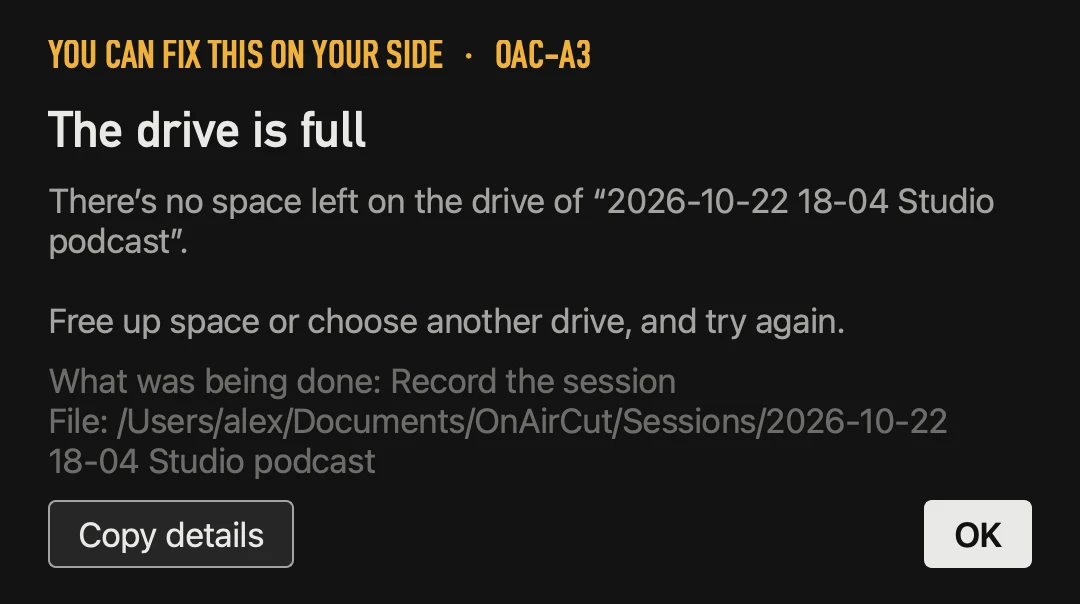
- “You can fix this on your side”: a file, the disk, a macOS permission or a device. The notice says exactly what to check.
- “OnAirCut fault”: an error in the program. Press Copy details (the version, macOS, the error and where it happened) and send it to support — or through the contact form.
- The error window never blocks: the live switching keeps cutting. Everything also goes to the log (Help → Open app log).
| Code | What happened | What to do | Whose |
|---|---|---|---|
| OAC-A1 | A file isn’t where it was: it was moved, renamed or deleted, or the drive it was on was disconnected. If the folder is on a drive that isn’t connected, the notice says so, with the drive’s name. | Reconnect the drive or choose the file again. | Yours |
| OAC-A2 | macOS didn’t allow reading or writing there: a protected folder, another user’s folder, or no permission in macOS. | Choose another folder, or grant permission in System Settings → Privacy & Security → Files and Folders (or Full Disk Access). | Yours |
| OAC-A3 | The drive is full. | Free up space or choose another drive, and try again. | Yours |
| OAC-A4 | The drive is read-only (for example, a card with its lock switch on). | Choose a folder on another drive. | Yours |
| OAC-A5 | The drive stopped responding: it was disconnected, went to sleep or has faults. | Check the drive’s cable or connection and try again. If it happens again, copy the files to another drive. | Yours |
| OAC-A6 | A file couldn’t be read: it’s damaged, incomplete (a recording that was cut off) or in a format macOS can’t read. | Open it in QuickTime to check. If it doesn’t open there either, copy it again from the card or export it again as WAV or MOV. | Yours |
| OAC-A7 | The name or path is too long for macOS. | Shorten the file or folder names, or choose a folder higher up on the drive. | Yours |
| OAC-A8 | The Mac ran out of memory: the job needed more than was free. | Close other apps and try again. | Yours |
| OAC-A9 | Not enough audio to sync: syncing by sound needs at least 5 seconds of audio in common. | Check that the file is from this recording and that it has sound. | Yours |
| OAC-A10 | macOS didn’t allow moving a session to the Trash: the disk has no Trash (a network drive, for example), it’s read-only, or OnAirCut isn’t allowed to change that folder. | The sessions were left as they were. Check the disk and try again, or delete them in the Finder. | Yours |
| OAC-A11 | A track of the recording reached the limit of a WAV file (4 GB: about 8 hours per microphone at 48 kHz, about 4 at 96 kHz). The recording stopped, and everything recorded up to there is complete. | To keep recording, press ● REC again: it starts a new session. | Yours |
| OAC-A12 | The image chosen as the recording clock’s logo is damaged or in a format the app can’t read. | Use a PNG or a JPG: for example, open it in Preview and export it as PNG. | Yours |
| OAC-E1 | The console couldn’t be opened: it’s disconnected or busy with another app. | Check the USB cable and that no other app is using it exclusively; the app keeps trying on its own. If that doesn’t fix it, unplug the console and plug it back in. | Yours |
| OAC-E2 | macOS blocked the microphone, so the console’s audio isn’t reaching OnAirCut. | Turn it on in System Settings → Privacy & Security → Microphone and reopen the app. | Yours |
| OAC-E3 | The ATEM didn’t get a cut: the connection was lost (USB cable or network). | Check the cable or the network; the app reconnects on its own. | Yours |
| OAC-E4 | The Mac’s sound output couldn’t be opened (for the editor’s preview): there are no headphones or speakers, or another app is using it exclusively. | Connect an output or choose one in System Settings → Sound. | Yours |
| OAC-E5 | Recording without the mics’ audio: the console isn’t connected (or couldn’t be opened), or the profile has no mics turned on. The recording has only the cuts; in the Podcast Editor, the audio will be the cameras’. | Connect the console by USB (the app picks it up on its own) or turn the mics on in the Mics page. To record with their audio, stop the session (■) and start it again (▶). | Yours |
| OAC-S… | macOS answered with an uncommon error. The number after the S is the system’s own. | Press Copy details and send it to support. | Support |
| OAC-X… | A fault in the program. Its four characters say where it happened: the same fault always gives the same code. | You can try again; if it happens again, press Copy details and send it to support. | Support |
Keyboard shortcuts
| Keys | What they do |
|---|---|
| 1 – 9 | Cut to that camera (not while you type in a field) |
| ⌘↩ | AUTO on or off |
| ⌘R | ● REC: record or stop recording |
| M | Add a marker while recording (not while you type in a field) |
| ⌘T | Start or stop the clock |
| ⌘E | Podcast Editor |
| ⌘, | Settings — also from the start screen and the editor |
| ⌘⌫ | Move the selected session to the Trash (in Saved Sessions) |
| Space | Play or pause the edit (Podcast Editor, step 3) |
| 1 · 2 | Live Switcher · Podcast Editor (on the start screen) |
The live shortcuts can be turned off in Settings → General or Control → Keyboard shortcuts.
Built to run during a show
- No App Nap: the app doesn’t slow down even behind OBS, and the Mac doesn’t sleep while it’s open.
- It reconnects: it finds the ATEM by itself, first on USB and then on the network, and reconnects if it’s lost. If the console drops or is plugged in after opening the app, it picks it up again.
- It asks first: before closing while recording or with AUTO on, and before removing mics.
- Settings are backed up on every save; if the file is damaged, it’s set aside and the backup is restored.
- The network never slows the show: the licence check runs on its own thread.
- A log of errors: Help → Open app log.
Full specifications
Cameras and switcher
| Switchers | The whole ATEM family — Mini, Mini Pro, Mini Extreme, SDI, SDI Extreme ISO, Television Studio |
| Cameras | Up to 20 ATEM inputs; keys 1–9 cut directly |
| Connection | USB or Ethernet, found on its own; reconnects if it drops |
| Shared shots | A camera can show several people; the wide shot shows everyone |
| Transition | Straight cut, or the transition set on the ATEM (a dissolve, for example) |
| Other sources | Never cuts over a logo, black or the media player you put on air |
Microphones and voice
| Consoles | Any multichannel USB console that sends one person per channel (a Mixcast 4, for example) |
| Microphones | As many as your console sends — each one read on its own |
| Bleed | Learns how much of each voice leaks into the other mics, and discounts it |
| Level | Compares each person with their own normal voice, so a quiet guest keeps the shot |
| Noise | Air conditioning or hum doesn’t count as a voice |
| Assistant | Mics, cameras, room noise and each voice, in one short pass per profile |
How it switches
| Speed | Very fast, Fast, Normal or Calm — or every time set by hand |
| Several at once | Goes to the tightest shot that shows them all, after the time you choose |
| Short replies | An “uh-huh” doesn’t take the shot from whoever has the floor |
| Silence | Stay, go wide or go to a camera you choose |
| Variety | After a long stretch on one person, a few seconds of another shot, then back |
| By hand | Click a camera or press 1–9; it waits before cutting on its own again |
Recording the session
| Audio | A 24-bit WAV per microphone, in sync with every cut |
| Cuts | Every cut with its exact time: automatic, by hand or from the ATEM |
| Safety | Saved every 5 seconds; a power cut leaves the session whole |
| Clock drift | Corrects the small clock difference between the console and the Mac |
| Always REC | On by default: every ▶ records too, and the recording goes with the session — only ■ stops it, and it asks first |
| Markers | Press M to mark a moment; it shows in the editor and goes into Final Cut, DaVinci and Premiere |
| Disk | Shows how much recording fits, and asks before recording with less than an hour left |
| Recording clock | In its own window for a TV: automatically when recording (with ▶) or when you decide, with a countdown, the time of day, your logo and colors |
| Sessions | A list with length, cuts and size; deleting goes to the Trash, never straight away |
Podcast Editor
| Audio in | An OnAirCut session, one file per person or a multitrack file (WAV, AIFF, CAF, M4A, MP3) |
| Master track | Your final mix on top (from Auphonic, for example), synced by sound |
| Sync | By timecode or by sound, to a fraction of a millisecond, drift included |
| Frame rates | 23.976, 24, 25, 29.97, 30, 50, 59.94 and 60 — drop frame respected |
| Cuts | From the whole conversation; change a setting and they recalculate in under a second |
| Preview | Watch and hear the edit before exporting |
Export
| Final Cut Pro | A multicam clip — change any angle with one click — or separate clips |
| Premiere Pro | A sequence with each camera on its own track |
| DaVinci Resolve | The same FCPXML, as a multicam clip or separate clips |
| Any editor | EDL (video, one track) and a CSV list of cuts |
| Unused footage | Keep it disabled on each camera’s track, cut it out, or put everything on one track |
| Every export | Its own folder, never written over another |
Mac and licence
| Mac | Apple silicon (M1 or later), macOS 14 Sonoma or later |
| Languages | English and Spanish |
| Licence | 2 Macs at once, 10 changes every 30 days |
| Offline | Keeps working 14 days since the last check |
Glossary
| Word | What it means here |
|---|---|
| Bleed | A voice picked up by someone else’s mic, more quietly. OnAirCut learns how much of each voice reaches each mic and discounts it. See mic bleed. |
| Program (PGM) | What’s on air: the ATEM’s output. Red in OnAirCut, like a tally light. |
| Preview (PVW) | What’s coming next. Green. |
| Shared camera | A camera that shows several people; it’s used when any of them talks, or when they talk together. |
| Wide shot | The camera that shows everyone (the one with the most mics ticked). |
| Profile | A studio’s whole setup: mics, cameras, rules and learned voices. |
| Session | What ▶ starts. With ● REC, a folder with a WAV per mic and every cut. |
| Marker | A moment you mark with M while recording. It shows on the editor’s timeline and goes into the export. |
| Multicam clip | In Final Cut and DaVinci, a clip with one angle per camera: you change any cut’s angle with one click. |
| ISO recording | Each camera recorded separately (on its card or an ATEM ISO), which is what the editor needs. |
| Timecode | The clock a camera writes into its file (HH:MM:SS:FF), used to sync. |
| Drop frame | The way of counting timecode at 29.97 and 59.94 that skips labels so it matches the real clock; written with “;”. |
| Drift | The small difference between two clocks (a camera’s and the console’s) that grows with time; OnAirCut measures and corrects it. |
| Master track | Your final mix (from Auphonic, for example), placed on top of the edit. |
Didn’t find it? Ask your AI or write to us.