
Remove mic bleed and clean up your podcast audio with Auphonic
Put several microphones in one room and every mic hears everyone, plus the room’s noise and echo. This is the exact Auphonic Multitrack setup we use at our podcast studio for clean, even, ready-to-publish audio — step by step.
- 01 Start a multitrack production
- 02 Add one track per microphone
- 03 On the master, turn on Remove Mic Bleed
- 04 Metadata
- 05 Transcripts and shownotes: optional
- 06 Output files: the master and Individual Tracks
- 07 Start the production, and save it as a preset
- 08 Video podcast? Bring the clean tracks into OnAirCut
Why we love Auphonic ❤️
The Auphonic links on this page are referral links: if you sign up through them, we may earn a commission. Auphonic doesn’t endorse or sponsor OnAirCut.
Mic bleed is a microphone picking up someone else’s voice: voices sound hollow and far away, and every edit gets harder. A multitrack production in Auphonic removes it from every track, along with background noise and room echo, evens out the voices and sets the loudness for publishing.
Raw tracks the other voice −22 dB
After Auphonic the other voice −70 dB
Their own voice The other’s voice leaking in Nobody talking
That’s why Auphonic is the perfect complement to OnAirCut: with its clean tracks, our podcast editor reaches 99.3 % accuracy in its cuts.

We ❤️ Auphonic
Levelling, noise, echo, mic bleed and loudness, done right. Their own guide explains every multitrack option.
Both are referral links: if you sign up through them, we may earn a commission. Auphonic doesn’t endorse or sponsor OnAirCut.
What you need
- Each microphone on its own track: one file per person, all starting at the same moment — from your console’s or interface’s recorder, your DAW, or OnAirCut’s ● REC. A single multichannel file works too: Auphonic splits it into one track per channel.
- An Auphonic account.
Our settings, your ears
Every setting in this guide is the one we use at the studio, and it works for our room and our mics. Take it as a starting point and experiment: change one thing at a time, listen, and keep what sounds best on your show.
Start a multitrack production
In Auphonic, on Productions, click the small arrow next to New Production and choose New Multitrack Production.

Add one track per microphone
Under the track list, Add Track adds one microphone at a time; Import Multiple Tracks takes several files at once, or one multichannel file to split into tracks. In each track, choose its file and write the person’s name in Track Identifier.
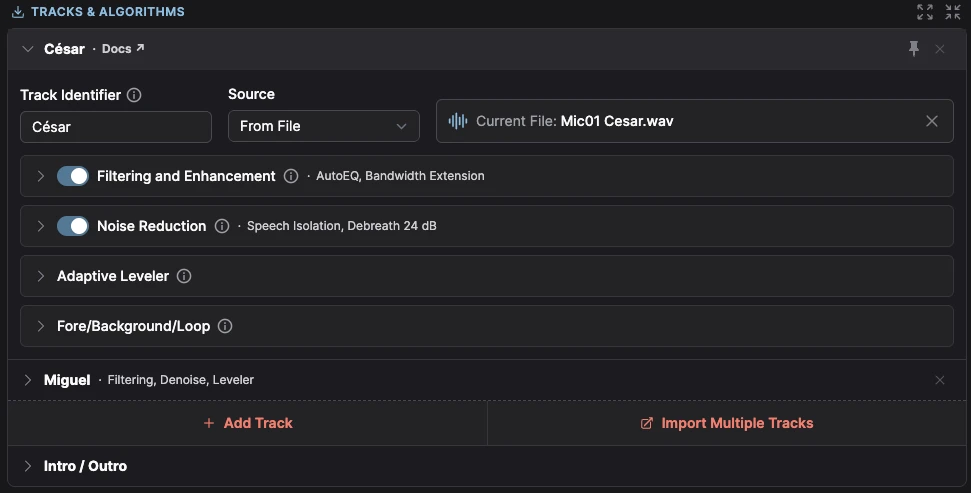
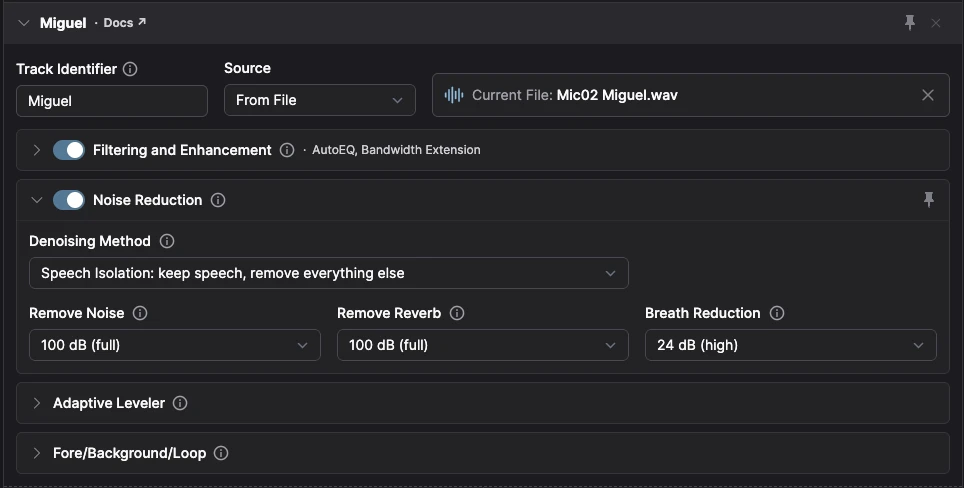
This is how we set up each track at the studio. It works for our room; adjust it to taste:
| Setting | Ours | What it does |
|---|---|---|
| Filtering and Enhancement | On: AutoEQ + Bandwidth Extension | Removes sibilance and plosives, balances the voice and recovers lost high frequencies |
| Noise Reduction → method | Speech Isolation | Keeps only speech: noise and even music go |
| Remove Noise | 100 dB (full) | As much noise reduction as possible |
| Remove Reverb | 100 dB (full) | Removes the room’s echo |
| Breath Reduction | 24 dB (high) | Softens breaths between phrases |
| Adaptive Leveler · Fore/Background/Loop | Default | Each voice at an even level |
On the master, turn on Remove Mic Bleed
In Master Audio Algorithms, the switch that matters most for this guide is Remove Mic Bleed: it’s what leaves each track with one voice. Our setup:
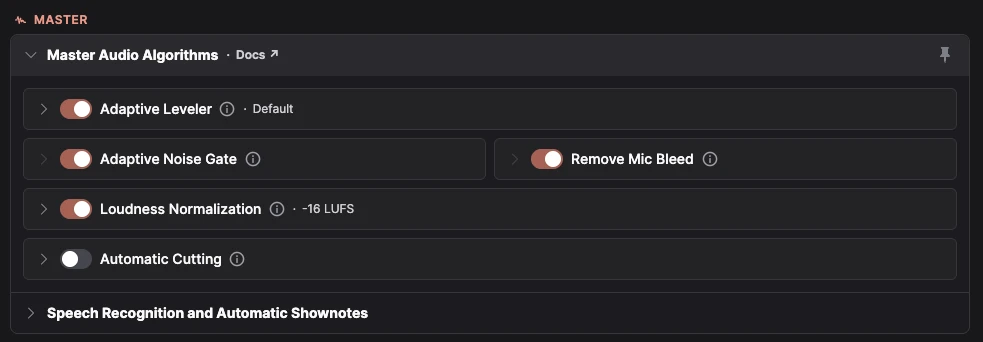
| Algorithm | Ours | Why |
|---|---|---|
| Remove Mic Bleed | On | Removes from each track the other people’s voices. The heart of this guide. |
| Adaptive Leveler | On (Default) | Balances the people with each other |
| Adaptive Noise Gate | On | Lowers background noise on the tracks of whoever isn’t talking |
| Loudness Normalization | On, −16 LUFS | A common loudness for podcasts |
| Automatic Cutting | Off | See below |
Keep Automatic Cutting off
It removes silences and filler words, so the tracks end up shorter than the recording. If you edit afterwards — above all with video — they no longer line up.
Metadata

- Basic Metadata: the episode title, the artist and the cover image.
- Extended Metadata: subtitle, summary, tags and licence.
- Chapter Marks: chapters with their time, so listeners can jump between topics.
They’re written into the files Auphonic delivers. Fill in what your podcast needs; they don’t change the sound.
Transcripts and shownotes: optional
Speech Recognition and Automatic Shownotes creates a transcript, subtitles and shownotes, and uses each Track Identifier as the speaker’s name. Handy for publishing, and up to you: it doesn’t change the audio.
Output files: the master and Individual Tracks
In Output Files, click Add Output File for each one. We keep two:
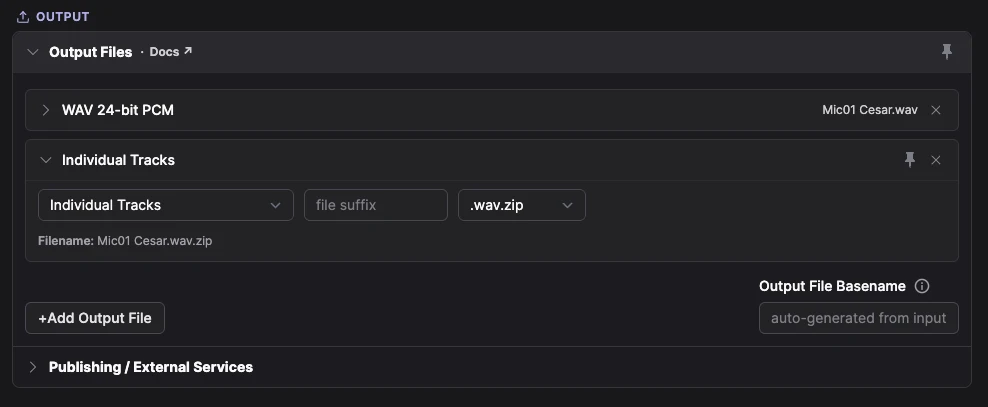
- WAV 24-bit PCM: your mastered podcast, with every microphone at a good level, equalised and ready to publish. Add an MP3 too if your host asks for one.
- Individual Tracks: a .zip with every processed track as its own file — one clean track per person, with only their real voice. Essential if you edit afterwards, and for a video podcast.
Start the production, and save it as a preset

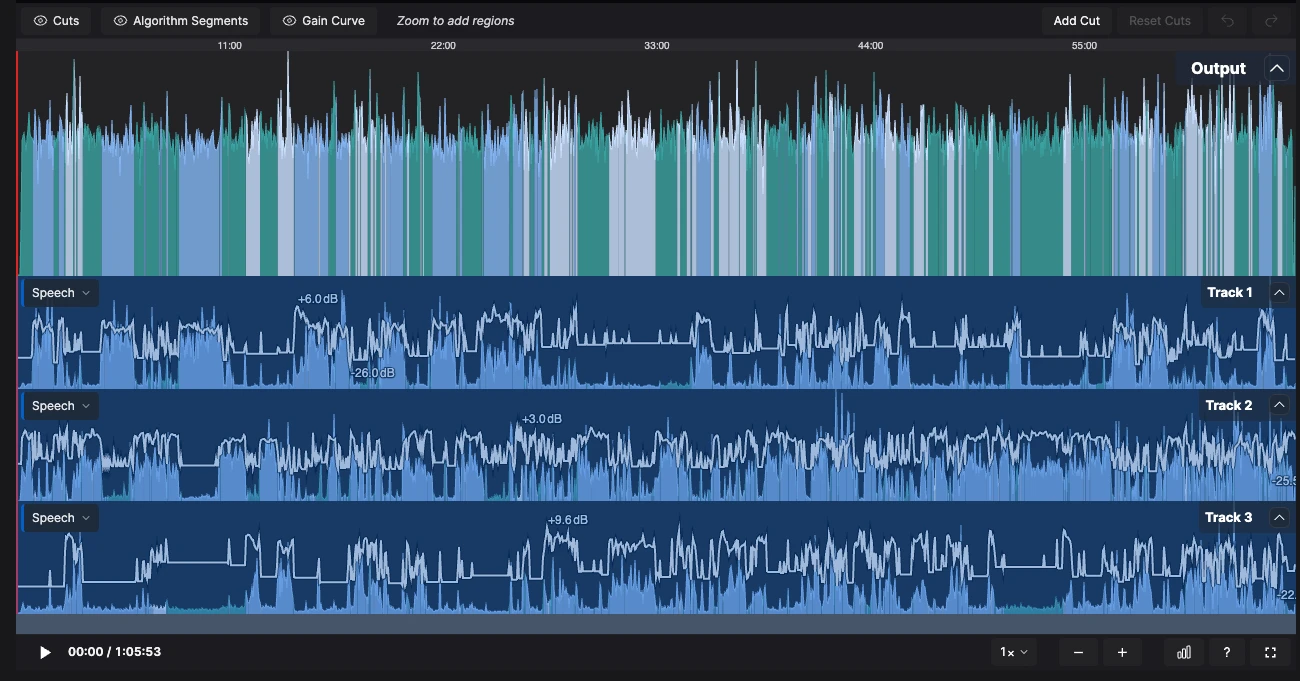
- Start Production and Auphonic processes everything. When it’s done you see the result: the mixed output on top and, below, each track with its speech segments and its levelling curve.
- Save as Preset keeps the whole setup: next time you only add the tracks and press Start.
Video podcast? Bring the clean tracks into OnAirCut
If you also film your podcast, OnAirCut edits the multicam on its own, for Final Cut Pro, Premiere Pro and DaVinci Resolve. Here’s why it and Auphonic go so well together:
- OnAirCut cuts by listening. Its Podcast Editor reads each person’s track to know who is talking: with only one voice per track, every cut lands right where someone starts.
- The tracks keep their length. With Automatic Cutting off, they still line up with the cameras.
- The finished sound goes on top. Auphonic’s WAV becomes the edit’s master track.
On its own, OnAirCut got the right shot 98.1 % of the time with the raw tracks of a 60-minute podcast; with Auphonic’s clean tracks, 99.3 %. To bring them in:
- 1Unzip Individual Tracks.
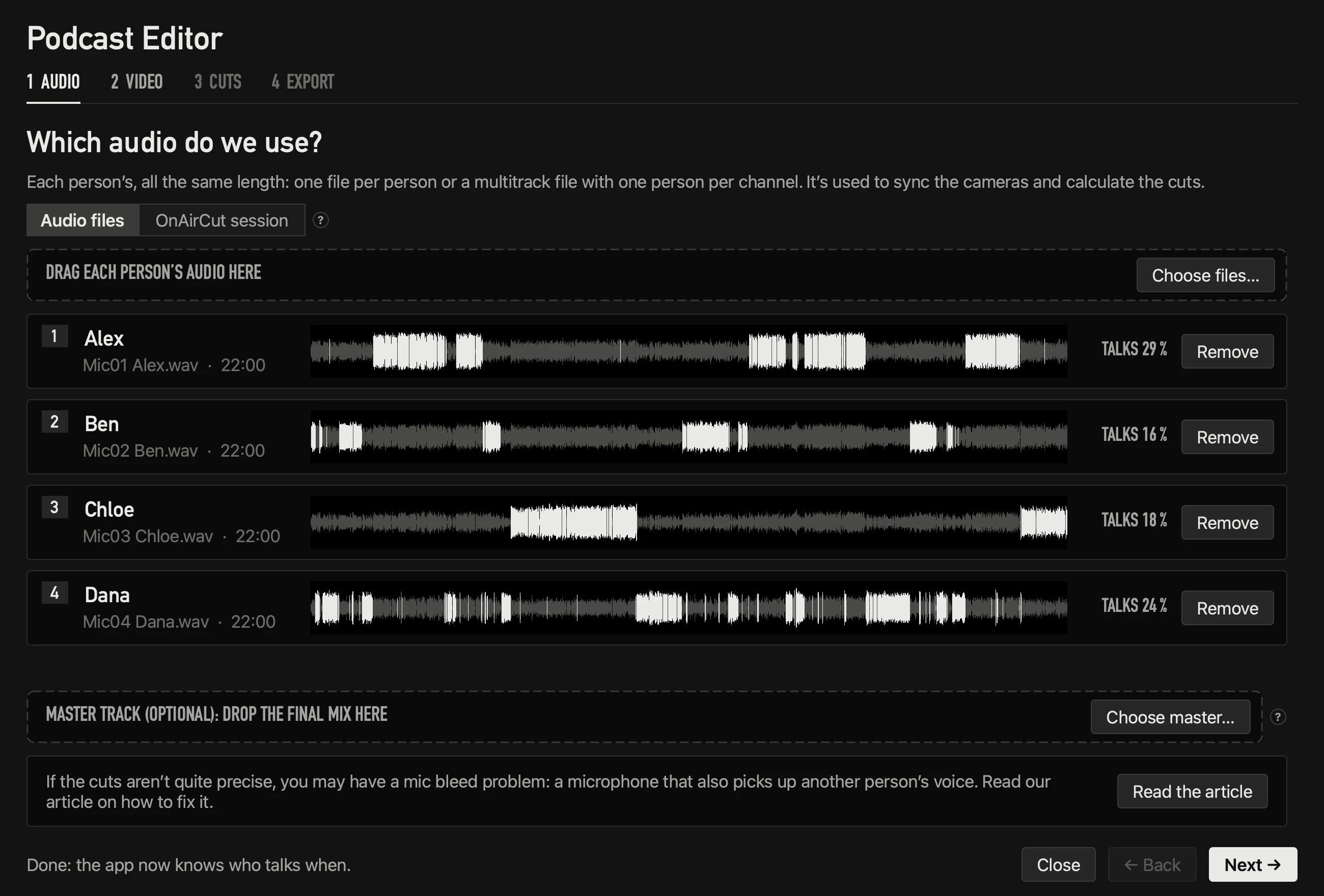
- 2In OnAirCut’s Podcast Editor, step 1 · Audio, drop the clean tracks in Audio files: one per person.
- 3Drop Auphonic’s WAV as the Master track: it goes on top of the edit, with each person’s track silent underneath.
- 4Continue with the video, the cuts and the export, as in the editing guide.
Live, its assistant learns how much of each voice leaks into each mic and keeps learning during the show; Settings → Voice detection → Bleed margin fine-tunes it.
We ❤️ Auphonic
Keep it handy for the recordings that come in hard. Every option is explained in detail in Auphonic’s own guide.
Both are referral links: if you sign up through them, we may earn a commission. Auphonic doesn’t endorse or sponsor OnAirCut.
Questions
What is mic bleed?
A microphone picking up the voice of someone else in the room. Every podcast with several people in one room has a little; it becomes a problem when you can hear it.
How do I know I have mic bleed?
Solo one person’s mic while someone else talks: if you can clearly understand the other voice, there’s a lot of bleed. It’s common in small or echoey rooms, with mics close together, and with condensers or lavaliers.
How do I get less mic bleed when recording?
Dynamic mics, about a hand’s width from the mouth, aimed away from the others, in a room with soft surfaces. Every time the distance doubles, the voice drops and the room comes up.
Why keep Automatic Cutting off?
It removes silences and filler words, so the tracks get shorter. For an audio-only show that may be what you want, but if you edit afterwards with video, or sync anything to the recording, the tracks have to keep their length.
What loudness should a podcast be?
−16 LUFS is a common target for podcasts, and it’s what we use. Loudness Normalization sets it for you.
Can I save these settings?
Yes: Save as Preset, at the bottom of the production. Next time you only add the tracks.
Does OnAirCut need Auphonic?
No. OnAirCut works with the tracks as they come: 98.1 % on that podcast. Auphonic is for when the bleed is extreme; with its clean tracks, the editor reached 99.3 %.
Read next
Editing
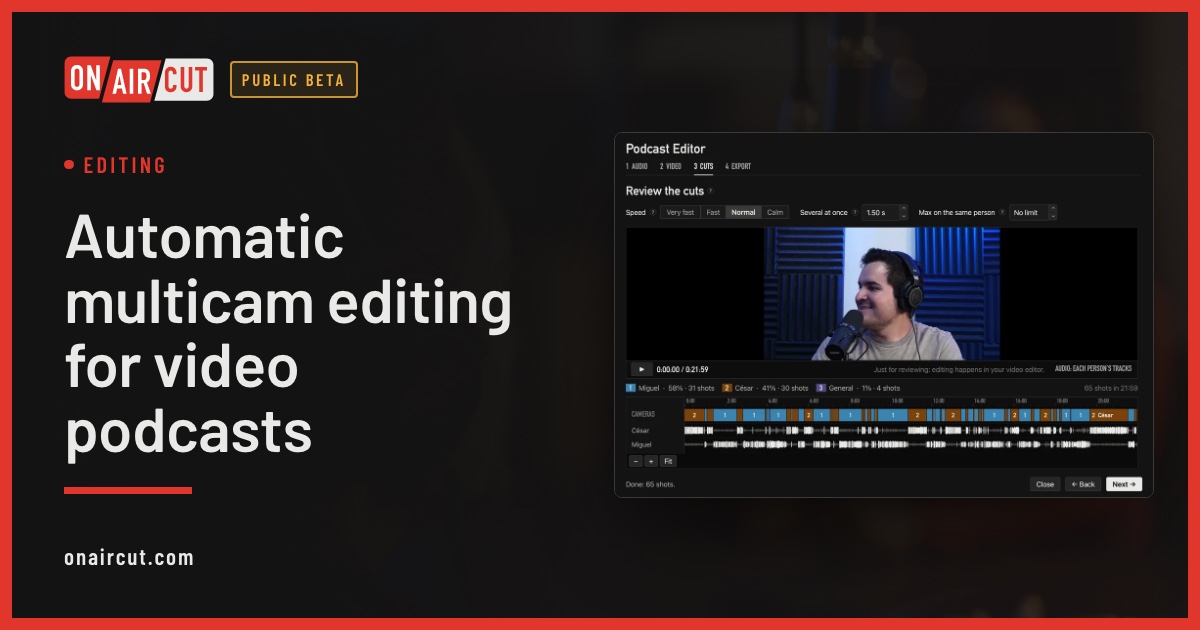
Automatic multicam editing for video podcasts
Build a video podcast’s multicam edit automatically from each person’s audio, for Final Cut Pro, Premiere Pro or DaVinci Resolve. No ATEM needed. Four steps.
Read →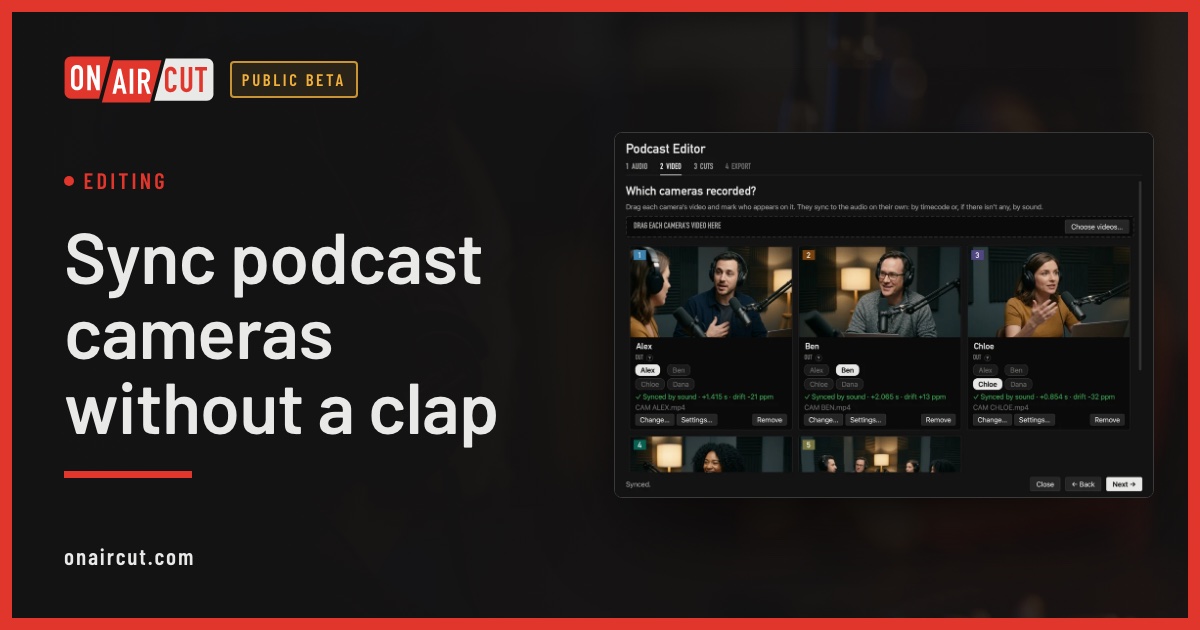
Editing
Sync podcast cameras without a clap
How to sync a video podcast’s cameras with each person’s audio without clapping: by timecode, by sound, and correcting the clock drift of each camera.
Read →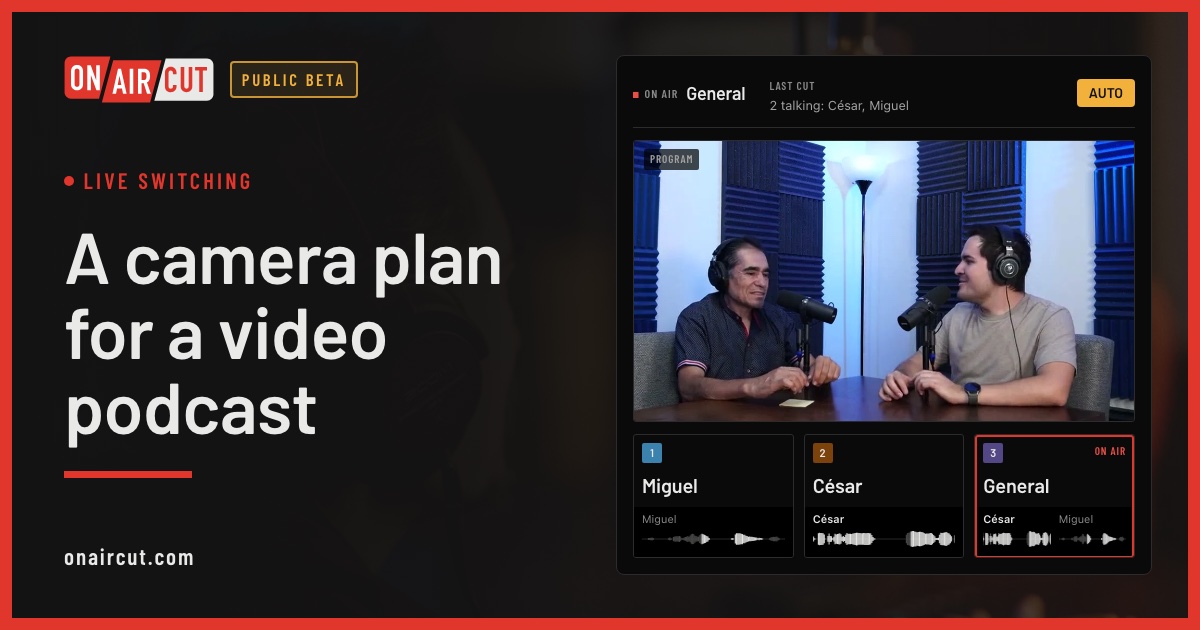
Live switching
A camera plan for a video podcast
How many cameras a video podcast needs, what each should show and how to frame them, for two or three people — and how OnAirCut uses each one.
Read →Try it on your own show.
Public beta until December 31, 2026. For Mac with Apple silicon.