
How to switch an ATEM automatically by who is talking
A podcast with three people and three cameras can switch itself, so whoever runs the show can focus on the conversation. It needs one microphone per person and something that listens to all of them at once.
What you need
- An ATEM — any of the family: Mini, Mini Pro, Mini Extreme, SDI, SDI Extreme ISO, Television Studio.
- A multichannel USB console that sends one person per channel to the Mac (a Mixcast 4, for example). The Mac has to hear each mic on its own, not just the mix.
- A camera per person, and a wide shot if you have one.
- A Mac with Apple silicon, macOS 14 or later, and OnAirCut.
Plan who each camera shows
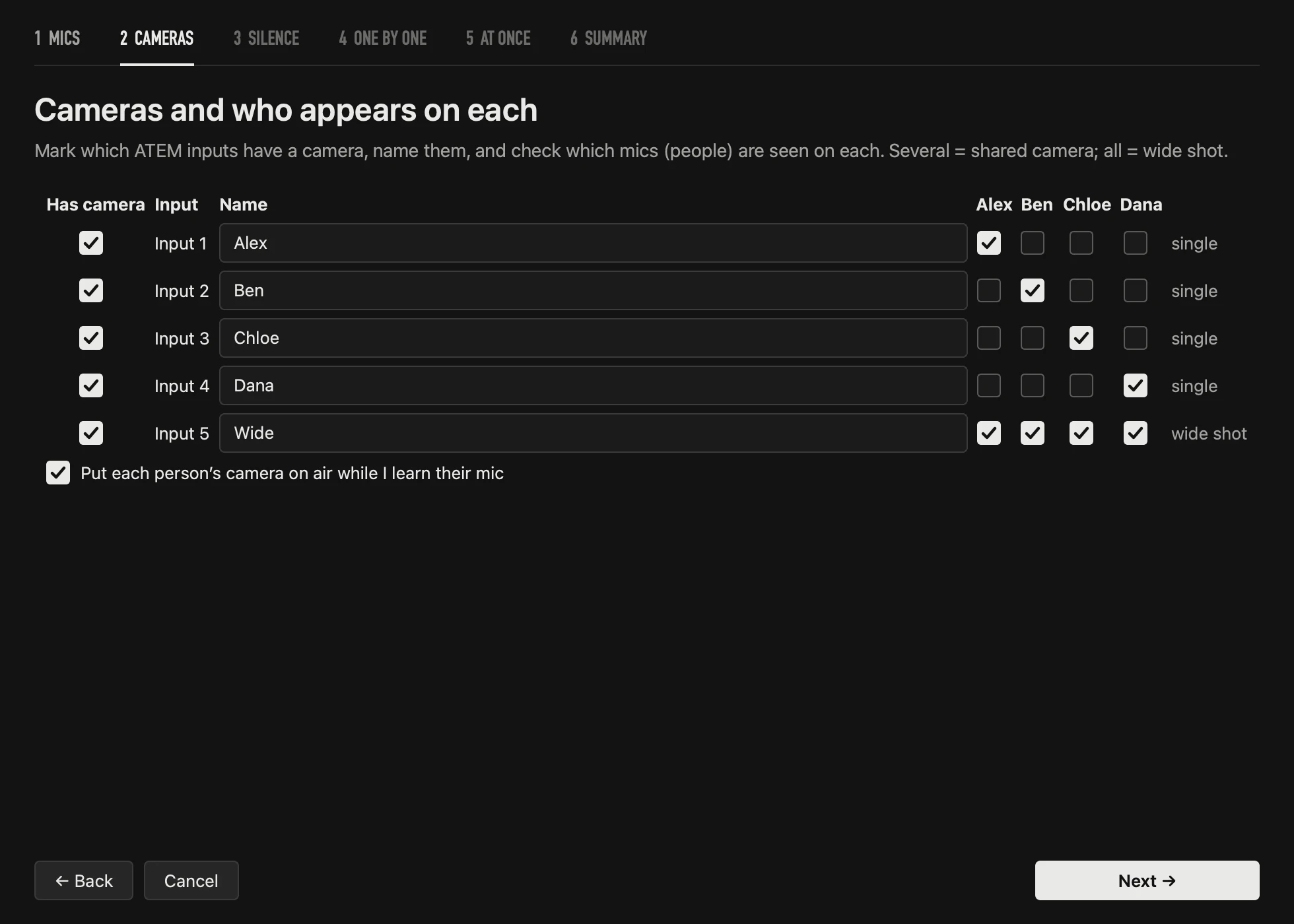
The simplest plan that always works: one tight camera per person and one wide shot that shows everyone. With two people on a Mini Pro, that’s three of its four inputs. A camera can also show two people (a shared shot); OnAirCut uses it when either of them talks, or when they talk together.
More on this in the camera plan for a video podcast.
Connect the ATEM and the console
- Connect the ATEM to the Mac by USB-C or put it on the same network by Ethernet. OnAirCut finds it on its own — first on USB, then on the network.
- Connect the console by USB. It appears at the right of the top bar; click it to choose another input.
- The first time, macOS asks for the microphone and the local network: allow both.

Tell OnAirCut whose mic is whose
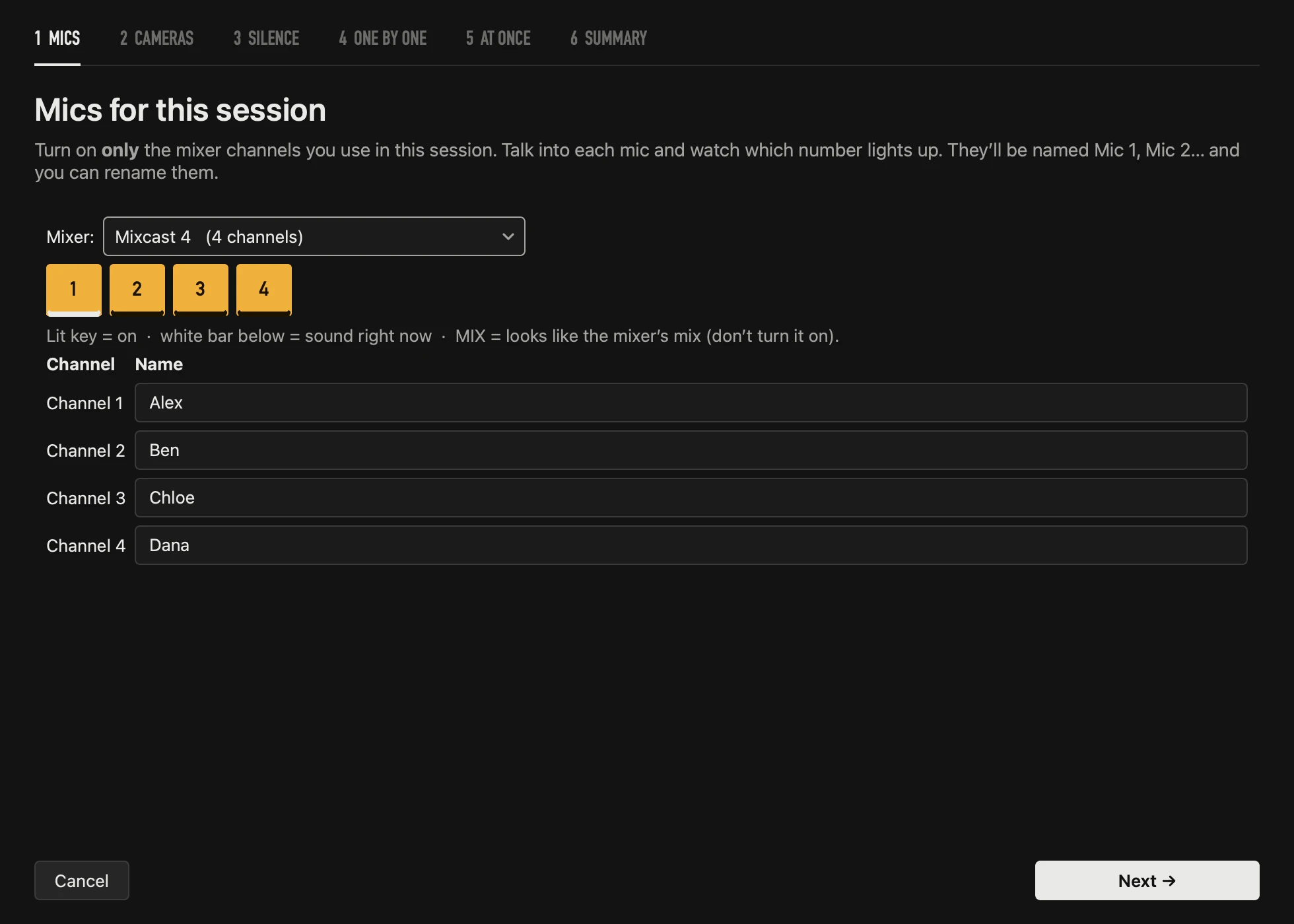
Press Analyze. In the first step, switch on only the channels you use — talking into a mic lights a white bar under its number. In the second, mark the ATEM inputs that have a camera and tick who appears on each.
Let it learn each voice
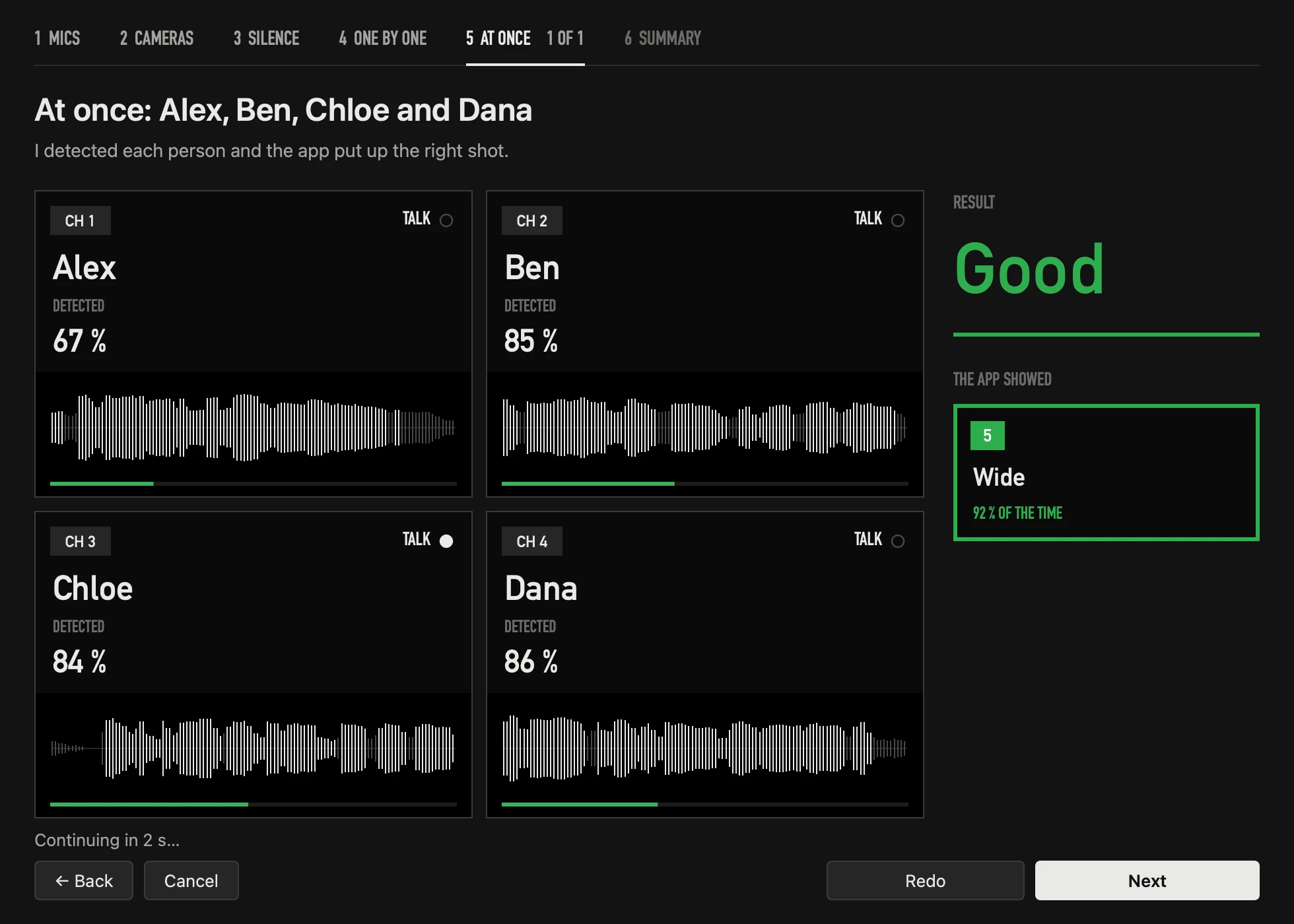
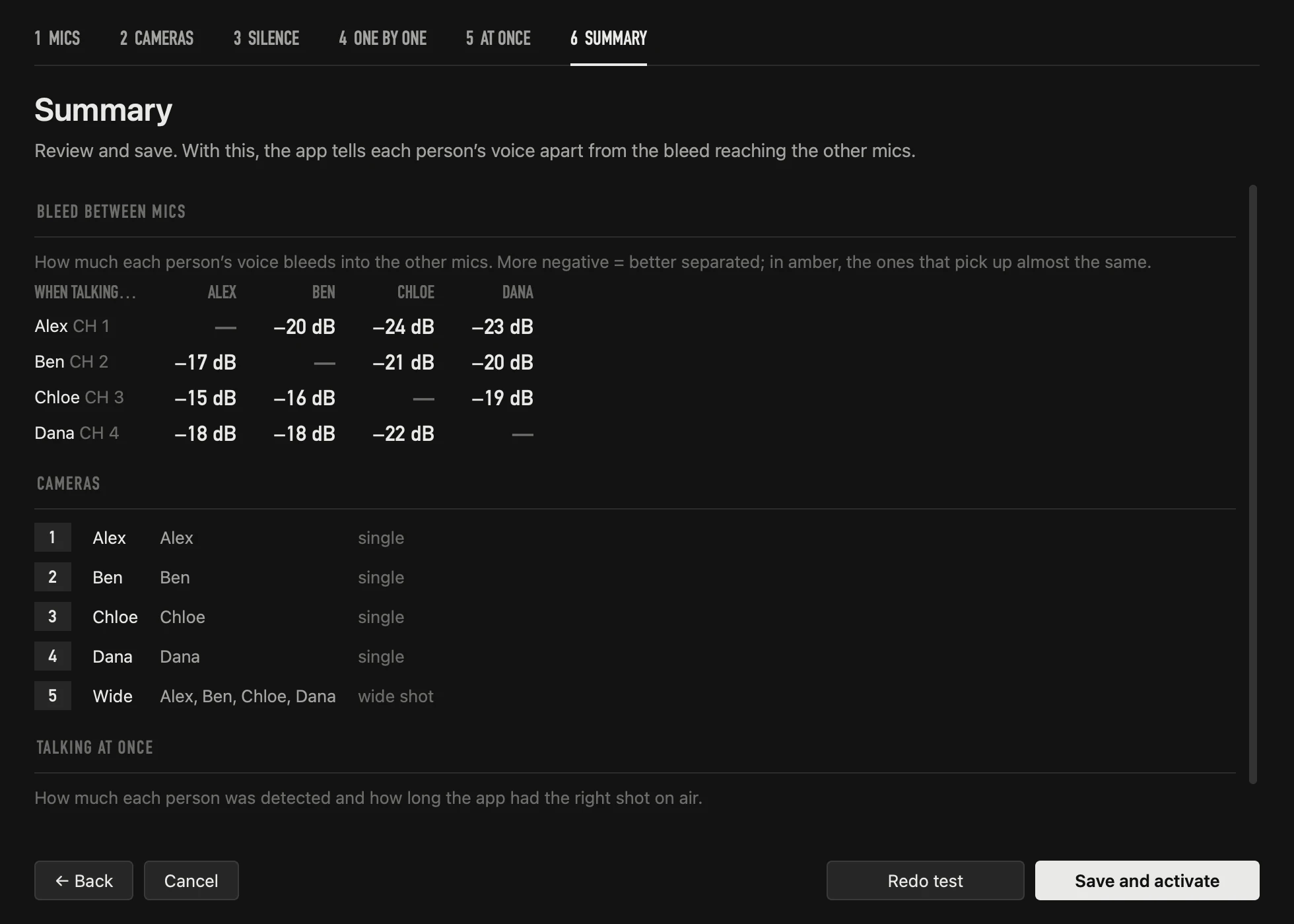
Four seconds of silence (the room’s noise), each person alone for about ten seconds, and a few seconds all at once. The app learns each person’s normal level and how much of each voice leaks into the other mics, and checks that it picks the right shot when people talk together:
Press ▶ and record
▶ starts the session and AUTO cuts to the tightest camera that shows whoever is talking. The strip says what’s on air and why it cut; the last 60 seconds show every decision. ● REC records a WAV per mic and every cut, for the edit later.
- Keys 1–9 (or a click on a camera) cut by hand; the app waits a few seconds before cutting on its own again.
- It never cuts over a logo, black or the media player you put on air from the ATEM.
- It keeps measuring every voice during the show and adjusts if someone talks louder or softer.
Tune the feel
Settings → Speed sets the pace: Normal cuts in about 0.6 s and no shot lasts less than 2 s; Fast reacts in about 0.4 s; Calm keeps long shots. Several people at once decides when to go wide, and When nobody talks whether to stay, go wide or go to a camera you choose.
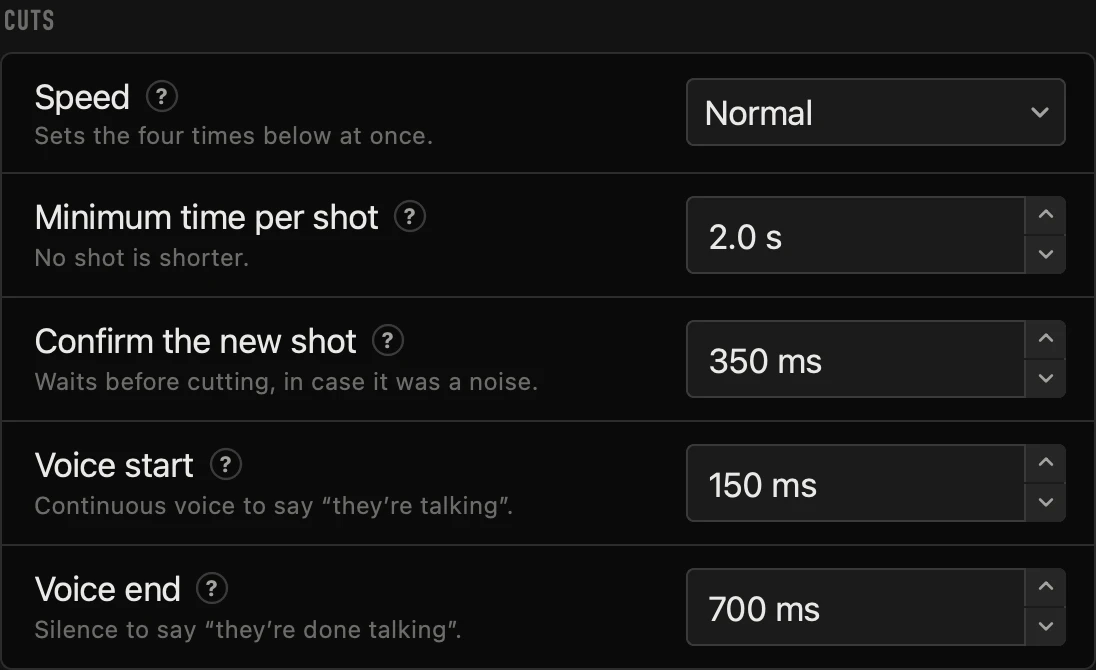
Every setting is in the manual, with what it does and its default.
Why each mic on its own
Switching by the loudest signal fails the first time two people talk at once, or a loud voice leaks into the quiet person’s mic. OnAirCut compares each person with their own normal level and discounts the bleed it measured, so a shy guest keeps the shot when it’s their turn — and a quick “uh-huh” doesn’t steal it.
Questions
Does it work with the plain ATEM Mini?
Yes, with the whole family, by USB or Ethernet. On connecting, OnAirCut sees how many inputs your model has.
Can I still cut by hand?
Yes: keys 1–9, a click on a camera, or the ATEM itself. OnAirCut respects your cut for a few seconds (5 by default) before deciding again.
Do I need a Mixcast 4?
No. Any multichannel USB console that sends one person per channel to the Mac. A console that only sends the stereo mix isn’t enough.
Does it get in the way of OBS or my stream?
No. OnAirCut only tells the ATEM which camera to put on air. The optional ATEM preview inside the app doesn’t take the signal away from OBS. The whole setup is in streaming a podcast with an ATEM and OBS.
Doesn’t the ATEM already have active-speaker switching?
No. Its Audio Follow Video (AFV) does the opposite: the audio follows the camera on air. What AFV does and how to set podcast mics.
Read next
Live switching
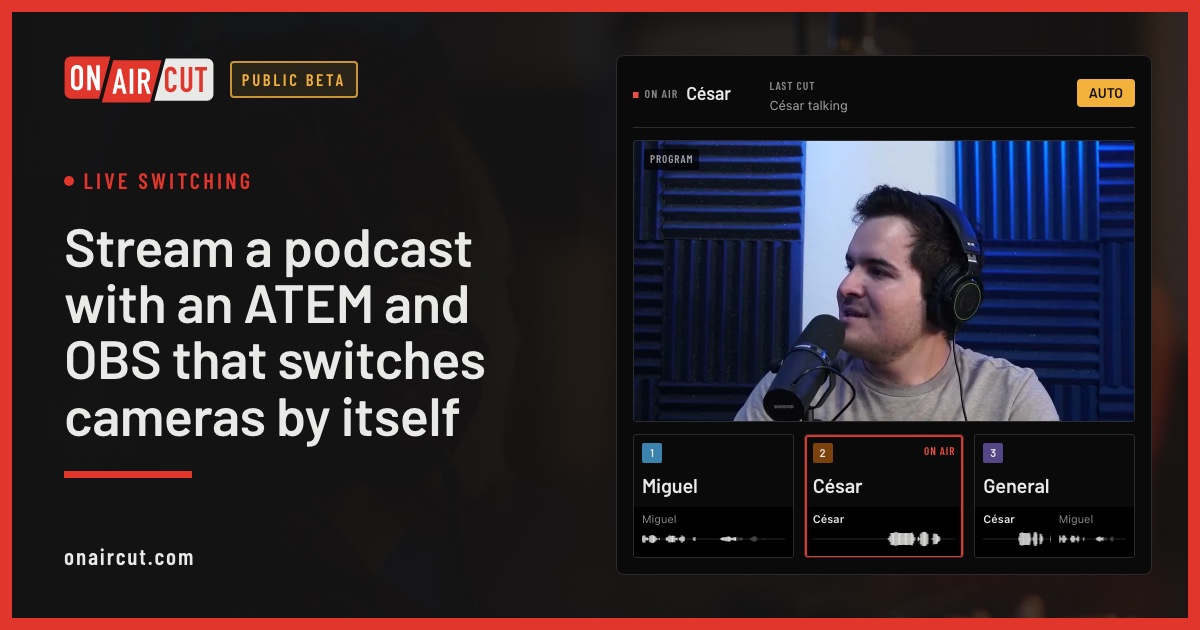
Stream a podcast with an ATEM and OBS that switches cameras by itself
Stream a multicam podcast from OBS with an ATEM Mini that cuts to whoever is talking. How the ATEM, OBS and OnAirCut fit together, the video, the sound and the first stream.
Read →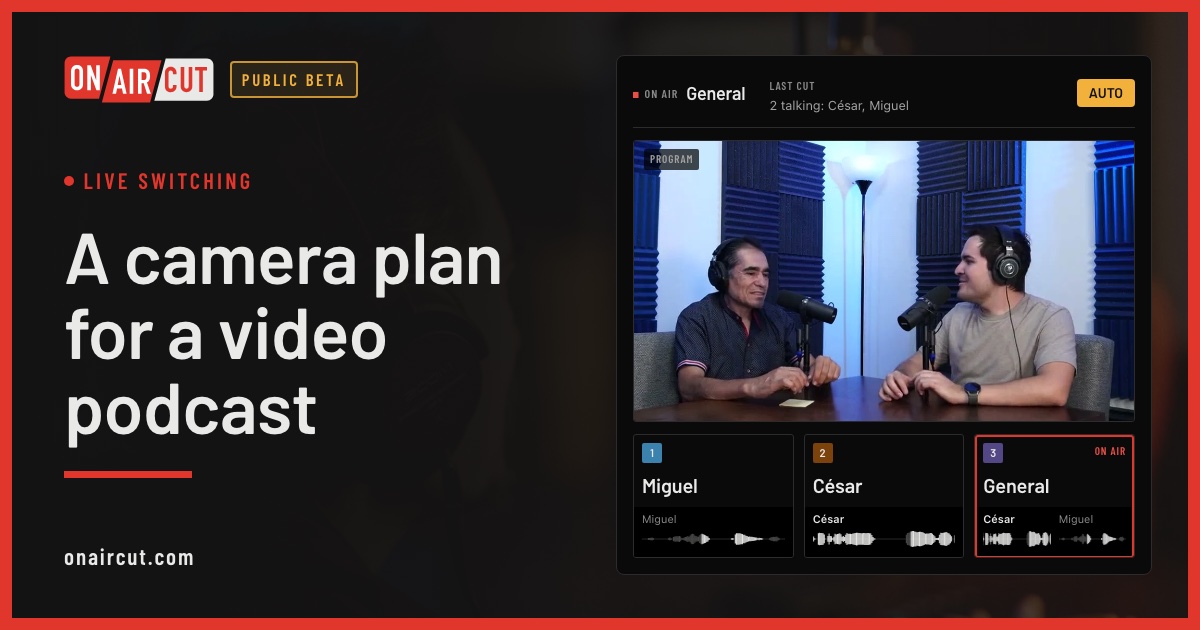
Live switching
A camera plan for a video podcast
How many cameras a video podcast needs, what each should show and how to frame them, for two or three people — and how OnAirCut uses each one.
Read →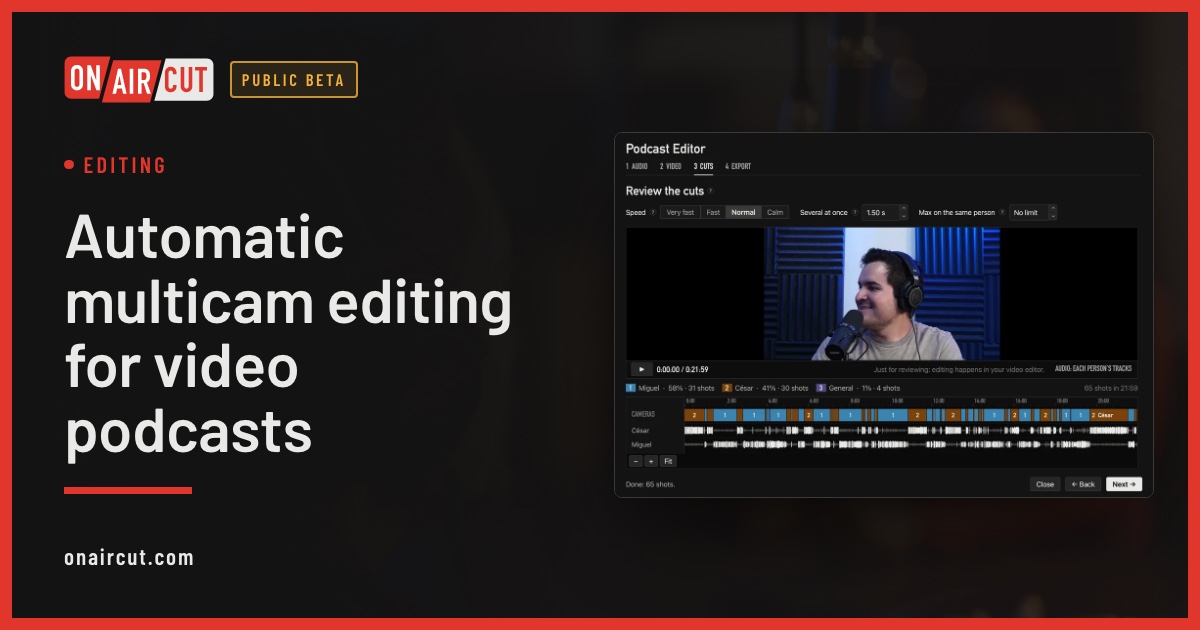
Editing
Automatic multicam editing for video podcasts
Build a video podcast’s multicam edit automatically from each person’s audio, for Final Cut Pro, Premiere Pro or DaVinci Resolve. No ATEM needed. Four steps.
Read →Try it on your own show.
Public beta until December 31, 2026. For Mac with Apple silicon.