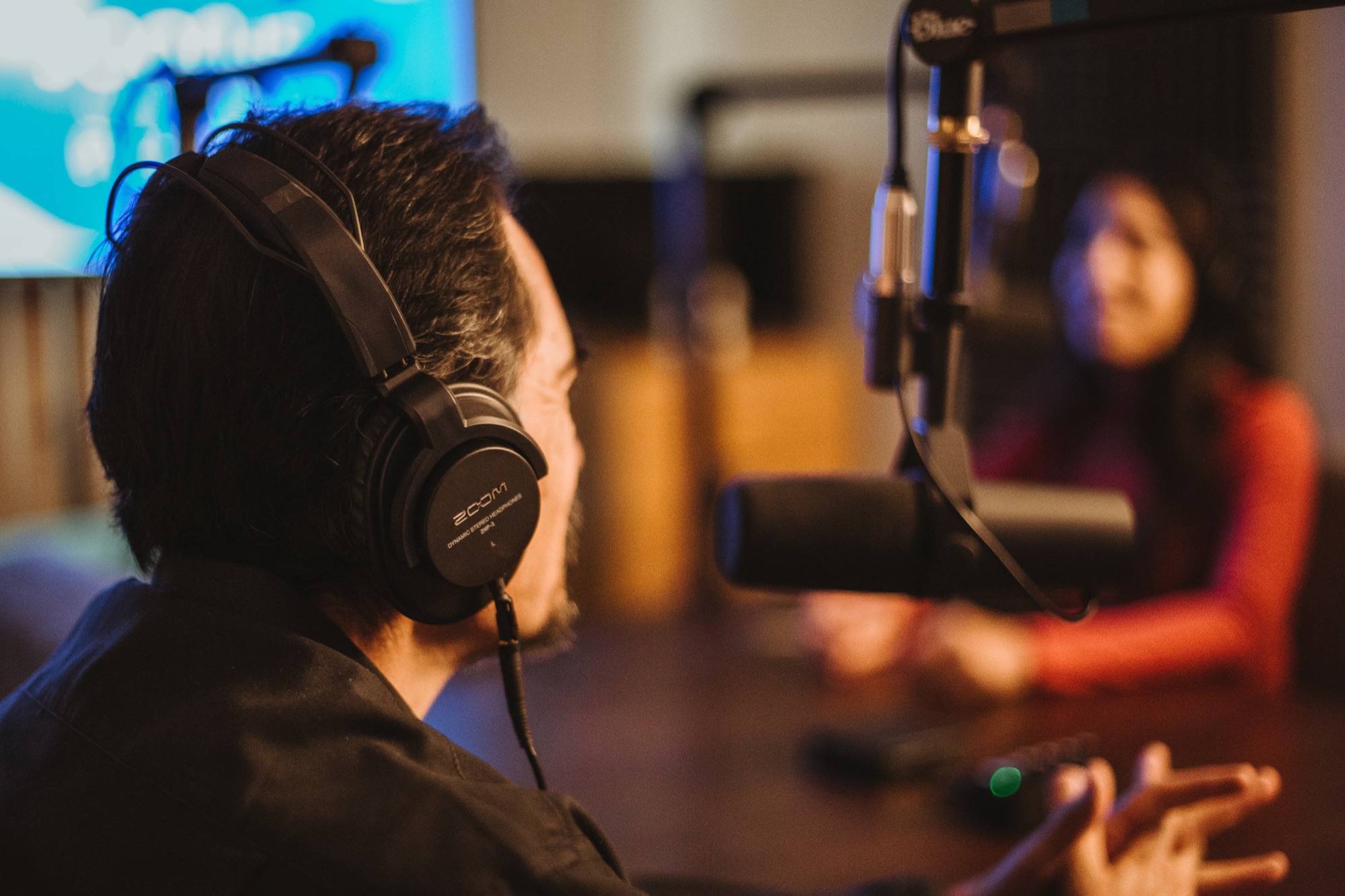
Live · with ATEM
After a live show
Open the OnAirCut session: the cuts it made live become a multicam session for your editor, so post-production doesn’t start from zero.
OnAirCut session Podcast Editor Your editor
 Beta
Beta Automate live switching and editing
OnAirCut listens to every mic and cuts your ATEM to whoever is talking, live. When the show ends, the multicam edit is ready for Final Cut, Premiere or DaVinci.
Recorded without streaming, or without an ATEM? The Podcast Editor builds that same multicam edit from each person’s audio and each camera’s video. See how
macOS 14 or later · Apple silicon
What it does
Two apps in one, for Mac.
LIVE
Automatic switcher for ATEM
Changes the ATEM's cameras to whoever is talking while you record or stream, so you can focus on the conversation. Connects to the ATEM and to your audio console.
Automatic multicam editing
Builds the multicam edit of a recording for Final Cut, Premiere or DaVinci, without cutting by hand: from an OnAirCut session, or by dragging in your raw audio and video. Doesn’t use the ATEM.
What you’re looking at
How the live switching works

The ATEM by USB or Ethernet — OnAirCut finds it on its own — and your multichannel USB console, one person per channel.
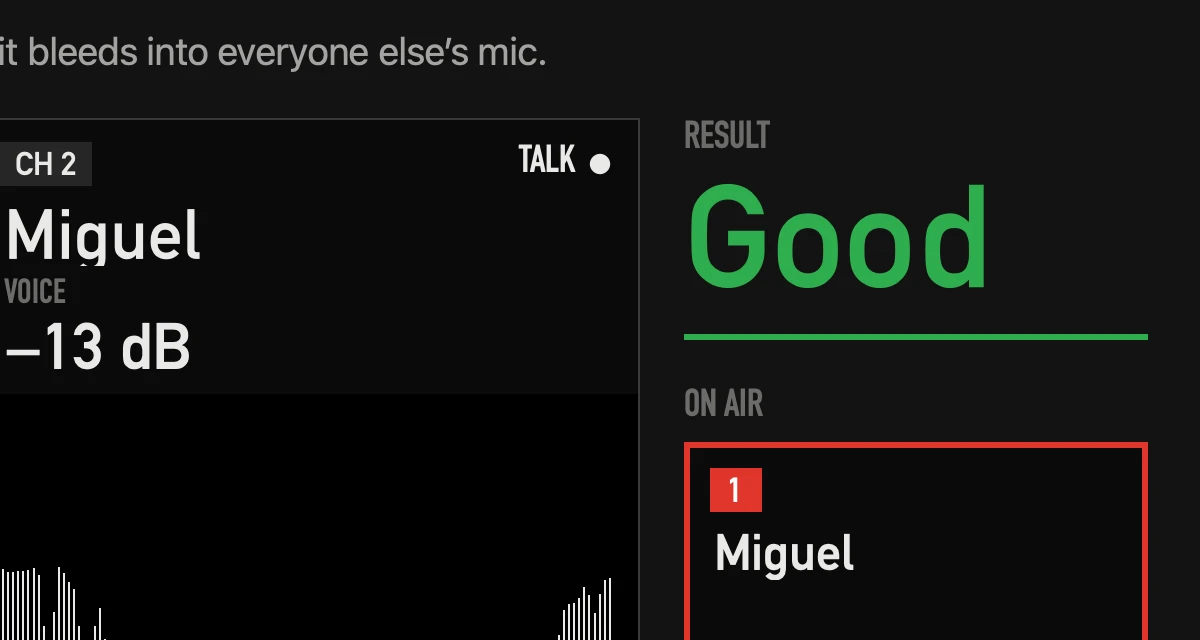
A short assistant: which mic is whose, which camera shows whom, the room’s noise, and how much of each voice leaks into the other mics.
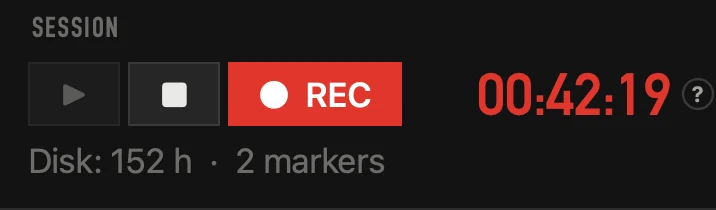
AUTO cuts to the tightest camera that shows whoever has the floor. ● REC records a WAV per mic and every cut, for the edit later.
How it decides
The tightest camera they appear on, about half a second after they start.
After a moment together it goes to the shot that shows them both — here, the wide.
A quick reply doesn’t take the shot from whoever has the floor.
After the seconds you choose, it stays, goes wide or goes to a camera you pick.
Keys 1–9 or a click: it respects your cut for a few seconds, then carries on.
The other mic hears César too, but it knows that’s bleed, not Miguel talking.
For your guests
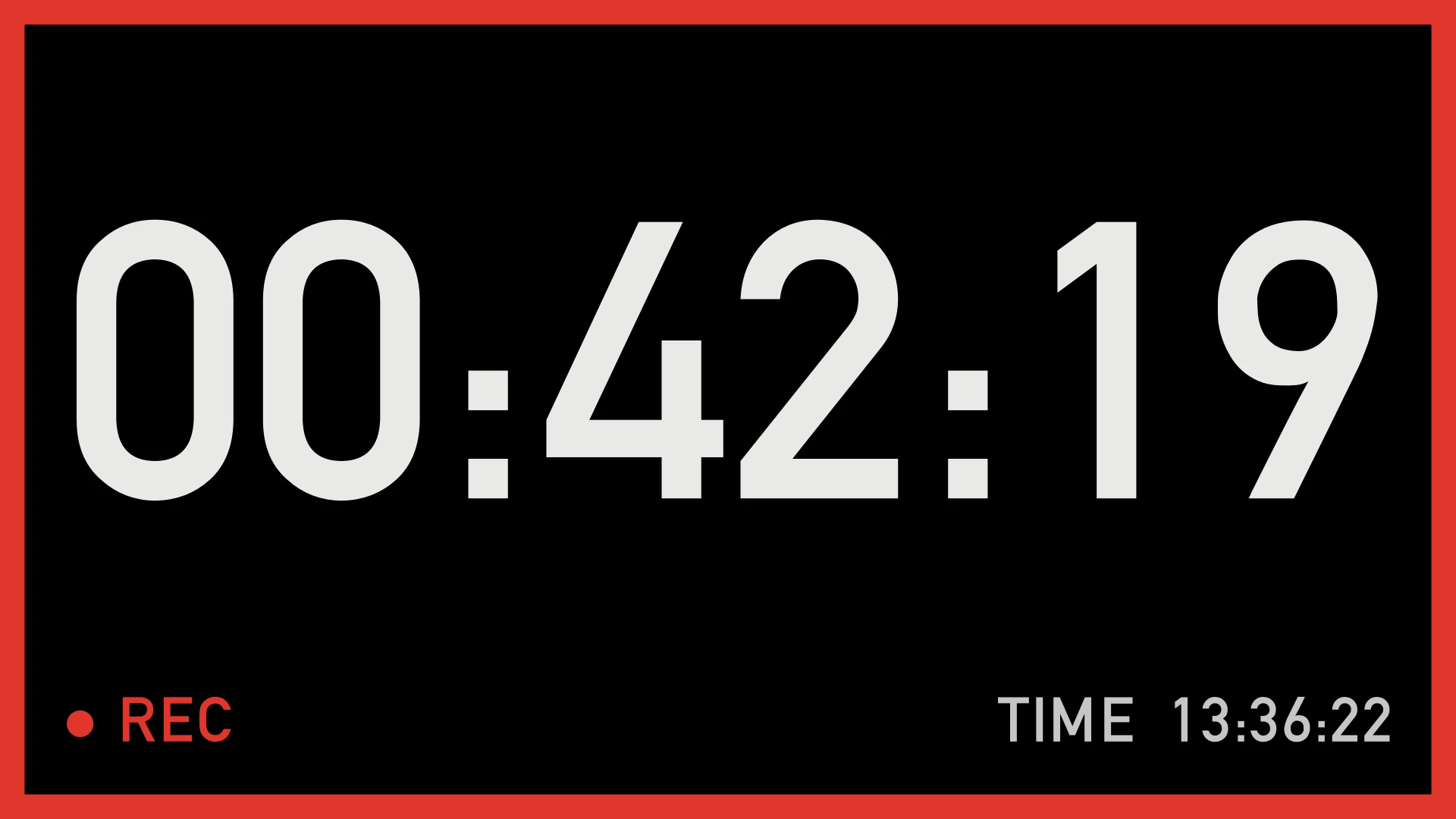
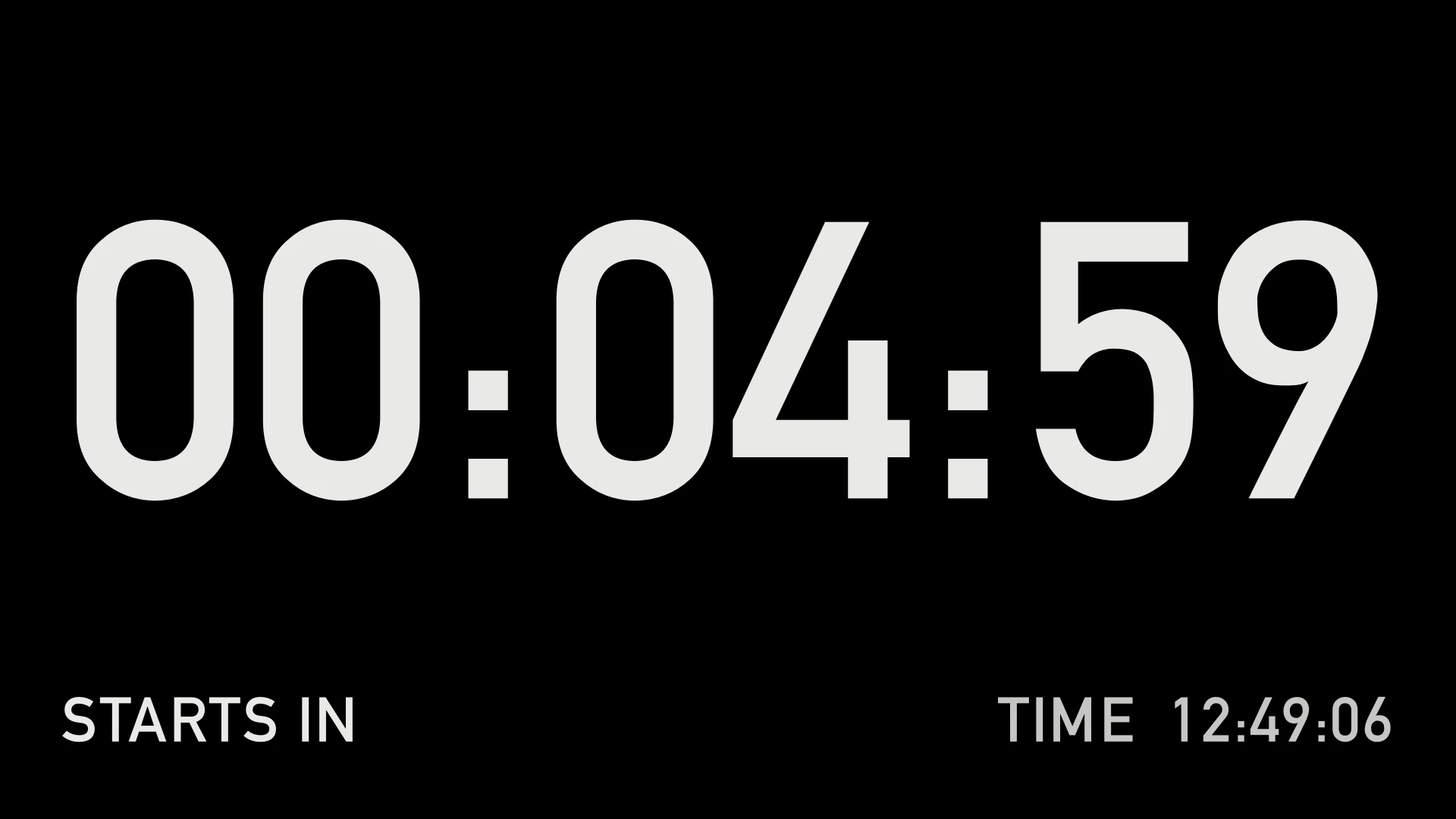
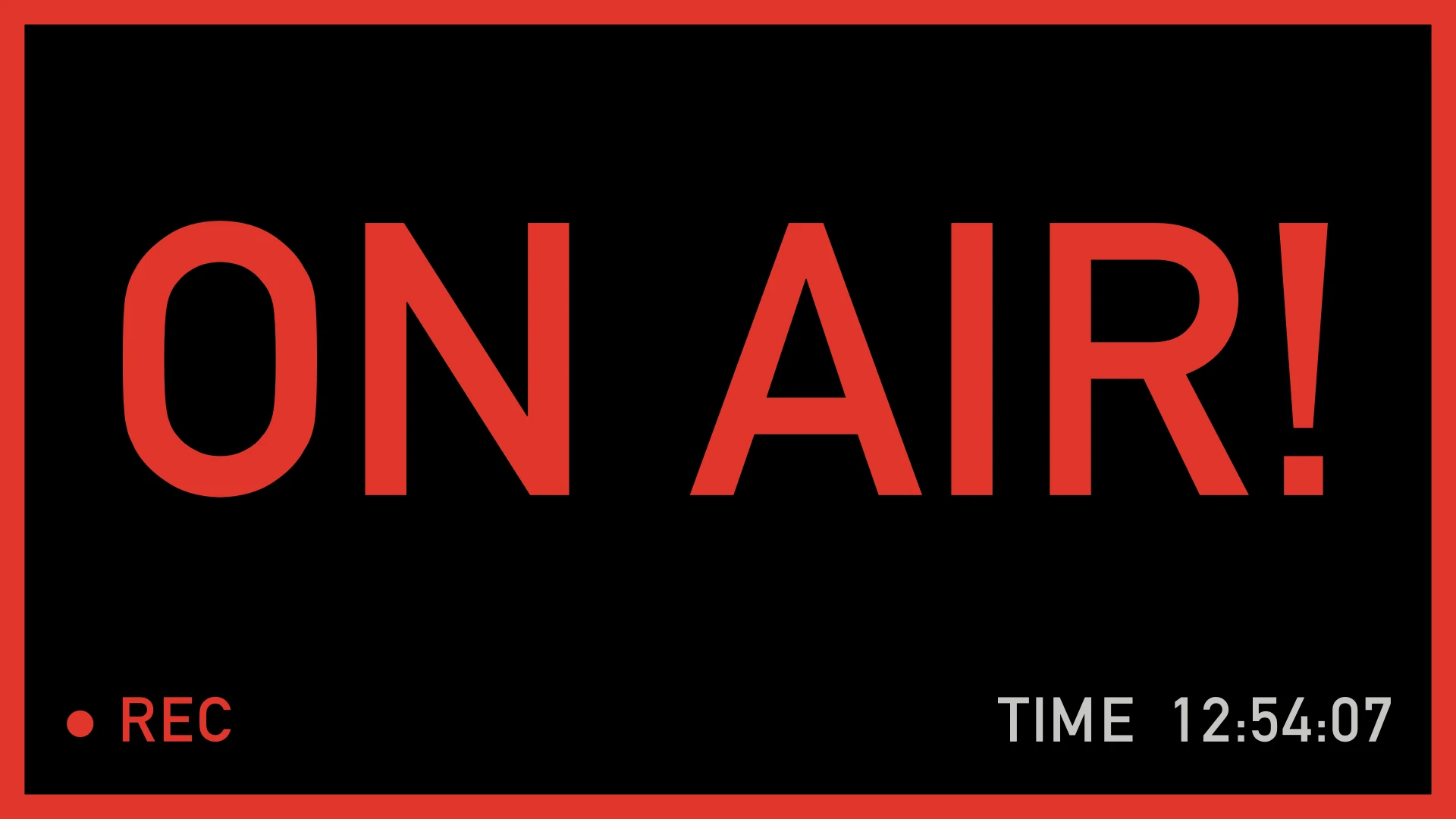
Put the recorded time on a TV in the studio: your guests know when they’re on, how long they’ve been talking and what time it is.
When does it start?
Automatically, when you record or When you decide · ⌘T
Automatically, when recording starts: with ▶, since Always REC comes on, or with ● REC if you turn it off. The sound check before doesn’t count. Or you decide when the episode begins, with one key.
How does it start counting?
Right away or With a countdown
From 00:00:00 at once, or first a countdown — “STARTS IN”, the minutes you choose, then “ON AIR!” — so your guests can get ready. Recording starts at zero, or with the countdown if you prefer.
In step with the operator
The app’s clock, next to ● REC, shows the same countdown and the same “ON AIR!”, even if you can’t see the TV.
The time of day
For a studio rented by the hour: the Mac’s time, in 12 or 24 hours, at the bottom of the screen.
Your logo and colors
Your show’s logo and colors, HH:MM:SS or timecode, and a red frame while recording, like a tally light.
Podcast Editor
Open an OnAirCut session or drop each person’s audio, then each camera’s video, and choose your editor. OnAirCut hears the whole recording — not just the last second, like it has to live — and every cut lands right where someone starts talking.
Live · with ATEM
Open the OnAirCut session: the cuts it made live become a multicam session for your editor, so post-production doesn’t start from zero.
OnAirCut session Podcast Editor Your editor
Recorded · no ATEM
Recorded without streaming, or without an ATEM? Drag in each person’s audio and each camera’s video: it syncs them and cuts to whoever is talking.
Raw audio + video Podcast Editor Your editor
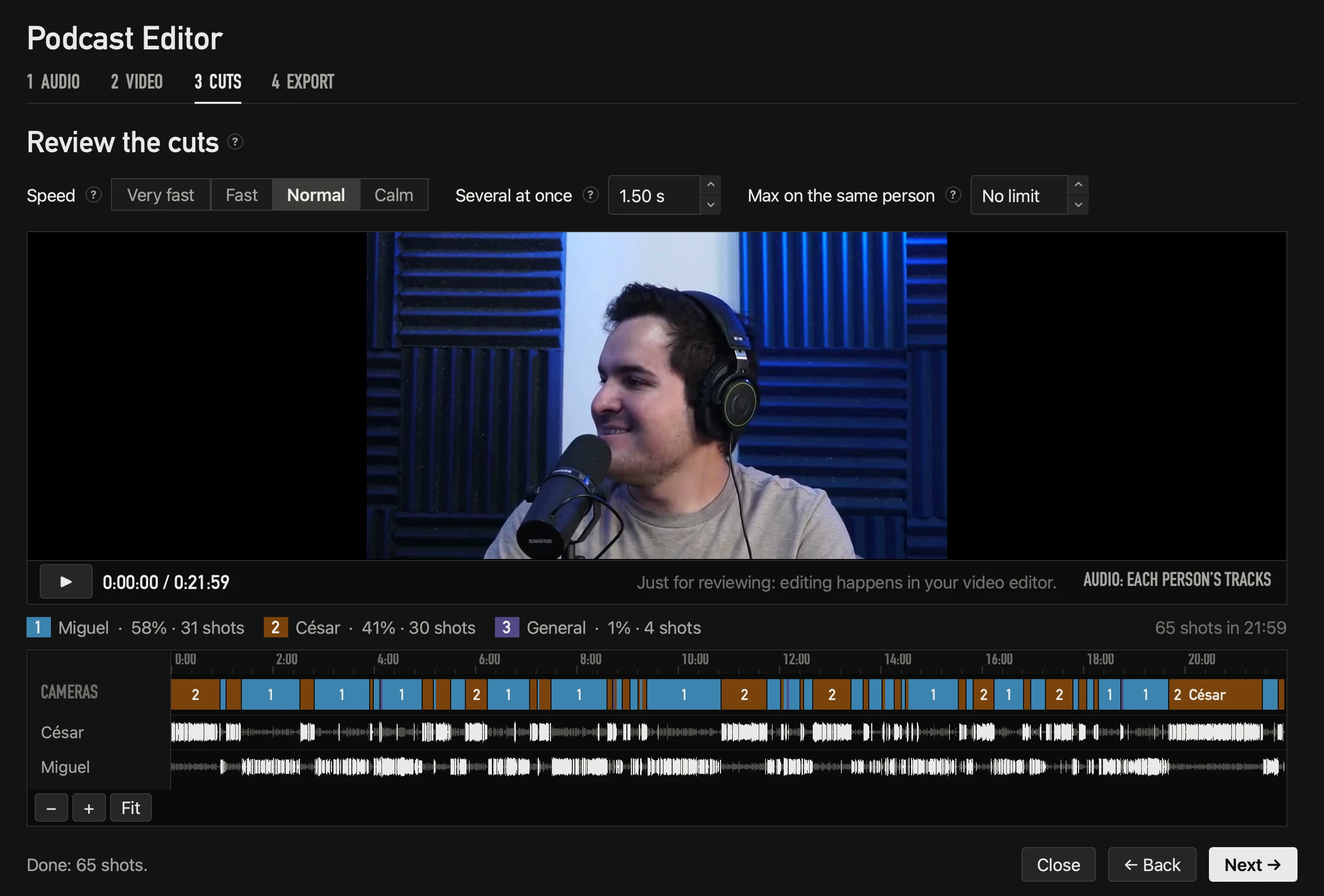
22 minutes · 65 cuts · calculated on their own
Exports to
Built for the room it runs in
No App Nap, the Mac doesn’t sleep, and the network runs on its own thread.
If the ATEM or the console drops, it finds them again.
Saved every five seconds: a power cut leaves the session whole up to that moment.
Every error says what happened, why, whose side it’s on and what to do.
Everything it does
From the blog
Live switching
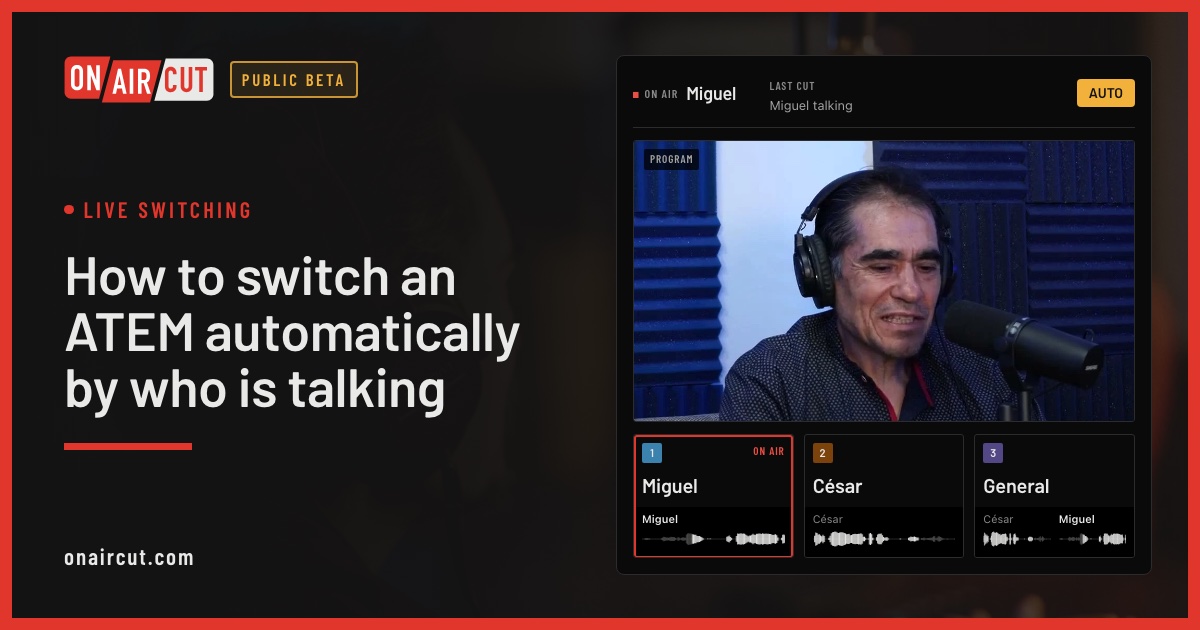
Switch an ATEM’s cameras to whoever is talking, live, from each mic of a multichannel USB console. Step by step with OnAirCut, from the cables to the first show.
Read →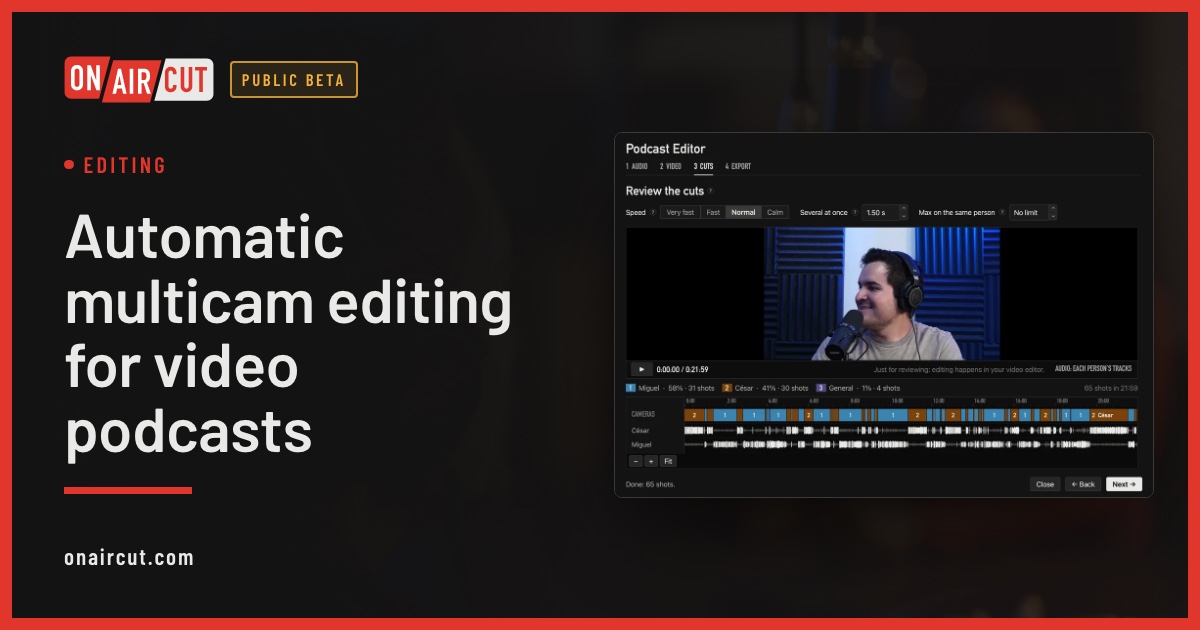
Editing
Build a video podcast’s multicam edit automatically from each person’s audio, for Final Cut Pro, Premiere Pro or DaVinci Resolve. No ATEM needed. Four steps.
Read →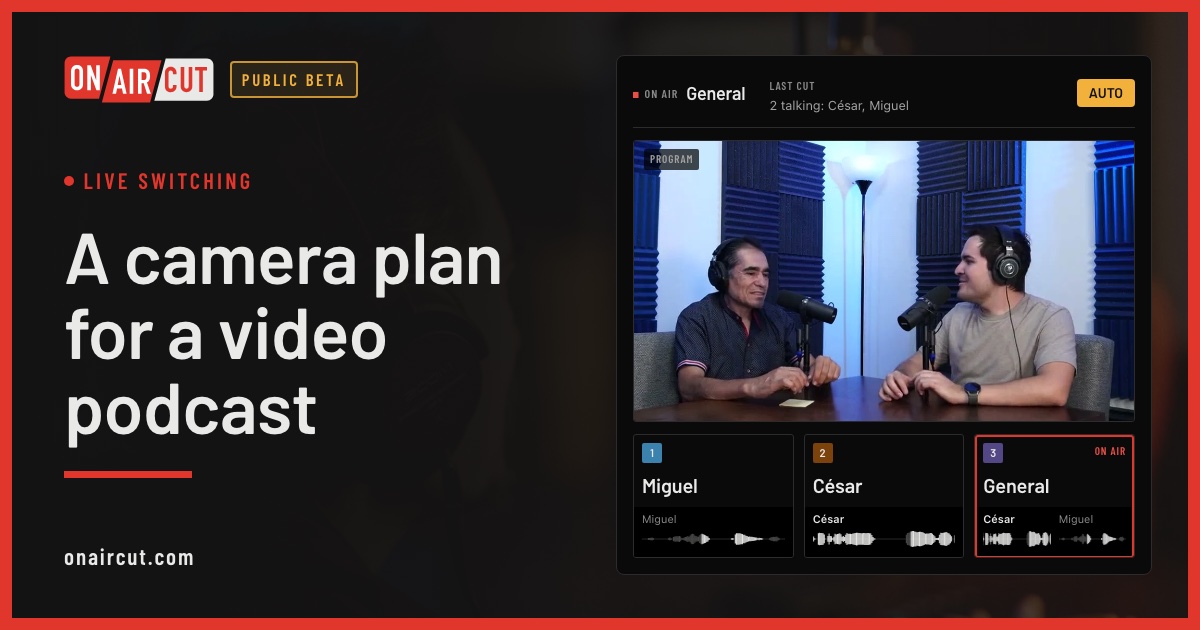
Live switching
How many cameras a video podcast needs, what each should show and how to frame them, for two or three people — and how OnAirCut uses each one.
Read →Questions
Yes. OnAirCut is two apps in one, and the Podcast Editor doesn’t need an ATEM: it builds the multicam edit of any recording from one audio file per person and each camera’s video. Only the Live Switcher, which cuts cameras live, needs an ATEM.
With the whole family: ATEM Mini, Mini Pro, Mini Extreme, SDI, SDI Extreme ISO and Television Studio, by USB or Ethernet.
Any multichannel USB console that sends one person per channel to the Mac — a Mixcast 4, for example. A console that only sends the stereo mix isn’t enough: it needs each mic on its own.
Each person has their own mic on their own console channel, wired or wireless, as you already work. Once, in the assistant, you mark who appears in each camera: a camera can show one person, two, or everyone.
It works the same: when one person talks, it goes to the tightest camera that shows them; when several talk at once, to the camera that shows all of them. Up to 20 cameras and as many mics as your console sends.
It’s up to you. OnAirCut switches on its own, so you can run the show by yourself and focus on the conversation. If someone is at the switcher, they work together: they can cut by hand at any moment and OnAirCut respects it.
OnAirCut is still being developed, and real podcasts and livestreams are the best test. Until December 31, 2026 anyone can use it while we polish it with what you tell us. From January 1, 2027 it needs a subscription: 19 USD a month or 190 USD a year, with a 7-day free trial.
Pricing
It’s still being developed, and your podcast or livestream is the best test: use it and tell us what fails. From January 1, 2027, one plan, two apps in one, on two Macs, with a 7-day trial.
See pricing →Monthly
$19a month
Annual
$190a year
On air
Spanish and English. Two Macs per licence. Works with the whole ATEM family.