
Automatic multicam editing for video podcasts
The cut of a conversation follows who is talking. That can be read from each person’s audio — and written straight into your editor’s timeline. Four steps, about as long as it takes to read this page.
What you need
- Each person’s audio: one file per person, a multitrack file with one person per channel, or an OnAirCut session recorded with ● REC.
- Each camera’s video, recorded separately (on its card, an external recorder or an ATEM ISO). With its own sound, so it can sync by sound if there’s no timecode.
- Final Cut Pro, Premiere Pro or DaVinci Resolve. You don’t need the ATEM.
Audio: each person on their own track
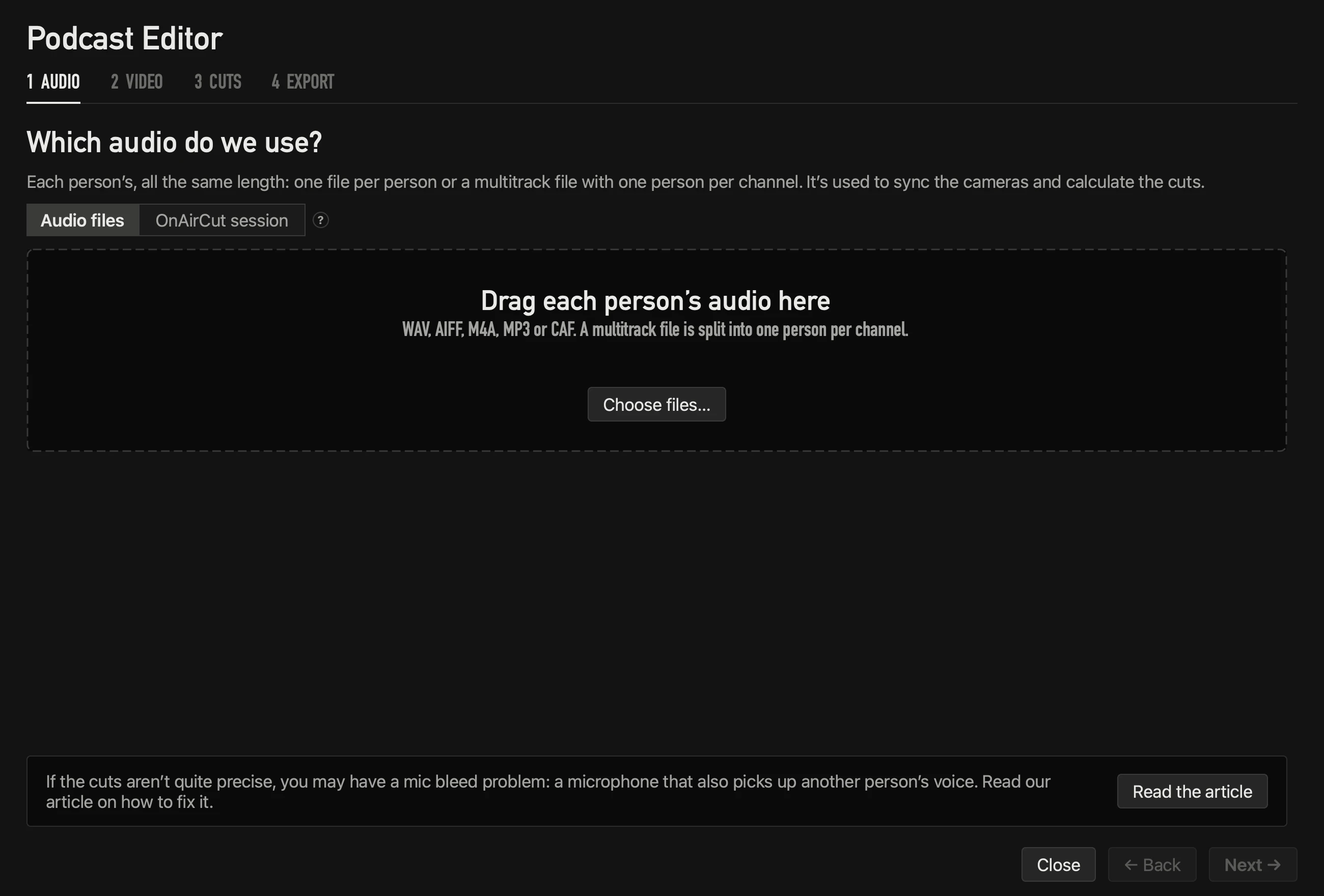
Open the Podcast Editor and drag each person’s audio — or choose an OnAirCut session. Each card shows the whole recording: white where that person talks, grey where their mic only hears noise or someone else.
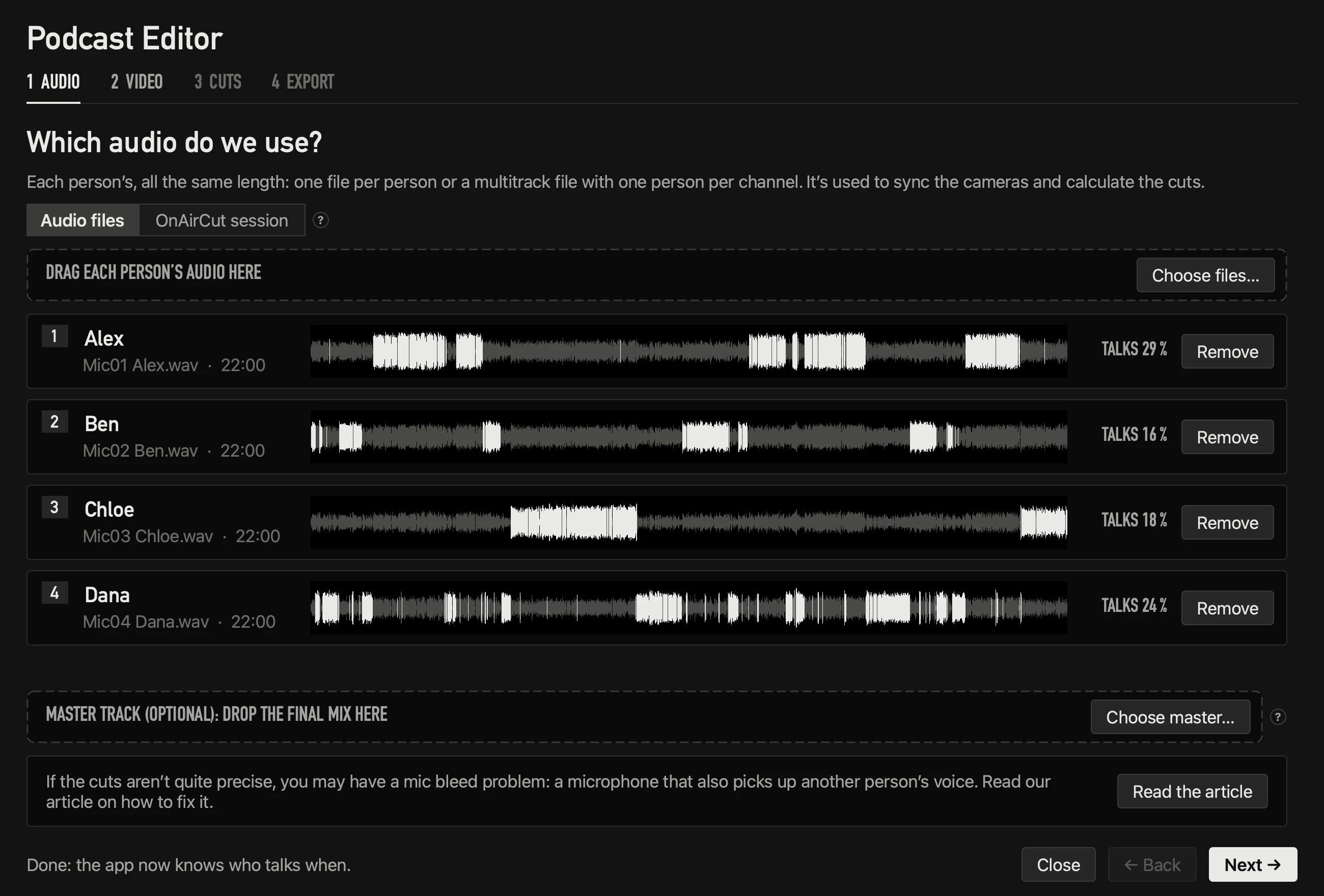
Got a final mix (from Auphonic, for example)? Drop it as the master track: it syncs by sound and goes on top of the edit.
Video: drop each camera and tick who it shows
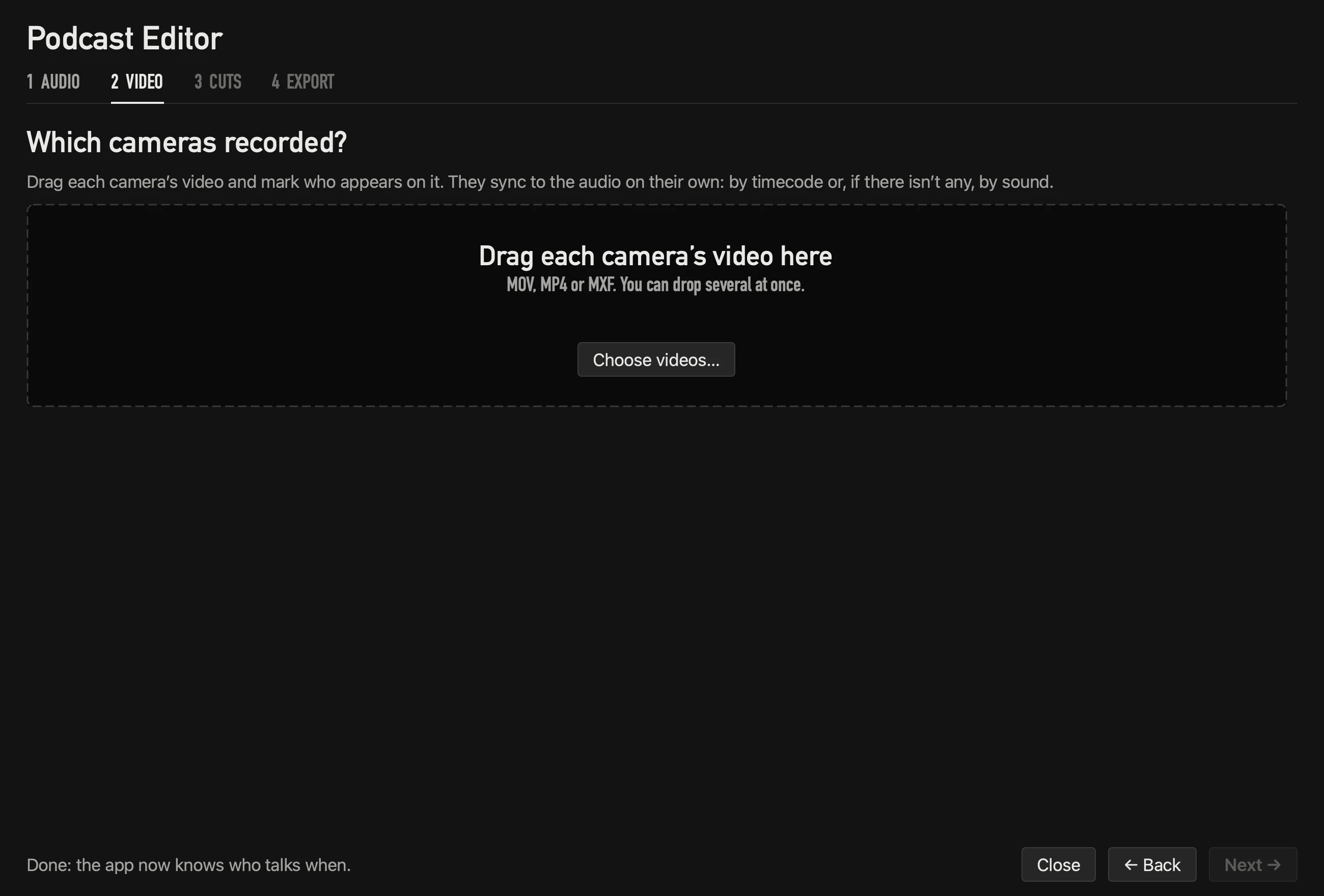
Drag each camera’s file, name it and tick who appears on it. They sync on their own — by timecode if it agrees with the sound, or by sound — and the clock drift of each camera is measured and corrected.
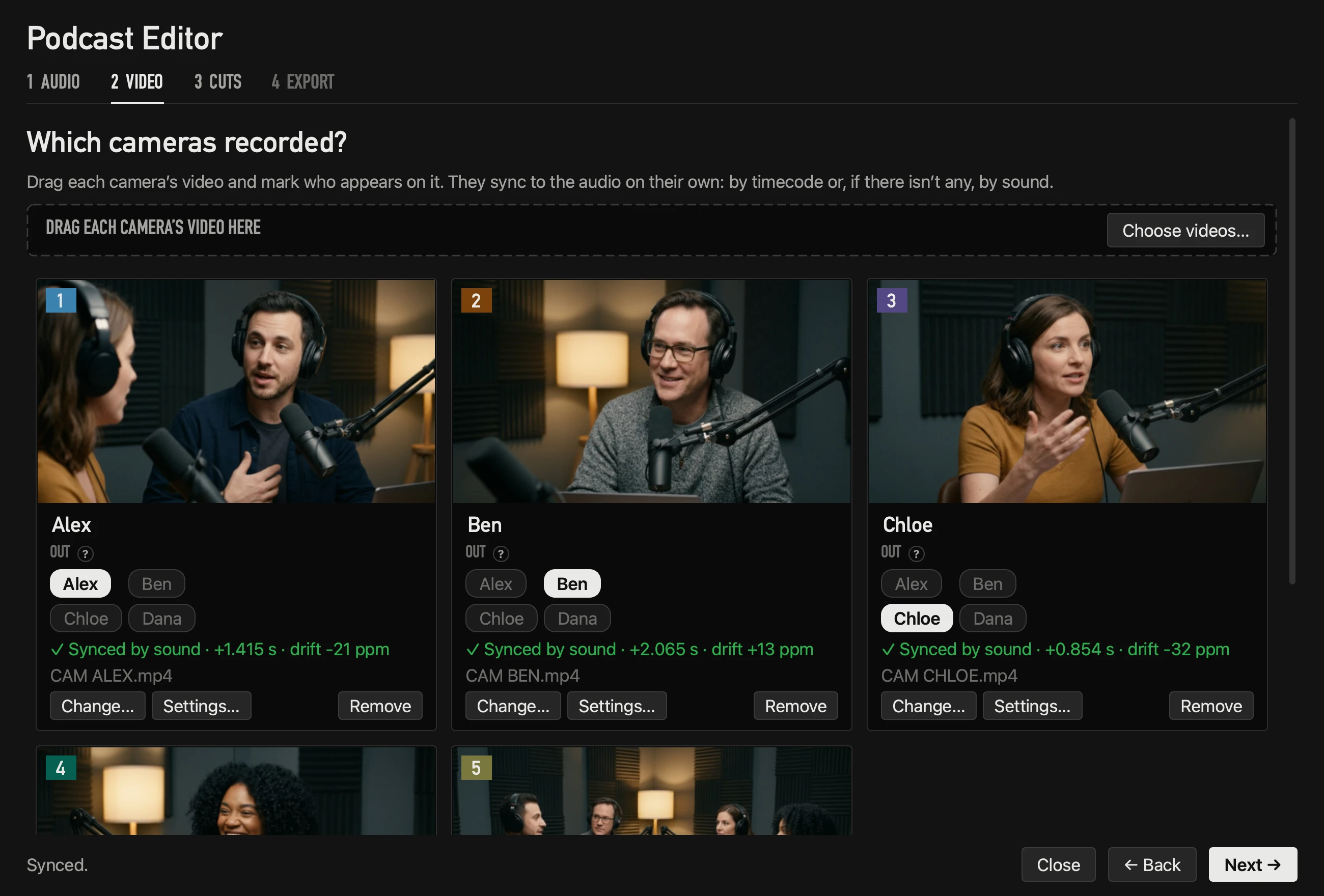
How the sync works, in detail: sync podcast cameras without a clap.
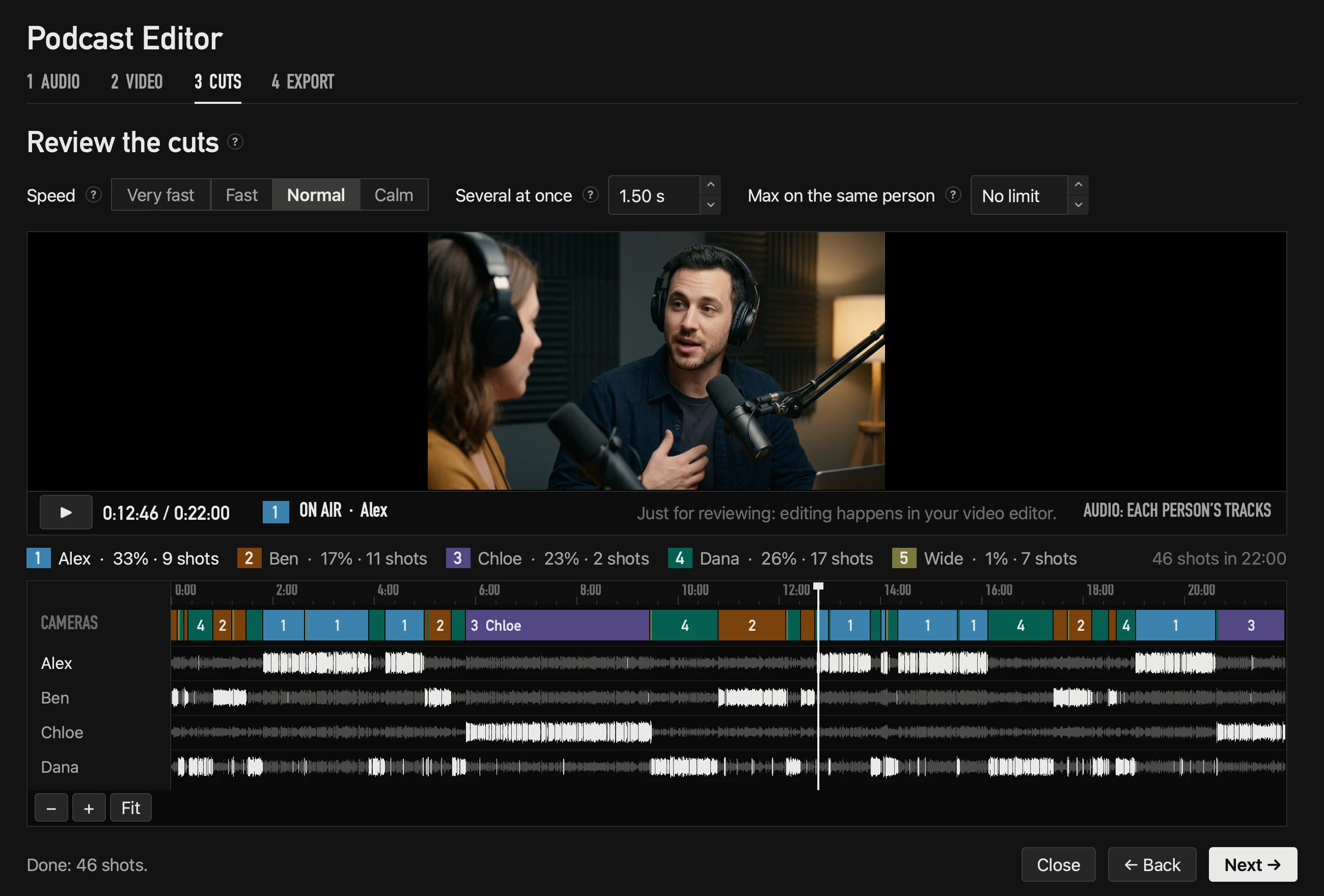
Cuts: calculated from the whole conversation
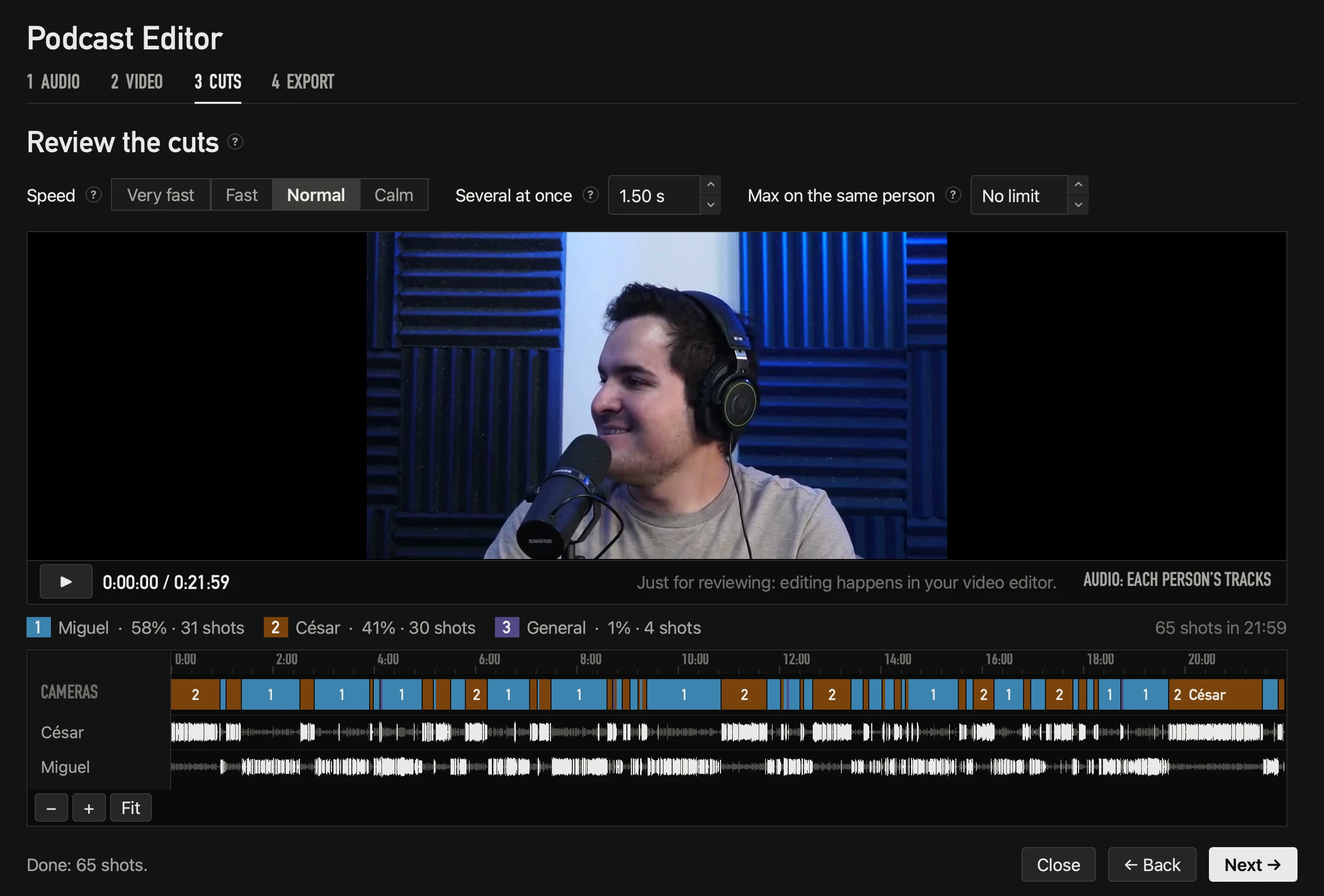
The cuts calculate themselves, knowing the whole conversation — not just the last second, like live switching has to. Each cut lands right where someone starts talking. Change the speed, when to go wide or the maximum on one person, and they recalculate in under a second. ▶ plays the edit.
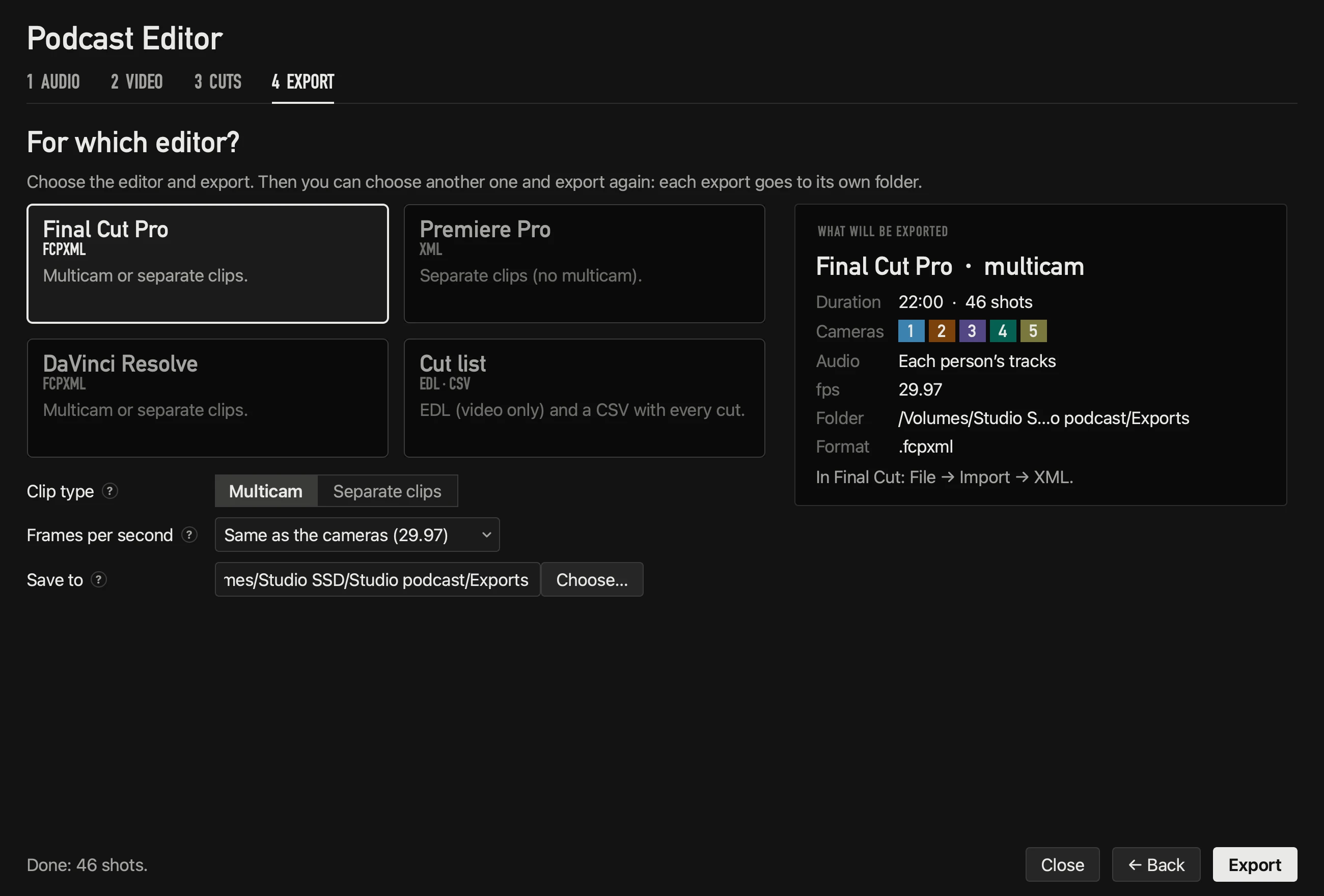
Export: choose your editor
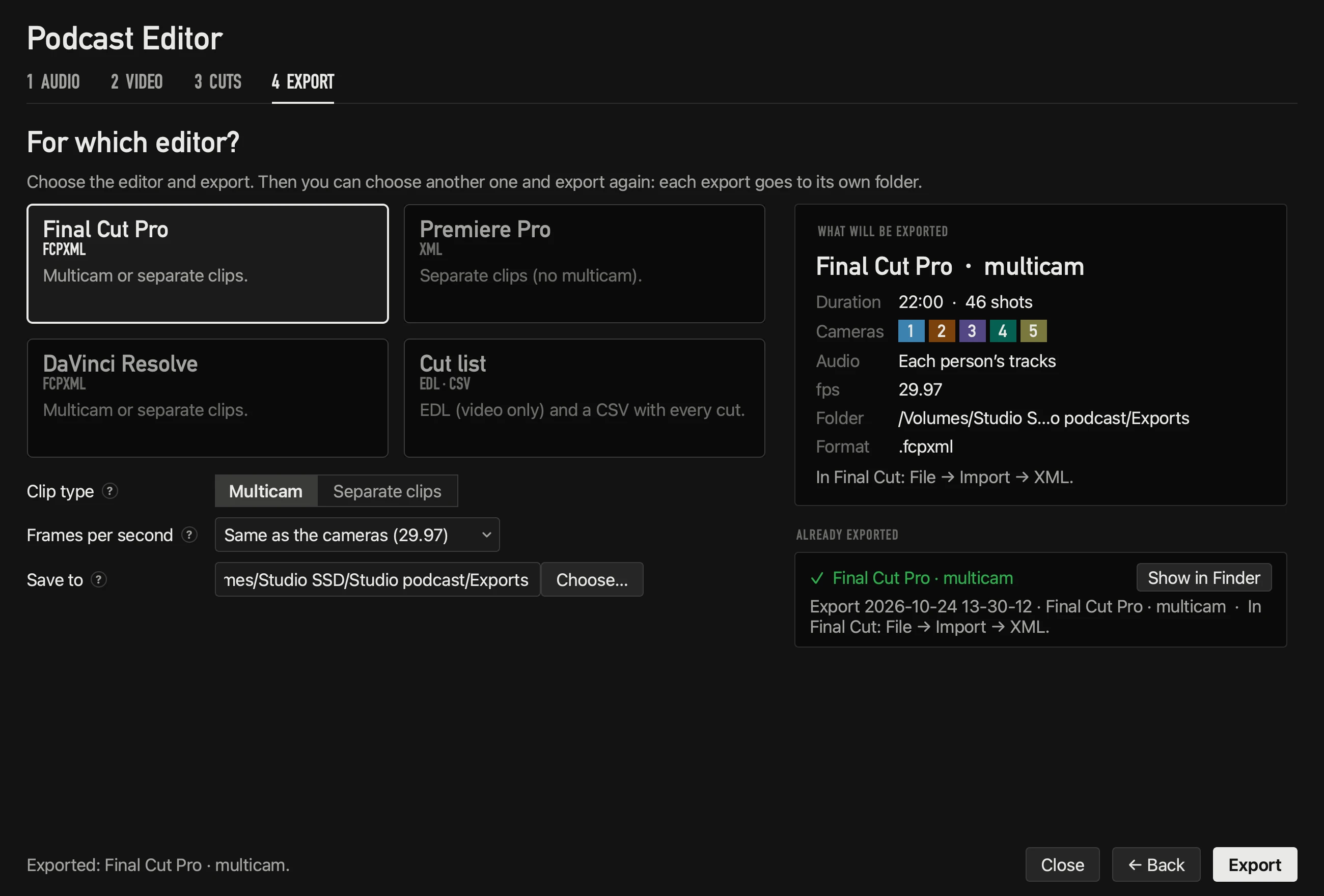
Choose Final Cut Pro, Premiere Pro, DaVinci Resolve or a cut list, and how the cameras arrive. Each export goes to its own folder, with the instruction to open it.
Open it in your editor
| Editor | How to open it | What arrives |
|---|---|---|
| Final Cut Pro | File → Import → XML | A multicam clip — change any cut’s angle with one click — or separate clips |
| Premiere Pro | File → Import | A sequence with each camera on its own track |
| DaVinci Resolve | File → Import → Timeline | The same FCPXML, as a multicam clip or separate clips |
The audio is each person’s track; the cameras’ own sound stays off. Nothing is rendered or re-encoded: the export points to your original files.
Why it’s more precise than switching live
Live, a decision can only use what has already been said. Afterwards, the editor knows every turn whole: it separates each voice from the bleed comparing the waveforms between mics, a short pause doesn’t split a turn and a quick “uh-huh” doesn’t change the shot. On a 60-minute podcast that gave the right shot 98.1 % of the time — and 99.3 % with clean tracks.
Questions
Do I have to use OnAirCut live to use the editor?
No. The editor works with any recording: one audio file per person and each camera’s video.
Which frame rates?
23.976, 24, 25, 29.97, 30, 50, 59.94 and 60, with drop frame respected.
Can I export again for another editor?
Yes, as many times as you like: each export goes to a new folder and never overwrites another.
Read next
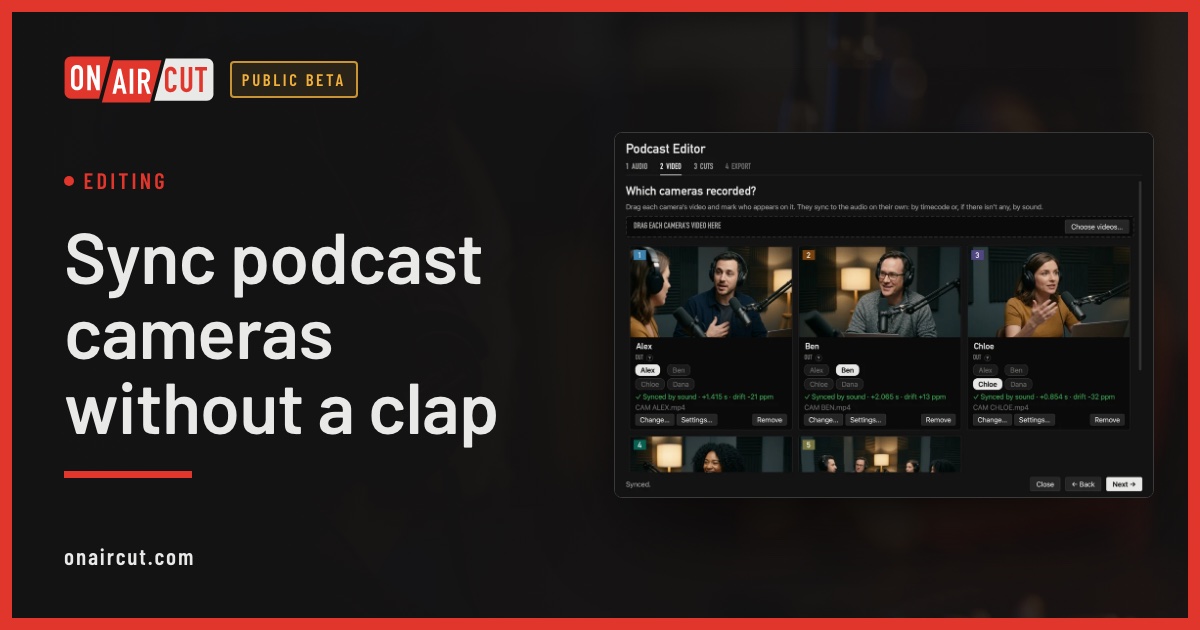
Editing
Sync podcast cameras without a clap
How to sync a video podcast’s cameras with each person’s audio without clapping: by timecode, by sound, and correcting the clock drift of each camera.
Read →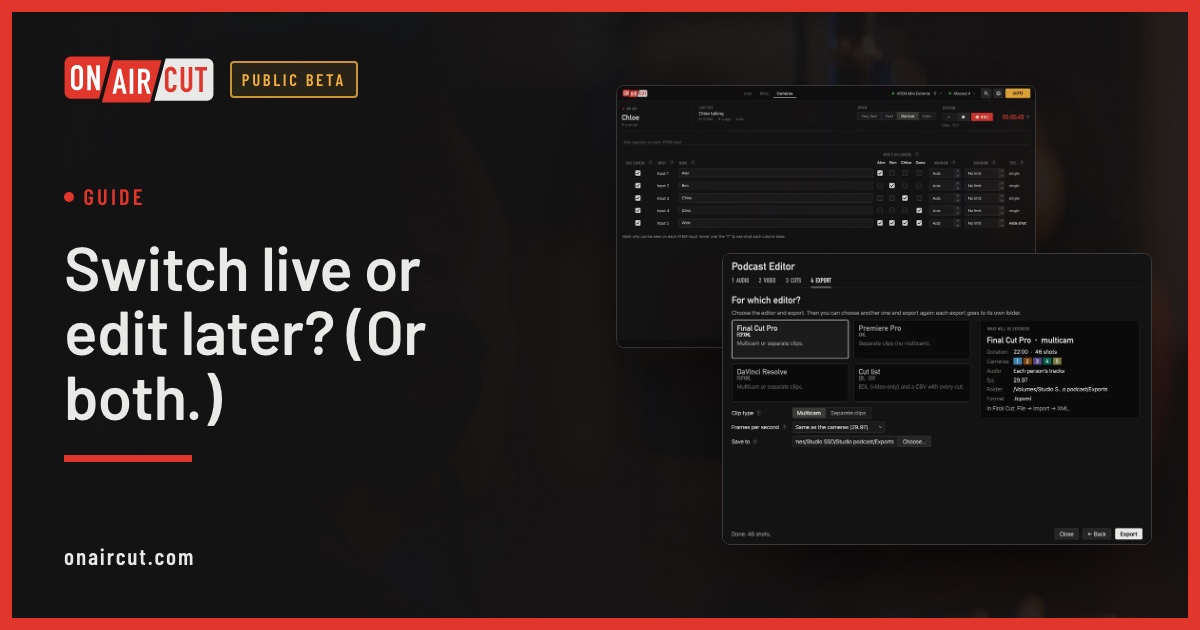
Guide
Switch live or edit later? (Or both.)
When to switch a video podcast live with the ATEM, when to edit it afterwards, and how to do both with one recording.
Read →Raw tracks the other voice −22 dB
After Auphonic the other voice −70 dB
Audio
Remove mic bleed and clean up your podcast audio with Auphonic
Our studio’s exact Auphonic Multitrack settings to remove mic bleed, background noise and room echo from a podcast — step by step, with screenshots.
Read →Try it on your own show.
Public beta until December 31, 2026. For Mac with Apple silicon.