
A camera plan for a video podcast
Good switching starts before the first cut: with a clear idea of what each camera shows. A plan that works for two or three people, with an ATEM Mini Pro.
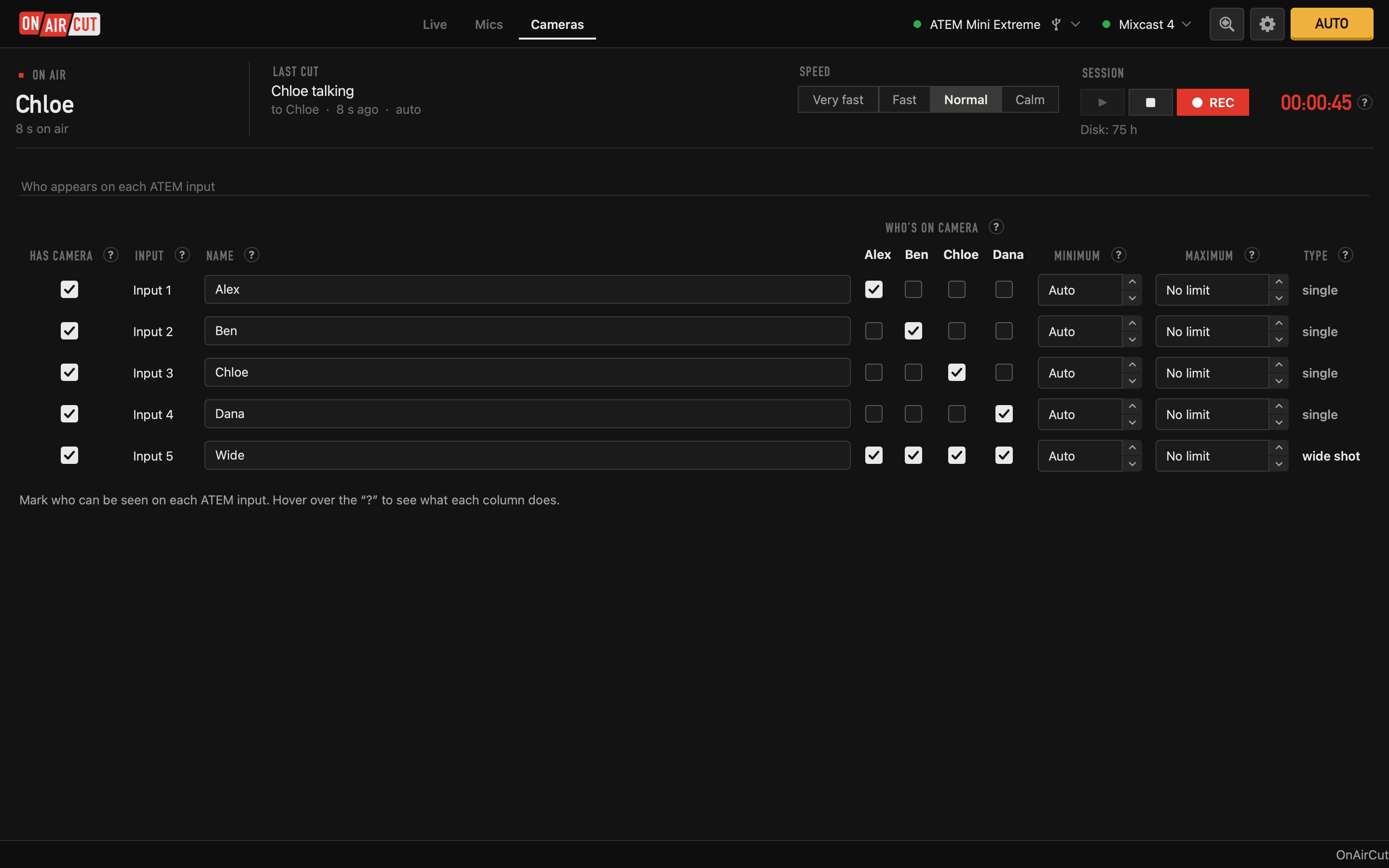
One tight camera per person, plus a wide
- A tight shot per person: the one that goes on air while they talk. It’s the shot your audience watches most.
- A wide shot that shows everyone: for when several talk at once, and if you want, for the silences.
- Two people on an ATEM Mini Pro use three of its four inputs; the fourth is free for a computer or a logo. Three people use all four. The Mini Extreme has eight.
Shared shots
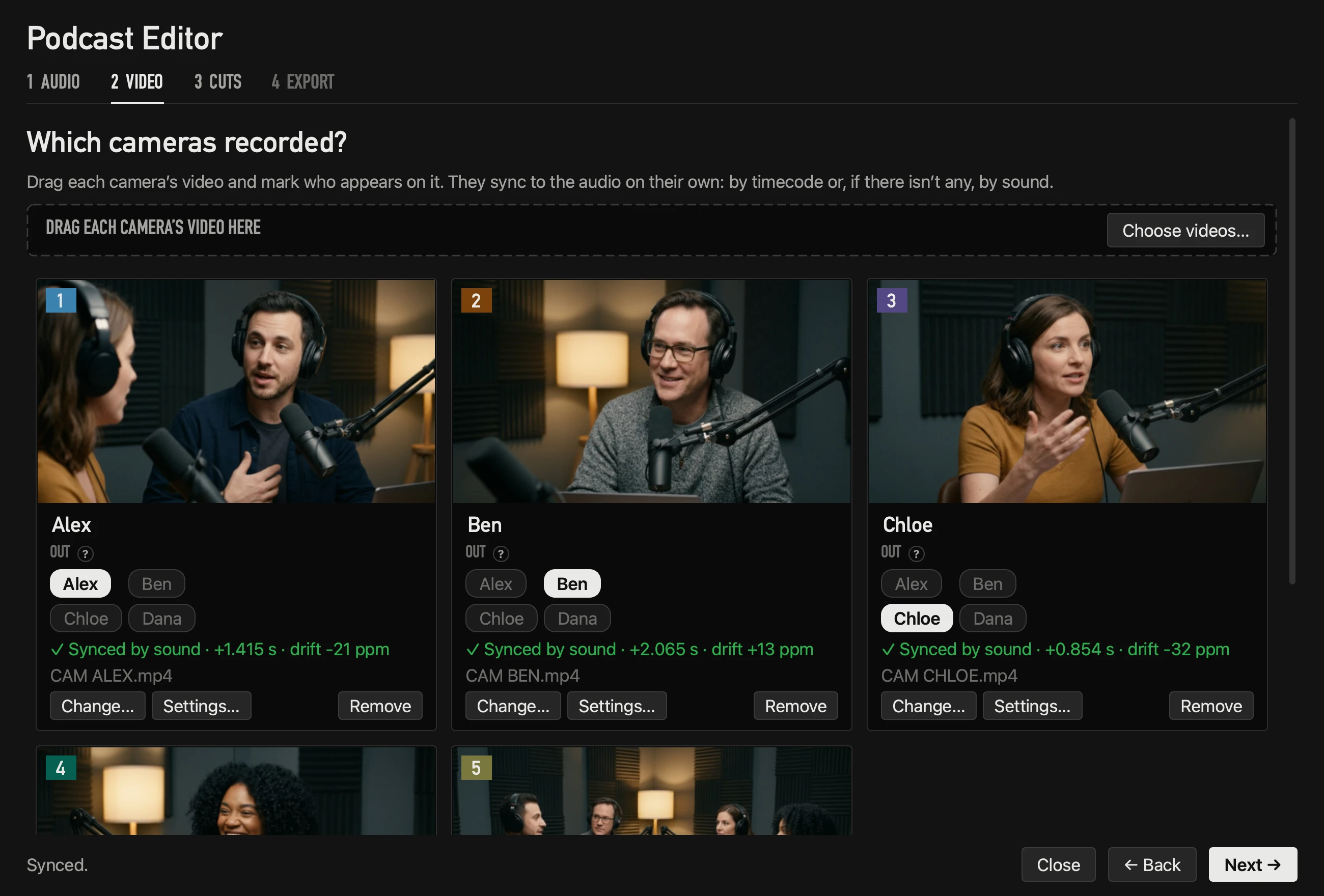
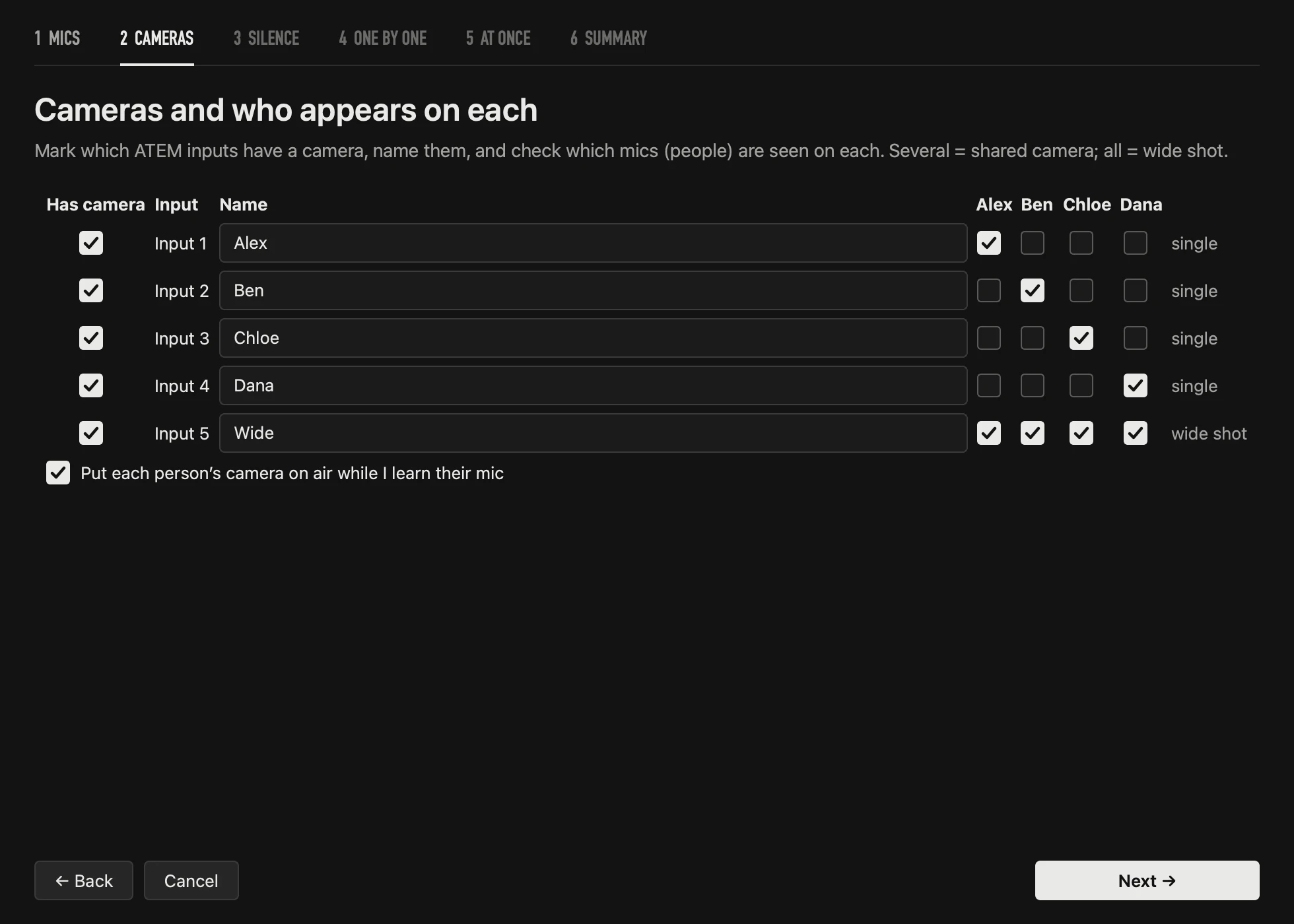
A camera can show two people — a two-shot across the table. In OnAirCut you tick both on that camera: it’s used when either of them talks, and it’s the tightest choice when those two talk together. The wide shot is the camera with everyone ticked.
Framing
- Face centred, with air above: eyes about a third from the top. Leave room for the mic arm.
- The same height for everyone: cutting between two people at different sizes feels like a jump.
- Don’t put the wide behind anyone’s head: a wide from the side, or from above the table, never covers a face.
Keep it varied
In a long answer, one tight shot gets heavy. On the Cameras page, give single cameras a maximum (60 s works well): after that, OnAirCut puts up a variety shot for about four seconds — the shared one or the wide — and comes back.
Record every camera, too
The ATEM’s program is the live cut. If you also want to edit afterwards — and change any angle — record each camera on its own (its card, an external recorder or an ATEM ISO) and press ● REC in OnAirCut. See switch live or edit later.
Questions
Can I use fewer cameras than people?
Yes. Tick who appears on each camera; a person who appears on no camera still talks, but their voice doesn’t trigger cuts. OnAirCut warns about it in the assistant.
And more than eight cameras?
OnAirCut handles up to 20 ATEM inputs, on models that have them.
Read next
Live switching
How to switch an ATEM automatically by who is talking
Switch an ATEM’s cameras to whoever is talking, live, from each mic of a multichannel USB console. Step by step with OnAirCut, from the cables to the first show.
Read →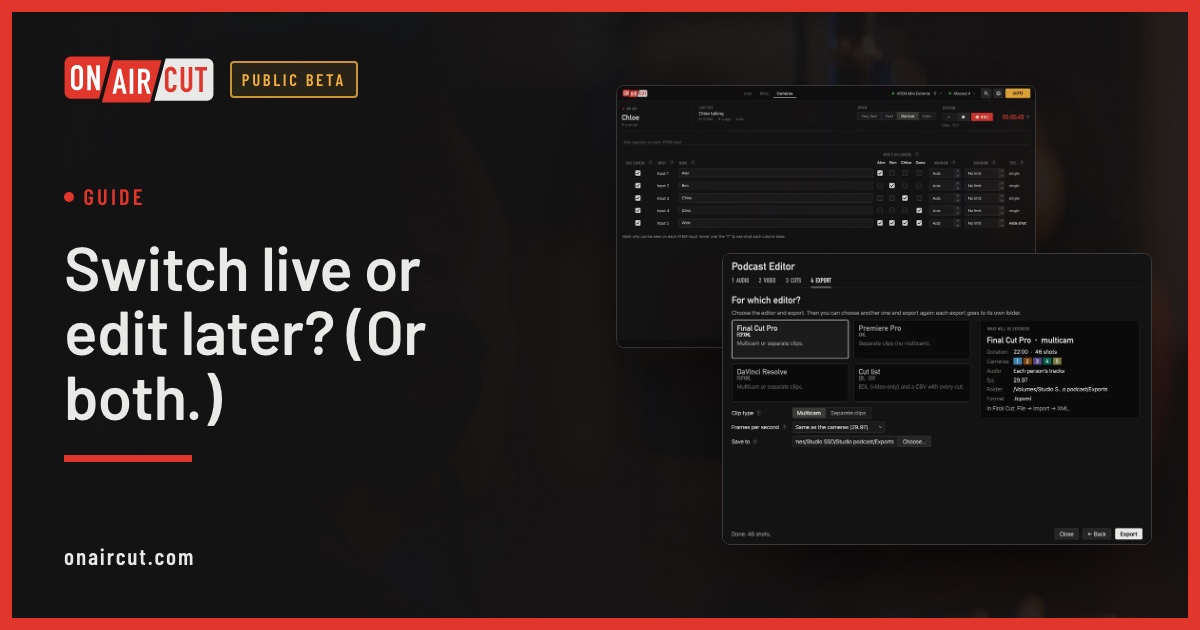
Guide
Switch live or edit later? (Or both.)
When to switch a video podcast live with the ATEM, when to edit it afterwards, and how to do both with one recording.
Read →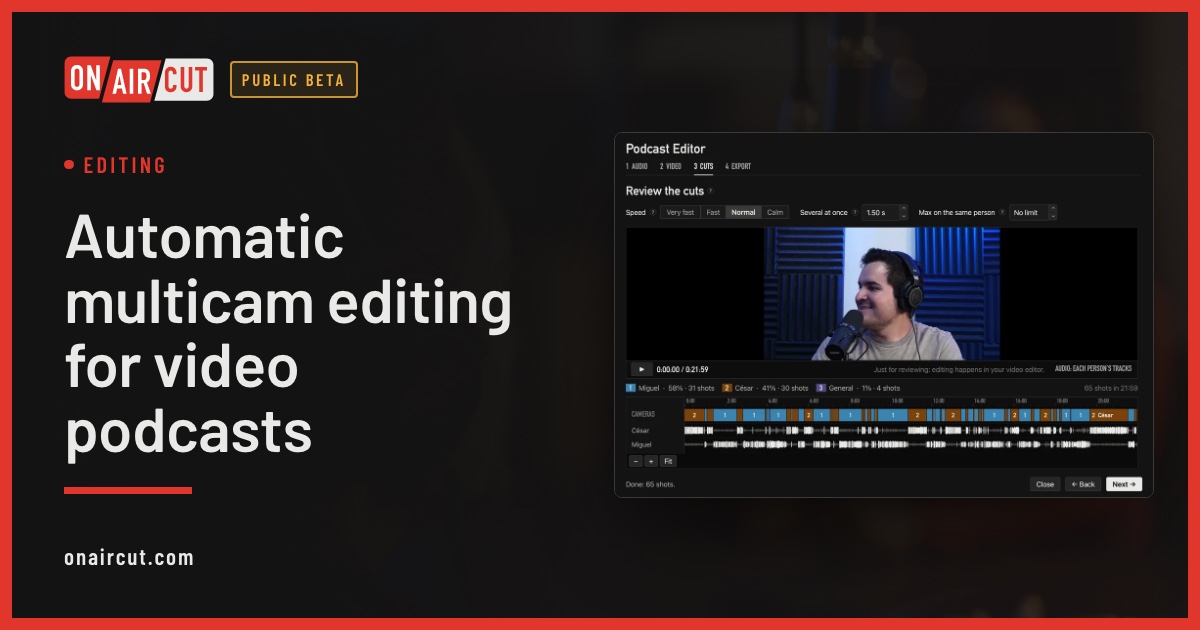
Editing
Automatic multicam editing for video podcasts
Build a video podcast’s multicam edit automatically from each person’s audio, for Final Cut Pro, Premiere Pro or DaVinci Resolve. No ATEM needed. Four steps.
Read →Try it on your own show.
Public beta until December 31, 2026. For Mac with Apple silicon.