
How to keep your podcast on time
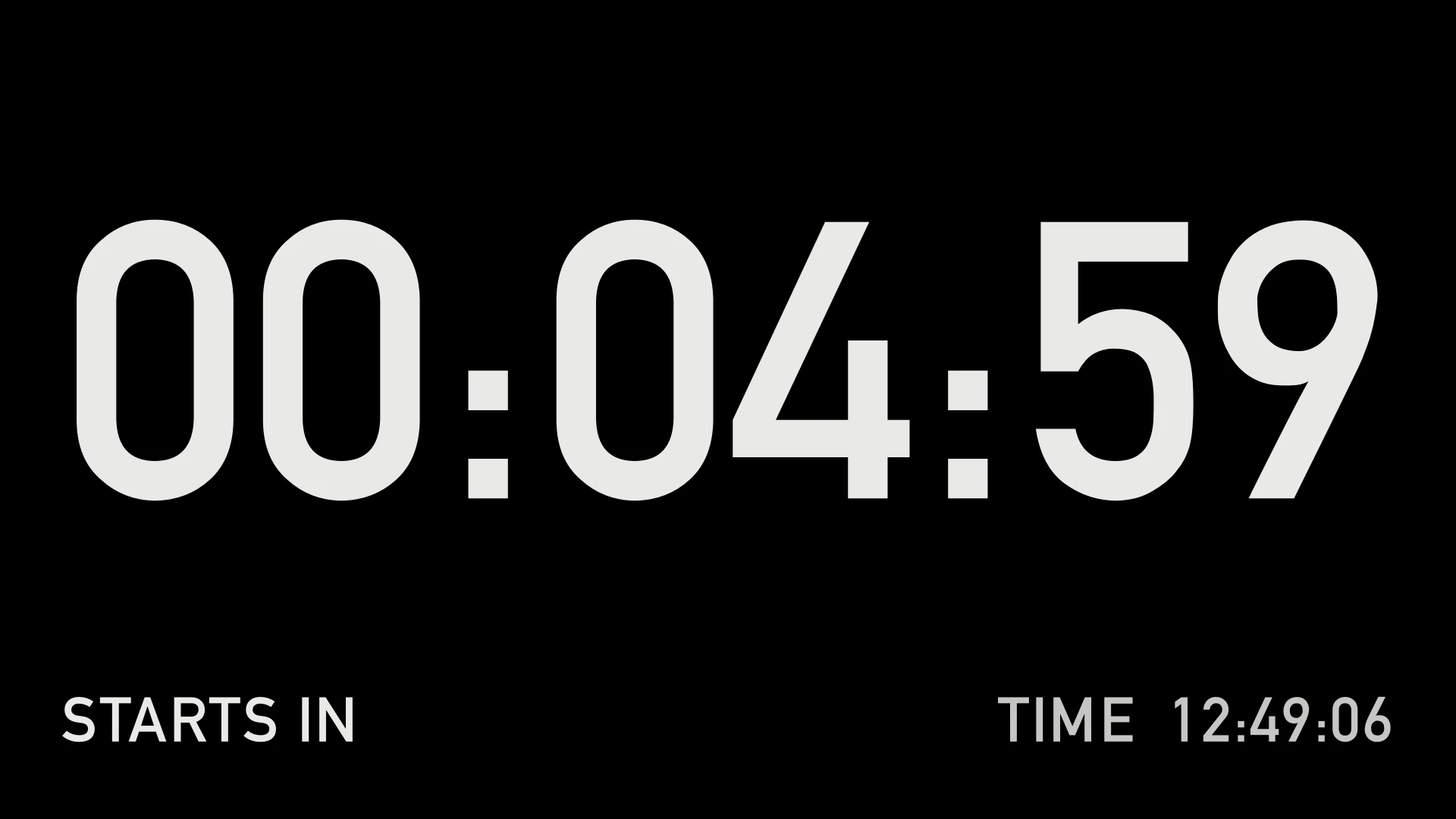
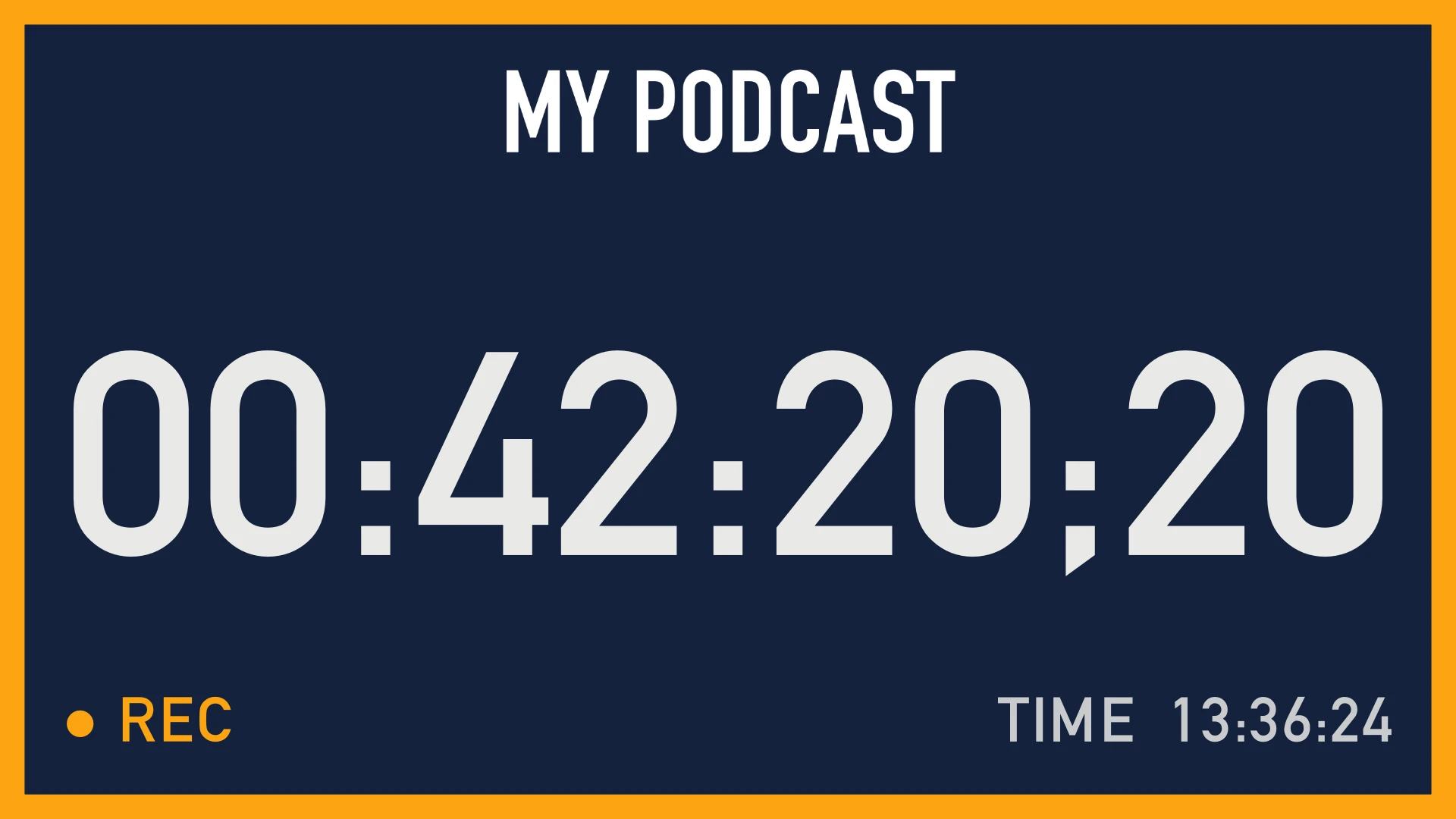
Your guests can’t see the clock on your screen. Give them a big one on a TV: a countdown before you start, the time you’ve recorded and the time of day — and mark the good moments for the edit as they happen.
What you need
- OnAirCut’s Live Switcher, with your ATEM and your audio console.
- A screen your guests can see: a TV or a monitor connected to the Mac as a second display — by HDMI, a USB-C adapter or AirPlay.
- Optional: your show’s or your studio’s logo, as a PNG or JPG.
Put the clock where your guests can see it
Click the clock next to ● REC, or choose View → Recording clock. Drag the window to the TV and double-click it: it fills the screen (Esc brings it back). Next time you open OnAirCut, it opens again by itself, on the same screen.
Choose when it starts: automatically, or when you decide
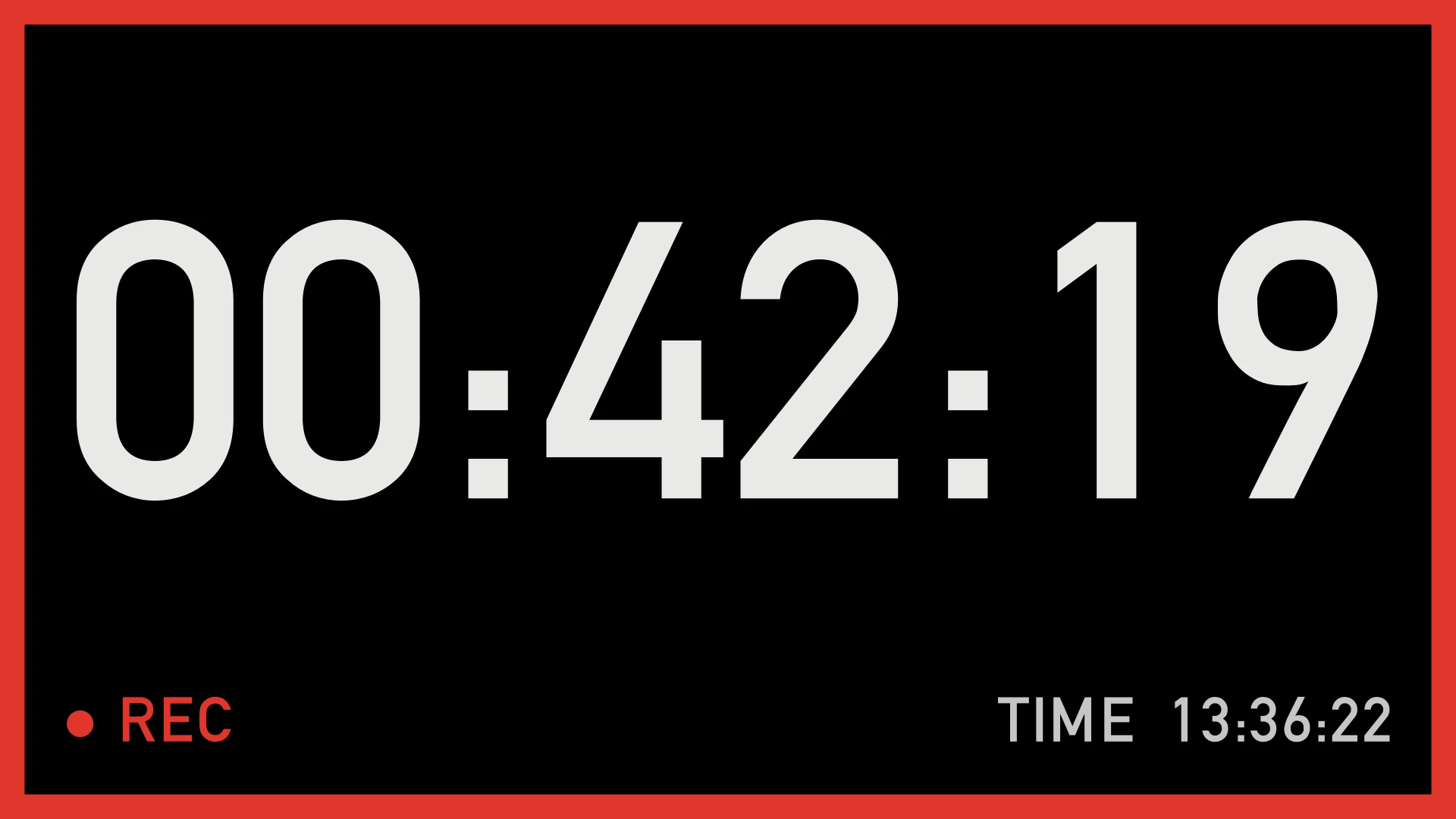
In Settings → Recording clock, When it starts: Automatically starts the clock with the recording — when you press ▶, since Always REC comes on, or ● REC if you turn it off — so the sound check before it doesn’t count. When you decide lets you start it with ⌘T — or a right-click on the clock — when the episode really begins, even if you’re already recording the warm-up. ■ always stops it, and it stays at the final time.
Choose how it starts counting: right away, or with a countdown
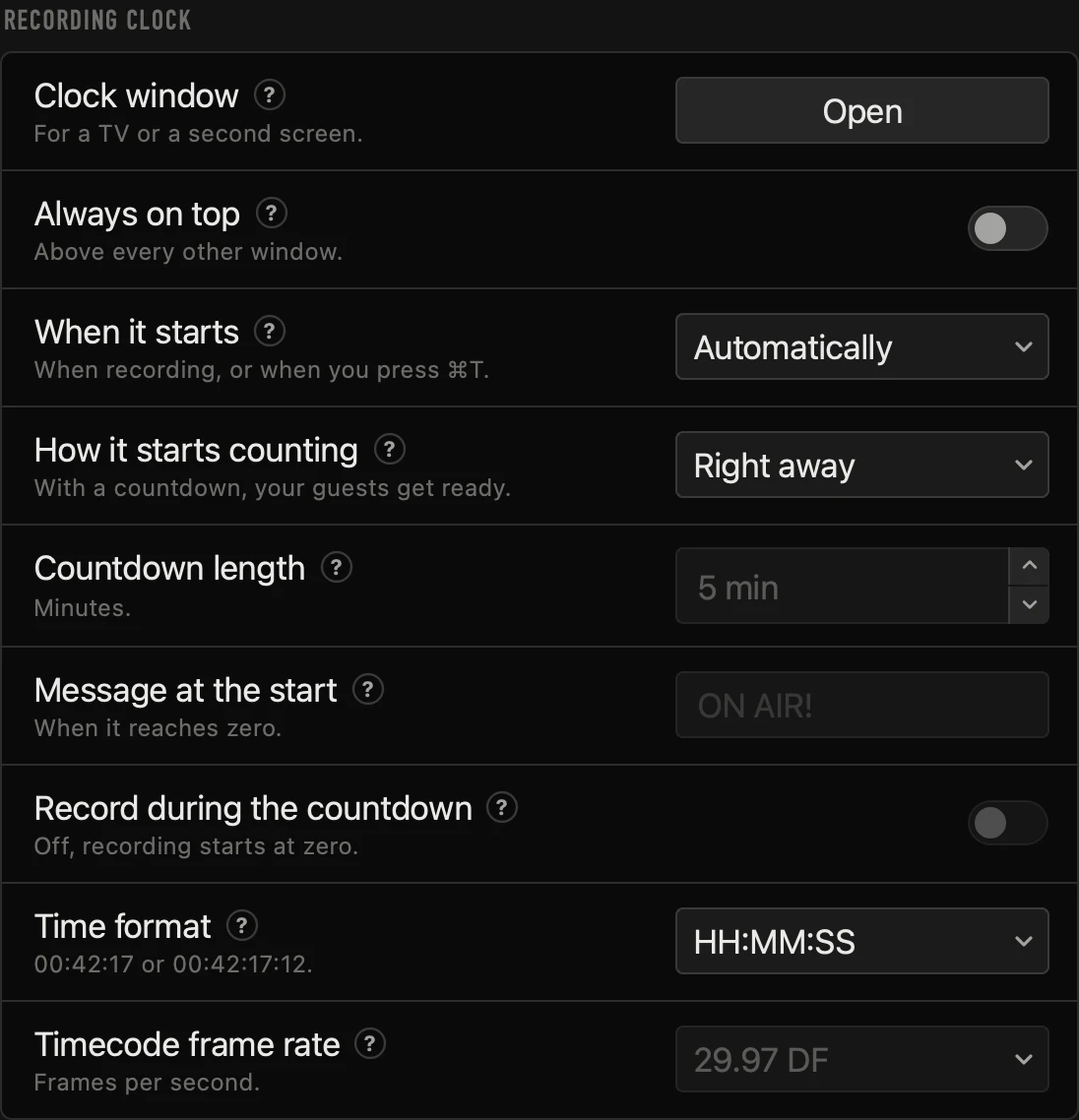
How it starts counting: Right away counts from 00:00:00 at once. With a countdown, STARTS IN first counts down the minutes you choose, so your guests get ready; at zero a message shows for a few seconds — ON AIR!, or your own — and the clock counts from zero. Recording starts at zero, so the wait before the show isn’t recorded.
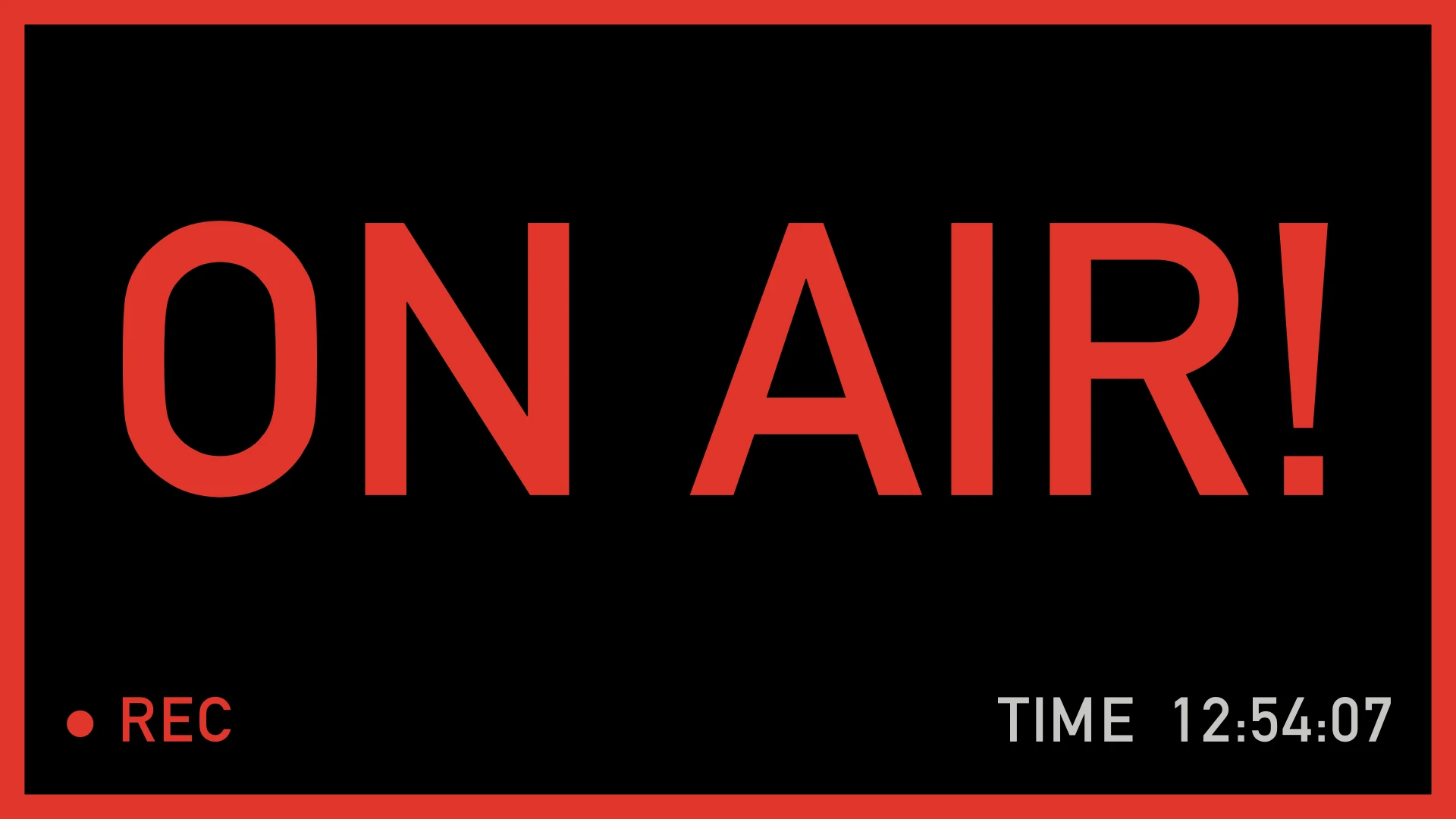
Whoever is operating sees it too, even without looking at the TV: the app’s clock, next to ● REC, turns amber with a “−” and STARTS IN above it. At zero, ON AIR! appears there as well, with a notice at the bottom — so nobody starts talking before the show does.
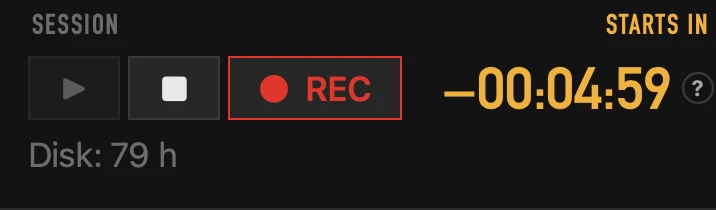
The countdown isn’t recorded: recording starts at zero, and the live show goes on as usual in the meantime. If someone starts early, press ● REC: it records from that moment. To record the countdown too, turn on Record during the countdown in Settings → Recording clock.
Show the time of day
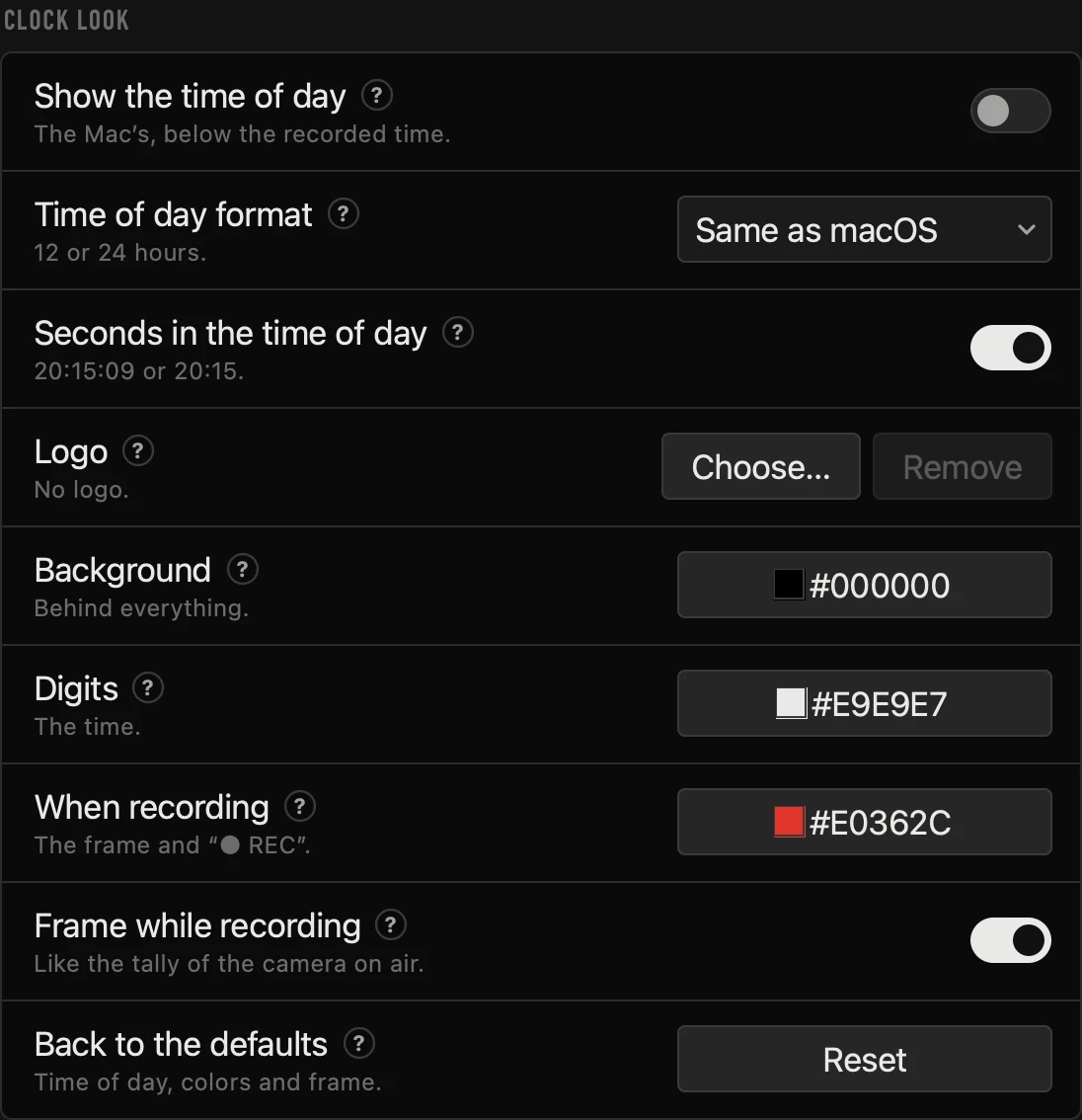
If your studio is rented by the hour, turn on Show the time of day in Settings → Clock look. The Mac’s time goes at the bottom right, in 12 or 24 hours, with or without seconds: your guests see what time it is and how long they’ve been recording, at a glance.
Never forget to record
- Always REC (Settings → General, on by default): every ▶ records too, and the recording goes with the session — only ■ stops it.
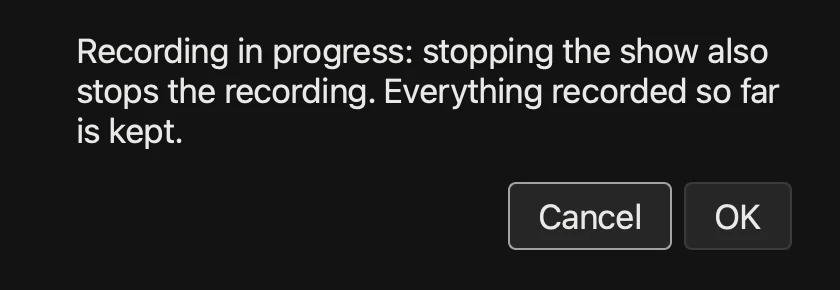
- ■ asks first while recording, and Cancel is the default: a stray click doesn’t end the take.
- The disk is checked before recording: with less than an hour of room, OnAirCut asks before it starts.
Mark the good moments with M
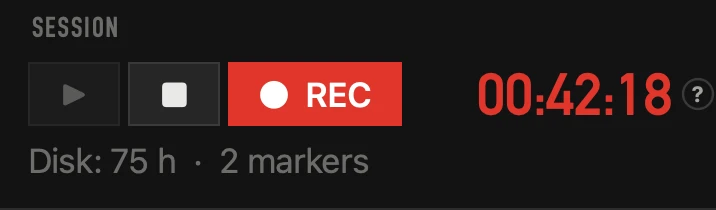
While recording, press M whenever something happens — a clip for social media, a slip to cut. The line under the clock counts them. Each marker shows on the Podcast Editor’s timeline, numbered, and goes into the export: markers in Final Cut Pro and DaVinci Resolve, sequence markers in Premiere Pro. No more scrubbing a whole hour to find that one answer.
Make it yours
In Settings → Clock look, add your logo and choose the background, the digits and the recording color; Reset brings back the broadcast look. With Always on top, no other window covers the clock. In Settings → Recording clock, the clock can also count in timecode, with its frames.
Questions
Is the countdown recorded?
Not by default: recording starts at zero, so the wait before the show isn’t recorded, and if someone starts early, ● REC records from that moment. To record it too, turn on Record during the countdown in Settings → Recording clock.
What if the operator can’t see the TV?
The app’s clock, next to ● REC, shows the same countdown, in amber, with STARTS IN above it; at zero it shows ON AIR! too.
Which screens work?
Any display your Mac can use: a TV or a monitor by HDMI or a USB-C adapter, or AirPlay. The clock is a normal window you drag there.
Can I change the message?
Yes: Settings → Recording clock → Message at the start, up to 40 characters. Empty, it says ON AIR!
Read next
Live switching
How to switch an ATEM automatically by who is talking
Switch an ATEM’s cameras to whoever is talking, live, from each mic of a multichannel USB console. Step by step with OnAirCut, from the cables to the first show.
Read →
Live switching
A camera plan for a video podcast
How many cameras a video podcast needs, what each should show and how to frame them, for two or three people — and how OnAirCut uses each one.
Read →
Guide
Switch live or edit later? (Or both.)
When to switch a video podcast live with the ATEM, when to edit it afterwards, and how to do both with one recording.
Read →Try it on your own show.
Public beta until December 31, 2026. For Mac with Apple silicon.