
ATEM AFV: what it does, and switching by who is talking
Many people look up “ATEM audio follow video” hoping the ATEM will cut to whoever is talking. AFV does the opposite: the audio follows the camera. Here’s what it’s for, how to set the mics of a podcast, and what it takes to make the video follow the audio.
What AFV does
In the audio tab of ATEM Software Control, every input has three buttons: ON, AFV and OFF. ON keeps that input in the program all the time. AFV (Audio Follow Video) only lets it be heard while its camera is on air, and fades it in and out with the cut. OFF mutes it.
| Button | That input is heard… | Good for |
|---|---|---|
| ON | Always | The podcast mics, or the console’s mix |
| AFV | Only while its camera is on air | A camera’s own mic, a video clip from a computer |
| OFF | Never | Cameras whose sound you don’t want |
Why podcast mics go on ON
If a guest’s mic is on AFV, the guest goes silent whenever their camera isn’t on air — in a wide shot, or while someone else’s close-up is up. In a conversation everyone has to be heard all the time, so the mics (or the console’s mix) go on ON and the cameras’ own audio on OFF.
The ATEM doesn’t switch by who is talking
No ATEM switches to the active speaker by itself. Its macros can change cameras on a timer, but a timer doesn’t follow a conversation. To make the video follow the audio, something has to listen to each mic on its own and tell the ATEM when to cut.
Video that follows the audio
That’s what the Live Switcher in OnAirCut does. It hears every mic of a multichannel USB console, compares each person with their own normal level, discounts how much of each voice leaks into the other mics, and tells the ATEM which camera to put on air — about 0.6 s after someone starts talking, at Normal speed.
Step by step in how to switch an ATEM by who is talking, and with a stream in an ATEM and OBS that switch by themselves.
Other ways to switch by who is talking
- A console with its own switcher: the RØDECaster Video links each camera input to one or more mics and switches by itself, with a priority for each shot. It replaces the ATEM rather than working with it.
- OBS plugins that change scenes by audio level, if you switch in OBS instead of an ATEM.
- OnAirCut, if you already have an ATEM and want to keep it.
The RØDECaster Video details come from RØDE’s user guide, as of October 23, 2026. If anything here is out of date, tell us and we’ll fix it.
Questions
What does AFV mean on an ATEM?
Audio Follow Video: that input’s audio is only heard while its camera is on air, and it fades with the cut.
Should podcast mics be on AFV?
No. Put them (or the console’s mix) on ON, so everyone is heard whatever camera is on air, and the cameras’ own audio on OFF.
Can an ATEM Mini switch to whoever is talking?
Not by itself. With OnAirCut it can: the app listens to each mic and tells the ATEM which camera to put on air.
Read next
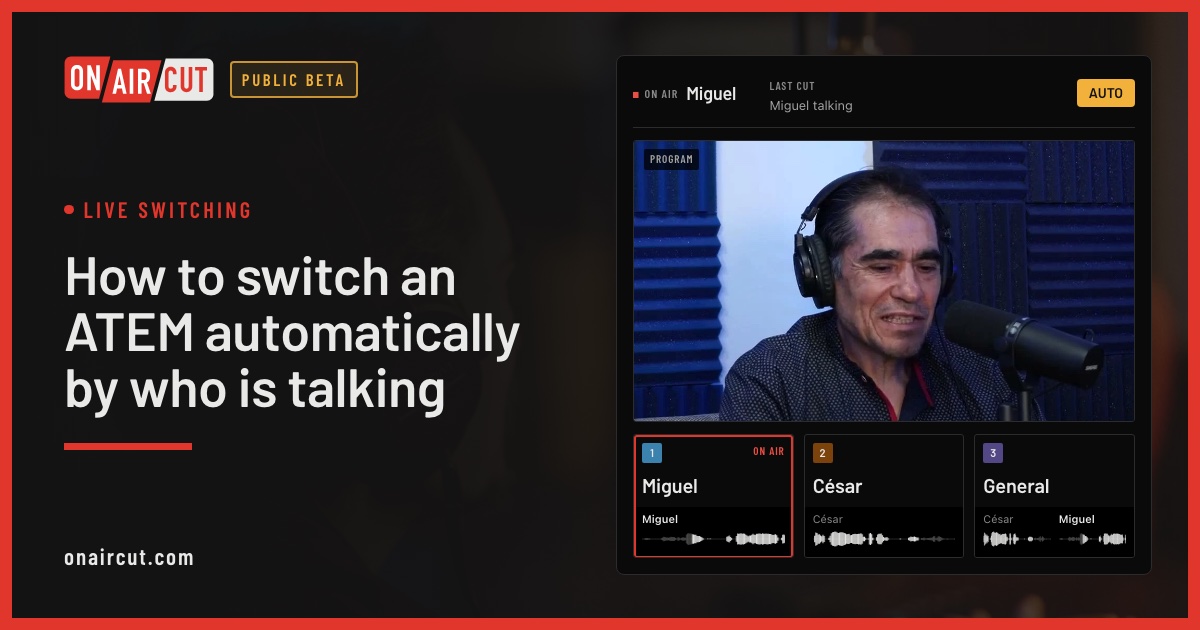
Live switching
How to switch an ATEM automatically by who is talking
Switch an ATEM’s cameras to whoever is talking, live, from each mic of a multichannel USB console. Step by step with OnAirCut, from the cables to the first show.
Read →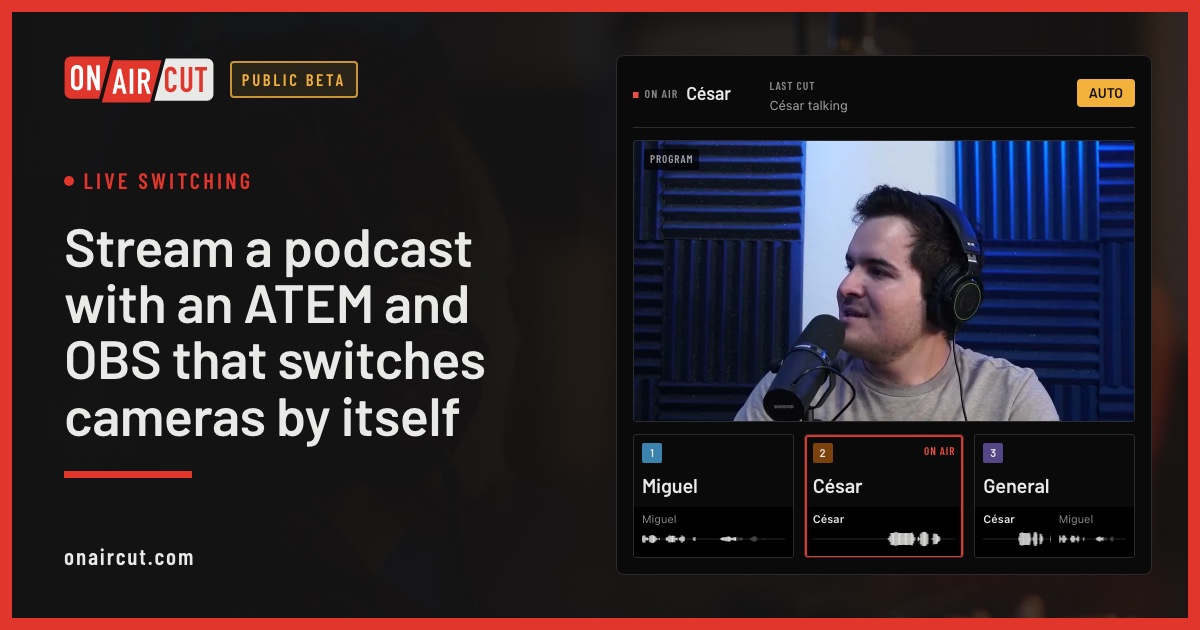
Live switching
Stream a podcast with an ATEM and OBS that switches cameras by itself
Stream a multicam podcast from OBS with an ATEM Mini that cuts to whoever is talking. How the ATEM, OBS and OnAirCut fit together, the video, the sound and the first stream.
Read →Raw tracks the other voice −22 dB
After Auphonic the other voice −70 dB
Audio
Remove mic bleed and clean up your podcast audio with Auphonic
Our studio’s exact Auphonic Multitrack settings to remove mic bleed, background noise and room echo from a podcast — step by step, with screenshots.
Read →Try it on your own show.
Public beta until December 31, 2026. For Mac with Apple silicon.