
Stream a podcast with an ATEM and OBS that switches cameras by itself
OBS has no built-in way to cut to whoever is talking, and an ATEM doesn’t do it on its own either. Put them together with OnAirCut and the stream follows the conversation: OnAirCut picks the camera, the ATEM cuts, and OBS streams what the ATEM puts on air — with your scenes, overlays and chat just as they are.
What you need
- An ATEM of the Mini family (Mini, Mini Pro, Mini Extreme…), or any ATEM with a USB webcam output. OnAirCut controls the whole family.
- A multichannel USB console that sends one person per channel to the Mac (a Mixcast 4, for example).
- A camera per person, and a wide shot if you have one.
- OBS Studio and OnAirCut on a Mac with Apple silicon and macOS 14 or later.
Who does what
| Its job | |
|---|---|
| OnAirCut | Listens to each mic and tells the ATEM which camera to put on air |
| ATEM | Cuts the cameras and sends its program to the Mac over USB-C, as a webcam |
| OBS | Takes that webcam as one source, adds your graphics and streams |
OnAirCut doesn’t change scenes inside OBS: the cuts happen in the ATEM. That’s why it works with any OBS setup, and why you can still cut by hand on the ATEM at any moment.
Connect the ATEM and the console
- Connect the ATEM to the Mac by USB-C. That one cable carries the program to OBS and the control to OnAirCut.
- Connect the console by USB. In OnAirCut it appears at the right of the top bar.
- The first time, macOS asks OnAirCut for the microphone and the local network: allow both.

Is OBS on another computer? Plug the ATEM’s USB-C into that one, and put the ATEM and the Mac with OnAirCut on the same network by Ethernet: OnAirCut finds it there on its own.
Add the ATEM to OBS
- 1In Settings → Video, set the canvas to the ATEM’s format (1920×1080 on an ATEM Mini).
- 2In Sources, press + → Video Capture Device and choose the ATEM from the device list.
- 3Make it fill the canvas, and put your overlays above it in the same scene.
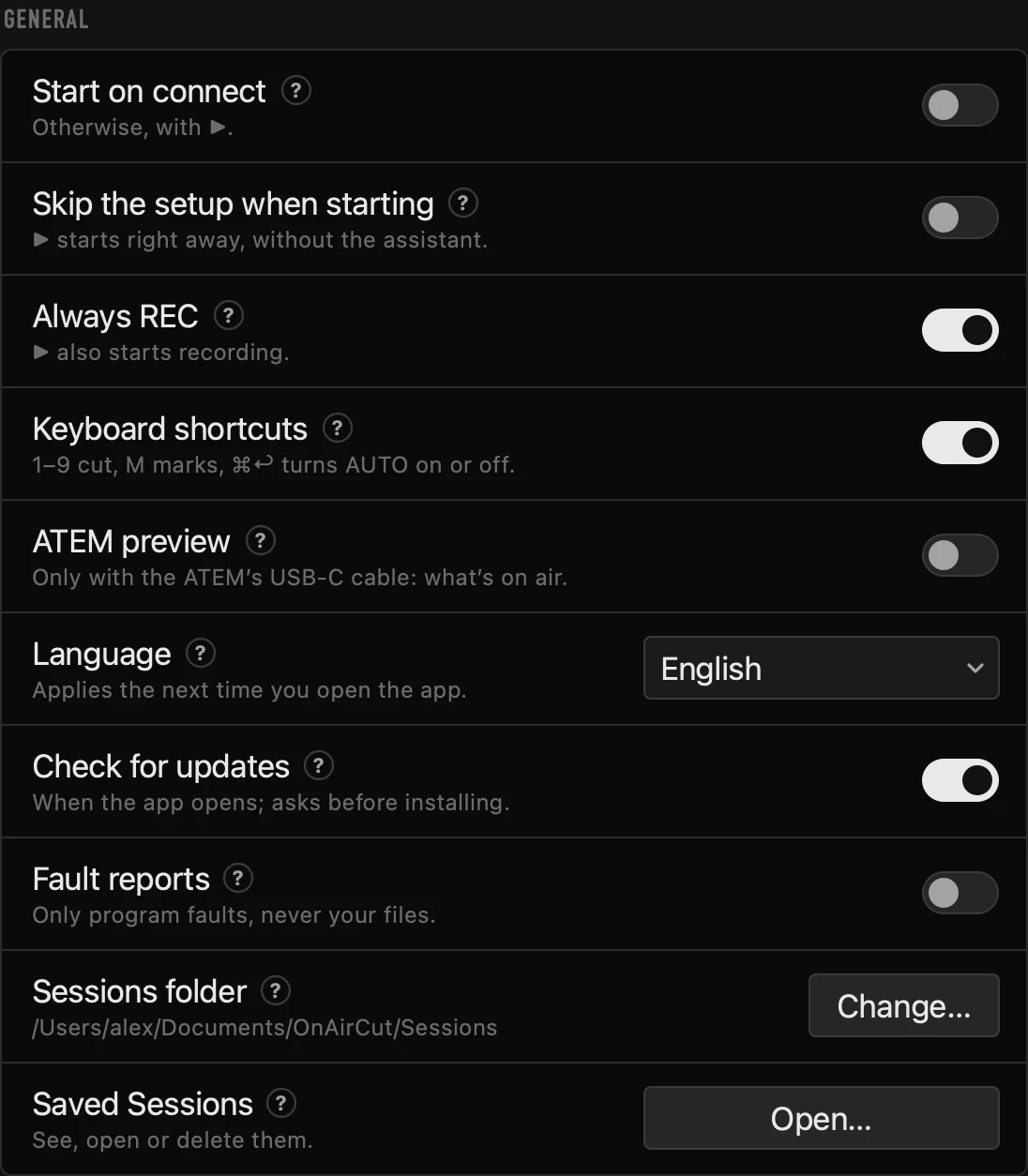
You can also watch the program inside OnAirCut: Show ATEM signal uses the same webcam, and macOS lets both apps use it at once, so OBS keeps its picture.
Choose where the sound comes from
OnAirCut needs each mic on its own; the stream needs the mix. Two ways to get it to OBS:
- Through the ATEM: send the console’s main mix into one of the ATEM’s mic inputs and set it to ON in ATEM Software Control (and the cameras’ own audio to OFF). The sound travels with the picture over the same USB-C. Don’t use AFV for the mics: here’s why.
- Straight into OBS: add an Audio Input Capture with the console. macOS lets OnAirCut and OBS listen to the same console at once.
If the sound and the mouths don’t line up, nudge the audio in OBS with Edit → Advanced Audio Properties → Sync Offset.
Tell OnAirCut whose mic is whose
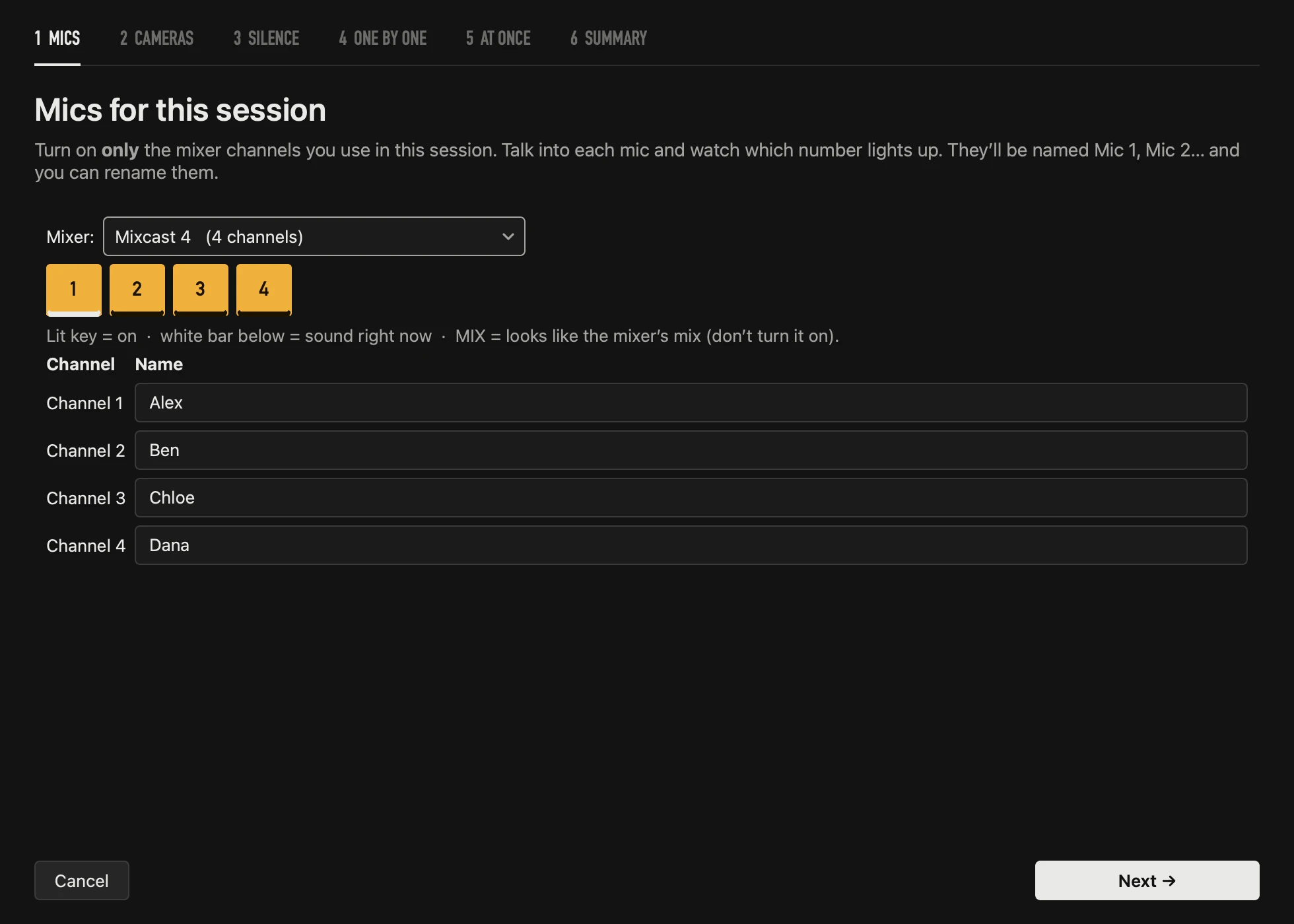
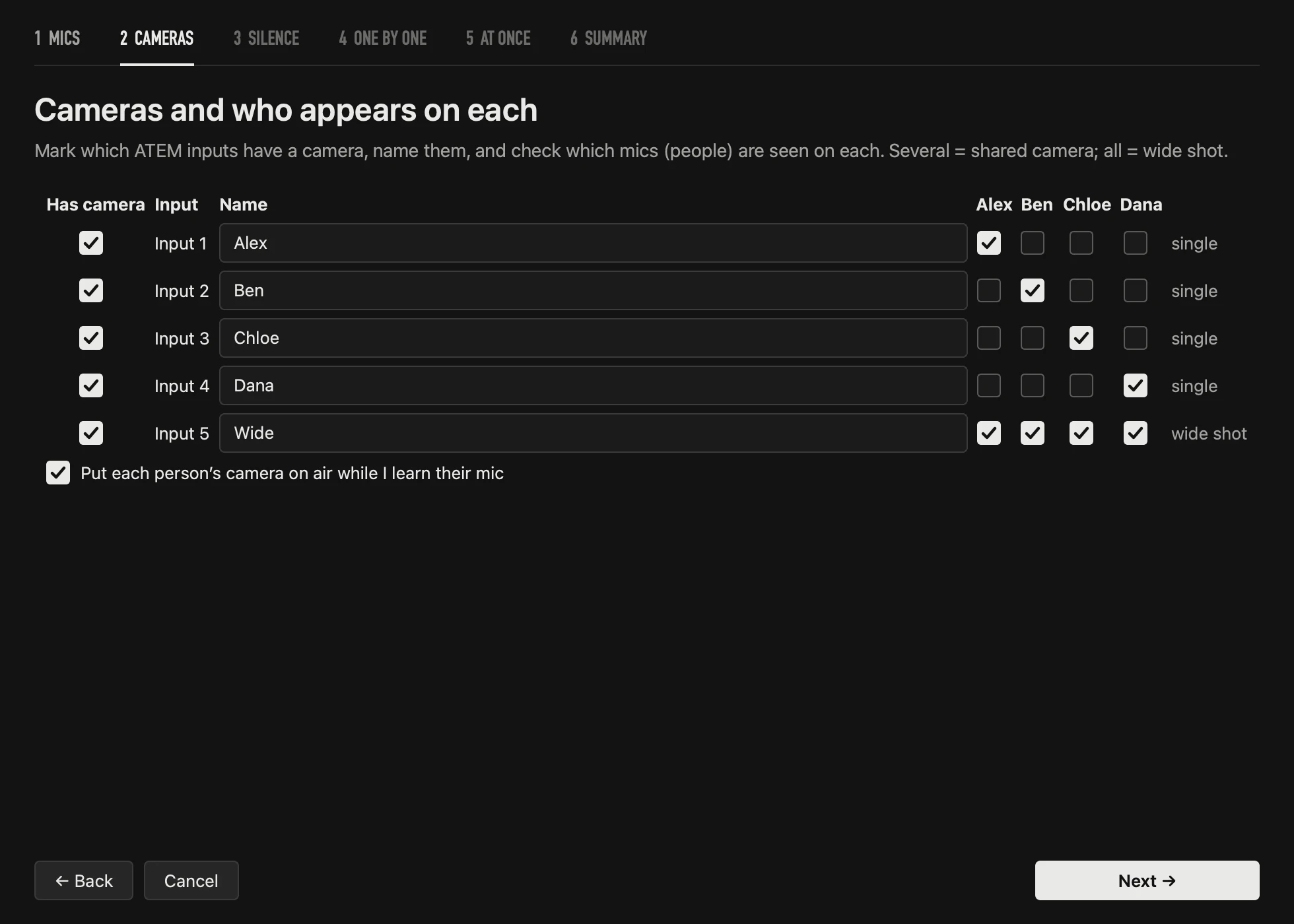
Press Analyze once: switch on the console channels you use, tick who appears on each ATEM input, and let it hear each voice for a few seconds. The full walk-through is in how to switch an ATEM by who is talking.
Press ▶, then Start Streaming
Start the session in OnAirCut with ▶ and AUTO puts on air the tightest camera that shows whoever is talking, about 0.6 s after they start (at Normal speed). Then press Start Streaming in OBS. Press ● REC too if you want to edit the episode afterwards from the same show.
- It never cuts over a logo, black or the media player you put on air from the ATEM.
- Keys 1–9, a click on a camera or the ATEM itself cut by hand; OnAirCut waits a few seconds before deciding again.
- It doesn’t slow down behind OBS: OnAirCut turns off App Nap while it’s open.
Questions
Can OBS switch cameras by who is talking on its own?
Not out of the box. There are plugins that change scenes by audio level. With an ATEM, OnAirCut does it in the switcher instead, and compares each person with their own normal level so a loud voice leaking into another mic doesn’t steal the shot.
Does OnAirCut control my OBS scenes?
No. It only tells the ATEM which camera to put on air. Your OBS scenes, overlays and chat stay exactly as you set them up.
Do I need OBS at all?
No. An ATEM Mini Pro or Extreme can stream by itself over Ethernet, and OnAirCut switches it the same way. OBS is for when you want graphics, several scenes or chat on screen.
Can OBS run on another computer?
Yes. The ATEM’s USB-C goes to the OBS computer, and the Mac with OnAirCut reaches the ATEM over Ethernet on the same network.
Read next
Live switching
How to switch an ATEM automatically by who is talking
Switch an ATEM’s cameras to whoever is talking, live, from each mic of a multichannel USB console. Step by step with OnAirCut, from the cables to the first show.
Read →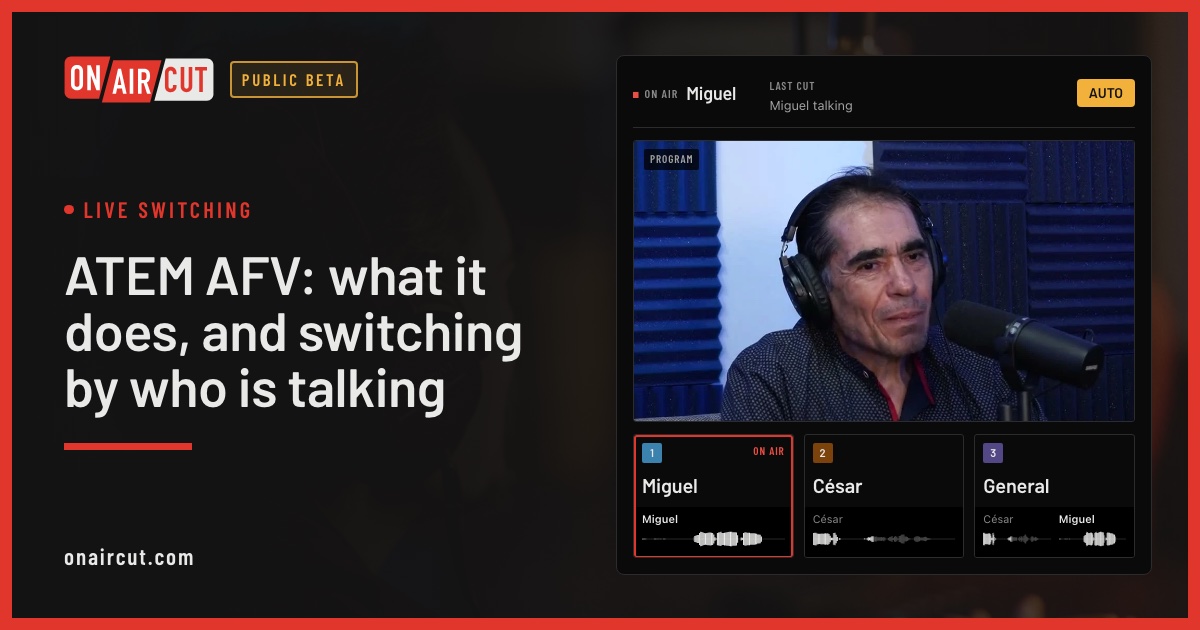
Live switching
ATEM AFV: what it does, and switching by who is talking
What Audio Follow Video does on an ATEM, why podcast mics shouldn’t use it, and how to get the opposite: cameras that follow whoever is talking.
Read →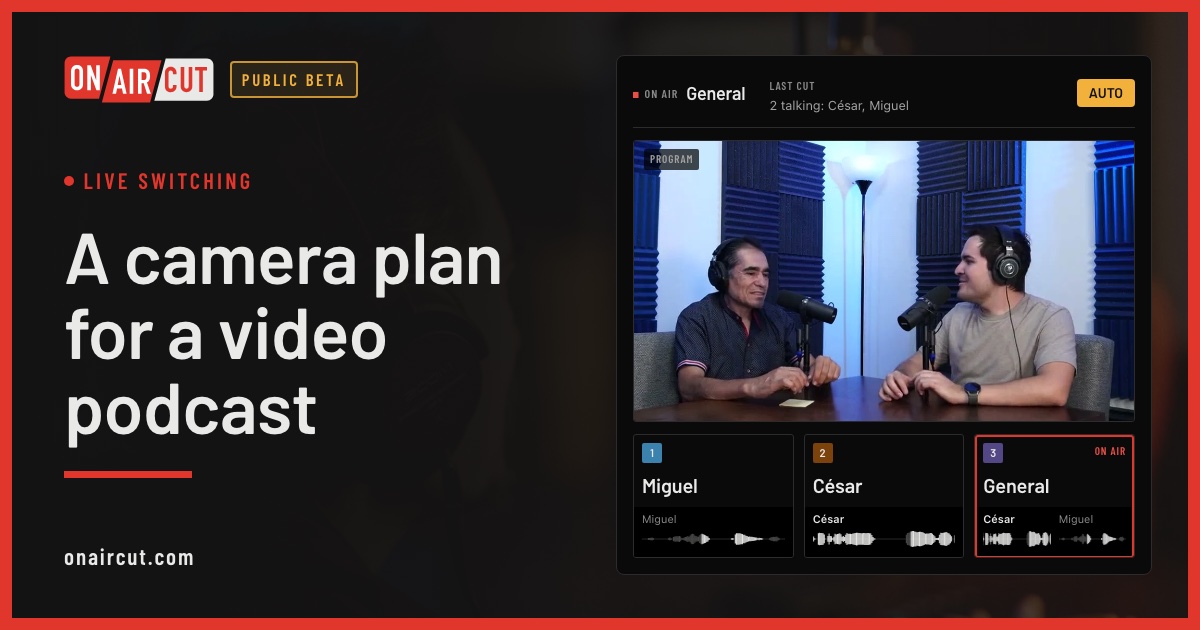
Live switching
A camera plan for a video podcast
How many cameras a video podcast needs, what each should show and how to frame them, for two or three people — and how OnAirCut uses each one.
Read →Try it on your own show.
Public beta until December 31, 2026. For Mac with Apple silicon.