
How to edit a video podcast in Final Cut Pro, with the multicam cuts done for you
Final Cut Pro is great for a video podcast — until you reach the multicam. Cutting an hour of conversation angle by angle is the slowest part of the edit, and most tools that automate it are made for other editors. Here’s how to skip it: your cuts arrive in Final Cut already made, as a multicam clip you can still change with one click.
How a podcast is edited in Final Cut Pro
The usual way is the one Apple documents. You import every camera and the audio, select them and make a multicam clip (File → New → Multicam Clip), synced by the audio. You put it in the timeline, open the Angle Viewer and play the whole episode, clicking the camera of whoever is talking — or switch each cut afterwards with a Control-click and Active Video Angle.
It works, and it’s good control. But the cutting itself is the same decision repeated hundreds of times in an hour-long conversation: who is talking now? The rest of the edit — the sound, the titles, the colour, the clips for social media — is where your time is better spent.
Automatic podcast editing for Final Cut Pro
Most tools that make the cuts for you are plugins built for Premiere Pro or DaVinci Resolve. Final Cut Pro doesn’t run that kind of plugin, so Final Cut editors have few options. OnAirCut is a separate Mac app instead: it reads each person’s audio, builds the multicam edit and writes a file that Final Cut imports with File → Import → XML. Nothing is rendered or re-encoded; the file points to your original clips.
- It cuts to whoever is talking, with each cut landing where they start. A short pause doesn’t split a turn and a quick “uh-huh” doesn’t change the shot.
- It syncs the cameras by timecode or by sound, and corrects each camera’s clock drift.
- It arrives as a multicam clip, one angle per camera, so you can change any cut in Final Cut in a click.
- It’s fast: about 50× faster than real time. After the first calculation, changing a setting recalculates the cuts in under a second.
- No ATEM needed. If you did switch live, the session already has the edit; if you didn’t, you drop in the raw files.
What you need
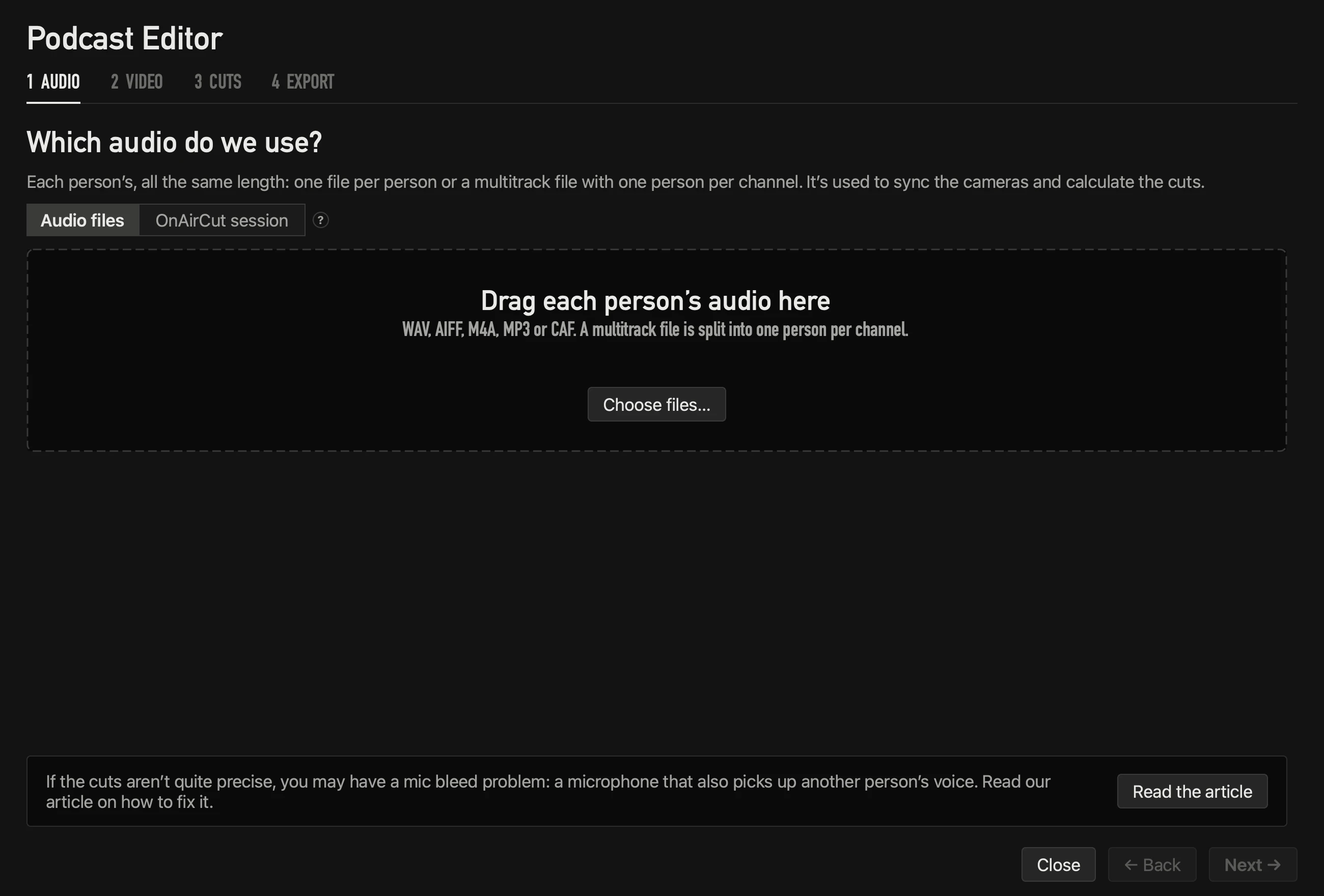
- Each person’s audio on its own track: one file per person, one multitrack file with one person per channel, or an OnAirCut session recorded with ● REC. If the mics pick each other up a lot, see how to remove mic bleed.
- Each camera’s video, recorded separately (card, external recorder or ATEM ISO), with its own sound if there’s no timecode.
- A Mac with Apple silicon and macOS 14 or later, and Final Cut Pro.
Add each person’s audio
Open the Podcast Editor and drag in each person’s audio. Each card shows the whole recording: white where that person talks, grey where their mic only hears noise or someone else.
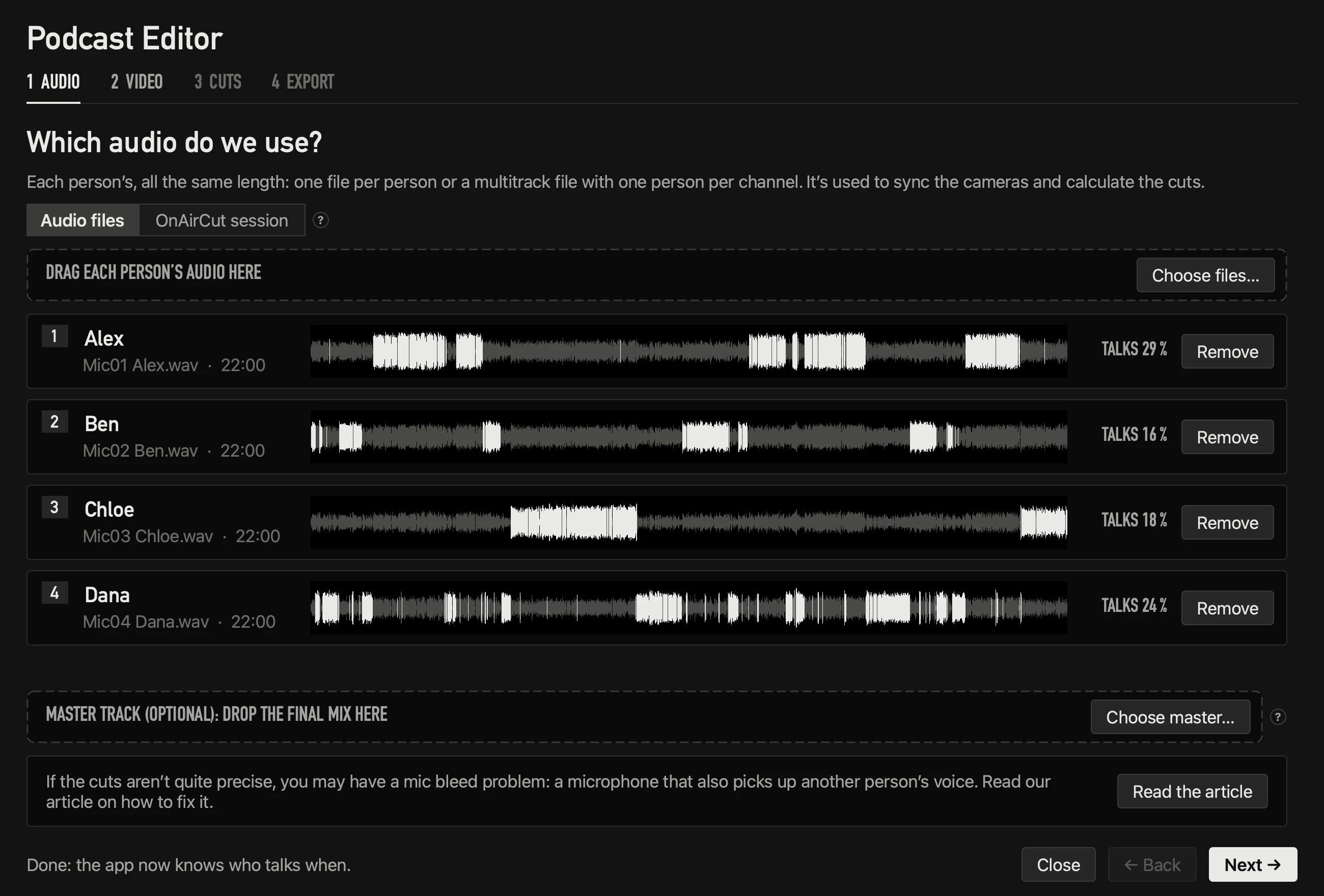
Already have a finished mix? Drop it as the master track: it syncs by sound and goes on top of the edit.
Add the cameras and tick who each one shows
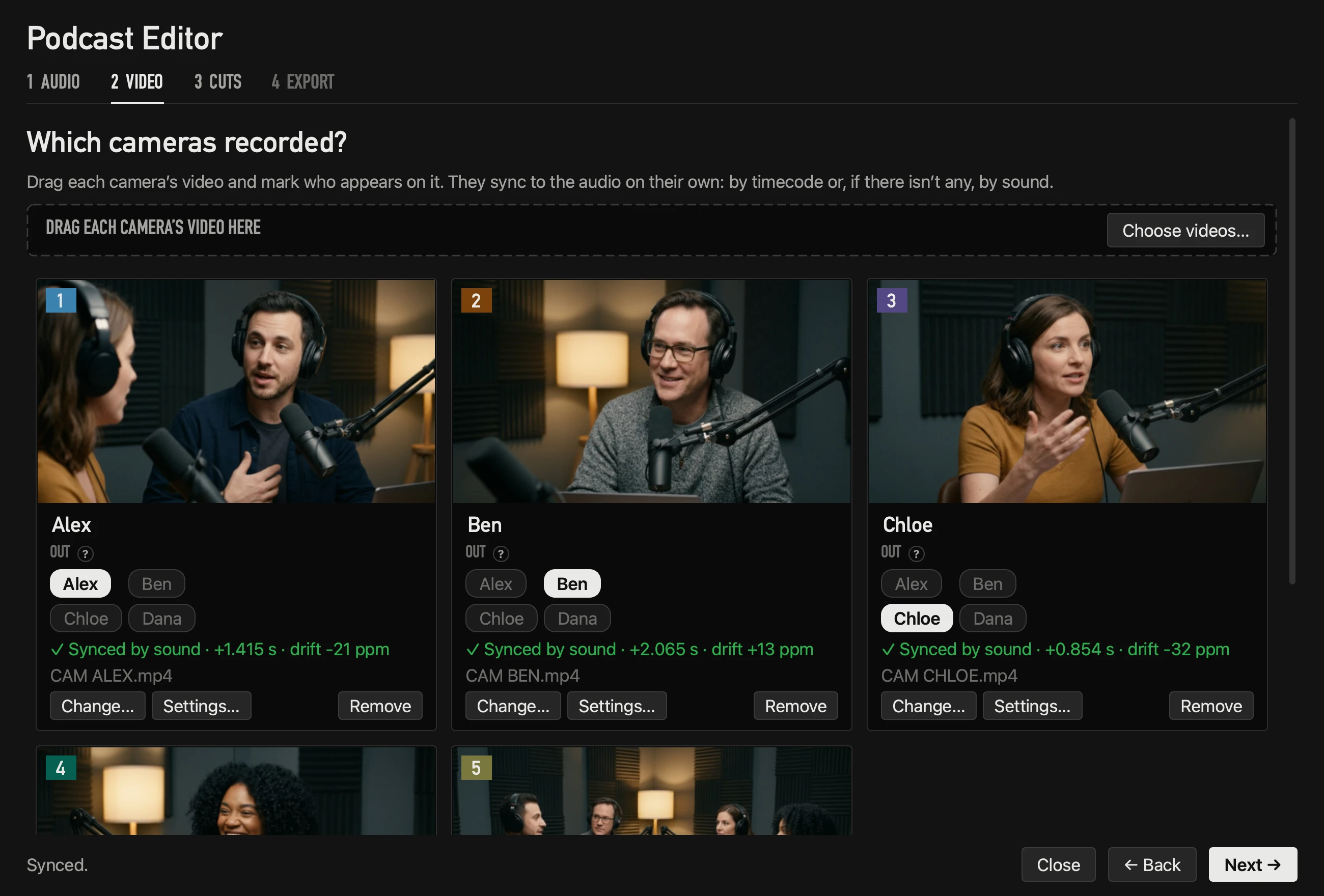
Drag in each camera’s file, name it and tick who appears on it. A wide shot is the camera with everyone ticked. They sync on their own, without a clap. How it works: sync podcast cameras without a clap.
Check the cuts
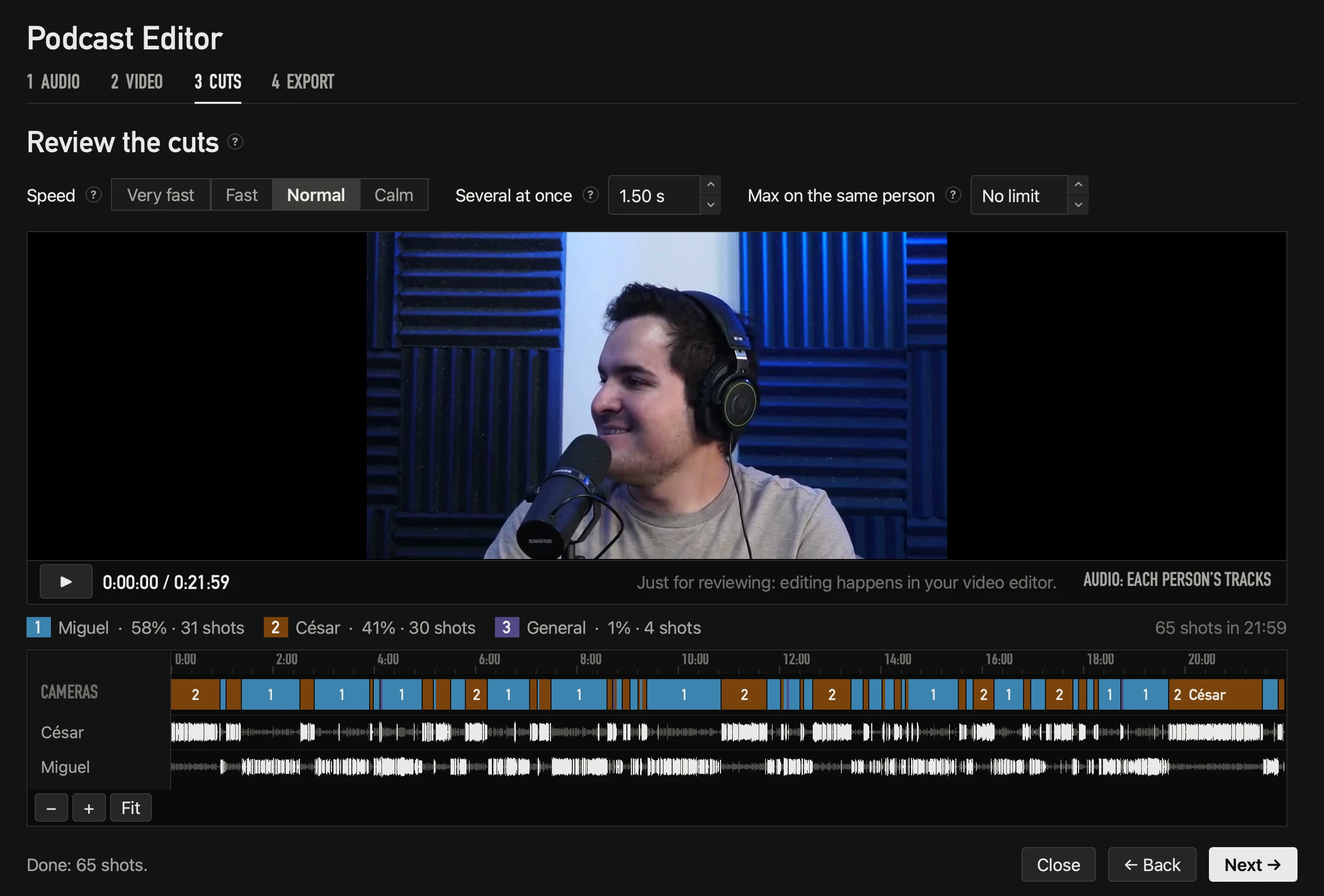
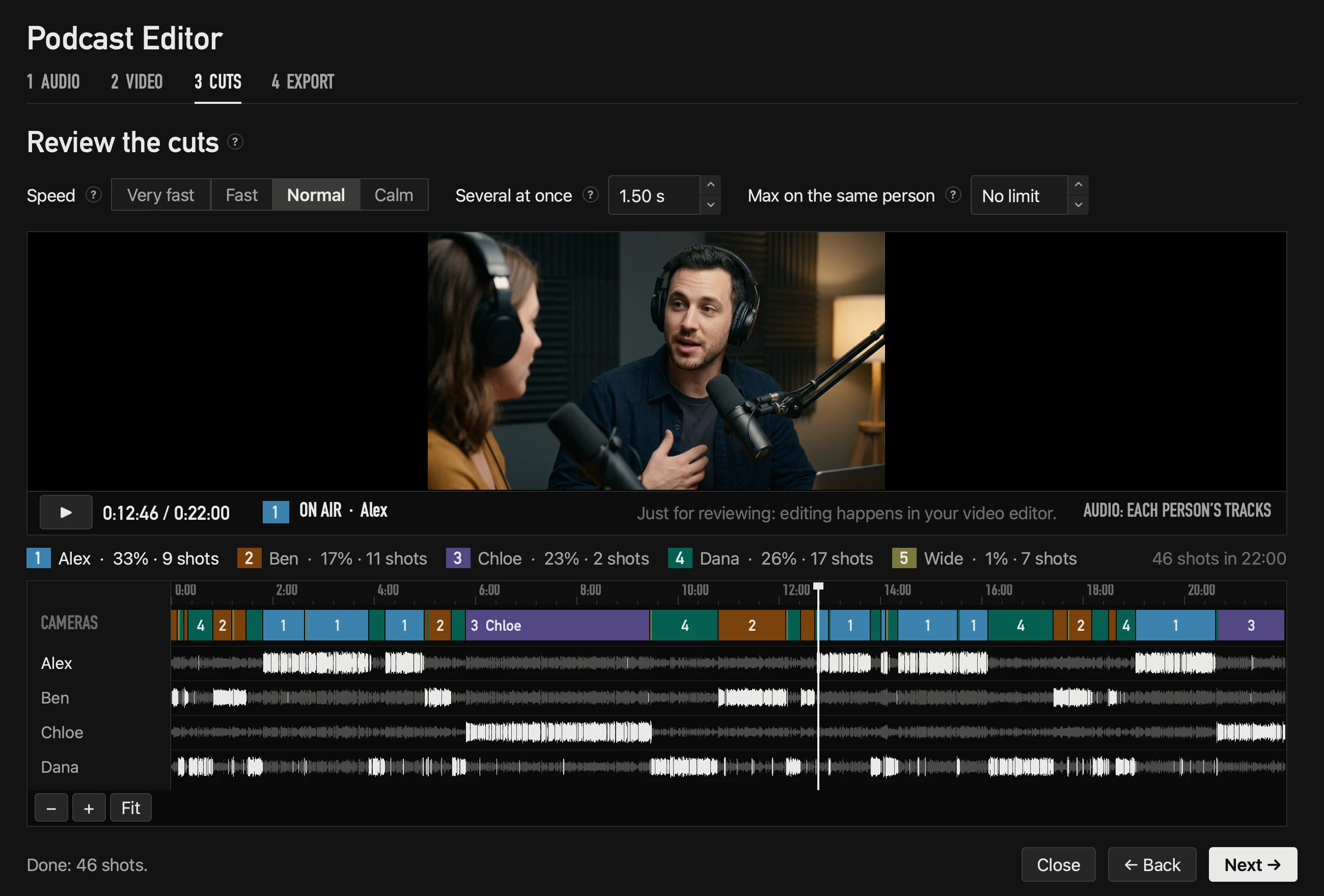
The cuts calculate themselves from the whole conversation, not just the last second. You can set how fast it cuts, when to go wide and the longest time on one person; each change recalculates in under a second, and ▶ plays the edit before you leave for Final Cut.
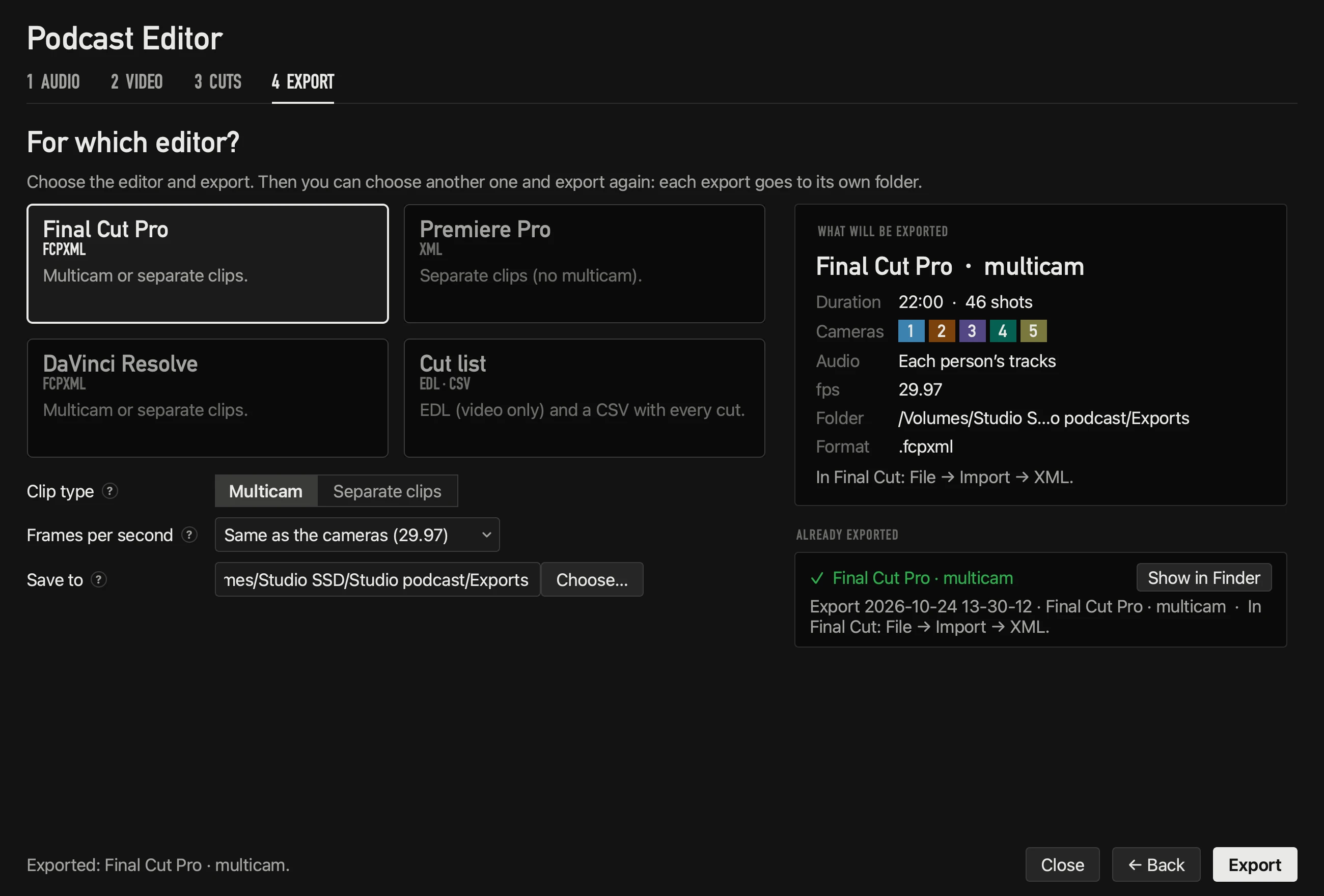
Export for Final Cut Pro
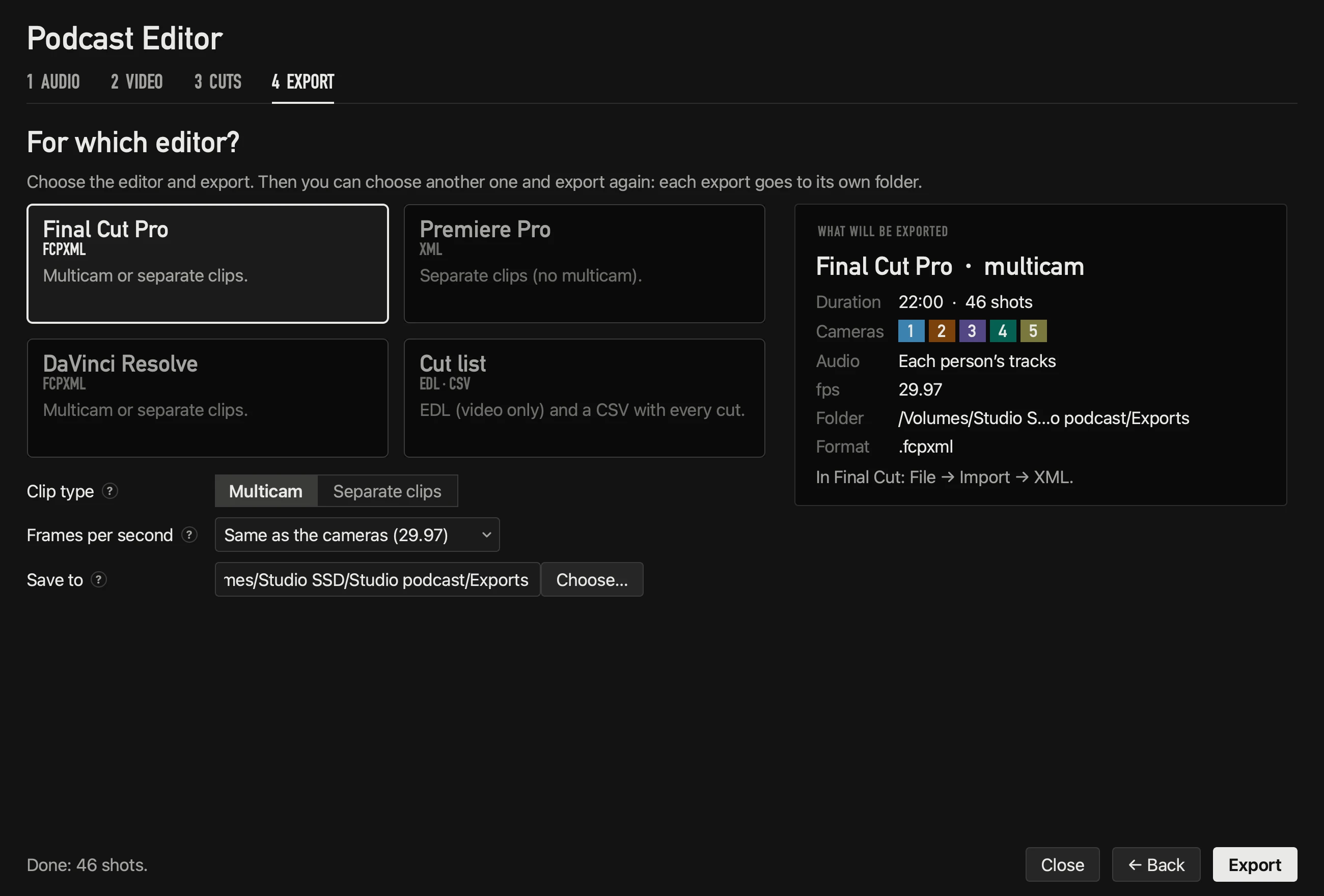
Choose Final Cut Pro and, as the clip type, Multicam (the default): one angle per camera plus one of mics. Choose Separate clips instead if you want each camera on its own track. Pick the frame rate of the timeline and press export; it goes to its own new folder, with the instruction to open it.
Open it in Final Cut Pro and finish the edit
- 1In Final Cut Pro, choose File → Import → XML and select the .fcpxml file from the export folder.
- 2The multicam clip and the edit appear in your library. Open the timeline: the cuts are already there.
- 3To change a cut, select the clip and Control-click it, then choose Active Video Angle; or pick another angle in the Inspector.
- 4Finish as you always do: sound, titles, colour, clips for social media, and share.
The edit’s audio is each person’s track; the cameras’ own sound stays off. Exporting again into the same library doesn’t duplicate your clips: the same material always carries the same identifier.
Bring your markers along
If you recorded with OnAirCut, press M whenever something happens — a clip for social media, a slip to cut. The markers go into the multicam clip, so you find them in Final Cut without scrubbing the hour. More in how to keep your podcast on time.
Questions
Does Final Cut Pro have automatic multicam editing?
Final Cut Pro makes the multicam clip and syncs it, but you choose the angles yourself, by clicking in the Angle Viewer or on each cut. OnAirCut makes those choices from the audio and hands Final Cut the result.
Is there a Final Cut Pro plugin that edits podcasts automatically?
Most automatic podcast tools are plugins for Premiere Pro or DaVinci Resolve. OnAirCut is a separate Mac app that exports a file Final Cut imports, so there’s nothing to install inside Final Cut.
Do I need an ATEM to use this?
No. The Podcast Editor works with any recording: one audio file per person and each camera’s video.
Can I still change the cuts in Final Cut?
Yes. With the Multicam clip type, any cut’s angle changes with one click, as in any multicam edit.
Which frame rates work?
23.976, 24, 25, 29.97, 30, 50, 59.94 and 60, with drop frame respected.
Does it re-encode my video?
No. Nothing is rendered or re-encoded: the export points to your original files.
Read next
Editing
Automatic multicam editing for video podcasts
Build a video podcast’s multicam edit automatically from each person’s audio, for Final Cut Pro, Premiere Pro or DaVinci Resolve. No ATEM needed. Four steps.
Read →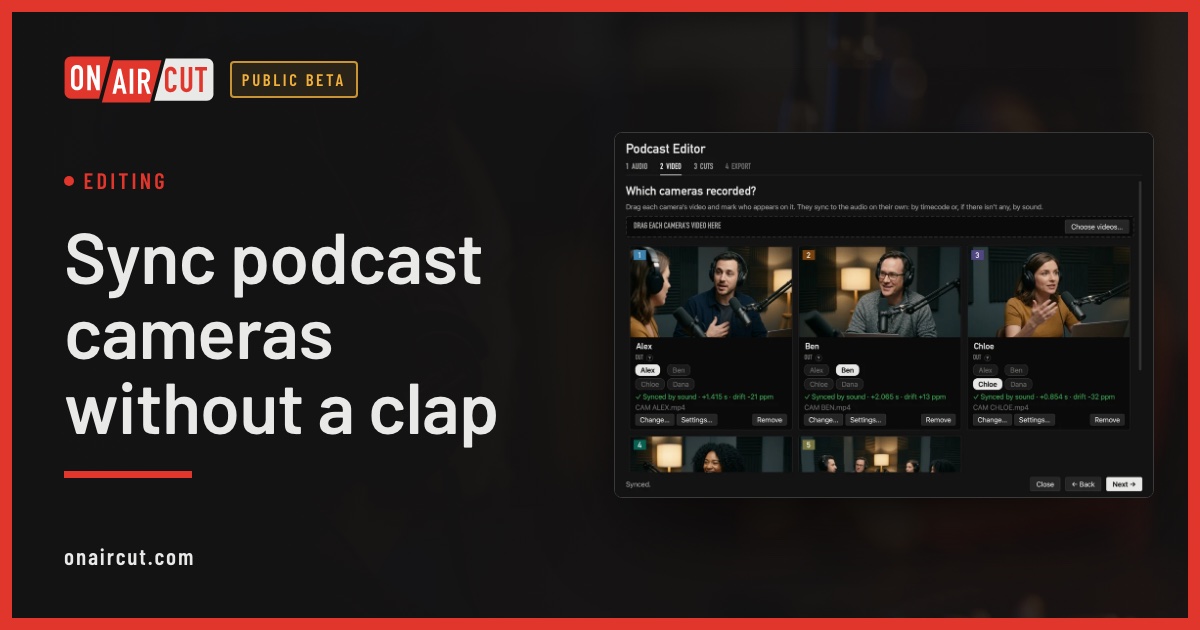
Editing
Sync podcast cameras without a clap
How to sync a video podcast’s cameras with each person’s audio without clapping: by timecode, by sound, and correcting the clock drift of each camera.
Read →Raw tracks the other voice −22 dB
After Auphonic the other voice −70 dB
Audio
Remove mic bleed and clean up your podcast audio with Auphonic
Our studio’s exact Auphonic Multitrack settings to remove mic bleed, background noise and room echo from a podcast — step by step, with screenshots.
Read →Try it on your own show.
Public beta until December 31, 2026. For Mac with Apple silicon.