
Live Switcher · for ATEM
Your ATEM switches itself.
The Live Switcher listens to every mic and cuts your ATEM’s cameras to whoever is talking while you record or stream. OnAirCut at the switcher: you focus on the conversation.
Two apps in one. The Podcast Editor comes with it, and it works without an ATEM: it builds the multicam edit of any recording for Final Cut, Premiere or DaVinci, from each person’s audio and each camera’s video. About the Podcast Editor
macOS 14 or later · Apple silicon Notarized by Apple
- cameras — every input of your ATEM
- 20
- cameras — every input of your ATEM
- of the time the right camera on air, in a real 66-minute session
- 93%
- of the time the right camera on air, in a real 66-minute session
- shots shorter than 2 seconds, at Normal speed
- 0
- shots shorter than 2 seconds, at Normal speed
What you’re looking at
- 1 Who is talking The meter bridge: one meter per mic, with a white light on whoever has the floor.
- 2 What’s on air One monitor per camera, like the ATEM’s multiview: red border on air.
- 3 The program The ATEM’s output, live over USB-C — what your audience is seeing.
- 4 Why it cut The last cut and its reason, readable at a glance.
- 5 The last 60 seconds Who spoke and which camera was on air: every cut, explained.
- 6 Every cut The log: automatic cuts, yours and the ATEM’s.
What you need
Your ATEM, your console and a Mac.
- 1
An ATEM switcher
Any model of the family — Mini, Mini Pro, Mini Extreme, SDI, SDI Extreme ISO or Television Studio — by USB or Ethernet. OnAirCut finds it on its own.
- 2
A multichannel USB console
One that sends each person on their own channel to the Mac — a Mixcast 4, for example. Wired or wireless mics, as you already work. A console that only sends the stereo mix isn’t enough.
- 3
A Mac
With Apple silicon (M1 or later) and macOS 14 Sonoma or later. The audio is analysed on the Mac and never leaves it.
Streaming with OBS? OnAirCut cuts the ATEM and OBS streams the ATEM’s output, as usual. How to set it up
How the live switching works
Set it up once. Then press ▶.
-
 1
Connect
The ATEM by USB or Ethernet — OnAirCut finds it on its own — and your multichannel USB console, one person per channel.
-
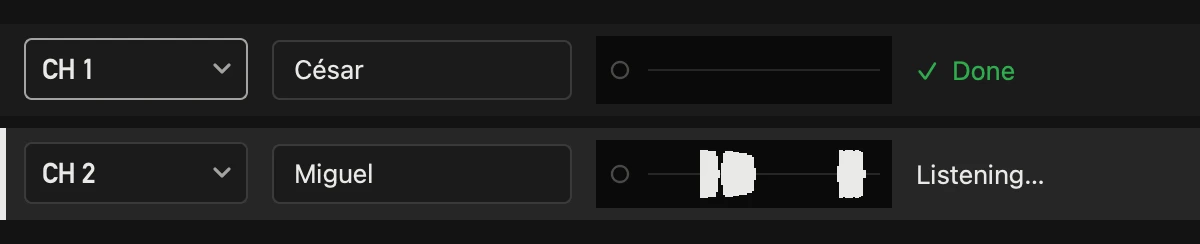 2
Set up
A one-minute assistant: which mic is whose and which camera shows whom. Then each person says a sentence to check their mic — fix a channel or a name right there.
-
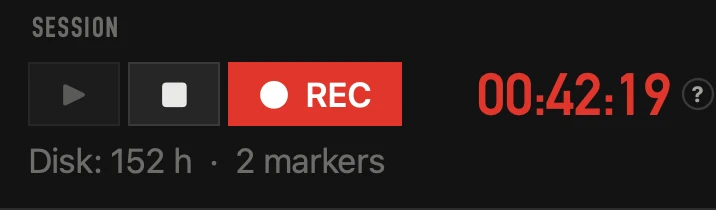 3
Press ▶
AUTO cuts to the tightest camera that shows whoever has the floor. ● REC records a WAV per mic and every cut, for the edit later.
How it decides
It cuts like an operator who knows the show.
One person talks
The tightest camera they appear on, about half a second after they start.
Both talk at once
After a moment together it goes to the shot that shows them both — here, the wide.
A short “uh-huh”
A quick reply doesn’t take the shot from whoever has the floor.
Nobody talks
After the seconds you choose, it stays, goes wide or goes to a camera you pick.
You cut by hand
Keys 1–9 or a click: it respects your cut for a few seconds, then carries on.
Voices leak
The other mic hears César too, but it knows that’s bleed, not Miguel talking.
For your guests
A clock everyone can see.
Put the recorded time on a TV in the studio: your guests know when they’re on, how long they’ve been talking and what time it is.
When does it start?
Automatically, when you record or When you decide · ⌘T
Automatically, when recording starts: with ▶, since Always REC comes on, or with ● REC if you turn it off. The sound check before doesn’t count. Or you decide when the episode begins, with one key.
How does it start counting?
Right away or With a countdown
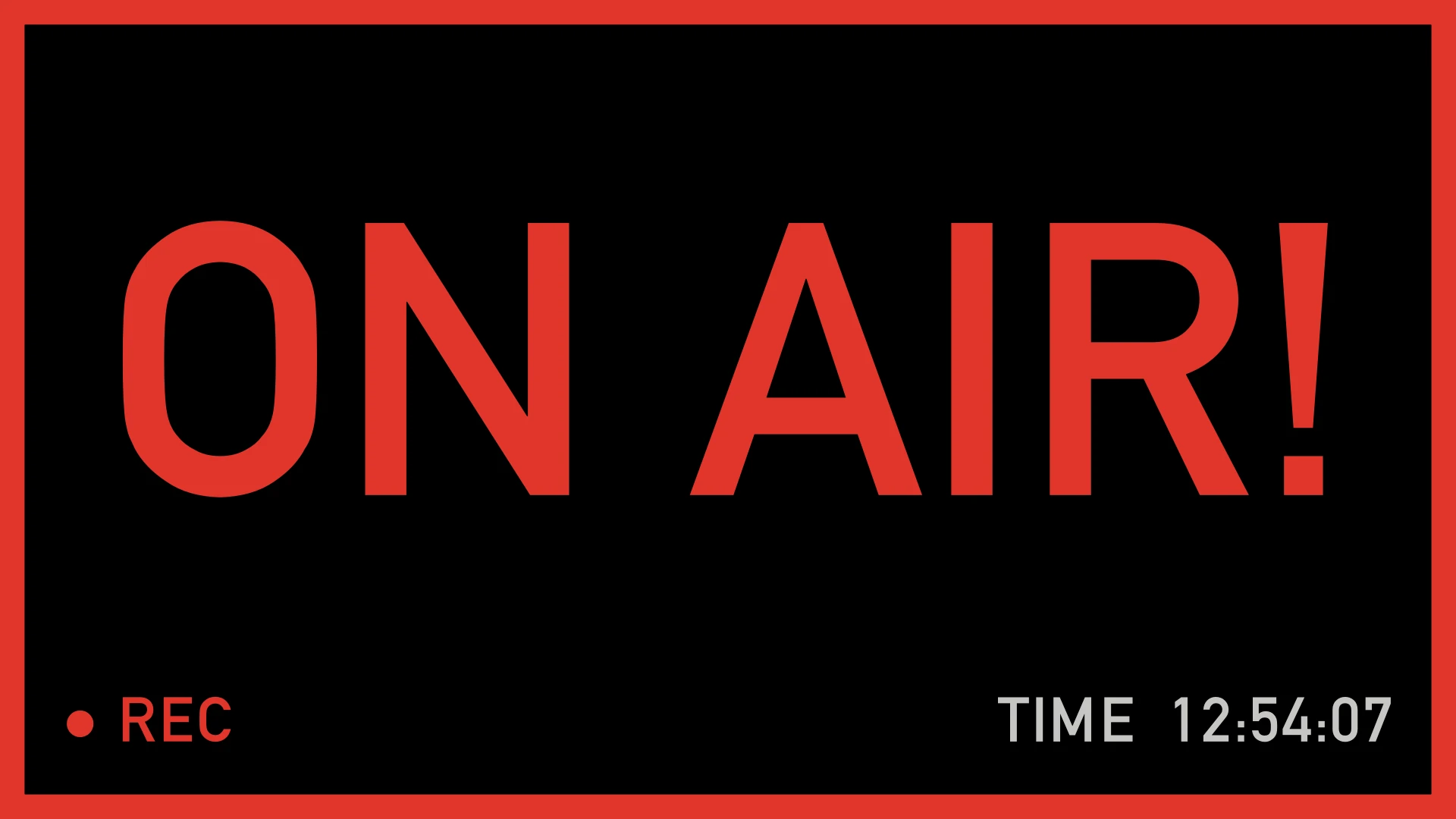
From 00:00:00 at once, or first a countdown — “STARTS IN”, the time you choose, then “ON AIR!” — so your guests can get ready. Recording starts at zero, or with the countdown if you prefer.
-
In step with the operator
The app’s clock, next to ● REC, shows the same countdown and the same “ON AIR!”, even if you can’t see the TV.
-
The time of day
For a studio rented by the hour: the Mac’s time, in 12 or 24 hours, at the bottom of the screen.
-
Your logo and colors
Your show’s logo and colors, HH:MM:SS or timecode, and a red frame while recording, like a tally light.
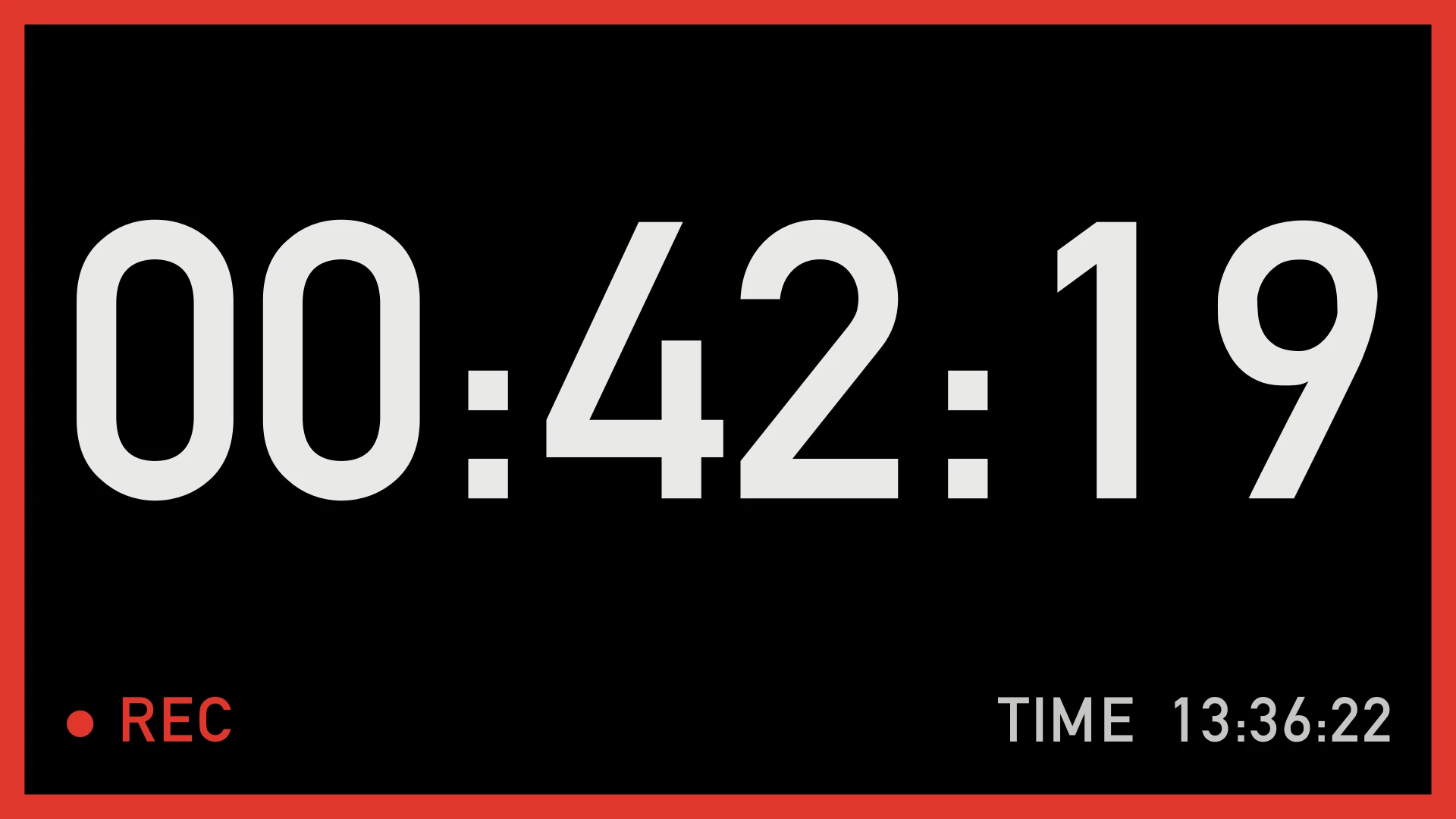
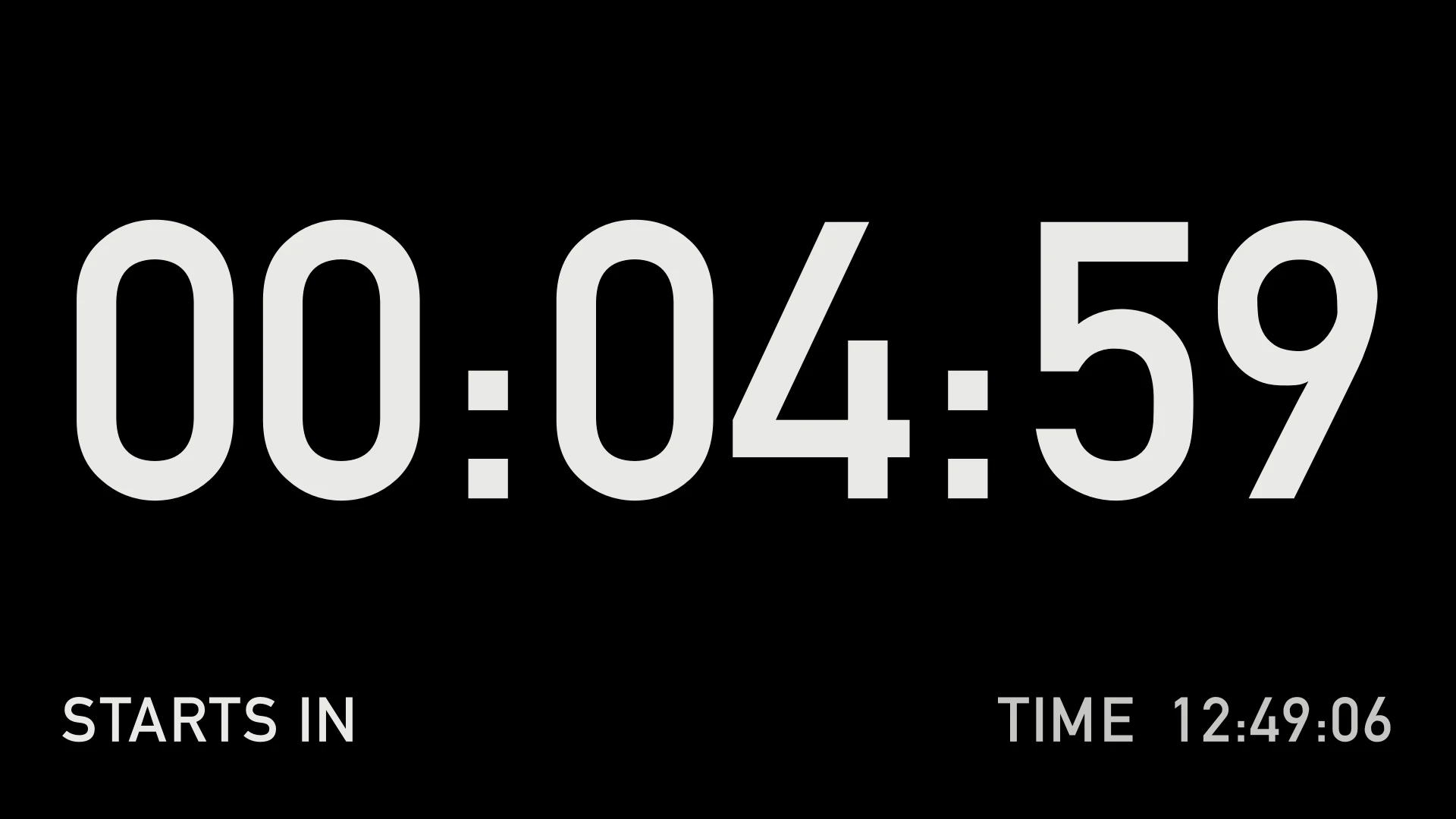
When the show ends
The edit doesn’t start from zero.
While it switches, OnAirCut records each mic and every cut. Open the session in the Podcast Editor, add each camera’s video, and the multicam edit is ready for Final Cut, Premiere or DaVinci.
About the Podcast Editor →- A 24-bit WAV per mic, in sync with every cut
- Every cut with its exact time: automatic, by hand or from the ATEM
- Markers: press M to mark a moment; they reach Final Cut, DaVinci and Premiere
- Always REC: every ▶ records too; only ■ stops it, and it asks first
- Saved every 5 seconds: a power cut leaves the session whole
Built for the room it runs in
Never slows the show
No App Nap, the Mac doesn’t sleep, and the network runs on its own thread.
Reconnects by itself
If the ATEM or the console drops, it finds them again.
Sessions are crash-safe
Saved every five seconds: a power cut leaves the session whole up to that moment.
Errors that explain themselves
Every error says what happened, why, whose side it’s on and what to do.
Specifications
Everything the Live Switcher does.
Mac and licence
- Mac
- Apple silicon (M1 or later), macOS 14 Sonoma or later
- Languages
- English and Spanish
- Licence
- 2 Macs at once, 10 changes every 30 days
- Offline
- Keeps working 14 days since the last check
Cameras and switcher
- Switchers
- The whole ATEM family — Mini, Mini Pro, Mini Extreme, SDI, SDI Extreme ISO, Television Studio
- Cameras
- Up to 20 ATEM inputs; keys 1–9 cut directly
- Connection
- USB or Ethernet, found on its own; reconnects if it drops
- Shared shots
- A camera can show several people; the wide shot shows everyone
- Transition
- Straight cut, or the transition set on the ATEM (a dissolve, for example)
- Other sources
- Never cuts over a logo, black or the media player you put on air
Microphones and voice
- Consoles
- Any multichannel USB console that sends one person per channel (a Mixcast 4, for example)
- Microphones
- As many as your console sends — each one read on its own
- Bleed
- Learns how much of each voice leaks into the other mics, and discounts it
- Level
- Compares each person with their own normal voice, so a quiet guest keeps the shot
- Noise
- Air conditioning or hum doesn’t count as a voice
- Assistant
- Mics, cameras and a quick mic check per profile; the room and each voice it learns during the show
How it switches
- Speed
- Very fast, Fast, Normal or Calm — or every time set by hand
- Several at once
- Goes to the tightest shot that shows them all, after the time you choose
- Short replies
- An “uh-huh” doesn’t take the shot from whoever has the floor
- Silence
- Stay, go wide or go to a camera you choose
- Variety
- After a long stretch on one person, a few seconds of another shot, then back
- By hand
- Click a camera or press 1–9; it waits before cutting on its own again
Recording the session
- Audio
- A 24-bit WAV per microphone, in sync with every cut
- Cuts
- Every cut with its exact time: automatic, by hand or from the ATEM
- Safety
- Saved every 5 seconds; a power cut leaves the session whole
- Clock drift
- Corrects the small clock difference between the console and the Mac
- Always REC
- On by default: every ▶ records too, and the recording goes with the session — only ■ stops it, and it asks first
- Markers
- Press M to mark a moment; it shows in the editor and goes into Final Cut, DaVinci and Premiere
- Disk
- Shows how much recording fits, and asks before recording with less than an hour left
- Recording clock
- In its own window for a TV: automatically when recording (with ▶) or when you decide, with a countdown, the time of day, your logo and colors
- Sessions
- A list with length, cuts and size; deleting goes to the Trash, never straight away
Questions
Before you download.
Which ATEM models does it work with? +
The whole family: ATEM Mini, Mini Pro, Mini Extreme, SDI, SDI Extreme ISO and Television Studio, by USB or Ethernet.
Which audio consoles does it work with? +
Any multichannel USB console that sends one person per channel to the Mac — a Mixcast 4, for example. A console that only sends the stereo mix isn’t enough: it needs each mic on its own.
How does it know which camera shows whom? +
Each person has their own mic on their own console channel, wired or wireless, as you already work. Once, in the assistant, you mark who appears in each camera: a camera can show one person, two, or everyone.
What about 6 cameras and 3 people? +
It works the same: when one person talks, it goes to the tightest camera that shows them; when several talk at once, to the camera that shows all of them. Up to 20 cameras and as many mics as your console sends.
Do I still need someone at the switcher? +
It’s up to you. OnAirCut switches on its own, so you can run the show by yourself and focus on the conversation. If someone is at the switcher, they work together: they can cut by hand at any moment and OnAirCut respects it.
Does it change OBS scenes? +
No. OnAirCut cuts the ATEM, and OBS streams the ATEM’s output as usual, so your audience sees every cut. Stream a podcast with an ATEM and OBS
Is it the same as the ATEM’s Audio Follow Video? +
No. AFV makes the audio follow the camera; OnAirCut does the opposite — the camera follows whoever is talking — and the mics stay on. The ATEM’s AFV, explained
Does it record video? +
No: it records a 24-bit WAV per mic and every cut. You add each camera’s video in the Podcast Editor, which builds the multicam edit from that session.
Is it AI? +
No. It’s an algorithm tuned, little by little, on the podcasts of César, who makes OnAirCut. The audio is analysed on your Mac and never leaves it.
Do I pay for each app? +
No. OnAirCut is two apps in one: the Live Switcher and the Podcast Editor come in the same plan. It’s free until January 7, 2027 (public beta until December 24, then a 14-day free trial); after that, 19 USD a month or 190 USD a year.
From the blog
Live switching, step by step.
Live switching
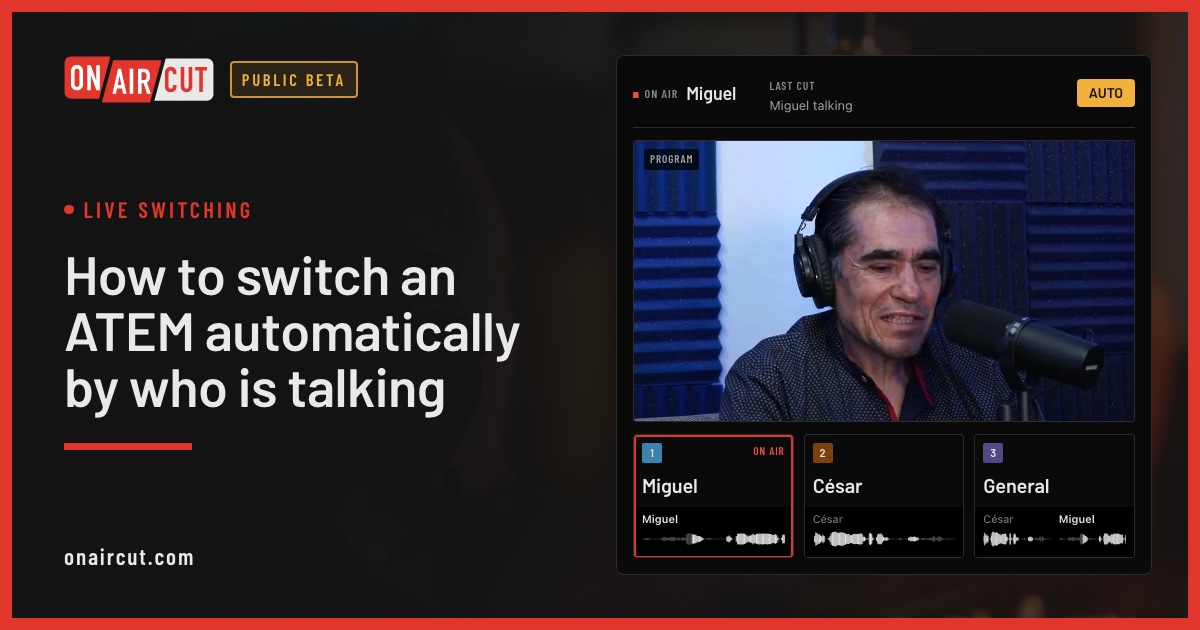
How to switch an ATEM automatically by who is talking
Switch an ATEM’s cameras to whoever is talking, live, from each mic of a multichannel USB console. Step by step, from the cables to the first show.
Read →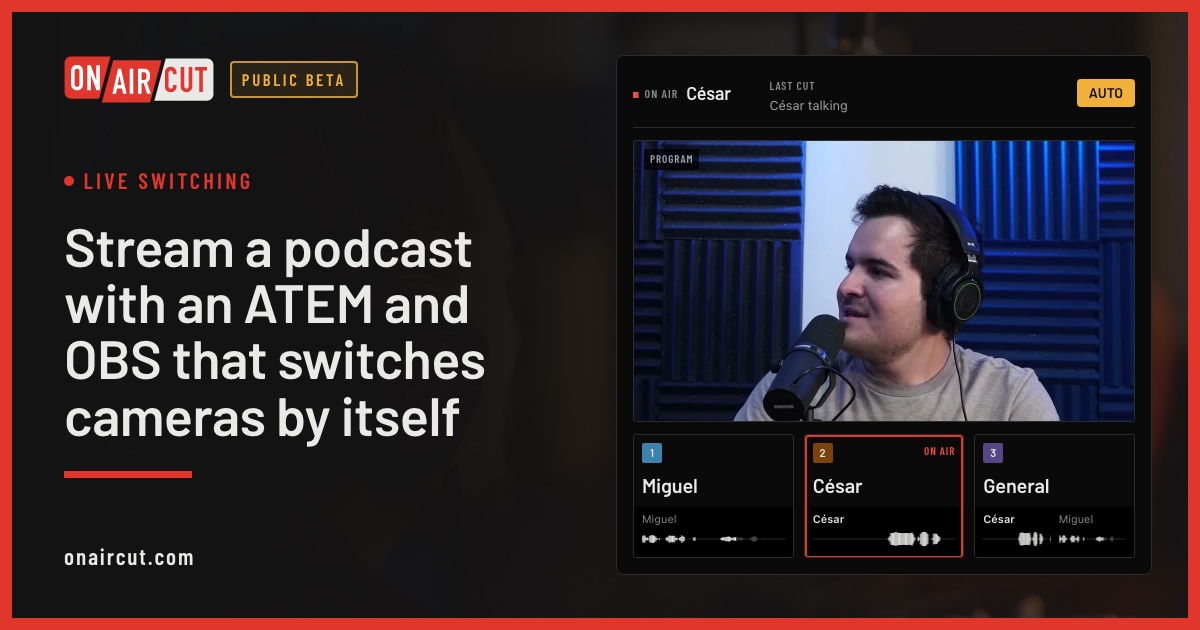
Live switching
Stream a podcast with an ATEM and OBS that switches cameras by itself
Stream a multicam podcast from OBS with an ATEM Mini that cuts to whoever is talking: how the ATEM, OBS and OnAirCut fit together, video and sound.
Read →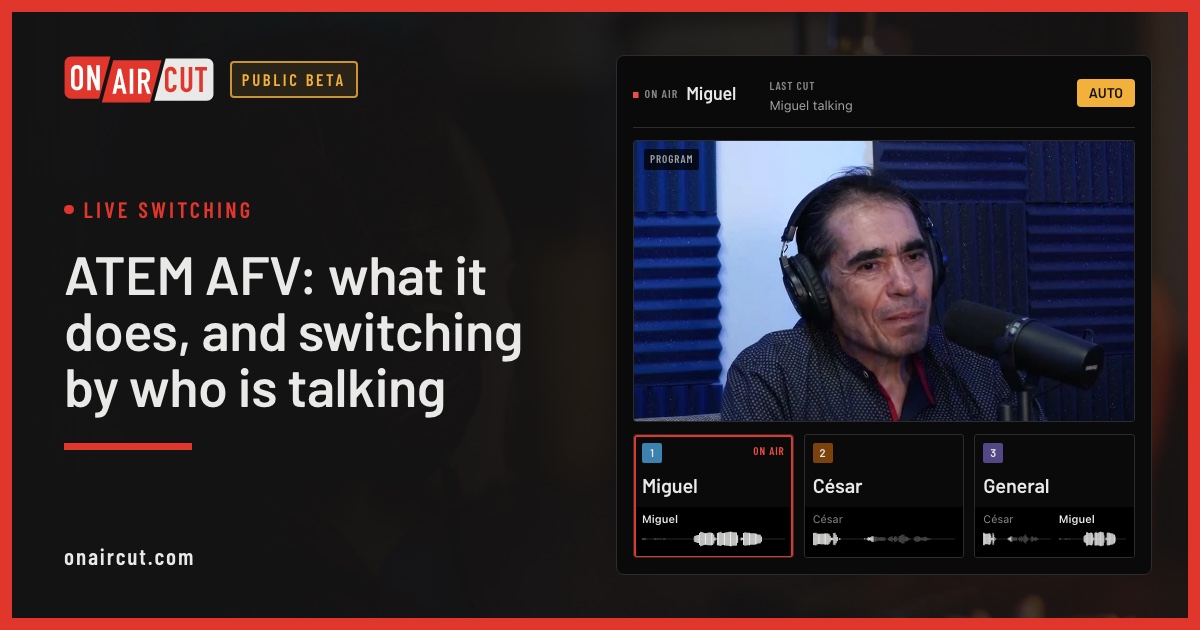
Live switching
ATEM AFV: what it does, and switching by who is talking
What Audio Follow Video does on an ATEM, why podcast mics shouldn’t use it, and how to get the opposite: cameras that follow whoever is talking.
Read →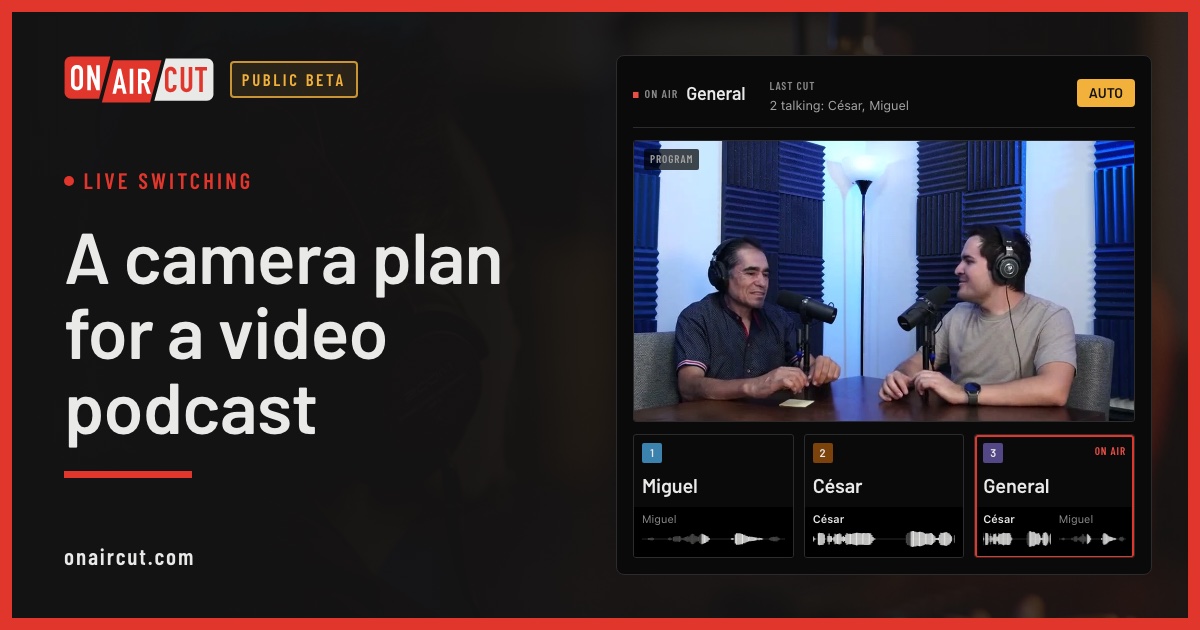
Live switching
A camera plan for a video podcast
How many cameras a video podcast needs, what each should show and how to frame them, for two or three people — and how OnAirCut uses each one.
Read →
Guide
How to keep your podcast on time
A big clock on a TV so guests see the countdown, the recorded time and the time of day, plus markers for the edit. Step by step, with OnAirCut.
Read →Raw tracks the other voice −22 dB
After Auphonic the other voice −70 dB
Audio
Remove mic bleed and clean up your podcast audio with Auphonic
Our studio’s exact Auphonic Multitrack settings to remove mic bleed, background noise and room echo from a podcast — step by step, with screenshots.
Read →On air
Let the cameras switch themselves.
Works with the whole ATEM family. The Podcast Editor, which needs no ATEM, comes with it.
macOS 14 or later · Apple silicon Notarized by Apple