
Podcast Editor · automatic multicam editing
The multicam edit is waiting in your editor.
Any recording works: one audio file per person and each camera’s video, from the cameras, phones and recorders you already have. The Podcast Editor syncs them, hears the whole conversation and cuts to whoever is talking, then hands Final Cut Pro, Premiere Pro or DaVinci Resolve a finished multicam timeline.
Nothing to connect. It works with your files, after recording: drop them in, choose your editor and import the finished timeline. What you need
macOS 14 or later · Apple silicon Notarized by Apple
- faster than real time
- 100×
- faster than real time
- editors: Final Cut, Premiere, DaVinci
- 3
- editors: Final Cut, Premiere, DaVinci
- of the time the right shot, with clean tracks (no bleed)
- 99.3%
- of the time the right shot, with clean tracks (no bleed)
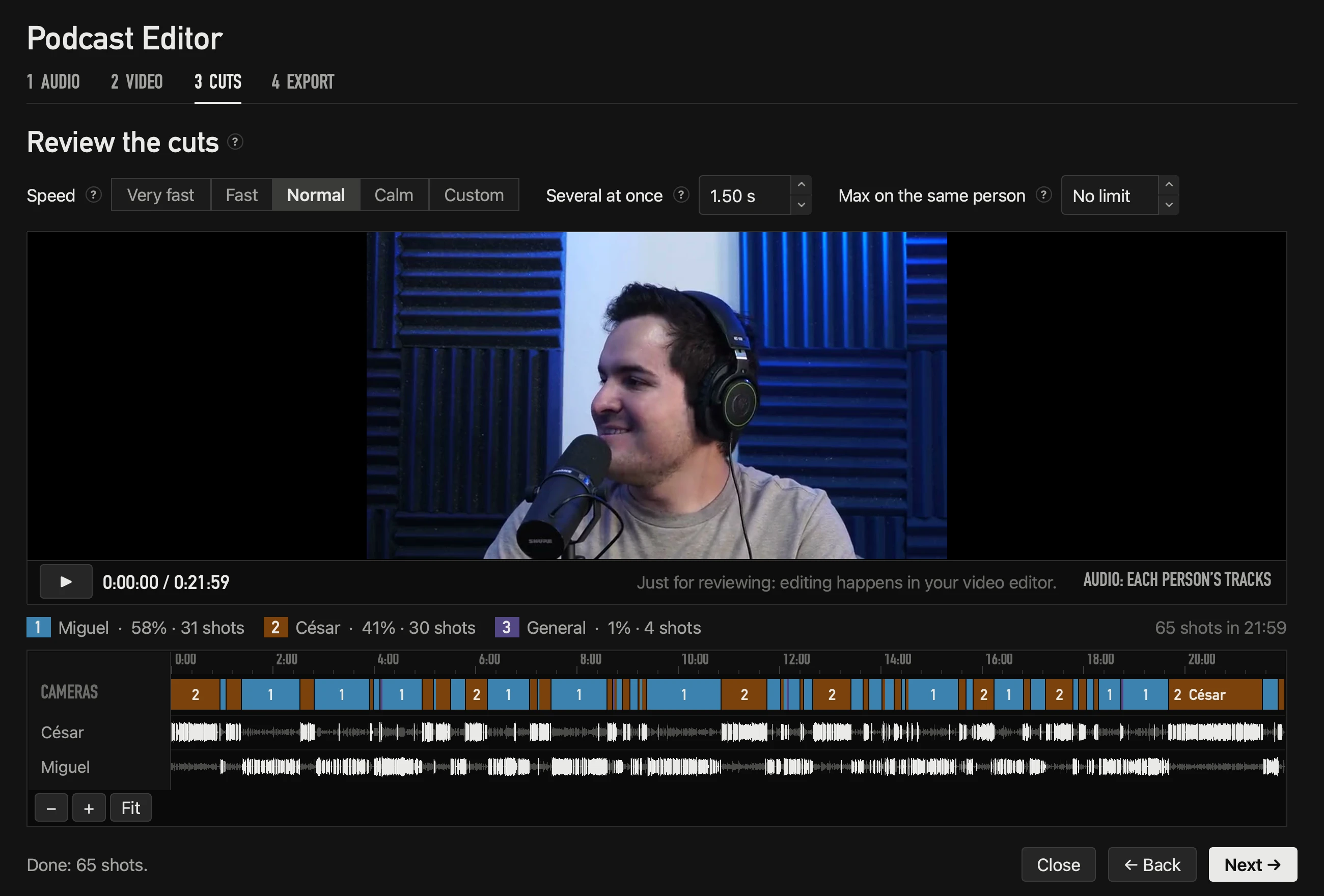
22 minutes · 65 cuts · calculated on their own
What you need
Your recordings and a Mac.
- 1
Each person’s audio
One file per person, or a multitrack file with each person on their own track — from your recorder, your console or your audio editor.
- 2
Each camera’s video
From any camera or phone that records its own file, vertical videos too. Synced by timecode or by sound: no clap needed.
- 3
A Mac
With Apple silicon (M1 or later) and macOS 14 Sonoma or later. Your files stay on the Mac.
What you don’t need
- A clap to sync
- Syncing cameras by hand
- Cutting shot by shot
- Anything connected to the Mac
How it works
Four steps: audio, video, cuts, export.
- 1
Audio
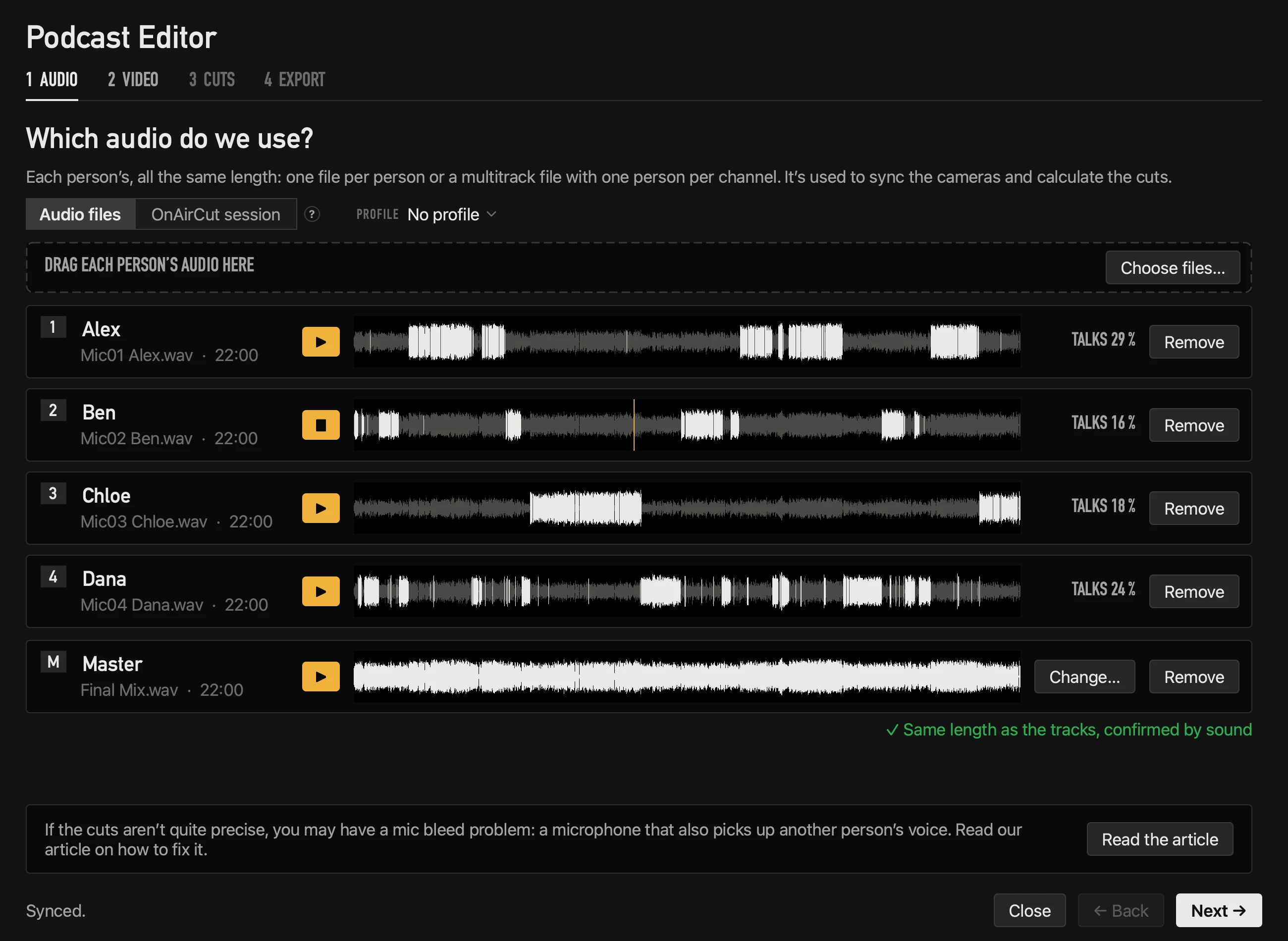
Drop one file per person or a multitrack file — or an OnAirCut session, if you used the Live Switcher. Your final mix can go on top as the master track (from Auphonic, for example). Each track plays on its own, so you can tell whose voice it is.
- 2
Video
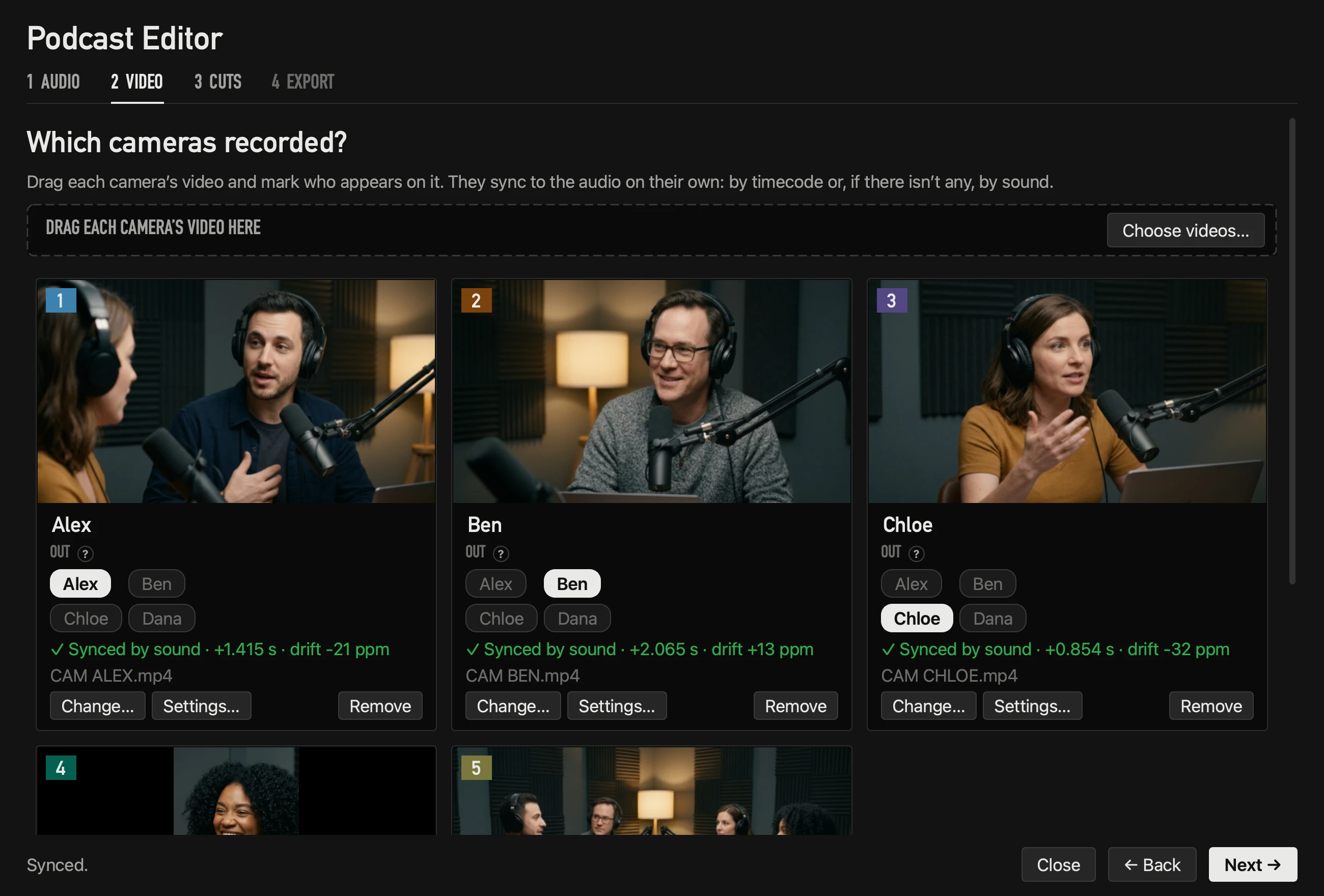
Drop each camera’s video. It syncs every camera by timecode or by sound — no clap needed — and corrects the drift between clocks. Vertical phone videos sit next to horizontal cameras.
- 3
Cuts
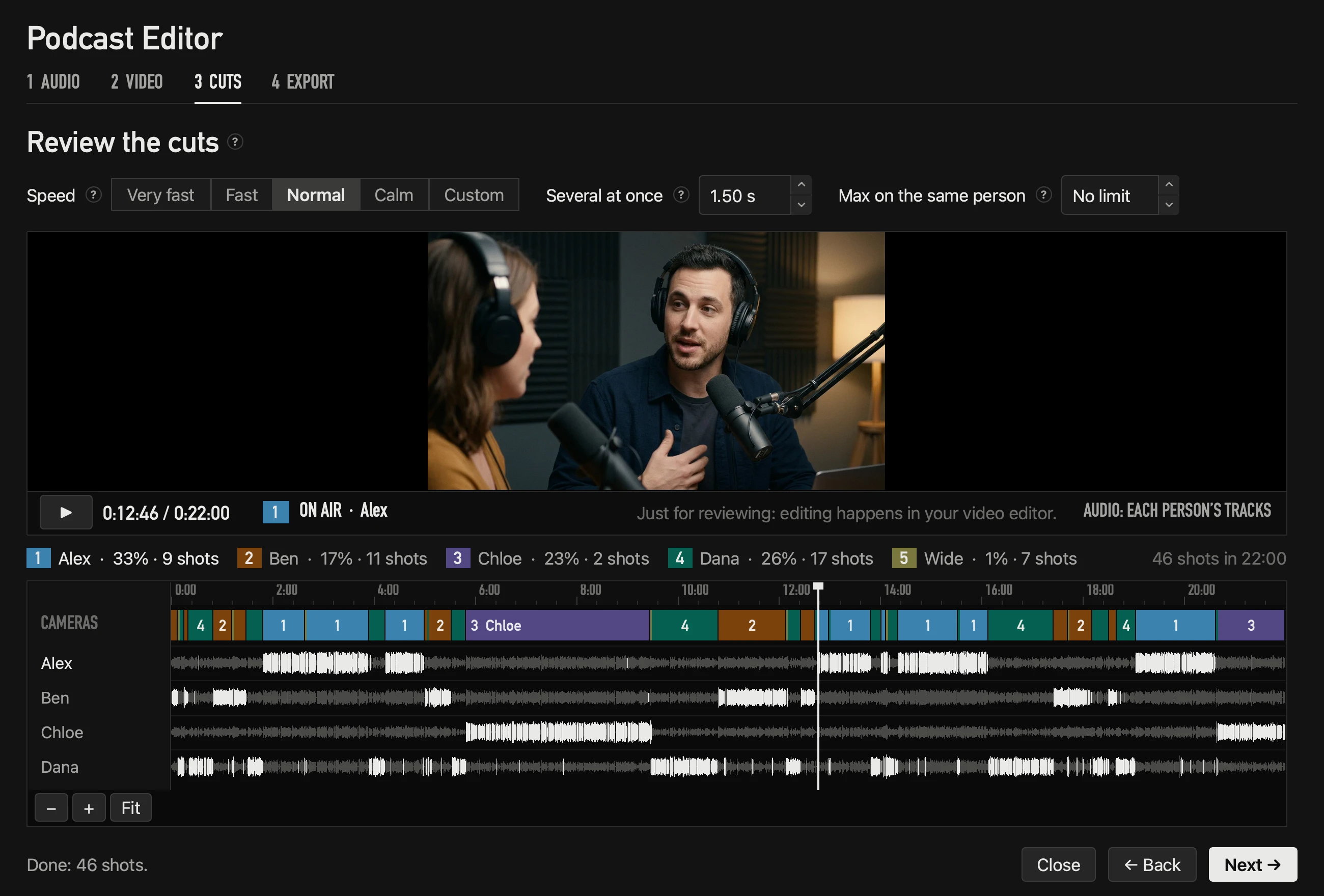
It hears the whole conversation and every cut lands where someone starts talking. Choose a pace — Very fast, Fast, Normal, Calm or Custom — and it recalculates in under a second. Watch and hear the edit before exporting.
- 4
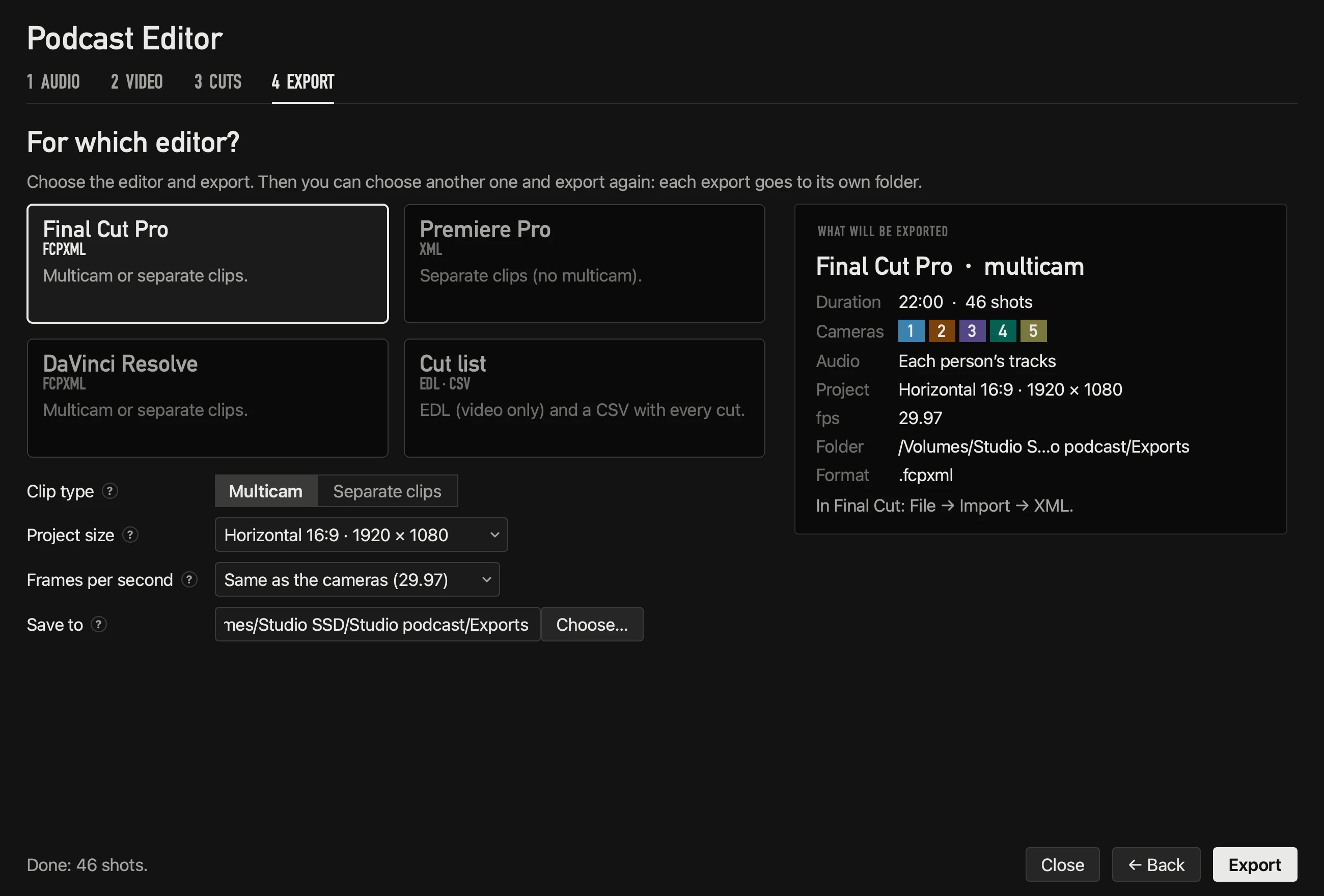
Export
Choose your editor: a multicam clip or separate clips for Final Cut Pro and DaVinci Resolve, a sequence with each camera on its own track for Premiere Pro, or an EDL and a CSV cut list. Every export goes to its own folder.
Sync
No clap, no drift.
Every camera is synced by timecode or by sound, to a fraction of a millisecond, and the small clock difference that builds up over a long recording is corrected. From 23.976 to 60 frames per second, drop frame respected.
Sync podcast cameras without a clap →What it opens
- Audio
- WAV, AIFF, M4A, MP3, CAF, FLAC, Opus and AAC
- Video
- MOV, MP4, M4V, MXF, MTS, M2TS, MKV from OBS, BRAW and WebM
Before exporting, it checks what your editor can open: if it can’t, it tells you first, or makes a copy at the same quality in the export folder. Your original files are never touched.
Specifications
Everything the Podcast Editor does.
Mac and licence
- Mac
- Apple silicon (M1 or later), macOS 14 Sonoma or later
- Languages
- English and Spanish
- Licence
- 2 Macs at once, 10 changes every 30 days
- Offline
- Keeps working 14 days since the last check
Podcast Editor
- Audio in
- One file per person (WAV, AIFF, M4A, MP3, CAF, FLAC, Opus, AAC), a multitrack file or an OnAirCut session
- Video in
- MOV, MP4, M4V, MXF, MTS, M2TS, MKV, BRAW and WebM — vertical phone videos too
- Master track
- Your final mix on top (from Auphonic, for example), synced by sound
- Sync
- By timecode or by sound, to a fraction of a millisecond, drift included
- Frame rates
- 23.976, 24, 25, 29.97, 30, 50, 59.94 and 60 — drop frame respected
- Cuts
- From the whole conversation; change a setting and they recalculate in under a second
- Preview
- Watch and hear the edit before exporting
Export
- Final Cut Pro
- A multicam clip — change any angle with one click — or separate clips
- Premiere Pro
- A sequence with each camera on its own track
- DaVinci Resolve
- The same FCPXML, as a multicam clip or separate clips
- Any editor
- EDL (video, one track) and a CSV list of cuts
- Unused footage
- Keep it disabled on each camera’s track, cut it out, or put everything on one track
- Every export
- Its own folder, never written over another
Questions
Before you download.
Which cameras can I use? +
Any camera or phone that records its own file, vertical videos too: MOV, MP4, M4V, MXF, MTS, M2TS, MKV, BRAW or WebM. Each one is synced by timecode or by sound.
Which editors does it work with? +
Final Cut Pro, Premiere Pro and DaVinci Resolve. For any other editor, an EDL (video, one track) and a CSV list of cuts.
Is it a plugin? +
No. It’s a separate Mac app that doesn’t open inside your editor: it hands it a finished timeline. In Final Cut Pro you import it with File → Import → XML.
What audio does it need? +
One file per person, or a multitrack file with one person per channel, so it hears each voice on its own. Your final mix can go on top as the master track.
How does it sync the cameras? +
By timecode or by sound, so you don’t need a clap. It also corrects the drift between each camera’s clock and the audio over a long recording. Sync podcast cameras without a clap
Can I mix phone videos with cameras? +
Yes. Vertical phone videos sit next to horizontal cameras, each one whole and upright in Final Cut Pro, Premiere Pro and DaVinci Resolve. The project is 16:9 by default; a vertical version is one choice in the export step.
How long does it take? +
About 100× faster than real time. After you change a setting, the cuts recalculate in under a second.
Does it touch my original files? +
Never. If your editor can’t open a file — an MKV from OBS in Final Cut, for example — it makes a copy at the same quality in the export folder. Every export goes to its own folder, never over another.
Is it AI? +
No. It’s an algorithm tuned, little by little, on the podcasts of César, who makes OnAirCut. The audio is analysed on your Mac and never leaves it.
Do I pay for each app? +
No. OnAirCut is two apps in one: the Podcast Editor and the Live Switcher come in the same plan. It’s free until January 7, 2027 (public beta until December 24, then a 14-day free trial); after that, 19 USD a month or 190 USD a year.
From the blog
Multicam editing, step by step.
Editing
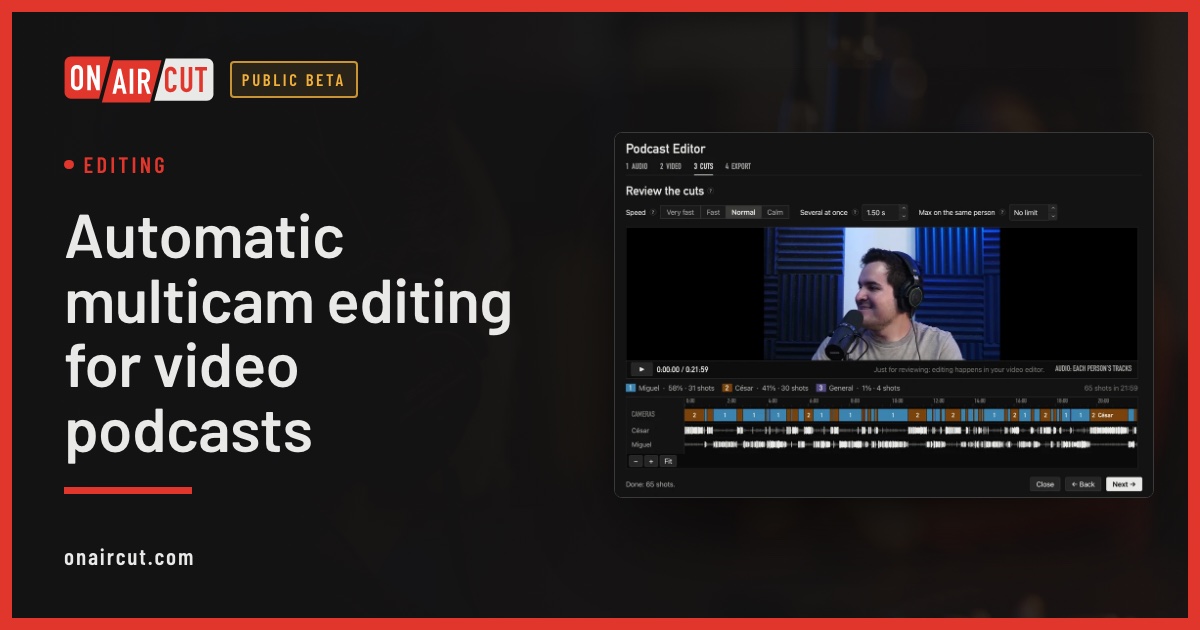
Automatic multicam editing for video podcasts
Build a video podcast’s multicam edit automatically from each person’s audio, for Final Cut Pro, Premiere Pro or DaVinci Resolve. Four steps.
Read →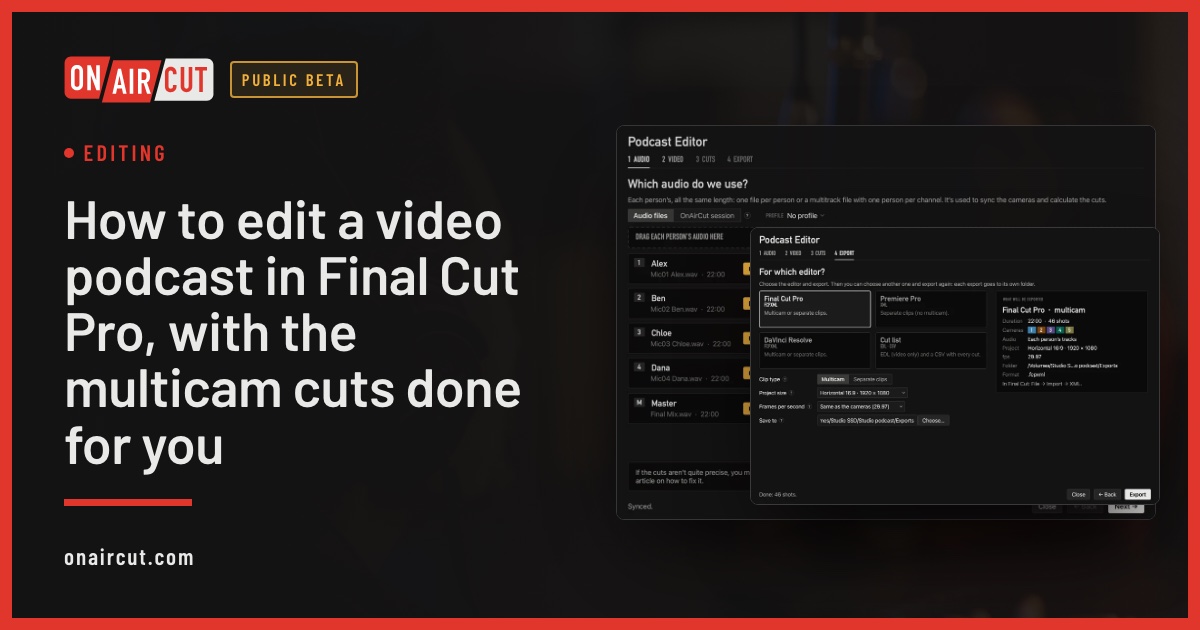
Editing
How to edit a video podcast in Final Cut Pro, with the multicam cuts done for you
How to edit a video podcast in Final Cut Pro: sync your cameras and get the multicam cuts made from who is talking. Step by step, with screenshots.
Read →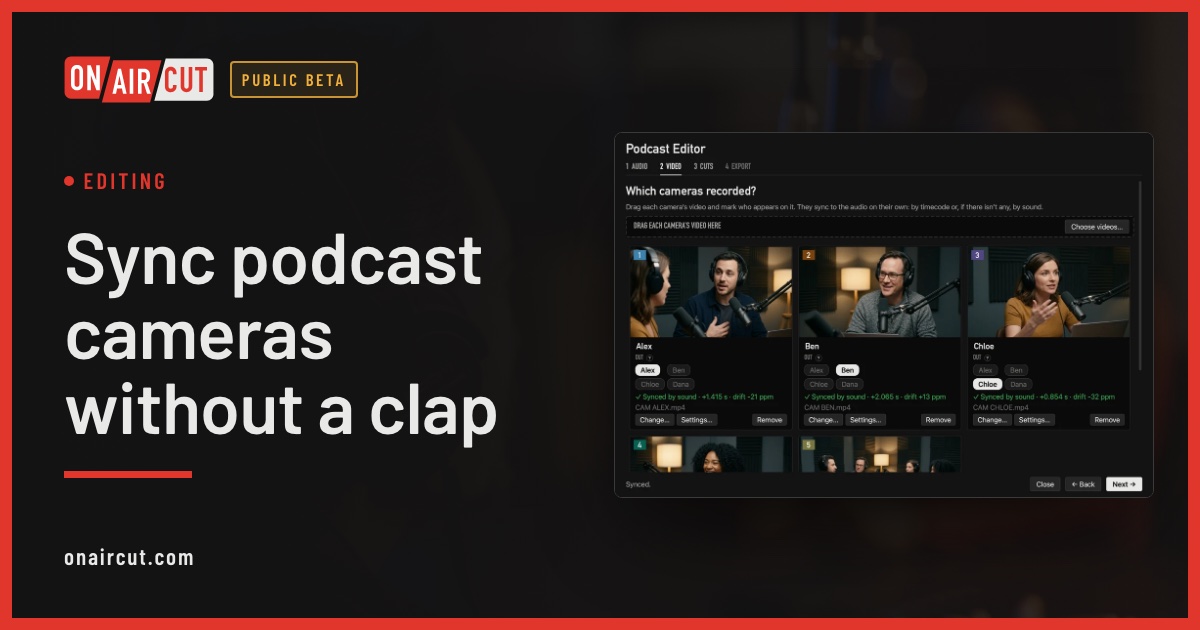
Editing
Sync podcast cameras without a clap
How to sync a video podcast’s cameras with each person’s audio without clapping: by timecode, by sound, and correcting the clock drift of each camera.
Read →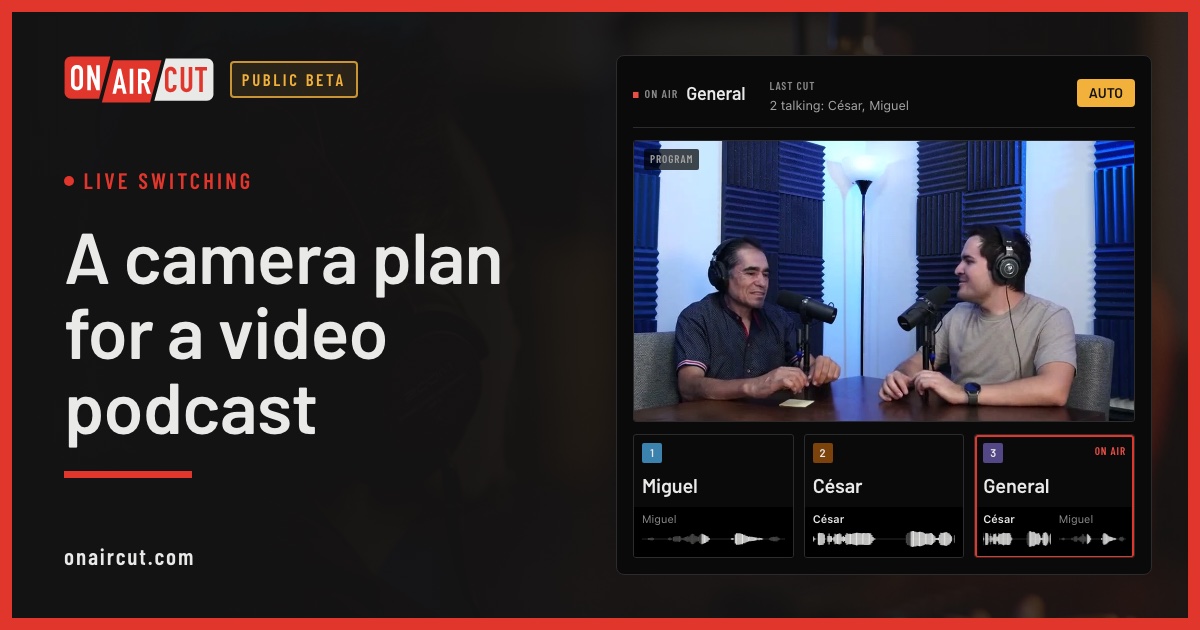
Live switching
A camera plan for a video podcast
How many cameras a video podcast needs, what each should show and how to frame them, for two or three people — and how OnAirCut uses each one.
Read →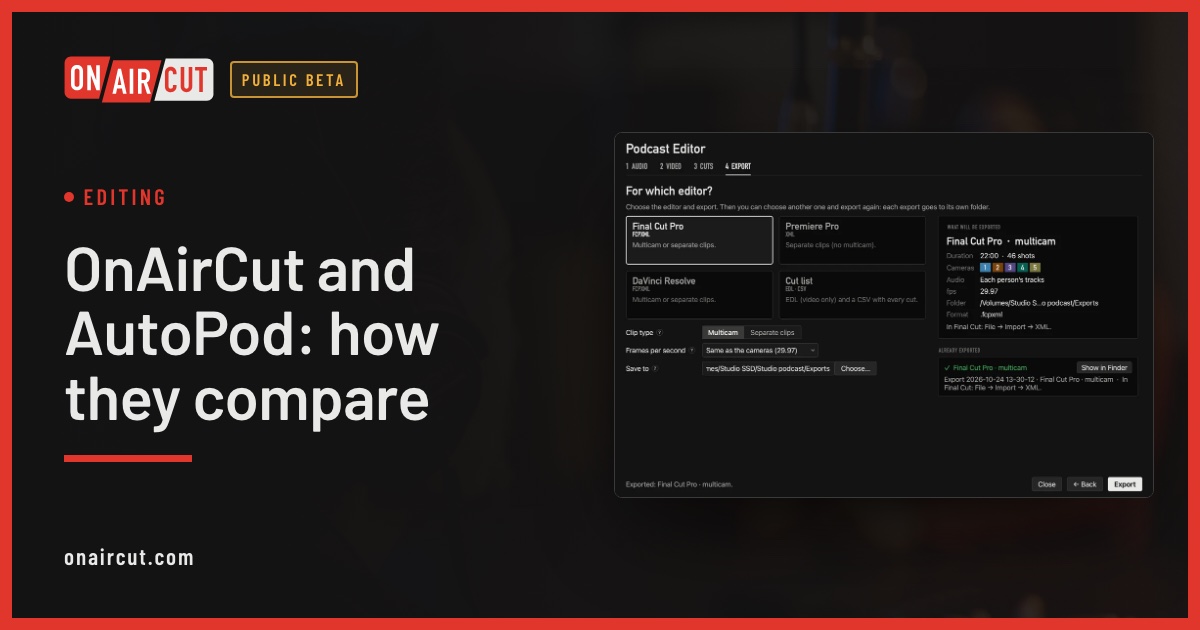
Editing
OnAirCut and AutoPod: how they compare
OnAirCut and AutoPod both build a video podcast’s multicam edit automatically. Where each one runs, what it does, what it costs and which fits your setup.
Read →Raw tracks the other voice −22 dB
After Auphonic the other voice −70 dB
Audio
Remove mic bleed and clean up your podcast audio with Auphonic
Our studio’s exact Auphonic Multitrack settings to remove mic bleed, background noise and room echo from a podcast — step by step, with screenshots.
Read →Two apps in one
Do you also stream live?
The Live Switcher comes with it, in the same plan: it switches the cameras to whoever is talking while you stream, and its session opens here, ready for your editor.
On air
Start your edit with the cuts done.
With the cameras and recorders you already have. Final Cut Pro, Premiere Pro and DaVinci Resolve.
macOS 14 or later · Apple silicon Notarized by Apple